Video Generation
Start from the creative brief, the script, and the AI storyboard, then complete subtitles and voiceover, brand cards, Chinese and English versions, scene-by-scene refinement, final video rendering, and saving to the asset library.
Understand the generation workflow
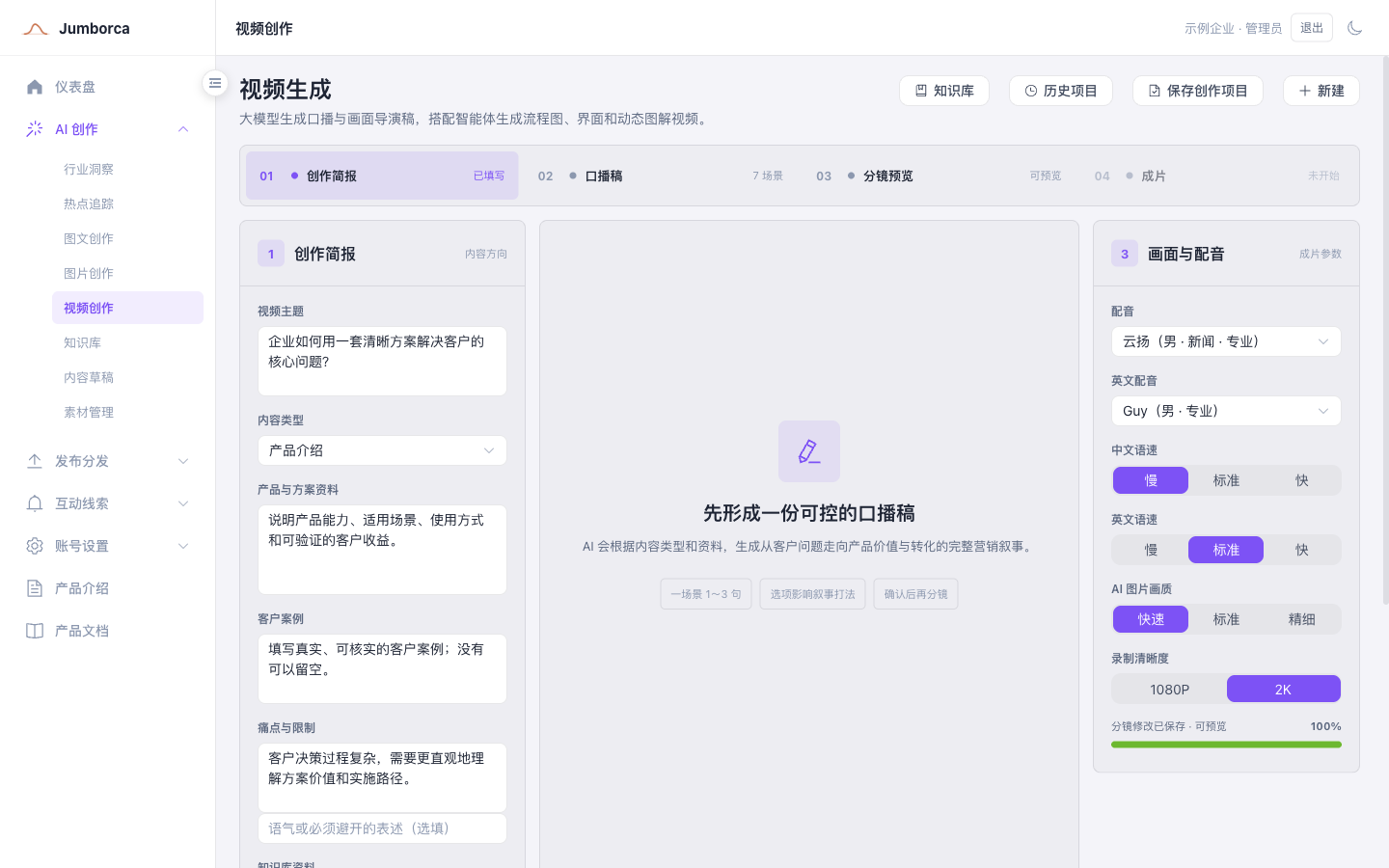
Video generation has four stages: creative brief, script, storyboard preview, and final video. The first two stages decide the content and the narrative, the storyboard stage decides the visuals, subtitles, and audio, and only the final rendering stage outputs the MP4. Working in stages lets you find problems before rendering, so you do not have to rebuild the whole video every time you edit the text.
What the system generates is a set of playable animated scenes, not just a sequence of static images. Each scene can contain titles, data, processes, interfaces, graphics, assets, and animation, and its playback and subtitle timing follow the actual voiceover duration.
"Storyboard generated successfully" means the storyboard is ready to preview and edit; it does not mean the MP4 is finished. The video is only saved to the asset library after you run the render and the final video is reported as complete.
Fill in the creative brief
- Enter a clear video topic, and state what you want viewers to understand, believe, or do.
- Choose the content type, and add your product solution, customer cases, pain points and constraints, and any wording that must be avoided.
- Select the knowledge base materials to cite. The system retrieves the relevant passages first, then carries the useful content into the script and the storyboard.
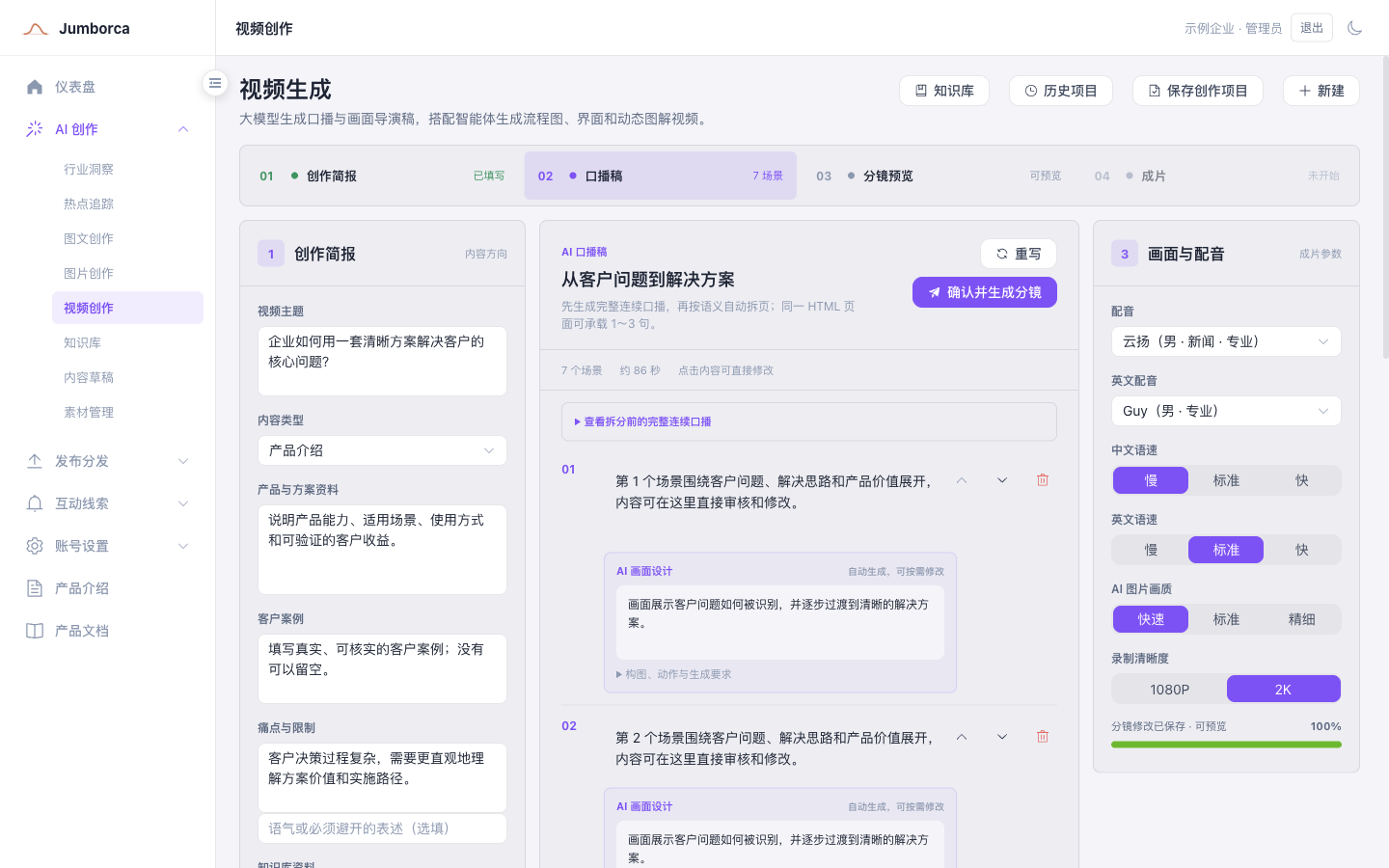
- Set the target duration. The system first generates one continuous script, then splits it by meaning into scenes of one to three sentences each.
- Turn on "Generate English version in sync" when you need an English final video. The English version follows the Chinese storyline and visual structure, but its wording, voiceover, subtitles, and render duration are generated separately.
Review the script and the visual direction
The script is the shared source for the voiceover, subtitles, and storyboard that follow. Once it is generated, check each section for facts, numbers, product capabilities, cases, and calls to action; edit the scene text directly, then move on to storyboard generation.
For each scene you can also add the visual design, composition, key actions, and asset requirements. Describe what the viewer actually sees, how the information appears, and what matters most on that page, instead of writing only abstract words such as "premium", "high-tech", or "good-looking".
- Too many scenes fragments the pacing; too much text on a single page crowds the subtitles and overloads the visuals.
- When citing policy, data, or cases, keep a verifiable source, and avoid presenting industry opinion as established fact.
- For the English version, check the terminology, brand names, and tone, not just whether the text is literally translated in full.
Generate and check the storyboard
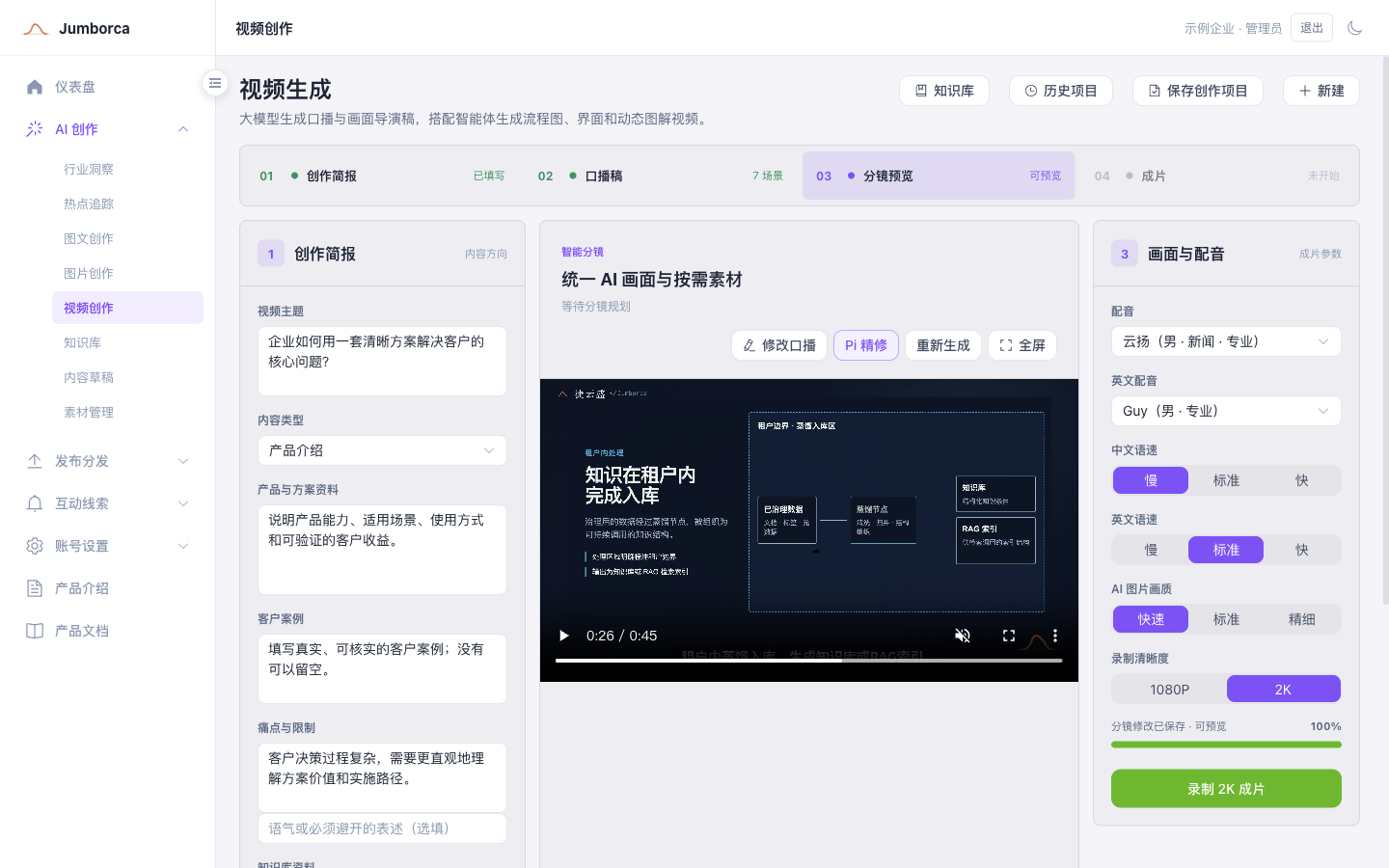
- Click to confirm and generate the storyboard, then wait for the voiceover, subtitle timings, AI scenes, and brand cards to finish generating.
- Play from the beginning in the preview area, and check each scene for titles, text hierarchy, graphic relationships, animation pacing, and asset clarity.
- Use the scene selector to locate the page with the problem. Regular scenes can go into single-scene refinement with Pi; fixed brand cards should be maintained in the video branding configuration instead.
- A refinement is previewed as a candidate version first, and saved as the official storyboard only after you confirm it. Once you save a visual change, any existing final video has to be rendered again.
When refining, describe the specific problem. For example, "the process nodes on the right overlap the title, shrink the process and keep the three columns aligned" gives more reliable results than "make this page better".
Adjust the voiceover and subtitles
Choose a voice and speech rate in the matching language for the Chinese and English versions separately. After changing the global voice or speech rate, click Update voiceover first; the system keeps the existing HTML visuals and regenerates only the audio, the subtitle timings, and the scene durations.
When editing a single scene, "Save subtitles only" does not change the voiceover; editing the script and updating the voiceover for the current scene regenerates that scene's audio and updates its subtitles at the same time. The two serve different purposes, so do not use a subtitle edit as a substitute for fixing the script.
- Play the video in full and check whether the voice sounds natural and whether proper nouns, numbers, and English abbreviations are pronounced correctly.
- Check that the subtitles fit on one line, break sensibly, and match the actual speaking time.
- Use a Chinese voice for a Chinese script and an English voice for an English script; a mismatch between language and voice can make the voiceover fail or sound wrong.
- After changing the length of the script, check the pacing of the scene again so that the visuals do not end too early or linger too long.
Brand cards and the Chinese and English versions
Brand cards read the video branding configuration of the current tenant, including the brand name, logo, colors, ending title, description, and call to action. Configure the brand information before generating; fixed brand cards are not edited directly in single-scene refinement.
The synchronized English version reuses the HTML, CSS, animation, and images of the Chinese master storyboard, replacing only the on-page text with English and using a separate English voiceover and subtitles. This keeps the two versions visually consistent while allowing the English wording to be localized more naturally.
Render the final video and use it afterwards
- Confirm that no visual change is still waiting to be regenerated, and that the voice and speech rate have been updated.
- Choose 1080P or 2K resolution and start the render; when both Chinese and English tasks exist, the two versions are rendered separately.
- Wait for the task to finish, and do not click render repeatedly. If you close the page, you can continue to check progress from your project history or the task status.
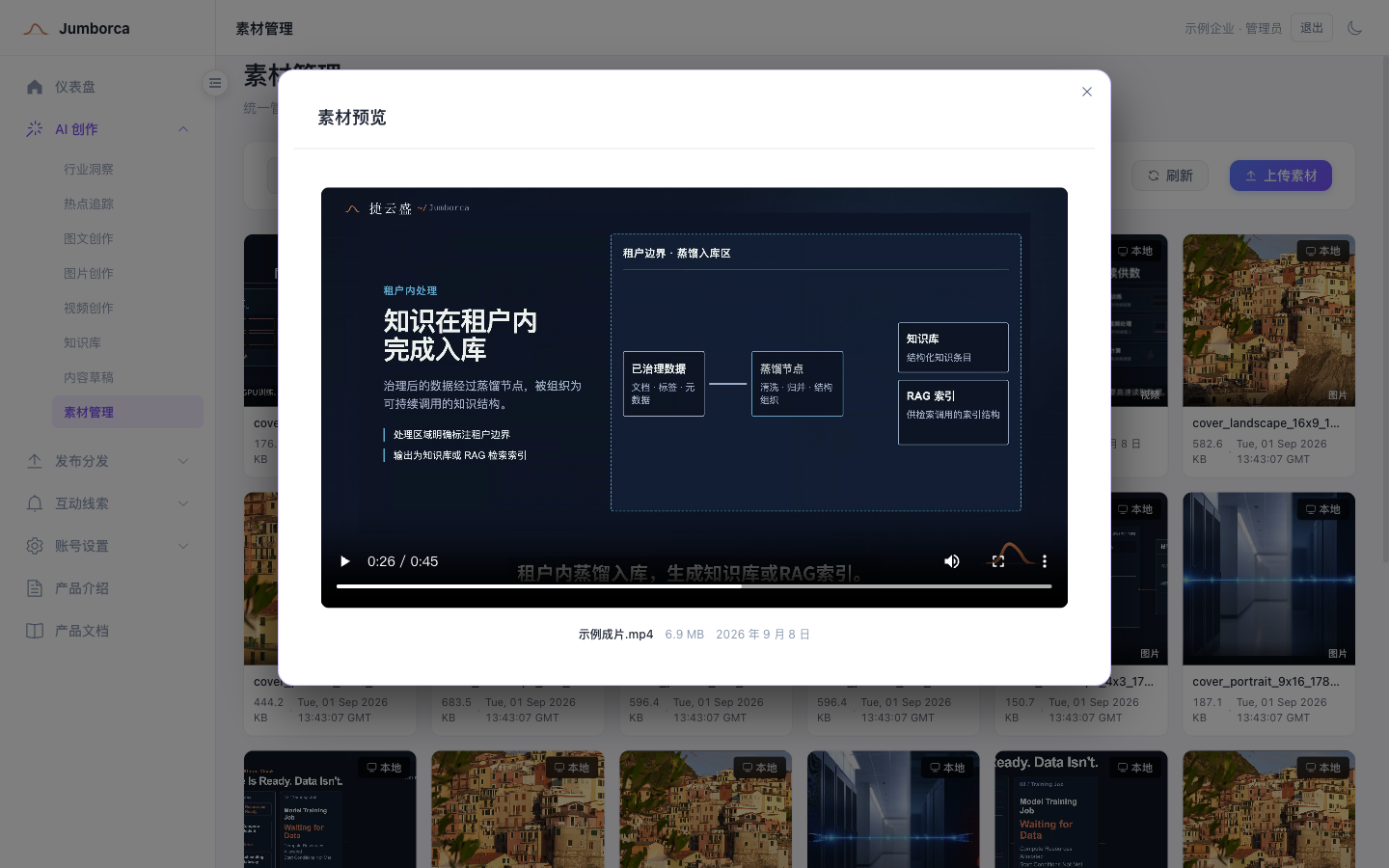
- Once the final video is ready, spot-check it in the online player before downloading the MP4. The system also saves the final video to the asset library, ready for publishing.
- To change the resolution or correct the content, make your changes and render again; the new final video reflects the latest storyboard and audio.
Final video checklist
- The opening states the topic quickly, and the scene order follows the logic of the script.
- No overlapping or cut-off text, blank frames, wrong images, or blurry assets on any page.
- The subtitles, the voiceover, and the visual pacing are in sync, with no sentences cut off at the end.
- Brand names, product names, numbers, and calls to action match between the Chinese and English versions.
- The logo, QR code, contact details, and brand copy in the ending are correct and still valid.
- You have the rights to use the cited materials, images, music, fonts, and cases externally.
Common issues
- Voiceover fails: first confirm that the script language matches the selected voice, then check the network and service status.
- Subtitles out of sync with the audio: regenerate the voiceover for that scene instead of only editing the subtitle text, then play from the beginning to verify.
- Overlapping text in the storyboard: refine the scene in question, and state clearly which elements overlap, where they should go, and what information must be kept.
- Render button unavailable after an edit: follow the on-screen prompt to regenerate the storyboard or update the voiceover first, then render the final video.
- A task shows no change for a long time: check its status in your project history or the task center, note the task ID, and then contact your administrator.