Dashboard and Members
Use the dashboard to stay on top of your operations, and use tenant and member management to control who can reach the workspace.
Check Operational Status
The dashboard summarizes open items, high-intent leads, lead status, and the day's publishing activity, and gives you shortcuts to AI creation, engagement notifications, and the lead pool. If the data looks wrong, first confirm the current tenant and the reporting time range.
Manage Members
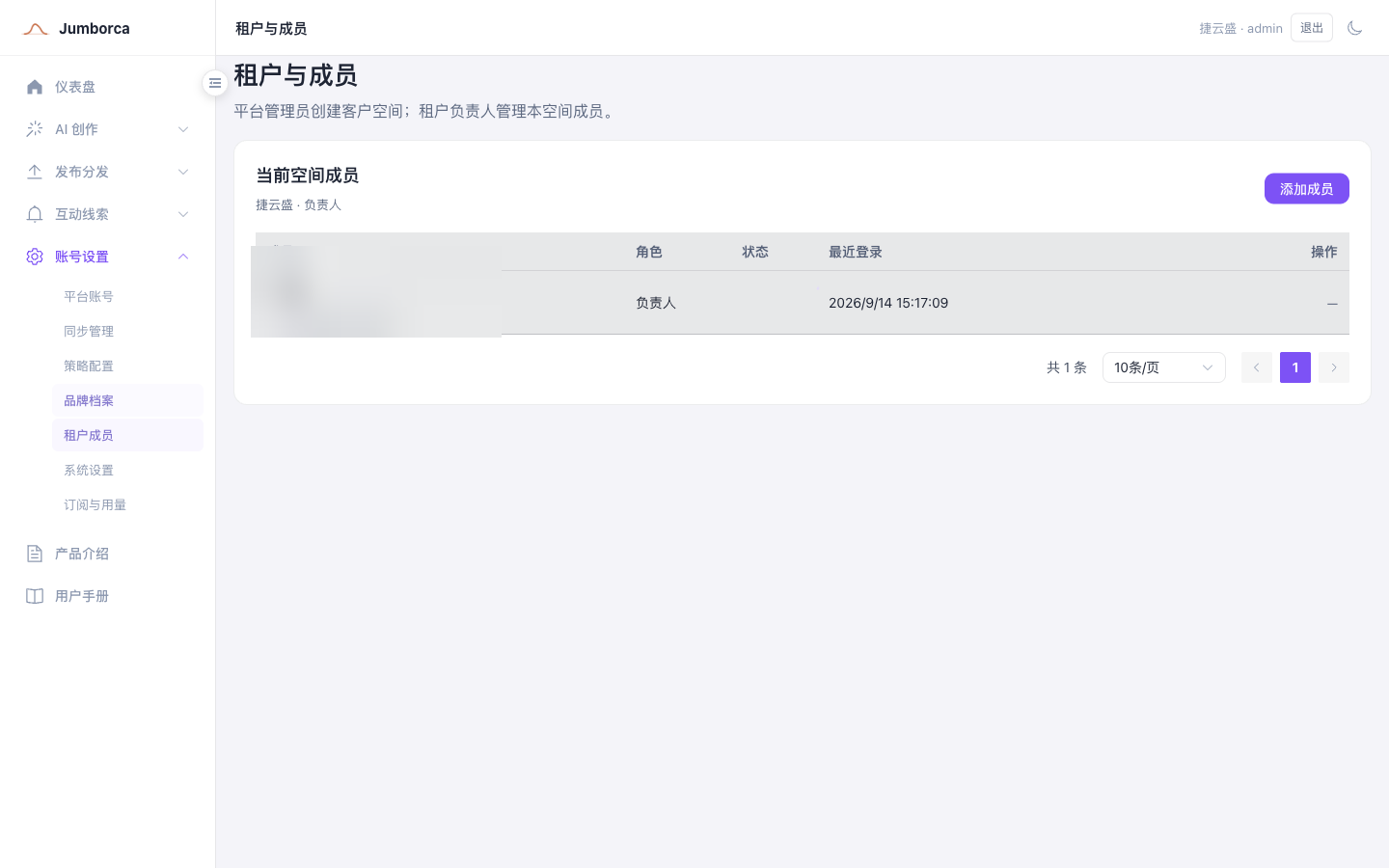
- Go to Tenant Members under Account Settings.
- Add members and assign roles that match their responsibilities.
- After a member signs in for the first time, confirm that they can only see the company data and features they are authorized for.
- When someone leaves or their responsibilities change, deactivate the account promptly and hand over any unfinished work.
Data Boundaries
Note
Data in different tenants is isolated by default. Do not create a duplicate tenant just to change a company name. Changes to company or brand information should be maintained in the brand profile.