Resource Navigation
Resources
This module unifies the management of data center infrastructure hardware resources, including
servers, networking devices, and storage systems. The management platform has a root cloud resource node named Resources. To manage physical resources through the management platform, you must manually add the resources to the root node. The following figure shows the relationship between the cloud resource management nodes.
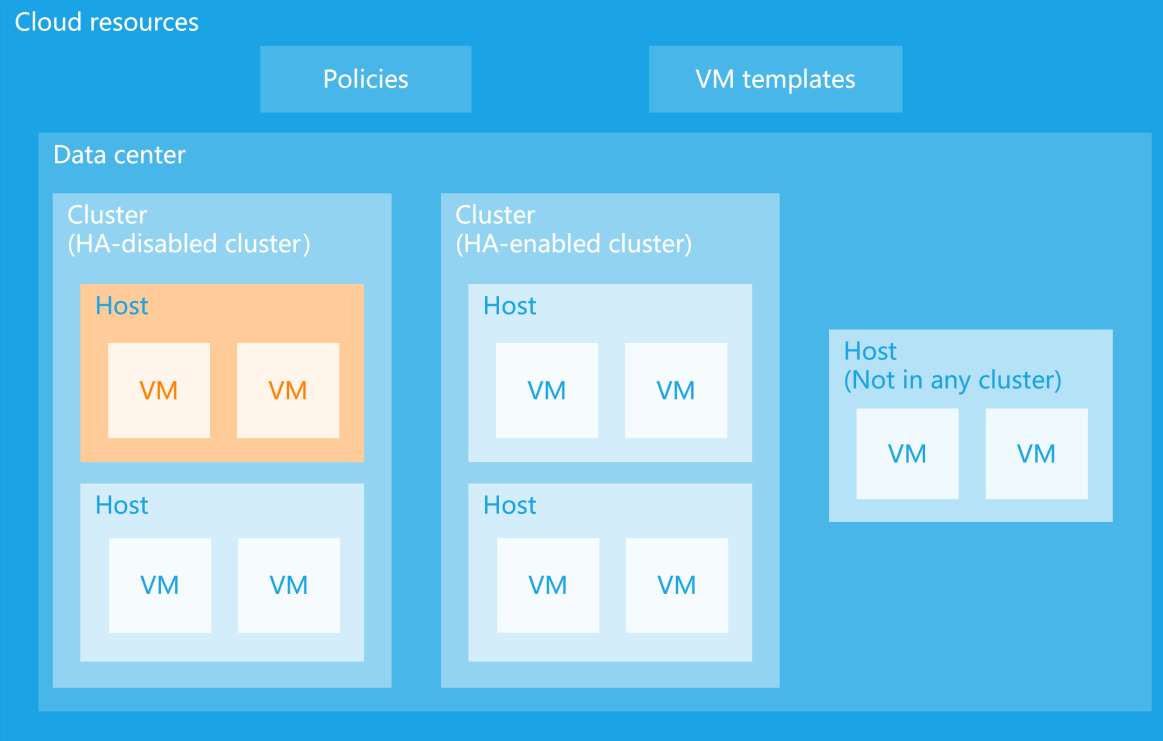
A host can be managed by the management platform only after you add the host to a data center. You can create clusters in a data center and add a host to a cluster for management. You can configure high availability settings for hosts in a cluster. After you enable high availability for a cluster, the management platform performs real-time monitoring on all hosts and VMs in the cluster. When a host or VM fails, the management platform migrates the VMs on the host or the VM to other hosts in the cluster. A host refers to a physical server that runs the virtualization software and provides resources to VMs.
A VM is an emulation of a computer system that operates independently and provides full hardware functionality. You can configure system policies such as backup policies and snapshot policies, and then apply the policies to VMs.
Restrictions and guidelines
In role-based access control (RBAC) mode, a system administrator can manage and configure resources. A security administrator can view and export hosts and VMs and configure port profiles.
Features
Cloud resource management provides the following features:
• View cloud resources
• Manage data centers
• Manage clusters
• Manage hosts
• VMs
• Back up management platform data
• Intelligent resource prediction
• Manage host profiles
• Host driver rules
• Monitoring policies
• Manage MAC address pools
View cloud resources
• View cloud resource summary
• View hosts
• View VMs
• View cloud resource operation logs
View cloud resource summary
Perform this task to view detailed cloud resource configuration information in the system.
Procedure
-
On the top navigation bar, click Compute.
-
From the left navigation pane, select Resource Navigation > All > Resources.
Parameters
• Basic Info: Detailed cloud resource configuration information.
○ Data Centers: Number of data centers.
○ Clusters: Number of clusters.
○ VM Density: Average number of VMs on each host.
○ Total CPU Cores: Number of CPU cores on all hosts.
○ Total Memory: Total memory size of all hosts.
○ Local Storage: Total local storage size of all hosts.
○ Available Storage: Total available local storage size of all hosts.
• Host Statistics: Total number of hosts and number of hosts in each state (including normal, abnormal, maintain, and quarantine).
• VM Statistics: Total number of VMs and number of VMs in each state (including normal and shutdown).
• Alarms: Total number of alarms in the system and number of alarms for each alarm level (including critical, major, minor, and info).
• Top 5 Hosts by CPU Usage: Statistics about the five hosts with the highest CPU usage values. You can click the name of a host to access the management interface of that host.
• Top 5 Hosts by Memory Usage: Statistics about the five hosts with the highest memory usage values. You can click the name of a host to access the management interface of that host.
• Top 5 Hosts by Network Throughput: Statistics about the five hosts with the highest network throughput values. You can click the name of a host to access the management interface of that host.
• Top 5 Hosts by Disk Requests: Statistics about the five hosts with the highest number of disk access requests. You can click the name of a host to access the management interface of that host.
• Top 5 VMs by CPU Usage: Statistics about the five VMs with the highest CPU usage values. You can click the name of a VM to access the management interface of that VM.
View hosts
Perform this task to view host information.
Procedure
-
On the top navigation bar, click Compute.
-
From the left navigation pane, select Resource Navigation > All > Resources.
-
Click the Hosts tab.
-
(Optional.) To change the display mode, click List View or Tile View.
-
(Optional.) To export host information, click Export, select the desired file format, and then click OK.
-
(Optional.) To perform bulk operations on hosts, select the target hosts, and then click Bulk Actions. For more information, see "Configure multiple hosts in bulk."
Parameters Host list
• Name: Name of the host.
• State: Current state of the host.
• Host Role: Role of the host in the cluster or data center.
• Host Type: Type of the host in the cluster. This parameter is displayed only after you select it in the custom column.
• Management IP: Management IP address used by the host.
• VM Summary: Number of VMs on the host, including VMs in running state and VMs in shutdown state.
• CPUs: Total number of CPU cores on the host.
• Memory: Memory size of the host.
• Disk Size: Local disk size of the host.
• CPU Usage: CPU usage of the host in real time.
• Memory Usage: Memory usage of the host in real time.
• Disk Usage: Disk usage of the host in real time.
• Uptime: Uptime of the host.
• Platform: Virtualization platform that the host uses. Only CVK is supported in the current software version.
View VMs
Perform this task to view VM information.
View VM information
-
On the top navigation bar, click Compute.
-
From the left navigation pane, select Resource Navigation > All > Resources.
-
Click the VMs tab.
-
To display the VM list in full screen mode, click Full Screen in list view. To exit full screen mode, press Esc.
-
(Optional.) To export VM information, click Export, select the desired file format, and then click OK.
-
(Optional.) To perform bulk operations on VMs, select the target VMs, and then click Bulk Actions. For more information, see "Perform bulk operations for VMs."
Customize column display settings
Perform this task to customize the VM information to be displayed. After you perform this task in a data center, the customized column display settings will apply to all VM tabs under that resource pool.
-
On the top navigation bar, click Compute.
-
From the left navigation pane, select Resource Navigation > All > Resources.
-
Click the VMs tab.
-
Click the Customize Columns button, and then perform the following operations as needed:
○ Select whether to display a column.
○ Set the width of a column.
○ Adjust the sequence of columns by dragging.
○ Reset the column display settings to the default.
-
Click OK.
Parameters
• Alias: Alias of the VM.
• Description: VM description.
• Host: Name of the host to which the VM belongs.
• State: Current state of the VM.
• CPUs: Total CPU cores of the VM.
• Memory Size: Memory size of the VM.
• CPU Usage: CPU usage of the VM in real time.
• Memory Usage: Memory usage of the VM in real time.
• Operating System: Operating system of the VM. Only Windows and Linux operating systems are supported in the current software version. ARM hosts support only NeoKylin, Kylin, and UOS Linux operating systems.
• Name: Name of the VM. By default, the system does not display this column. To display it, click Customize Columns and enable displaying this column.
• IPv4/IPv6 Attributes: IPv4/IPv6 attributes of the VM’s NIC. By default, the system does not display this column. To display it, click Customize Columns and enable displaying this column. To view detailed IPv4/IPv6 attribute information, click the IP address in the IPv4/IPv6 Attributes column. For IPv4 attributes, if the VM is not installed with VMPtools, the subnet mask cannot be obtained.
• Advanced NUMA Policy: Whether an advanced NUMA policy is configured for the VM, including auto NUMA node binding and exclusive use of resources. By default, the system does not display this column. To display it, click Customize Columns and enable displaying this column.
• VMPtools Version: VMPtools version. This field is available only for VMs installed with VMPtools. By default, the system does not display this column. To display it, click Customize Columns and enable displaying this column.
• VMPtools State: VMPtools state. This field displays Running if the VM is installed with VMPtools and the VMPtools is in running state. This field displays Not Running if the VM is not installed with VMPtools. This field displays two hyphens (--) if the VM is shut down. By default, the system does not display this column. To display it, click Customize Columns and enable displaying this column.
• Uptime: Uptime of the VM. By default, the system does not display this column. To display it, click Customize Columns and enable displaying this column.
• Created At: Time when the VM was created. By default, the system does not display this column. To display it, click Customize Columns and enable displaying this column.
• Last Shutdown Time: Time when the VM was last shut down. By default, the system does not display this column. To display it, click Customize Columns and enable displaying this column.
• Time Synchronization: Whether time synchronization is configured for the VM. By default, the system does not display this column. To display it, click Customize Columns and enable displaying this column.
• Disk Capacity: Disk capacity of the VM. By default, the system does not display this column. To display it, click Customize Columns and enable displaying this column.
• Available Capacity: Available disk capacity of the VM. By default, the system does not display this column. To display it, click Customize Columns and enable displaying this column.
• Used Capacity: Used disk capacity of the VM. By default, the system does not display this column. To display it, click Customize Columns and enable displaying this column.
• Anti-Virus: Anti-virus service state of the VM. ARM hosts do not support the anti-virus service. By default, the system does not display this column. To display it, click Customize Columns and enable displaying this column.
• VM UUID: UUID of the VM. By default, the system does not display this column. To display it, click Customize Columns and enable displaying this column.
• Memory Ballooning State: Whether memory ballooning is enabled for the VM. By default, the system does not display this column. To display it, click Customize Columns and enable displaying this column.
• HA State: Whether HA is enabled for the VM. By default, the system does not display this column. To display it, click Customize Columns and enable displaying this column.
• CPU Frequency: CPU frequency of the VM. By default, the system does not display this column. To display it, click Customize Columns and enable displaying this column.
View cloud resource operation logs
Back up management platform data
Perform this task to back up management platform data in a backup file, including data center, HA, and
version information. When the management platform fails, you can quickly recover it by using the backup file without interrupting services. The backup operation result might be the following:
• Failed—The backup operation has failed and no backup file is generated.
• Succeeded—The backup operation has succeeded and a backup file containing the CVK configurations has been generated. The backup file can be used for restoration.
• Partially succeeded—The backup operation has partially succeeded and a backup file has been generated, but the system has failed to back up some of the CVK configurations. The
Intelligent resource prediction
• If the management platform uses a Tencent operating system, intelligent resource prediction is not supported.
• The predicted alarm time might differ from the actual alarm time.
Intelligence resource prediction continuously monitors the usage of all resources in the management platform and predicts resource loads within 30 days based on the resource usage and historical data. When the resource usage reaches the specified alarm threshold, the system generates alarms. This enables you to prepare for resource expansion, cost budgeting, and hardware selection. When the predicted resource usage reaches the warning threshold, take the following actions as a best practice:
• Resource reclamation and optimization—With the resource optimization and reclamation feature on the platform, the system can identify idle VMs, unused storage volumes, or low-load compute resources and reclaim resources occupied by inactive workloads to free up capacity and improve efficiency of resource pools.
• Resource expansion—If reclaimed resources still cannot meet business growth demands, purchase new servers, add storage pools, or migrate some service VMs to other clusters or platforms with sufficient resources. This balances resource pressure and ensures rational resource allocation and redundancy.
Features
• CPU resource prediction
• Memory resource prediction
• Storage resource prediction
CPU resource prediction
Restrictions and guidelines
You can perform a CPU resource prediction after the system runs for two days. To ensure the accuracy of the prediction results, perform the prediction after the system runs for at least 45 days.
Configure the CPU usage alarm threshold
The system generates alarms when the CPU usage reaches the specified threshold. To configure the CPU usage alarm threshold:
-
On the top navigation bar, click Compute.
-
From the left navigation pane, select Resource Navigation > All > Resources.
-
Click Intelligent Resource Prediction.
-
On the CPU Resource Prediction tab, click the icon to the right of the CPU Usage Threshold field.
-
Set the CPU usage alarm threshold.
-
Click OK.
Configure the CPU allocation ratio alarm threshold
The system generates alarms when the CPU resource allocation ratio reaches the specified threshold. To configure the CPU allocation ratio alarm threshold:
-
On the top navigation bar, click Compute.
-
From the left navigation pane, select Resource Navigation > All > Resources.
-
Click Intelligent Resource Prediction.
-
On the CPU Resource Prediction tab, click the icon to the right of the CPU Allocation Alarm Threshold field.
-
Set the CPU allocation ratio alarm threshold.
-
Click OK.
Predict the CPU allocation ratio alarm time
-
On the top navigation bar, click Compute.
-
From the left navigation pane, select Resource Navigation > All > Resources.
-
Click Intelligent Resource Prediction.
-
On the CPU Resource Prediction tab, select a start date, and then click Predict. As a best practice, do not select a date on which the system is not providing services (for example, deploying services after initialization) as the start date.
View the predicted alarm time
-
On the top navigation bar, click Compute.
-
From the left navigation pane, select Resource Navigation > All > Resources.
-
Click Intelligent Resource Prediction.
-
On the CPU Resource Prediction tab, view the predicted alarm time.
Parameters
• Total CPU: Total CPU cores of hosts in all data centers.
• CPU Allocation: Ratio between CPU cores used by VMs and total CPU cores.
• Predicted Allocation Alarm Time: Date when the CPU resource allocation ratio is predicted to reach the alarm threshold.
• CPU Usage: Real-time CPU usage of the VM.
• Predicated Usage Alarm Time: Time when the CPU usage is predicted to reach the alarm threshold.
Memory resource prediction
Restrictions and guidelines
You can perform a memory resource prediction after the system runs for two days. To ensure the accuracy of the prediction results, perform the prediction after the system runs for at least 45 days.
Configure the memory usage alarm threshold
The system generates alarms when the memory usage reaches the specified threshold. To configure the memory usage alarm threshold:
-
On the top navigation bar, click Compute.
-
From the left navigation pane, select Resource Navigation > All > Resources.
-
Click Intelligent Resource Prediction.
-
Click the Memory Resource Prediction tab.
-
Click the icon to the right of the Memory Usage Threshold field.
-
Set the memory usage alarm threshold.
-
Click OK.
Configure the memory allocation ratio alarm threshold
The system generates alarms when the memory resource allocation ratio reaches the specified threshold. To configure the memory allocation ratio alarm threshold:
-
On the top navigation bar, click Compute.
-
From the left navigation pane, select Resource Navigation > All > Resources.
-
Click Intelligent Resource Prediction.
-
Click the Memory Resource Prediction tab.
-
Click the icon to the right of the Memory Allocation Alarm Threshold field.
-
Set the memory allocation ratio alarm threshold.
-
Click OK.
Predict the memory allocation ratio alarm time
-
On the top navigation bar, click Compute.
-
From the left navigation pane, select Resource Navigation > All > Resources.
-
Click Intelligent Resource Prediction.
-
Click the Memory Resource Prediction tab.
-
Select a start date, and then click Predict. As a best practice, do not select a date on which the system is not providing services (for example, deploying services after initialization) as the start date.
View the predicted alarm time
-
On the top navigation bar, click Compute.
-
From the left navigation pane, select Resource Navigation > All > Resources.
-
Click Intelligent Resource Prediction.
-
Click the Memory Resource Prediction tab, view the predicted alarm time.
Storage resource prediction
Restrictions and guidelines
You can perform a storage resource prediction after the system runs for two days. To ensure the accuracy of the prediction results, perform the prediction after the system runs for at least 45 days.
Configure the storage usage alarm threshold
The system generates alarms when the storage resource usage reaches the specified threshold. To configure the storage usage alarm threshold:
-
On the top navigation bar, click Compute.
-
From the left navigation pane, select Resource Navigation > All > Resources.
-
Click Intelligent Resource Prediction.
-
Click the Storage Resource Prediction tab.
-
Click the icon to the right of the Storage Usage Alarm Threshold field.
-
Set the storage usage alarm threshold.
-
Click OK.
Configure the storage allocation ratio alarm threshold
The system generates alarms when the storage resource allocation ratio reaches the specified threshold. To configure the storage allocation ratio alarm threshold:
-
On the top navigation bar, click Compute.
-
From the left navigation pane, select Resource Navigation > All > Resources.
-
Click Intelligent Resource Prediction.
-
Click the Storage Resource Prediction tab.
-
Click the icon to the right of the Storage Allocation Alarm Threshold field.
-
Set the storage allocation ratio alarm threshold.
-
Click OK.
Predict the storage allocation ratio alarm time and storage usage alarm time
-
On the top navigation bar, click Compute.
-
From the left navigation pane, select Resource Navigation > All > Resources.
-
Click Intelligent Resource Prediction.
-
Click the Storage Resource Prediction tab.
-
Select a start date, and then click Predict. As a best practice, do not select a date on which the system is not providing services (for example, deploying services after initialization) as the start date.
View the predicted alarm time
-
On the top navigation bar, click Compute.
-
From the left navigation pane, select Resource Navigation > All > Resources.
-
Click Intelligent Resource Prediction.
-
Click the Storage Resource Prediction tab, view the predicted alarm time.
Parameters
• Total Storage: Total storage capacity of shared file systems in all data centers.
• Storage Allocation: Ratio between shared storage capacity used by VMs and total shared storage capacity.
• Predicted Allocation Ratio Alarm Time: Date when the storage resource allocation ratio is predicted to reach the alarm threshold.
• Storage Usage: Current storage usage.
• Predicted Usage Alarm Time: Time when the storage resource usage is predicted to reach the alarm threshold.
Manage host profiles
A host profile is a mechanism for automating the management of host configuration and checking
compliance. This feature helps reduce repetitive manual tasks. Host profiles can be applied to individual hosts, a cluster, or all hosts and clusters associated with a specific host profile. If you apply a host profile to a cluster, the host profile will be associated with all hosts in the cluster, ensuring a consistent configuration across the applied hosts and improving efficiency.
Restrictions and guidelines
When you attach multiple hosts to the same host profile, attach a host profile with the same CPU architecture and poorer NUMA/CPU configurations to hosts with better NUMA/CPU configurations. This practice ensures successful host-host profile binding. If you fail to do so, the related NUMA nodes might fail to find the bound physical CPUs, resulting in unsuccessful host attachment. To view the NUMA or CPU settings of a host, navigate to the Compute > Resource Navigation > All > Resources > Data Center Name > Host Name > Advanced > NUMA/CPU page. For example, a host profile contains the following settings:
• One x86 CPU with eight cores (1*8 cores).
• Physical CPUs 0 through 7 are bound to NUMA nodes.
In this situation, you can attach the host profile to hosts with the same CPU architecture and (better) NUMA or CPU settings.
Extract a host profile
To enable multiple hosts in the system to have consistent configuration, extract the profile from a reference host and then attach it to the hosts for unified management.
Procedure
-
On the top navigation bar, click Compute.
-
From the left navigation pane, select Resource Navigation > All > Resources.
-
Click Host Profile.
-
Click Extract Host Profile.
-
Select a host, and then click Next.
-
Set the name and description, and then click OK.
Parameters
• Host Profile Name: Name of the host profile.
• Description: Description for the host profile.
• Attached Hosts: Number of hosts attached to the host profile.
• Compliant: Number of hosts that have compliant configuration to the host profile.
• Non-Compliant: Number of hosts that have incompliant configuration to the host profile.
• Unknown Compliance: Number of hosts for which compliance is not checked.
• Last Edited At: Time when the host profile was most recently extracted, imported, copied, or edited.
Import host profiles
Perform this task to import a host profile to the system for unified management.
Procedure
-
On the top navigation bar, click Compute.
-
From the left navigation pane, select Resource Navigation > All > Resources.
-
Click Host Profile.
-
Click Import Host Profiles.
-
Set the host profile to be uploaded, set the name and description, and then click OK.
Parameters
• Host Profile Name: Name of the host profile.
• Description: Description for the host profile.
• Select File: Selected XML file when a host profile is imported.
Detach or attach a host profile
Perform this task to attach a host profile to one or more hosts or clusters. One cluster or host can be attached to one host profile. If you attach a host profile to a cluster, that host profile will be attached to all hosts within that cluster. For a cluster or host already attached to a host profile, the system will display that the host profile has been attached to another cluster or host when you click Detach/Attach.
-
On the top navigation bar, click Compute.
-
From the left navigation pane, select Resource Navigation > All > Resources.
-
Click Host Profile.
-
Click Detach/Attach in the Actions column for a host profile.
-
Select a host, and then click OK.
Edit the name or description for a host profile
Perform this task to edit the name or description for a host profile.
Procedure
-
On the top navigation bar, click Compute.
-
From the left navigation pane, select Resource Navigation > All > Resources.
-
Click Host Profile.
-
Click More in the Actions column for a host profile, and then select Edit Name & Description.
-
Enter the name and description for the host profile, and then click OK.
Parameters
• Host Profile Name: Name of the host profile.
• Description: Description for the host profile.
Delete a host profile
Perform this task to delete a host profile from the system.
-
On the top navigation bar, click Compute.
-
From the left navigation pane, select Resource Navigation > All > Resources.
-
Click Host Profile.
-
Click More in the Actions column for a host profile, and then select Delete.
-
In the dialog box that opens, click OK.
Copy a host profile
Perform this task to copy a host profile to apply the same configuration on one or multiple hosts.
Procedure
-
On the top navigation bar, click Compute.
-
From the left navigation pane, select Resource Navigation > All > Resources.
-
Click Host Profile.
-
Click More in the Actions column for a host profile, and then select Copy.
-
Set the name and description, and then click OK.
Parameters
• Host Profile Name: Name of the host profile.
• Description: Description for the host profile.
Export a host profile
Perform this task to export an existing host profile.
-
On the top navigation bar, click Compute.
-
From the left navigation pane, select Resource Navigation > All > Resources.
-
Click Host Profile.
-
Click More in the Actions column for a host profile, and then select Export.
-
In the dialog box that opens, click OK.
Check host compliance against the desired configuration in bulk
Perform this task to check host compliance against the advanced settings in bulk.
-
On the top navigation bar, click Compute.
-
From the left navigation pane, select Resource Navigation > All > Resources.
-
Click Host Profile.
-
Click the name of a host profile.
-
On the Monitor tab, click Check Compliance.
-
Select a cluster or host, and then click OK.
Check host compliance against the desired configuration
Perform this task to check host compliance against the advanced settings for a host.
-
On the top navigation bar, click Compute.
-
From the left navigation pane, select Resource Navigation > All > Resources.
-
Click Host Profile.
-
Click the name of a host profile.
-
Click Check Compliance in the Actions column for a host.
-
In the dialog box that opens, click OK.
Perform a precheck and remediation
Perform this task to check the advanced settings for one or more hosts against a host profile. If the advanced settings are inconsistent with the host profile, the system displays the result. You can click Remediate to edit the configuration on the hosts.
Procedure
-
On the top navigation bar, click Compute.
-
From the left navigation pane, select Resource Navigation > All > Resources.
-
Click Host Profile.
-
Click the name of a host profile.
-
On the Monitor tab, click Precheck Remediation.
-
Select a host, choose to restart or not restart the host as needed, and then click Precheck or Recover.
-
After the precheck completes, the precheck result is displayed. Click Recover to remediate the host.
Parameters
Monitor tab
• Host: Name of the host attached to the host profile.
• Cluster: Name of the cluster attached to the host profile.
• Status: Status of the host attached to the host profile.
• Host Profile Compliance: Whether the configuration on the host is compliant with the host profile.
• Last Checked At: Time for the most recent compliance check.
Compliance State: The following parameters will be displayed if the host configuration is not compliant with the attached host profile:
• Type: Category of configuration on the host.
• Configure: Name of the feature on the host.
• Configuration: Name of the setting on the host.
• Status on Host: Value of the configuration on the host.
• Status in Host Profile: Value of the configuration in the host profile.
• Description: Description of the compliance state.
Configure a host profile
Perform this task to edit a host profile, for example changing boot or DPDK settings to address different service requirements.
-
On the top navigation bar, click Compute.
-
From the left navigation pane, select Resource Navigation > All > Resources.
-
Click Host Profile.
-
Click the name of a host profile.
-
Click the Settings tab. For more information, see "Configure advanced settings."
-
Click Save.
Host driver rules
The management platform issues driver rules to hosts that it manages to enable or disable drivers
when the following events occur:
• The Tomcat service on the management hosts restarts.
• Hosts are added or connected.
• Driver rules are added, modified, enabled, or disabled.
Add a host driver rule
-
On the top navigation bar, click Compute.
-
From the left navigation pane, select Resource Navigation > All > Resources.
-
Click the Host Driver Rules tab.
-
Click Add Host Driver Rule.
-
Enter a host driver name, and then specify whether to enable the driver.
-
Click OK.
Edit a host driver rule
-
On the top navigation bar, click Compute.
-
From the left navigation pane, select Resource Navigation > All > Resources.
-
Click the Host Driver Rules tab.
-
Click Edit in the Actions column for a host driver rule.
-
Enter a host driver name, and then specify whether to enable the driver.
-
Click OK.
Enable a host driver rule
-
On the top navigation bar, click Compute.
-
From the left navigation pane, select Resource Navigation > All > Resources.
-
Click the Host Driver Rules tab.
-
Click On in the Actions column for a host driver rule.
-
In the dialog box that opens, click OK.
Disable a host driver rule
-
On the top navigation bar, click Compute.
-
From the left navigation pane, select Resource Navigation > All > Resources.
-
Click the Host Driver Rules tab.
-
Click Off in the Actions column for a host driver rule.
-
In the dialog box that opens, click OK.
Delete a host driver rule
-
On the top navigation bar, click Compute.
-
From the left navigation pane, select Resource Navigation > All > Resources.
-
Click the Host Driver Rules tab.
-
Click Delete in the Actions column for a host driver rule.
-
In the dialog box that opens, click OK.
Bulk enable host driver rules
-
On the top navigation bar, click Compute.
-
From the left navigation pane, select Resource Navigation > All > Resources.
-
Click the Host Driver Rules tab.
-
Select one or multiple driver rules, click Bulk Operation, and then select Enable.
-
In the dialog box that opens, click OK.
Bulk disable host driver rules
-
On the top navigation bar, click Compute.
-
From the left navigation pane, select Resource Navigation > All > Resources.
-
Click the Host Driver Rules tab.
-
Select one or multiple driver rules, click Bulk Operation, and then select Disable.
-
In the dialog box that opens, click OK.
Bulk delete host driver rules
-
On the top navigation bar, click Compute.
-
From the left navigation pane, select Resource Navigation > All > Resources.
-
Click the Host Driver Rules tab.
-
Select one or multiple driver rules, click Bulk Operation, and then select Delete.
-
In the dialog box that opens, click OK.
Monitoring policies
A monitoring policy is a set of rules for monitoring the compute or storage resources of clusters, hosts,
and VMs in real time. It can monitor the CPU usage, memory usage, connections, network traffic, disk I/O, storage usage, and disk IOPS. A monitoring policy can be applied to DRX, DRS, and DPM.
• DRX—Monitors the CPU usage, memory usage, number of connections, network flow, disk I/O, and IOPS.
• Compute DRS—Monitors the CPU usage, memory usage, and network flows.
• Storage DRS—Monitors the disk I/O, storage capacity usage, and IOPS.
• DPM—Monitors the CPU usage and memory usage.
Add a monitoring policy
-
On the top navigation bar, click Compute.
-
From the left navigation pane, select Resource Navigation > All > Resources.
-
Click Monitoring Policy.
-
Click Add.
-
Configure the parameters as described in "Parameters."
-
Click OK.
Edit a monitoring policy
-
On the top navigation bar, click Compute.
-
From the left navigation pane, select Resource Navigation > All > Resources.
-
Click Monitoring Policy.
-
Click Edit in the Actions column for a monitoring policy.
-
Configure the parameters as described in "Parameters."
-
Click OK.
Delete a monitoring policy
-
On the top navigation bar, click Compute.
-
From the left navigation pane, select Resource Navigation > All > Resources.
-
Click Monitoring Policy.
-
Click Delete in the Actions column for a monitoring policy.
-
In the dialog box that opens, click OK.
View details about a monitoring policy
-
On the top navigation bar, click Compute.
-
From the left navigation pane, select Resource Navigation > All > Resources.
-
Click Monitoring Policy.
-
Click View in the Actions column for a monitoring policy.
Parameters
• Name: Name of the monitoring policy.
• Description: Purpose, monitoring object, trigger condition of the monitoring policy, helping you to understand the policy purpose and usage scenarios.
• Condition Relationship: Logical relationship between present conditions, including AND and OR.
• Condition: Items that trigger the monitoring policy:
○ CPU Usage: When the CPU usage of a host keeps above the set threshold, the system migrates VMs to a host with more available CPUs. This action reduces the host's CPU load.
○ Memory Usage: When the memory usage of a host keeps above the set threshold, the system migrates VMs to a host with more available memory. This action avoids performance degradation or service interruption caused by insufficient memory resources.
○ Connections: When the number of established network connections by VMs on a host keeps above the set threshold, the system migrates the VMs to other hosts according to the configured rule.
○ Network Traffic: When the data volume sent and received by a vSwitch carrying service VM traffic on a host keeps above the set threshold, the system migrates the VMs to a host with more available resources according to the set rule.
○ Disk I/O: When the disk I/O throughput of a storage pool keeps above the set threshold, the system migrates some VM image files from this pool to other shared storage pools with more available resources. This action achieves storage load balancing.
Manage MAC address pools
This feature allows you to create a MAC address pool for VMs to automatically obtain MAC addresses.
When a VM starts without a NIC MAC address manually specified, it can automatically obtain a MAC address from the configured MAC address pool. The system does not generate one randomly for the VM. This method helps avoid MAC address conflicts and enhances network management efficiency. This feature is suitable for environments requiring a large number of VMs, ensuring that each VM can quickly and efficiently obtain a unique MAC address within a specified range.
Restrictions and guidelines
If the system is upgraded to the current version, the default MAC address pool displayed after the upgrade might not contain all the MAC addresses in use. However, this will not affect normal operation of the MAC address pool. A VM will prioritize using the MAC address manually specified during its creation or modification. If no MAC address is manually specified, the VM will obtain a MAC Address from the default MAC address pool. When multiple management platforms are in use simultaneously, each platform must be configured with a unique custom MAC address pool, rather than using the default or a shared custom MAC address pool. Failure to do so might result in identical MAC addresses for VMs across different management platforms, causing MAC address conflicts and potential network disruptions.
Add a MAC address pool
-
On the top navigation bar, click Compute.
-
From the left navigation pane, select Resource Navigation > All > Resources.
-
Click MAC Address Pool.
-
Click Add.
-
Enter the start and end MAC addresses, and then click OK.
Delete a MAC address pool
-
On the top navigation bar, click Compute.
-
From the left navigation pane, select Resource Navigation > All > Resources.
-
Click MAC Address Pool.
-
Click Delete in the Actions column for a MAC address pool.
-
In the dialog box that opens, click OK.
Clear MAC addresses
- On the top navigation bar, click Compute.
Manage data centers
In the management platform, a data center is a collection of hosts and clusters. You must first create a
data center, and then manage the hosts through the data center or the clusters in the data center. After you add a data center to the system, you can add clusters or hosts in the data center, add a shared file system in the data center, and set a heartbeat network for the shared file system. Additionally, you can grant system resources in the data center to other operator groups for management.
Features
• Add a data center
• Edit a data center
• Delete a data center
• Connect management platform to all hosts in a data center
• Manage shared file systems
• Manage permissions for data centers
• View data center summary
• Manage hosts in a data center
• View information about VMs in a data center
• View data center operation logs
Add a data center
Edit a data center
- On the top navigation bar, click Compute.
Delete a data center
Perform this task to delete a data center. If you delete a data center, all hosts and VMs in the clusters
of the data center will be deleted from the management platform, but the hosts and VMs can still operate correctly.
Prerequisites
Before you delete a data center, make sure all operations on the clusters, hosts, and VMs of the data center are completed.
Restrictions and guidelines
• You cannot delete a data center if the data center contains clusters that have physical hosts and that are enabled with HA.
• You cannot delete a data center if the data center contains hosts configured with storage pools.
Procedure
- On the top navigation bar, click Compute.
Connect the management platform to all hosts in a data center
-
From the left navigation pane, select Resource Navigation > All > Resources > Data Center Name.
-
Click More, and then select Delete Data Center.
-
In the dialog box that opens, click OK.
-
Connect the management platform to all hosts in a data center
Perform this task to connect the management platform to all hosts in a data center. If a host has been connected to the management platform, this operation will re-establish the connection.
Procedure
-
On the top navigation bar, click Compute.
-
From the left navigation pane, select Resource Navigation > All > Resources > Data Center Name.
-
Click Connect to All Hosts.
-
(Optional) Select whether to synchronize registration information.
○ To use the VM registration feature, select the Sync Registration Info option to synchronize the latest XML files of VMs. The XML files can provide the latest VM configurations during VM restoration.
○ If you do not specify the Sync Registration Info option, the system will not synchronize the latest XML files of VMs, and thus the speed of host connection will be faster.
-
Click OK.
Manage shared file systems
Hosts that run the Tencent operating system do not support NVMe-oF shared file systems.
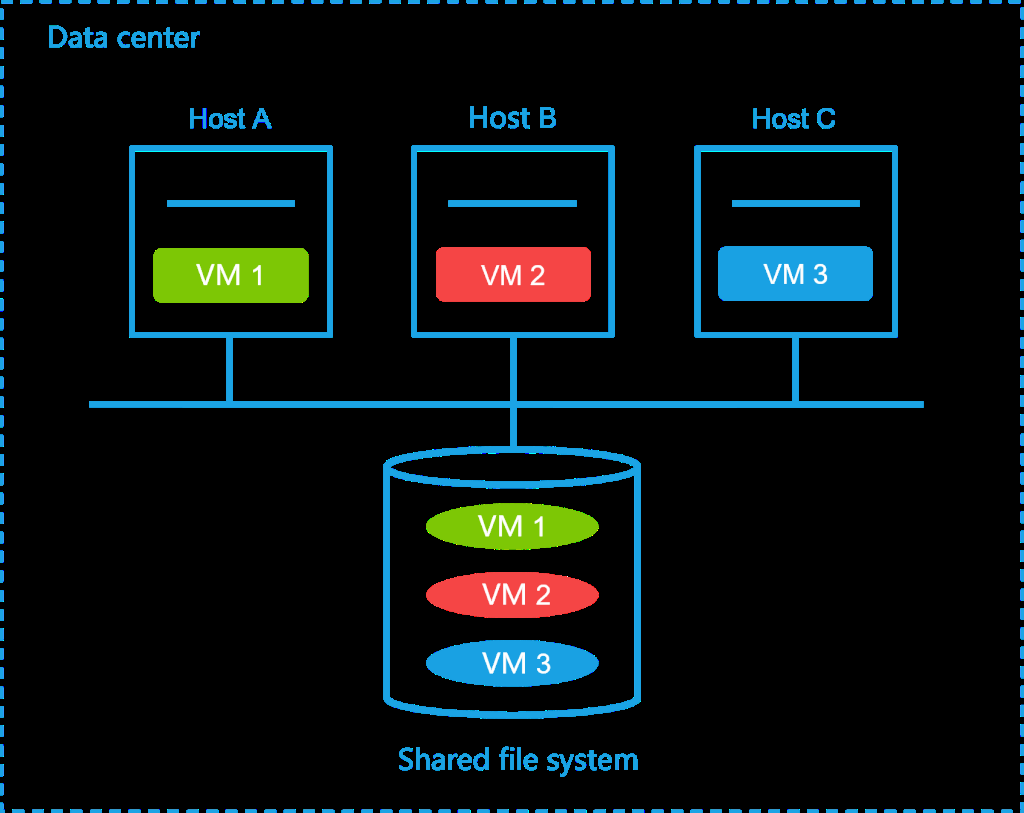
In a physical environment, a LUN is directly mounted to a physical host. After you format the LUN to FAT32, NTFS, or EXT2/3/4 file system, the host can access the LUN as files. In a virtualization environment, a LUN is shared by multiple hosts. To avoid resource conflicts, you must format a LUN to a shared file system, OCFS2, for example. The system supports iSCSI shared file systems, FC shared file systems, and NVMe-oF shared file systems. A shared file system can be shared only by hosts inside a data center.
Prerequisites
• Before adding a shared file system, make sure hosts have been correctly connected to the SAN storage and LUN and mapping settings have been configured.
• Before formatting a shared file system, make sure the shared file system is used by an inactive storage pool.
• Before you expand a shared file system, make sure the following requirements are met:
○ A minimum of one host uses the shared file system as a storage pool.
○ All hosts that use the shared file system as a storage pool are running correctly, and the storage pools are active on the hosts.
Restrictions and guidelines
• A shared file system cannot be deleted if it is being used by storage pools of hosts. To delete the shared file system, you must first delete the storage pools that use the shared file system.
• Deleting a shared file system causes data loss.
• If you select hardware assisted locking when formatting a file system, make sure the storage servers support CAW.
• Do not map a shared storage pool on NSphere to a host or VM on another platform. This operation will cause storage data conflict and might cause data corruption or loss.
• To avoid data loss, make sure the disk file on the shared file system is not in use before you format a shared file system.
• The available capacity of a formatted shared file system is 5 to 6 GB less than the capacity of the corresponding block device, because the shared file system occupies some space.
Add a shared file system
Perform this task to create a shared file system in a data center, configure related parameters, and associate SAN storage LUN resources to provide shared storage for VMs and allow access from multiple hosts.
-
On the top navigation bar, click Compute.
-
From the left navigation pane, select Resource Navigation > All > Resources > Data Center Name.
-
Click the Shared File Systems tab.
-
Click Add.
-
Configure the parameters as described in "Parameters."
-
Click OK.
Edit a shared file system
-
On the top navigation bar, click Compute.
-
From the left navigation pane, select Resource Navigation > All > Resources > Data Center Name.
-
Click the Shared File Systems tab.
-
Click Edit in the Actions column for the target shared file system.
-
Configure the parameters as described in "Parameters." If a shared file system is being used by storage pools, only the alias, description, and service storage state are configurable.
-
Click OK.
Format a shared file system
Perform this task to initialize or rebuild the file system structure on a shared storage volume, enabling it to be mounted and accessed by multiple hosts. Formatting can clear historical data and file system metadata on the volume, unify the file system type and key configuration parameters, and eliminate access anomalies caused by file system inconsistencies. It is commonly used in scenarios such as the first-time activation of a shared volume, changes to the file system type/parameters, or rebuilding a file system due to abnormalities.
-
On the top navigation bar, click Compute.
-
From the left navigation pane, select Resource Navigation > All > Resources > Data Center Name.
-
Click the Shared File Systems tab.
-
Click More in the Actions column for the target shared file system, and then select Disk Formatting.
-
In the dialog box that opens, click OK.
-
Configure the parameters as described in "Parameters."
-
Click OK.
Delete a shared file system
Perform this task to delete shared file systems in a data center. You can delete unused shared file systems that are not associated with any host pool to free storage resources.
-
On the top navigation bar, click Compute.
-
From the left navigation pane, select Resource Navigation > All > Resources > Data Center Name.
-
Click the Shared File Systems tab.
-
Click Delete in the Actions column for the target shared file system.
-
In the dialog box that opens, click OK.
Expand a shared file system
Before you expand a shared file system, make sure the following conditions are met:
• At least one host uses this shared file system as a storage pool.
• All hosts that use this shared file system as a storage pool run correctly, and their storage pools are active.
Perform this task to expand an existing shared file system to meet growing storage needs.
-
On the top navigation bar, click Compute.
-
From the left navigation pane, select Resource Navigation > All > Resources > Data Center Name.
-
Click the Shared File Systems tab.
-
Click More in the Actions column for the target shared file system, and then select Scale Up Storage Pool (Time-Consuming).
-
In the dialog box that opens, click OK.
Update signature for a shared file system
Signature update ensures file integrity and security in multi-user and multi-system environments. The system generates a unique signature for each file update. You can verify the signature when you access or download files to confirm the file remains untampered and trustworthy. This enhances data security, simplifies version management and auditing, and ensures that you can always access the most recent and safest file versions. The system cannot update the signature if the shared file system is not associated with a host or is associated with a host but is active. To update the signature for a shared file system:
-
On the top navigation bar, click Compute.
-
From the left navigation pane, select Resource Navigation > All > Resources > Data Center Name.
-
Click the Shared File Systems tab.
-
Click More in the Actions column for the target shared file system, and then select Update Signature.
-
In the dialog box that opens, click OK.
View detailed storage file information
Perform this task to view detailed information about files stored in a shared file system for storage resource monitoring and management.
-
On the top navigation bar, click Compute.
-
From the left navigation pane, select Resource Navigation > All > Resources > Data Center Name.
-
Click the Shared File Systems tab.
-
Click More in the Actions column for the target shared file system, and then select View Storage File Details.
Parameters
Add or edit a shared file system:
• Name: Configure a name for the shared file system.
• Alias: Configure an alias for the shared file system, which is displayed on the system for identification.
• Description: Configure a description for the shared file system.
• Type: Select a shared file system type based on the storage server type. Options include iSCSI Shared File System, FC Shared File System, and NVMe-oF Shared File System.
• Target Path: Enter the mount point of the shared file system on the host.
• Storage Resources: Select an existing iSCSI shared storage resource. For more information about storage resources, see "Storage resources."
• IP Address: Enter the IP address of the IP SAN storage server. This parameter is required for an iSCSI or NVMe-oF shared file system.
• SUBNQN: Select a namespace for the NVMe-oF shared file system. Each SUBNQN has its unique name and ID. This parameter is required for an NVMe-oF shared file system. SUBNQNs must be created on the storage server.
• LUN: Select a LUN for the shared file system. This parameter is required for an iSCSI shared file system.
• NAA: Select an NAA for the shared file system. This parameter is required for an FC shared file system. The NAA of an iSCSI shared file system is determined by the LUN.
• UUID: Storage UUID. This parameter is required for an NVMe-oF shared file system. The UUID is automatically displayed when you select a SUBNQN.
• Service Storage: Enable service storage to enable automatically deployed VMs to use the shared file system.
• Classification Level: Set the classification level of the shared file system. Options are Top Secret, Secret, Confidential, and Internal Use Only. You cannot edit this parameter for a shared file system only when that shared file system is not associated with any hosts. Format a shared file system:
• Cluster Size: Set the smallest amount of disk space that can be used to store a file. If a file is larger than a disk cluster, it is stored in multiple disk clusters. If a file is smaller than a disk cluster, it is stored in a dedicated disk cluster. A shared file system is mainly used to store VM image files. As a best practice, set the value of this parameter as large as possible to enhance disk read performance and save disk space.
• Locking Type: Select a locking type.
○ Distributed Locking—Distributed locking replies on the network to provide nodes with exclusive access to shared storage. With distributed locking enabled, hosts cannot access the storage if they do not have network connectivity to one another.
○ Hardware Assisted Locking—Hardware assisted locking saves lock information in a lock area on each disk to enable exclusive access of nodes to shared storage. This locking type does not require hosts to have network connectivity to one another. The hosts can access the storage as long as they have connectivity to the storage cluster.
Display shared file systems:
• Total: Total storage size.
• Allocated: Total storage size that is allocated to VM disks.
• Available: Available storage size.
Configure a shared file system heartbeat network
The shared file system heartbeat network is mainly used for packet exchange between hosts that use
shared file systems. Perform this task to configure the network parameters of the shared file system heartbeat network. By default, the management network is used as the shared file system heartbeat network.
Prerequisites
Before mounting the shared file system, configure a shared file system heartbeat network based on the storage type, available NIC resources, management network bandwidth, and storage network bandwidth as follows:
• When the host uses FC SAN storage:
○ If the bandwidth usage of the management network is high and the host has available NICs, use an independent network as the shared file system heartbeat network.
○ If the bandwidth usage of the management network is low, use the management network as the shared file system heartbeat network.
• When the host uses IP SAN storage:
○ If the bandwidth usage of the management network is high and the bandwidth usage of the storage network is low, use the storage network as the shared file system heartbeat network.
○ If the bandwidth usage of the management network is low and the bandwidth usage of the storage network is high, use the management network as the shared file system heartbeat network.
Restrictions and guidelines
Changing the shared file system heartbeat network to a non-default network might cause the shared file system to restart because of a fencing event and adversely impact upper layer services. Before you perform this operation, shut down all VMs in the cluster and suspend the shared file system. Before you edit the shared file system heartbeat network, delete all storage pools from the related cluster.
Manage permissions for data centers
Perform this task to assign permissions to other operators or operator groups to view and operate data
centers and their affiliated system resources (including clusters, hosts, and VMs) in data centers. The administrator can manage all resources of data centers.
Add permissions for operators or operator groups
-
On the top navigation bar, click Compute.
-
From the left navigation pane, select Resource Navigation > All > Resources > Data Center Name.
-
Click the Permissions tab.
-
Click Add Permissions.
-
Select the operators for which you want to add permissions and then click OK. To add permissions for operator groups, click Operator Group, select the target operator groups, and then click OK.
-
Click OK.
View operators or operator groups that have permissions for a data center
-
On the top navigation bar, click Compute.
-
From the left navigation pane, select Resource Navigation > All > Resources > Data Center Name.
-
Click the Permissions tab to view the operators and operator groups that have permissions to view and operate the data center.
Change the permissions for an operator or operator group
-
On the top navigation bar, click Compute.
-
From the left navigation pane, select Resource Navigation > All > Resources > Data Center Name.
-
Click the Permissions tab.
-
Click Edit in the Actions column for an operator or operator group. Change the permissions as needed.
-
Click OK.
Remove the permissions for an operator or operator group
-
On the top navigation bar, click Compute.
-
From the left navigation pane, select Resource Navigation > All > Resources > Data Center Name.
-
Click the Permissions tab.
-
Click Remove in the Actions column for an operator or operator group.
-
In the dialog box that opens, click OK.
Parameters
• Propagate to Child Objects: If you select this option, permissions to the data center and its affiliated resources (including clusters, hosts, and VMs) will be assigned to the current operator or operator group.
• Operator/Operator Group: Name of the operator or operator group that has permissions to the data center.
• Category: Operator or operator group that has permissions to the data center.
View data center summary
Perform this task to view detailed data center information, state and statistics information about hosts
in the data centers, and top 5 hosts and VMs by CPU or memory usage.
Procedure
-
On the top navigation bar, click Compute.
-
From the left navigation pane, select Resource Navigation > All > Resources > Data Center Name.
-
Click the Summary tab.
Parameters
• Basic Info: Detailed data center configuration information.
○ Clusters: Number of clusters in the data center.
○ VM Density: Average VM number on each host in the data center.
○ Total CPU Cores: Total number of CPU cores on all hosts in the data center.
○ Total Memory: Total memory size of all hosts in the data center.
○ Local Storage: Total local storage size of all hosts in the data center.
○ Available Storage: Total available local storage size of all hosts in the data center.
• Host Statistics: Total number of hosts in the data center and number of hosts in each state (including normal, abnormal, maintain, and quarantine).
• VM Statistics: Total number of VMs in the data center and number of VMs in each state (including normal and shutdown).
• Alarms: Total number of alarms in the data center and number of alarms for each alarm level (including critical, major, minor, and info).
• Resource Usage: CPU usage, memory usage, storage usage, CPU allocation ratio, memory allocation ratio, and shared storage allocation ratio in the data center.
• Top 5 Hosts by CPU Usage: Statistics about the five hosts with the highest CPU usage values in the data center. You can click the name of a host to access the management interface of that host.
• Top 5 Hosts by Memory Usage: Statistics about the five hosts with the highest memory usage values in the data center. You can click the name of a host to access the management interface of that host.
• Top 5 Hosts by Network Throughput: Statistics about the five hosts with the highest throughput values. You can click the name of a host to access the management interface of that host.
• Top 5 Hosts by Disk Requests: Statistics about the five hosts with the highest number of disk access requests. You can click the name of a host to access the management interface of that host.
• Top 5 VMs by CPU Usage: Statistics about the five VMs with the highest CPU usage values in the data center. You can click the name of a VM to access the management interface of that VM.
Manage hosts in a data center
Perform this task to view information about hosts in a data center and perform bulk operations on hosts
in the data center.
View information about hosts in a data center
-
On the top navigation bar, click Compute.
-
From the left navigation pane, select Resource Navigation > All > Resources > Data Center Name.
-
Click the Hosts tab to view host information in the data center.
-
(Optional.) To export host information, click Export, select the desired file format, and then click OK.
-
(Optional.) To perform bulk operations on hosts, select the target hosts, and then click Bulk Actions. For more information, see "Configure multiple hosts in bulk."
View information about VMs in a data center
Perform this task to view information about VMs in a data center.
Procedure
-
On the top navigation bar, click Compute.
-
From the left navigation pane, select Resource Navigation > All > Resources > Data Center Name.
-
Click the VMs tab.
-
To display the VM list in full screen mode, click Full Screen in list view. To exit full screen mode, press Esc.
-
(Optional.) To export VM information, click Export, select the desired file format, and then click OK.
-
(Optional.) To perform bulk operations on VMs, select the target VMs, and then click Bulk Actions. For more information, see "Perform bulk operations for VMs."
Customize column display settings
Perform this task to customize the VM information to be displayed. After you perform this task in a data center, the customized column display settings will apply to all VM tabs under that resource pool. For more information about the parameters, see "View information about VMs in a data center."
-
On the top navigation bar, click Compute.
-
From the left navigation pane, select Resource Navigation > All > Resources > Data Center Name.
-
Click the VMs tab.
-
Click the Customize Columns button, and then perform the following operations as needed:
○ Select whether to display a column.
○ Set the width of a column.
○ Adjust the sequence of columns by dragging.
View data center operation logs
Manage clusters
A cluster is a collection of hosts and VMs and improves the availability and reliability of the
virtualization system.
Restrictions and guidelines
When you add a host to or remove a host from a cluster, the system cannot perform any other operations on the cluster until the adding or deleting operation is completed.
Features
• Add a cluster
• More cluster operations
• Configure cluster settings
• Manage storage resources for clusters
• Manage vSwitches
• Manage application HA
• Manage permissions for clusters
• Display cluster summary
• Display performance monitoring information for a cluster
• Display information about hosts in a cluster
• Display information about VMs in a cluster
• Manage cluster alarms
• Display cluster operation logs
Add a cluster
• Adding an HCI sub cluster is not supported in RBAC mode.
• To add an HCI cluster in a stateful failover system in compute virtualization, make sure IPv4 addresses are used in the stateful failover system.
• When creating an HCI cluster or adding a hyper-converged host, make sure its OS and CPU architecture are consistent with the management node.
Perform this task to add a cluster. You can enable HA when you add a cluster:
• HA—After you enable HA for a cluster, the management platform performs real-time monitoring on the operation of all hosts and VMs in the cluster. When a VM or host fails, the management platform restarts the VM or migrates the VMs on the host to other hosts in the cluster. This reduces the service downtime and does not require any intervention. For more information, see "Configure HA for a cluster."
Procedure
-
On the top navigation bar, click Compute.
-
From the left navigation pane, select Resource Navigation > All > Resources > Data Center Name.
-
Click Create Cluster.
-
Configure basic setting in the Basic Settings menu, and then click Next.
○ Scenario: Select a scenario. You can select the compute virtualization and HCI scenarios. Distributed storage components are required only in the HCI scenario.
▪ If you select the HCI scenario, the created cluster is an HCI cluster and storage configuration is required when you create the cluster.
▪ If the select the compute virtualization scenario, the created cluster is a compute cluster and you do not need to configure storage settings when you create the cluster.
○ Cluster: You can select a common cluster or a stretched cluster, with the stretched cluster supported only under a hyper-converged architecture.
▪ The minimum configuration for a stretched cluster is 4 nodes plus 1 external monitor node.
▪ Site 1 and Site 2 must have the same number of monitor nodes. A quorum site can have only one external monitor node.
▪ To set VLANs and MTUs for an external monitor node, set them later on the network planning page.
○ Data Center Name: Data center name. This parameter is not configurable.
○ Cluster Name: Specify a name for the cluster to uniquely identify the cluster.
○ Cluster Description: Specify a description for the cluster, such as purpose, service type, deployment area, or other information.
○ Host Naming: Set the host name prefix. The host name is automatically configured during the initialization process. After the initialization process finishes, you are not allowed to edit the host name. Plan the host name prefix in advance.
○ Numbering From: Specify the start number for host naming. A host name is a number attached to the specified host name prefix. The system assigns the start number to the management node and assigns the next available numbers to the service nodes joining the cluster afterward with an increment of 1. For example, if the host name prefix is cvknode and the start number is 1, the name of the management node is cvknode1 and the names of the service nodes joining the cluster are cvknode2, cvknode3, and cvknode4 in sequence.
○ VM CPU Operating Mode:
▪ Compatible: Virtualizes physical CPUs of different models into vCPUs of the same model. This mode features good migration compatibility.
▪ Host Model: Virtualizes a physical CPU into the most similar vCPU model. This mode features poor migration compatibility but provides better performance for guest OSs than the compatible mode.
▪ Host Passthrough: Directly passes through the host CPUs to VMs. This mode features poor migration compatibility but provides the best performance for guest OSs. VMs with the host passthrough CPU operating mode can be migrated only between hosts with exactly the same CPU model. To change the VM CPU operating mode to passthrough, make sure the hosts in the cluster support the same instruction set.
▪ EMC: Virtualizes a physical CPU into a specified CPU model. This mode avoids the CPU model changes caused by VM migration and has good migration compatibility. However, a VM can migrated only when the source and destination cluster meet the EMC migration requirements.
▪ EMC Configuration: Enable EMC for Intel or AMD hosts.
▪ EMC Mode: Select a CPU model for vCPUs created for VMs.
▪ Description: Specify a description for the EMC mode.
○ HA: Enable or disable HA for the cluster. After you enable HA for the cluster, the system monitors the hosts and VMs in the cluster. If a host fails, the system migrates the VMs on the host to another available host in the cluster. If a VM fails, the system restarts the VM. To edit HA settings for the cluster, click the set icon.
▪ Startup Priority: Select a default startup priority for the VMs in the cluster. Options include Low, Medium, and High. After a host fails, the system starts the VMs in the order of priority. To change the priority of a VM, navigate to the VM configuration page.
▪ Host Sub-Health Sensitivity Level: Specify the response level when the system detects failures, including low, medium, high, and custom.
○ HA Access Control: Select whether to enable HA access control. If you enable HA access control, configure either of the following parameters:
▪ Min Nodes: Specify the minimum number of hosts for HA to take effect on the cluster. If the number of hosts that are operating correctly in the cluster is smaller than the specified minimum node number, HA cannot take effect on the cluster. To avoid migration failure caused by inaccurate resource calculation, make sure all hosts in the cluster have the same CPU quantity and memory size.
▪ Failover Host: Select hosts used for migration of failed VMs. These hosts cannot be used for common VM migration or VM adding operation. The failover hosts must use the same shared storage as the service hosts. A host that has running VMs cannot be used as a failover host.
▪ Reserved Resource: Set the reserved CPU and memory percentages. When the remaining resources in the cluster are less than the specified percentage of resources, you cannot start new VMs, set the VMs to running or suspending state, or migrate running VMs to the cluster.
○ Site 1: Configure the name of Site 1 in the stretched cluster. This parameter is required when the cluster mode is stretched cluster.
○ Site 2: Configure the name of Site 2 in the stretched cluster. This parameter is required when the cluster mode is stretched cluster.
○ Quorom Site: Configure the name of the quorum site. This parameter is required when the cluster mode is stretched cluster.
-
Set network parameters in the Network menu, and then click Next. If no network parameters need to be configured (for example, cluster planning has been configured and no change is required), you can click Skip to skip this step.
○ Mgmt: Set the start IP, gateway, and VLAN ID for the management network. Before adding an HCI cluster in compute virtualization, make sure the management network uses only an IPv4 address. HCI clusters do not support using an IPv6 address as the management network. If you use an IPv6 address, deployment will fail.
▪ Switch Name: Name of the management network vSwitch, which is not editable.
▪ Start IP: Specify the start IP address for the network. The management platform IP must be in the management network segment. By default, the first IP of the management segment is the start IP. The gateway of the management network uses the first IP by default. IPs of the service hosts that are added to the cluster later increase by 1 from the start IP. If an IP in the segment is in use, the system skips that IP.
▪ Gateway: Specify a gateway for the management network.
▪ VLAN ID: Configure a VLAN ID for the management network. For the VLAN ID to take effect, make sure the VLAN ID matches the VLAN ID on the host Xconsole interface. For more information, see the installation guide of the system.
○ Service: Set the name of the service network vSwitch.
○ Storage: Set the switch/subnet name, start IP, VLAN ID, and MTU for the storage network. Before adding an HCI cluster in compute virtualization, make sure the storage network uses only an IPv4 address. HCI clusters do not support using an IPv6 address as ther storage network. If you use an IPv6 address, deployment will fail.
▪ Storage Protocol: Set the protocol between the cluster storage pool and storage devices. Options are NVMe-oF and iSCSI. This parameter is available only in the HCI scenario. Stretched clusters do not support NVMe-oF.
▪ iSCSI: A protocol that transmits storage data over IP networks. It transmits storage data over IP networks and allows network access to storage devices. It connects storage resources to remote servers through networks. If you select iSCSI and configure RDMA NICs during cluster creation, you can manually create NVMe-oF-based client groups on the Block Storage > Mapping Management page. This parameter is available only in the HCI scenario.
▪ NVMe-oF: A protocol for accessing storage devices. It extends NVMe commands to the transport layer through a high-speed network and connects hosts to remote flash storage devices. If you select NVMe-oF during cluster creation, you can manually create NVMe-oF-based client groups on the Block Storage > Mapping Management page. This parameter is available only in the HCI scenario.
▪ NIC Type: Select the NIC type for data transmission between the cluster storage pool and storage devices over iSCSI. Options are ETH and RDMA. This parameter is available only in the HCI scenario.
▪ ETH: The most widely used LAN technology with high standardization and compatibility. It suits scenarios from home networks to enterprise data centers.
▪ RDMA: Remote direct memory access, a technology that transfers data at high speed between memories. It is commonly used in high-performance computing and low-latency network communication.
▪ Custom Multiplexing NIC Name: Set the name of the vSwitch when the storage front-end network and storage back-end network are multiplexed. This parameter is available only in the HCI scenario.
▪ Storage Front-End Network: Set the switch or subnet name, start IP, VLAN ID and MTU for the storage front-end network. When the NIC type of the storage network is RDMA, you can configure multiple storage front-end networks.
▪ Storage Back-End Network: Set the switch or subnet name, start IP, VLAN ID and MTU for the storage back-end network. When the NIC type of the storage network is RDMA, you can configure multiple storage back-end networks.
▪ Switch Name: Set the vSwitch name for storage front-end and back-end network multiplexing.
▪ Switch/Subnet Name: Set the vSwitch name for the storage network.
▪ Start IP: Set the start IP address for the storage network based on the network plan.
▪ VLAN ID: Set the VLAN ID for the storage network.
▪ MTU: Set the maximum packet size allowed on the storage network vSwitch. If the management and storage networks share the same physical NIC, the storage network MTU setting does not take effect.
-
In the Scan By field, select MAC Address or IP Address, click Start Scanning, select the hosts you want to add, and then click Next.
○ Scanning by MAC address—Automatically discover online hosts within the same Layer 2 broadcast domain (the same VLAN or physical network segment) by sending Layer 2 broadcast packets, without requiring you to specify an IP address range. This method is suitable for fast scanning within the same network segment.
○ Scanning by IP address—Scans for hosts by scanning one or more specified network segments at the IP layer. You can enter discrete or continuous IP addresses. Use this method for cross-network segment scanning.
○ In the HCI scenario, you must select at least three service hosts.
○ The minimum configuration for a stretched cluster is 4 nodes plus 1 external monitor node. Site 1 and Site 2 must have the same number of monitor nodes. A quorum site can have only one external monitor node.
-
Set parameters in the host configuration wizard, and then click Finish. a. If you have selected the stretched cluster mode, you must assign hosts to sites first. After site configuration, access the host configuration page. b. For the system to automatically generate the host name and IP address based on the basic configuration, click Fast Set Host Name/IP. c. To configure NIC information for a host, click Network Settings in the Actions column for that host, and then click OK. To synchronize this host's NIC profile as a template to other hosts, first enable bulk NIC profile configuration, and then click Bulk Set NICs.
▪ IP Address: IP address of the vSwitch.
▪ Physical Interface: Name of the interface on the physical NIC assigned to the vSwitch. A physical interface can be assigned to only one vSwitch. When all physical interfaces of the host are assigned to vSwitches, this parameter is not configurable. If the vSwitch is not assigned a physical interface, VMs attached to the vSwitch can communicate only with each other but cannot communicate with external networks. If you specify multiple physical interfaces for the vSwitch, you must configure the link aggregation mode and LB mode.
▪ LAGG Mode: Set the link aggregation mode of the physical NICs. Options include Static and Dynamic. If dynamic link aggregation mode is used, you must enable LACP on the physical switch. This mode is configurable only when multiple physical interfaces exist.
▪ LB Mode: Set the load balancing mode of physical NICs. This parameter is configurable only when multiple physical interfaces exist.
▪ Advanced—Performs load balancing for packets based on the Ethernet type, IP protocol, source IP address, destination IP address, source port number, and destination port number.
▪ Basic—Performs load balancing for packets based on the source MAC address and VLAN tag.
▪ Active/Standby—Performs load balancing for packets based on the primary and backup roles of physical NICs. If the primary NIC fails, traffic is automatically switched to the backup NIC.
d. To clear all host configuration information, click Clear All Settings. e. To remove a host, click Remove in the Actions column for that host.
-
Click Start Adding. Enter the username, password, and confirm the password. Then click OK.
○ Username: Username used by the system to access the host through SSH.
▪ If root SSH is enabled, only user root is supported.
▪ If root SSH is not enabled, only user sysadmin is supported.
○ Password: Enter the password of the username for the root or sysadmin user.
○ Confirm Password: Confirm the password.
-
Configure storage parameters in the storage configuration wizard, and then click Next. This parameter is available only in the HCI scenario.
○ Storage Management IP: Distributed storage management IP address for the new sub cluster. Make sure this IP address is in the same subnet as the management network and is not in use.
○ Service Type: Storage service type that a data pool provides. The system only supports block storage in the current software version.
○ Deployment Mode: Select a deployment mode. After initialization, the system will automatically create a disk pool in the storage. A disk pool is a set of disks created based on data disks.
▪ Data Disks+Cache Disks—Deploy HDDs, SAS HDDs, or SATA HDDs as data disks to store data and deploy AHCI SSDs or NVMe SSDs as read and write cache disks to accelerate reads and writes. Available disk types for cache disks vary by data disk type.
▪ All SSDs: Deploy AHCI or NVMe SSDs as data disks. Use this mode to provide high-performance storage. In this node, no read or write caches are used. If you select this option, add at least three disks on each host to the disk pool.
○ Data Disk Type: Select the type of disks for storing data. Only disks of the specified type can be added to the disk pool.
○ Cache Disk Type: Select the type of disks for data caching. Only disks of the specified type can be added to the disk pool.
○ Cache Disk Ratio: Set the maximum number of data disks supported by each cache disk. As a best practice, set the maximum number of data disks to 1 to 5 for SSD-AHCI cache disks and 1 to 10 for SSD-NVMe cache disks.
○ Fault Domain: Fault domain type of the storage system. By using fault domains and a redundancy policy together, the storage system saves the replicas or blocks of data to different fault domains to ensure data security and high availability.
▪ Rack: In a cluster, a rack is a fault domain. Multiple replicas or fragmentations are saved on different racks. Select this mode for a large-scale cluster that has a large number of racks.
▪ Hosts: In a cluster, a host is a fault domain. Multiple replicas or fragmentations are saved on different hosts (can be on the same rack). The default fault domain type is host-level fault domain.
○ Redundancy Policy: Select a redundancy policy type.
○ Replication: If you select this option, set the number of replicas. Replication protects data by creating multiple replicas of data. Data reliability is directly proportional to the number of replicas.
More cluster operations
Features
• Rename a cluster
• Delete a cluster
Rename a cluster
You can modify the name of an existing cluster so that the name can more accurately reflects the
cluster's purpose, environment, or naming conventions. Do not rename an HCI cluster.
- On the top navigation bar, click Compute.
Delete a cluster
Configure cluster settings
When the management platform manages a lower-version cluster, some advanced features are not available in the cluster due to version compatibility restrictions. These unavailable features include dynamic power management, dynamic resource scheduling, route management, network USB resource pool
management, SR-IOV NIC management, and extended configuration.
The cluster configuration is designed to comprehensively enhance the cluster's operational efficiency, stability, and scalability through flexible configuration and optimization mechanisms, meeting diverse service requirements.
Features
• Configure HA for a cluster
• Manage DRS
• Set the VM CPU operating mode of a cluster
• Configure dynamic power management
• Configure static routes for hosts
• Manage VM/host groups
• Manage affinity rules
• Manage remote USB devices
• Manage SR-IOV NICs
• Cluster planning
Configure HA for a cluster
Cluster HA depends on shared storage and dynamic migration technologies to provide simple and
efficient HA services for applications running on all VMs in the cluster. It reduces service interruption caused by host hardware failure. Cluster HA is applicable to scenarios that require service continuity.
HA mechanism
The management platform virtualizes a group of hosts into a cluster that uses a shared resource pool. After you enable HA for the cluster, the management platform monitors running state of all hosts and VMs in the cluster.
• When a host fails, the management platform migrates the VMs on the host to available hosts in the cluster.
• When a VM fails, the management platform restarts the VM. If the VM is restarted, the management platform does not migrate the VM. If the restart fails, the management platform migrates the VM to another host and restarts it.
• When the network between a host and the shared storage fails, the management platform migrates the VMs on the host to available hosts in the cluster.
HA benefits
• Automatically monitors running state of hosts and VMs and migrates a failed VM or VMs on a failed host to other hosts in the cluster.
• Reserves enough resources for VMs to restart if hosts fail.
• Automatically migrates VMs between hosts to ensure service continuity in case of hardware failure.
• Automatically selects suitable hosts for VMs on a failed host based on the resource usage if you enable both HA and DRS for the cluster.
Restrictions and guidelines
• All hosts in an HA-enabled cluster must have the same vSwitch configuration, including vSwitch quantity, name, and forwarding mode.
• To ensure that VMs in an HA-enabled cluster can migrate between hosts in the cluster, make sure the image files of all VMs in the cluster are saved in the shared storage. As a best practice, do not enable HA or DRS if the VMs use the local storage.
• In an HA-enabled cluster, all hosts must use CPUs from the same manufacturer. Clusters containing hosts that use CPUs of the same model from the same manufacturer can provide better migration compatibility.
• To prevent VM name conflict, make sure no hosts in abnormal state exist in a cluster before you disable HA for the cluster. If VM name conflict occurs, enable HA for the cluster again.
• During the process of enabling or disabling HA for a cluster, do not start, deploy, or migrate VMs or restart or shut down hosts in the cluster.
• To reinstall the CVK component for a host in an HA-enabled cluster, first delete the host from the cluster, reinstall the CVK component, and then add the host to the cluster again.
• Before you enable HA for a cluster, make sure all hosts in the cluster have reserved sufficient system resources so that the VMs can migrate between the hosts.
• If a VM enabled with the Intel RDT noisy neighbor quieting feature is migrated to a host that does not support the feature, the feature will be disabled for the VM.
• If a VM is configured with NUMA node exclusivity, when the destination host cannot meet the CPU exclusivity requirement due to an HA migration, the system will automatically remove the CPU exclusivity configuration to ensure a successful migration.
Procedure
-
On the top navigation bar, click Compute.
-
From the left navigation pane, select Resource Navigation > All > Resources > Data Center Name > Cluster Name.
-
Click the Configure tab. Enable HA as needed. With HA enabled, the management platform will continuously monitor the operational status of all hosts and VMs in the cluster. If a host failure is detected, the management platform will immediately respond by restarting all affected VMs on other available hosts in the cluster. If a VM failure is detected, it will restart the VM.
-
On the Monitor and Response tab, configure the parameters as described in "Parameters."
-
Click the Access Control tab, configure the parameters as described in "Parameters."
-
Click Apply.
Parameters
• Startup Priority: Select a default startup priority for the newly deployed VMs in the cluster. Options include Low, Medium, and High. After a host fails, the system starts the VMs in the order of priority. To change the priority of a VM, navigate to the VM configuration page.
• Host Sub-Health Sensitivity Level: Defines how the system responds when it detects a fault, including low, medium, high, and custom levels.
○ If you select Low, Medium, or High, you can only view the preset failure HA and proactive HA configuration for that level.
○ If you select Custom, the system provides three custom preset HA templates: low, medium, and high. You can adjust specific failure HA and proactive HA parameters based on these templates as needed.
▪ When you customize failure HA settings, you can only enable or disable service network fault detection.
▪ When you customize actions on host storage failures in failure HA, first set shared storage fault isolation to do not restart host on the system parameter settings page. Then re-enable HA. Then, you can change the response mode and policy timeout.
• Custom Settings: When you customize the sensitivity level, the system provides three custom configuration templates (low, medium, high) as baselines. You can adjust failure HA and proactive HA settings based on these templates. To restore to the system default settings, click Reset.
• Failure HA: When a cluster experiences various failures, the system automatically responds based on the configured HA settings to ensure service continuity.
○ Host Failure: When a host fails (for example, automatic restart, power-off, or shutdown, the system automatically migrates VMs from the failed host to other available hosts.
○ VM Failure: When a VM fails, the system attempts to restart the failed VM on its original host. If the VM restart succeeds, the VM continues to run on the original host. If the VM restart fails, the VM will be automatically migrated to an idle host and restart. This feature is enabled by default and cannot be disabled.
○ Service Network Failure: When the service network of a VM is unreachable or fails, the VM can be migrated to another host. vSwitches that are not bound to any physical NIC, are the management network type, or use VXLAN forwarding mode do not support HA failure detection.
○ Host Storage Failure: When the shared storage fails, the system performs migration, I/O failover, or no action on the affected VMs. The response method can be edited only when the action on shared storage failure is set to Do Not Restart Host.
▪ Migrate—Migrates VMs that have all data stored on the shared storage to other hosts in the cluster when a shared storage failure occurs.
▪ I/O Failover—Automatically redirects the link on the storage network to the management network when the host storage network fails and uses the link on the management network as a temporary link for storage data transmission. HA failover or I/O freezing will not be triggered and VM services on the host will not be migrated. A VM does not support I/O failover if one of the following conditions is met on it: The disk bus type is USB. The disk bus type is high-speed SCSI (FC&iSCSI) for block devices. The disk cache mode is writeback or writethrough. LVM raw blocks exist. NFS storage is attached. The VM uses block devices as disks.
▪ The VM uses logical volumes. The VM has internal snapshots.
▪ The VM is enabled with multi-queue acceleration.
▪ No Action—Freezes VMs that have all or some data stored on the shared storage. This option is not available for VMs enabled with multi-queue acceleration. If you select this option, the Migrate method is used upon VM failure. A VM cannot be frozen if one of the following conditions is met on it: The disk bus type is USB. The disk bus type is high-speed SCSI (FC&iSCSI) for block devices. The disk cache mode is writeback or writethrough. LVM raw blocks exist. NFS storage is attached. After the shared storage recovers, the VM will automatically enter running state.
▪ Timeout: Set the delay timer before VMs that have all data stored on the shared storage are migrated to another host upon a shared storage failure. This timer is triggered when VMs that have all or some data stored on the shared storage are frozen as configured by the No Action parameter. I/O commands are issued to the storage device until this timeout expires.
• Enable Proactive HA: When a host experiences CPU overtemperature, system disk issues, abnormal memory CE error frequency, or abnormal memory CE error page isolation ratio, it automatically enters quarantine mode and takes actions on the VMs running on it as configured. You can configure the following parameters to trigger proactive HA: Compute nodes do not support detecting system disk (SSD) approaching end of life, only one power supply available on host, or RAID controller failure.
○ Host CPU Overtemperature: If the CPU temperature continuously exceeds the set threshold, proactive HA will be triggered. The system then takes corresponding actions based on the predefined policy. As a best practice, also enable host CPU overtemperature alarm on the alarm threshold configuration page, and set the threshold to be less than or equal to the CPU overtemperature threshold set here.
○ System Disk Failure: When the system detects a host system disk failure, proactive HA is triggered. The system then takes corresponding measures based on the predefined policy. As a best practice, also enable host local disk failure alarm on the alarm threshold configuration page.
○ Memory Correctable Error Rate: If the memory CE rate (times/per hour/per memory module) continuously exceeds the set threshold, proactive HA will be triggered. The system then takes corresponding actions based on the predefined policy. As a best practice, enable memory CE rate alarm on the alarm threshold configuration page, and set the threshold to be less than or equal to the memory CE rate threshold set here.
○ Memory CE Page Offlining Ratio: Proactive HA is triggered when the number of offline memory pages with CE errors reach the configured threshold. The system then takes corresponding actions based on the predefined policy. As a best practice, enable memory CE page offlining alarm on the alarm threshold configuration page, and set the ratio to be less than or equal to the memory CE page offlining ratio set here.
○ System Disk (SSD) Approaching End of Life: This parameter monitors whether the host system disk (SSD) is approaching its endurance limit. When the SSD's write cycles or health indicator fall below the configured threshold, performance degradation or failure risks might occur. You must back up data in time and consider replacing the disks. With this parameter configured, once the system disk's lifespan reaches the set threshold, proactive HA will be triggered, and the system will take corresponding actions based on the predefined policy. Make sure the server models and system disk models are in the hardware and software compatibility matrix. Otherwise, the system cannot retrieve the disk health status, preventing the system disk approaching end of life event from being reported and the associated proactive HA policy from being triggered. Lifespan detection is only supported for SATA SSDs. Disks configured with RAID 5 are not supported.
○ Only One Power Supply Available on Host: Only one power supply is operating correctly on the host, and the other power supplies have expired or been removed. If this last power supply fails, the device will lose power and go out of service. As a best practice, check and replace the faulty power supply as soon as possible. This restores redundant power supply and ensures stable and reliable host operation. Make sure the server model is in the software and hardware compatibility matrix. Otherwise, the system cannot obtain its health state. This prevents the system from reporting the event and from triggering the related proactive HA policy.
○ RAID Controller Failure: An abnormal RAID controller can prevent the storage array from operating correctly, affecting data read/write performance and system stability. As a best practice, troubleshoot and repair or replace the faulty device to ensure stable system operation. The system triggers proactive HA and reports a suboptimal health alarm only when the RAID abnormality affects use of the system. Make sure the server model and RAID controller model are in the software and hardware compatibility matrix. Otherwise, the system cannot obtain their health state, which prevents the RAID controller failure event from being reported and the related proactive HA policy from being triggered. You cannot configure NIC quarantine when a RAID controller failure occurs.
○ Impact: Impacts on the system when proactive HA is triggered.
○ Suboptimal Health Check: Whether suboptimal health check is enabled. Suboptimal health check helps you discover potential faults early.
○ Condition: Set the threshold that triggers proactive HA. This option is displayed only for the CPU overtemperature, memory CE error rate, and host system disk (SSD) approaching end of life check items.
○ Duration: Set the monitoring interval for CPU overtemperature. If the system detects that the CPU temperature exceeds the configured threshold multiple times during this period, it triggers the proactive HA mechanism.
○ Response Actions: The system takes actions when it detects a failure in the corresponding monitoring item. Actions include the following:
▪ Host Quarantine: The system places the host in quarantine mode. You can only migrate VMs on the host to other hosts and cannot migrate VMs on other hosts to this host. To change the response mode, you must manually remove the host from quarantine mode. When over half of the hosts in a cluster are quarantined, the HA auto migration function might be restricted.
▪ Intelligent Hot Migration: VMs in running or suspended status will be automatically migrated to other hosts. After the migration is complete, the host will enter quarantine mode. The migration will fail if there are no other available hosts.
▪ Place Host in Maintenance Mode: When the RAID controller is abnormal, the system automatically migrates running or suspended VMs to other healthy hosts. The host then enters maintenance state, allowing the IT team to troubleshoot and repair failures.
▪ Storage Network Isolation: Select this response mode when the RAID controller is abnormal. The host storage network will be isolated and not available. Use caution when you select this mode. As a best practice, use the exclusive mode for storage network RDMA scenarios. In non-exclusive mode, the storage network will not be isolated after the RAID controller becomes abnormal. This option is not available in the compute virtualization scenario. You cannot configure NIC quarantine when a RAID controller failure occurs.
• HA Access Control: Select whether to enable HA access control. If you enable HA access control, configure one of the following parameters:
○ Min Nodes: Specify the minimum number of hosts for HA to take effect on the cluster. If the number of hosts that are operating correctly in the cluster is smaller than the specified minimum node number, HA cannot take effect on the cluster. To avoid migration failure caused by inaccurate resource calculation, make sure all hosts in the cluster have the same CPU quantity and memory size.
○ Failover Host: Select hosts used for migration of failed VMs. These hosts cannot be used for common VM migration or VM adding operation. The failover hosts must use the same shared storage as the service hosts. A host that has running VMs cannot be used as failover hosts.
○ Reserved Resource: Set the reserved CPU and memory percentages. When the remaining resources in the cluster are less than the specified percentage of resources,
Manage DRS
Dynamic resource scheduling (DRS) enables the system to perform real-time monitoring on compute
and storage resources of a cluster and dynamically allocate resources to VMs. If the available resources of a host are insufficient for its VMs, the system automatically migrates the VMs to other hosts to ensure that each VM can obtain sufficient resources. After you enable DRS, you do not need to monitor the CPU usage and memory usage of the VMs in the cluster, even if the VMs run the SQL server services. Automatic resource allocation and load balancing also reduce the data center cost greatly.
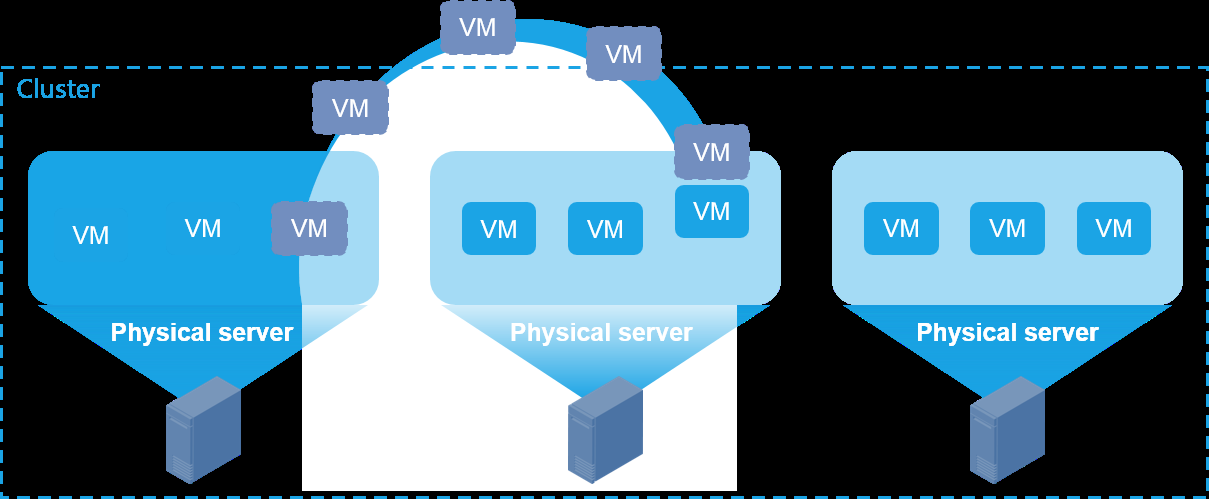
DRS includes compute DRS and storage DRS.
• Compute DRS performs regular monitoring on the CPU usage and memory usage of hosts in the cluster through the heartbeat mechanism. If the resource usage of a host exceeds the set threshold, the system automatically migrates VMs on the host to other hosts in the cluster until the resource usage of the host falls below the threshold.
• Storage DRS monitors the disk I/O throughput, IOPS, or disk usage of the shared storage pool and migrates the VM image files to balance the storage loads. DRS is applicable to scenarios where service load surges occur frequently. DRS provides the following benefits:
• Consolidates servers to reduce the IT cost and enhances the service flexibility.
• Reduces the downtime and ensures the service continuity and stability.
• Requires fewer running servers and improves the resource usage.
Procedure
-
On the top navigation bar, click Compute.
-
From the left navigation pane, select Resource Navigation > All > Resources > Data Center Name > Cluster Name.
-
Click DRS.
-
Enable DRS (compute) or DRS (storage) as needed, specify the duration and interval, and select a monitoring policy for DRS (compute) or DRS (storage).
-
Click OK. To enable post-copy memory during the migration process, click the post-copy memory button for the target migration task in the task console.
Parameters
• DRS (Compute): Select whether to enable dynamic compute resource scheduling. After you enable this feature, the system automatically migrates online VMs to balance the compute resource loads. Configure the following parameters if you enable this feature:
○ Duration: Specify the time to wait for DRS to take effect after the CPU usage, memory usage, or traffic reaches or exceeds the specified threshold. For example, if
you set the value of this parameter to 5, DRS takes effect five minutes after the CPU usage, memory usage, or traffic reaches or exceeds the specified threshold.
○ Interval: Specify the interval at which the system checks the host state.
○ Monitoring Policy: Select a monitoring policy to monitor the host CPU usage, memory usage, and network flow.
▪ Name: Name of the monitoring policy.
▪ Description: Purpose, monitoring object, trigger condition of the monitoring policy, helping you to understand the policy purpose and usage scenarios.
▪ Condition Relationship: Logical relationship between present conditions, including AND and OR.
▪ CPU Usage: When the CPU usage of a host continuously exceeds the specified threshold, the system will migrate VMs on the host to other hosts with more available CPU resources, reducing the CPU load on the host.
▪ Memory Usage: When the memory usage of a host continuously exceeds the specified threshold, the system will migrate VMs on the host to other hosts with more available memory resources, avoiding performance degradation or service interruption caused by memory insufficiency.
▪ Network Traffic: When the data volume sent and received by the vSwitch carrying the traffic of service VMs on a host continuously exceeds the specified threshold, the system will migrate VMs on the host to other hosts with more resources.
▪ Operator: Operator used to compare monitoring items with thresholds, including >, >=, <, <=, to determine whether the preset condition is met.
▪ Value: Threshold compared with the monitoring item, used to determine the numerical range in which the monitoring policy is triggered.
▪ Preset Condition: A list of condition entries composed of monitoring items, operators, and values, used to define the trigger rule of the monitoring policy.
○ Intelligent DRS: Select whether to enable intelligent DRS. This parameter is available only when intelligent DRX and DRS is enabled in "Configure system parameters."
• DRS (Storage): Select whether to enable dynamic storage resource scheduling. After you enable this feature, the system automatically migrates the VM storages to balance the storage resource loads. Storage DRS takes effect on a host only when the host is mounted with all shared storages of the cluster. Configure the following parameters if you enable this feature:
○ Duration: Specify the time to wait for DRS to take effect after the storage usage, disk I/O, or number of disk requests reaches or exceeds the specified threshold. For example, if you set the value of this parameter to 5, DRS takes effect five minutes after the storage usage, disk I/O, or number of disk requests reaches or exceeds the specified threshold.
○ Interval: Specify the interval at which the system checks the host state.
○ Monitoring Policy: Select a monitoring policy to monitor the disk I/O, storage usage, and IOPS.
▪ Name: Name of the monitoring policy.
▪ Description: Purpose, monitoring object, trigger condition of the monitoring policy, helping you to understand the policy purpose and usage scenarios.
▪ Condition Relationship: Logical relationship between present conditions, including AND and OR.
▪ Connections: When the number of established network connections for VMs on a host continuously exceeds the specified threshold, the system will migrate the VMs on the host to other hosts.
▪ Disk I/O: When the disk I/O throughput of a storage pool continuously exceeds the specified threshold, the system will migrate the image files of some VMs in that pool to other shared storage pools, achieving storage load balancing.
Set the VM CPU operating mode of a cluster
Restrictions and guidelines
• If the CPU model is inconsistent for hosts in a cluster, you cannot select the host passthrough mode. To view the CPU model for a host, navigate to the host summary page.
• If you select the host passthrough mode for a cluster, do not add hosts that use different CPU models to that cluster.
Procedure
-
On the top navigation bar, click Compute.
-
From the left navigation pane, select Resource Navigation > All > Resources > Data Center Name > Cluster Name.
-
Click More, and then select VM CPU Operating Mode.
-
Select a VM CPU operating mode, and the configure the parameters displayed accordingly.
-
Click OK.
Parameters
• Compatible: Virtualizes physical CPUs of different models into vCPUs of the same model. This mode features good migration compatibility.
• Host Model: Virtualizes a physical CPU into the most similar vCPU model. This mode features poor migration compatibility but provides better performance for guest OSs than the compatible mode.
• Host Passthrough: Directly passes through the host CPUs to VMs. This mode features poor migration compatibility but provides the best performance for guest OSs. VMs with the host passthrough CPU operating mode can be migrated only between hosts with exactly the same CPU model. To change the VM CPU operating mode to passthrough, make sure the hosts in the cluster support the same instruction set.
• EMC: Virtualizes a physical CPU into a specified CPU model. This mode avoids the CPU model changes caused by VM migration and has good migration compatibility. However, a
Configure dynamic power management
Dynamic Power Management (DPM) enables the system to automatically shut down or wake up hosts
based on the monitoring policies. When the load of the cluster decreases, the system automatically shuts down the hosts with low resource usage after migrating all VMs on the hosts to other hosts in the cluster. When the load of the cluster increases, the system wakes up the shutdown hosts and distributes load to the hosts through DRS. Operators can configure host reclaim conditions and host wakeup conditions. When the conditions are met, the system automatically shuts down or wakes up hosts. The host reclaim conditions or host wakeup conditions include CPU usage and memory usage criteria. Operators can configure the system to perform DPM when the CPU usage or memory usage exceeds the set threshold or both of the conditions exceed their thresholds.
• Host reclaim—When the CPU usage and memory usage of a host remain lower than the threshold specified in the reclaim policy for the specified time period, the system automatically shuts down the host after migrating all VMs on the host to other hosts in the cluster. The system stops shutting down hosts when the cluster has only two or less hosts that are operating correctly.
• Host wakeup—When the CPU usage and memory usage of normal hosts remain higher than the thresholds specified in the wakeup policy for the specified time period, the system automatically wakes up hosts in shutdown state and migrates some VMs on the overloaded host to the hosts that have been woken up.
Restrictions and guidelines
• To enable intelligent power management, make sure all hosts and VMs in the cluster use the same shared storage and the VMs are enabled with automatic migration.
• As a best practice, leave an appropriate gap between the thresholds specified in the wakeup and reclaim policies. For example, you can specify the condition CPU/memory usage < 10% in the reclaim policy, and specify the condition CPU/memory usage > 80% in the wakeup policy.
• The monitoring policies for DPM cannot use the connection number as a condition.
Procedure
-
On the top navigation bar, click Compute.
-
From the left navigation pane, select Resource Navigation > All > Resources > Data Center Name > Cluster Name.
-
Click the Configure tab, and then select DPM.
-
Enable DPM, specify the duration and detection interval, and select a reclaim policy and a wakeup policy.
-
Click OK.
Parameters
• Enable DPM: Select whether to enable DPM.
• Duration: Specify the time to wait for DPM to take effect after the CPU or memory usage reaches or exceeds the threshold specified in the reclaim or wakeup policy.
Configure static routes for hosts
Restrictions and guidelines
The gateway for a host must reside on the same subnet as a vSwitch attached to the host. The routes that you configure take effect on that vSwitch. If the gateway is invalid, you cannot configure routes.
Add a static route
-
On the top navigation bar, click Compute.
-
From the left navigation pane, select Resource Navigation > All > Resources > Data Center Name > Cluster Name.
-
Click the Configure tab, and then select Route Management.
-
Click Add.
○ Destination Subnet: Enter the subnet to which the destination IP belongs.
○ Destination Mask/Prefix: Enter the subnet mask or prefix for the destination IP address.
○ Gateway: Enter the gateway IP for the host.
-
Click Add Hosts. In the dialog box that opens, select hosts, and then click OK.
-
Click OK.
Edit a static route
-
On the top navigation bar, click Compute.
-
From the left navigation pane, select Resource Navigation > All > Resources > Data Center Name > Cluster Name.
-
Click the Configure tab, and then select Route Management.
-
Click Edit in the Actions column for the target route.
○ Destination Subnet: Enter the subnet to which the destination IP belongs.
○ Destination Mask/Prefix: Enter the subnet mask or prefix for the destination IP address.
○ Gateway: Enter the gateway IP for the host.
Manage VM/host groups
Operators can use VM or host groups to limit the scope of VM-VM affinity rules or host rules.
Restrictions and guidelines
• If a VM group or host group has been specified in an affinity rule, the group cannot be deleted.
• You cannot edit or delete the following VM groups and host groups. The system changes the VMs or hosts in these four groups accordingly when you add hosts to or remove hosts from the cluster local region or remote region and delete these groups when you disable stretched cluster configuration.
○ Stretched host groups with a name of "cluster name_Host Group in Local Region" or "cluster name_Host Group in Remote Region"
○ Stretched VM groups with a name of "cluster name_VM Group in Local Region" or "cluster name_VM Group in Remote Region"
• If a stretched cluster has been configured, you cannot add the following VM groups or host groups:
○ Stretched VM groups with a name of "cluster name_VM Group in Local Region" or "cluster name_VM Group in Remote Region"
○ Stretched host groups with a name of "cluster name_Host Group in Local Region" or "cluster name_Host Group in Remote Region"
Add a VM/host group
-
On the top navigation bar, click Compute.
-
From the left navigation pane, select Resource Navigation > All > Resources > Data Center Name > Cluster Name.
-
Click the Configure tab, and then select VM/Host Groups.
-
Click Add.
-
Configure the parameters as described in "Parameters."
-
Click OK.
Edit a VM/host group
-
On the top navigation bar, click Compute.
-
From the left navigation pane, select Resource Navigation > All > Resources > Data Center Name > Cluster Name.
-
Click the Configure tab, and then select VM/Host Groups.
-
Click Edit in the Actions column for the target VM or host group.
-
Configure the parameters as described in "Parameters."
-
Click OK.
Delete a VM/host group
-
On the top navigation bar, click Compute.
-
From the left navigation pane, select Resource Navigation > All > Resources > Data Center Name > Cluster Name.
-
Click the Configure tab, and then select VM/Host Groups.
-
Click Delete in the Actions column for the target VM or host group.
-
In the dialog box that opens, click OK.
Parameters
Add a VM/host group
• Name: Specify a name for the VM group or host group.
Manage affinity rules
Configure VM-VM or VM-host affinity rules to define the relationships among VMs and the
relationships between VMs and hosts. VM-VM affinity rules include the following types:
• Keep VMs Together—VMs of the rule must reside on the same host.
• Separate VMs—VMs of the rule must reside on different hosts
The management platform supports configuration of the association action in VM-VM affinity rules. The action can be one of the following:
• None.
• Start—When a VM restricted by the affinity rule starts, all the other VMs restricted by the same affinity rule will be started at the same time.
• Shut Down—When a VM restricted by the affinity rule shuts down, all the other VMs restricted by the same affinity rule will be shut down at the same time.
• Start/Shut Down—When a VM restricted by the affinity rule starts or shuts down, all the other VMs restricted by the same affinity rule will be started or shut down at the same time.
VM-host affinity rules include the following types:
• Must Run on Hosts in This Group: VMs in the VM group must run on hosts in the host group.
• Should Run on Hosts in This Group: VMs in the VM group should (not must) run on hosts in the host group.
• Must Run on Hosts in Other Groups: VMs in the VM group must not run on hosts in the host group.
• Should Run on Hosts in Other Groups: VMs in the VM group should (not must) not run on hosts in the host group.
A VM-VM affinity rule for gathering VMs is applicable to service systems that have frequent data exchange and require VMs to run on the same host. A VM-VM affinity rule for distributing VMs is applicable to environments that consume a large number of host resources, such as CPUs and memory. Distributing VMs to different hosts ensures load balancing in clusters.
Restrictions and guidelines
• Affinity rules might cause the failover host and DRS algorithms to be more complicated. Use affinity rules with caution.
• Follow these restrictions and guidelines when you configure Separate VMs rules:
○ If the cluster is enabled with HA and HA access control and is configured with failover hosts: Assume that the difference between the numbers of hosts and failover hosts in the cluster is n.
▪ The maximum number of VMs that can be restricted by the affinity rule is n if n is larger than 2.
▪ The maximum number of VMs that can be restricted by the affinity rule is 2 if n is smaller than or equal to 2.
○ If the cluster is not enabled with HA or is enabled with HA but not configured with failover hosts:
▪ The maximum number of VMs that can be restricted by the affinity rule equals the number of hosts in the cluster if the number of hosts in the cluster is larger than 2.
▪ The maximum number of VMs that can be restricted by the affinity rule is 2 if the number of hosts in the cluster is smaller than or equal to 2.
• VMs restricted by VM-VM affinity rules must use shared storages.
• You can add a VM to multiple non-conflicting VM-VM affinity rules, but cannot add a VM to both VM-VM and VM-host affinity rules. For example, you can configure a VM-VM affinity rule to require VM A and VM B to reside on the same host, and configure another VM-VM affinity rule to require VM A and VM C to reside on different hosts, but you can no longer add VM A to any VM-host affinity rules.
• You cannot edit or delete VM-host affinity rules of the Should Run on Hosts in This Group type and with a name of "cluster name_VM-Host Affinity Rule in Local Region" or "cluster name_VM-Host Affinity Rule in Remote Region". The system changes the VMs or hosts in these rules accordingly when you add hosts to or remove hosts from the cluster local region or remote region and delete these rules when you disable stretched cluster configuration.
• If a stretched cluster has been configured, you cannot add VM-host affinity rules of the Should Run on Hosts in This Group type and with a name of "cluster name_VM-Host Affinity Rule in Local Region" or "cluster name_VM-Host Affinity Rule in Remote Region".
Add an affinity rule
-
On the top navigation bar, click Compute.
-
From the left navigation pane, select Resource Navigation > All > Resources > Data Center Name > Cluster Name.
-
Click the Configure tab, and then select Affinity Rules.
-
On the page that opens, click Add.
-
Configure the parameters as described in "Parameters."
-
Click OK.
Run an affinity rule
-
On the top navigation bar, click Compute.
-
From the left navigation pane, select Resource Navigation > All > Resources > Data Center Name > Cluster Name.
-
Click the Configure tab, and then select Affinity Rules.
-
Click Run Now in the Actions column for an affinity rule.
-
In the dialog box that opens, click OK.
Edit an affinity rule
-
On the top navigation bar, click Compute.
-
From the left navigation pane, select Resource Navigation > All > Resources > Data Center Name > Cluster Name.
-
Click the Configure tab, and then select Affinity Rules.
-
Click Edit in the Actions column for the target rule.
-
Configure the parameters as described in "Parameters."
-
Click OK.
Delete an affinity rule
-
On the top navigation bar, click Compute.
-
From the left navigation pane, select Resource Navigation > All > Resources > Data Center Name > Cluster Name.
-
Click the Configure tab, and then select Affinity Rules.
-
Click Delete in the Actions column for the target affinity rule.
-
In the dialog box that opens, click OK.
Parameters
• Name: Specify a name for the rule. If the stretched cluster feature has been enabled, make sure the name for the newly added affinity rule is not cluster name_local area VM/host rule or cluster name_remote area VM/host rule. This practice can prevent conflict with the rule names automatically created by the stretched cluster feature.
• Type: Select an affinity rule type. Options include the following:
○ Keep VMs Together—VMs restricted by the affinity rule must reside on the same host.
○ Separate VMs—VMs restricted by the affinity rule must reside on different hosts.
○ VMs to Hosts—Configure a VM-host affinity rule.
• Configure the following parameters if the rule type is Keep VMs Together or Separate VMs.
Manage remote USB devices
Remote USB device management enables you to manage all remote USB devices in a cluster. After a
VM using a remote USB device is migrated to another host in the cluster, the VM can continue to use the remote USB device.
Restrictions and guidelines
• Only active remote USB devices can be attached to VMs.
• A remote USB device can be attached to multiple VMs.
• If a remote USB device has been attached to an online (running or suspended) VM, the remote USB device cannot be attached to other online VMs.
• If a remote USB device has been attached to an online (running or suspended) VM, the remote USB device cannot be suspended.
• If a host has an IPv4 address and an IPv6 address, it can use either of the addresses to join a cluster. When you attach the USB device of the host to a VM in the cluster, make sure the VM can ping the IP address that the host uses to join the cluster successfully.
Start a remote USB device
-
On the top navigation bar, click Compute.
-
From the left navigation pane, select Resource Navigation > All > Resources > Data Center Name > Cluster Name.
-
Click the Configure tab, and then select Remote USB Devices.
-
Click Start in the Actions column for the target remote USB device.
-
In the dialog box that opens, click OK.
Suspend a remote USB device
-
On the top navigation bar, click Compute.
-
From the left navigation pane, select Resource Navigation > All > Resources > Data Center Name > Cluster Name.
-
Click the Configure tab, and then select Remote USB Devices.
-
Click Suspend in the Actions column for the target remote USB device.
-
In the dialog box that opens, click OK.
Attach a remote USB device to VMs
This feature maps remote USB devices to specific VMs for USB device sharing. To ensure compatibility, configure USB controllers of the same type in the VMs based on the USB controller type of the host attached to the VMs. To identify the USB controller type, execute the lsusb command from the CLI of the host.
- On the top navigation bar, click Compute.
Manage SR-IOV NICs
SR-IOV NIC management virtualizes a physical NIC into multiple VF interfaces, and each VF interface
has its own virtual PCIe channel. These virtual PCIe channels share the PCIe channel of the physical NIC. A VM can use one or multiple VF interfaces. A VM can access a VF interface directly through its own VF driver without the intervention of the hypervisor, greatly improving the network throughput performance.
Restrictions and guidelines
• SR-IOV is available only when the physical NIC supports SR-IOV.
• Physical NICs enabled with SR-IOV do not support network rate limiting.
• The NICs in an SR-IOV resource pool must have the same driver type.
• An SR-IOV NIC mounted to a started VM cannot be removed.
• VMs that are mounted with SR-IOV NICs support HA failure migration.
• If the SR-IOV NIC mounted to a VM is not added to an SR-IOV resource pool, the VM does not support offline migration.
• To clone or convert a VM mounted with an SR-IOV NIC to a template, make sure the VM is in shutdown state.
Add an SR-IOV iRS service
-
On the top navigation bar, click Compute.
-
From the left navigation pane, select Resource Navigation > All > Resources > Data Center Name > Cluster Name.
-
Click the Configure tab, and then select SR-IOV NICs.
-
Select a resource pool in the list, and then click Add to create a new SR-IOV iRS service. For more information, see Manage iRS services.
Edit an SR-IOV iRS service
-
On the top navigation bar, click Compute.
-
From the left navigation pane, select Resource Navigation > All > Resources > Data Center Name > Cluster Name.
-
Click the Configure tab, and then select SR-IOV NICs.
-
Click Edit in the Actions column for the target resource pool, and edit the parameters as needed. For more information, see Manage iRS services.
Delete an SR-IOV iRS service
-
On the top navigation bar, click Compute.
-
From the left navigation pane, select Resource Navigation > All > Resources > Data Center Name > Cluster Name.
-
Click the Configure tab, and then select SR-IOV NICs.
-
Click Delete in the Actions column for the target resource pool.
-
In the dialog box that opens, click OK.
Remove a resource from an SR-IOV iRS service
-
On the top navigation bar, click Compute.
-
From the left navigation pane, select Resource Navigation > All > Resources > Data Center Name > Cluster Name.
-
Click the Configure tab, and then select SR-IOV NICs.
-
Click the name of the target resource pool, and then click the Resource Details tab.
Configure a stretched cluster
Stretched cluster configuration is displayed only if you select Stretched in the HCI scenario. The
stretched cluster configuration page displays hosts in the local and remote regions of the stretched cluster. This page is for display only, and you cannot perform any operations on the page.
-
On the top navigation bar, click Compute.
-
From the left navigation pane, select Resource Navigation > All > Resources > Host Pool Name > Cluster Name.
-
Click Configure, and then select Stretched Cluster.
Perform this task to configure a stretched cluster that spans two geographic locations (sites) for disaster recovery upon failure of one site. Stretched clusters are typically deployed in metropolitan environments. In a stretched cluster configuration, both sites are active sites. After you enable stretched cluster configuration and add hosts to the stretched regions, the system will create the following groups and rules automatically:
• Stretched host groups with a name of "cluster name_Host Group in Local Region" and "cluster name_Host Group in Remote Region"
• Stretched VM groups with a name of "cluster name_VM Group in Local Region" and "cluster name_VM Group in Remote Region" If a host does not have any VMs running on it, the system also creates a VM group, and automatically adds VMs to the VM group when VMs are added to the host later.
• VM-host affinity rules of the Should Run on Hosts in This Group type and with a name of "cluster name_VM-Host Affinity Rule in Local Region" and "cluster name_ VM-Host Affinity Rule in Remote Region"
In case of automatic VM migration triggered by HA or DRS, the system selects a destination host in the following sequence:
• Failover hosts configured:
○ Failover host in the stretched region where the attached host of the VM belongs.
○ Failover host in the other stretched region. After VM migration, you can select to have the VM stay in the current stretched region or move it to its preferred stretched region as long as a host operating correctly exists in that region.
• Failover hosts not configured:
○ Another host in the stretched region where the attached host of the VM belongs.
○ Host in the other stretched region. After VM migration, you can select to have the VM stay in the current stretched region or move it to its preferred stretched region as long as a host operating correctly exists in that region.
Restrictions and guidelines
• Before configuring a stretched cluster, delete VM-host affinity rules that conflict with VM-host affinity rules with a name of "cluster name_VM-Host Affinity Rule in Local Region" or "cluster name_VM-Host Affinity Rule in Remote Region".
• If you enable stretched cluster configuration, you must add your hosts to the cluster local region and cluster remote region.
• As a best practice, add hosts in a local site to the cluster local region, and add hosts in a remote site to the cluster remote region.
Enable or disable stretched cluster configuration
-
On the top navigation bar, click Compute.
-
From the left navigation pane, select Resource Navigation > All > Resources > Host Pool Name > Cluster Name.
-
Click More, and then select Stretched Cluster.
-
Enable or disable stretched cluster configuration. If you enable stretched cluster configuration, you must add hosts to the cluster local region and cluster remote region.
-
Click OK.
Add hosts to the cluster local region and cluster remote region
-
On the top navigation bar, click Compute.
-
From the left navigation pane, select Resource Navigation > All > Resources > Host Pool Name > Cluster Name.
-
Click More, and then select Stretched Cluster.
-
Add hosts to the cluster local region and cluster remote region as needed. If a large number of hosts exist in a cluster, you can enter host names to filter hosts.
-
Click OK.
Parameters
• Stretched Cluster: Enable or disable stretched cluster configuration.
Cluster planning
On the cluster planning page, you can view basic cluster information and IP address information for
each network.
Procedure
-
On the top navigation bar, click Compute.
-
From the left navigation pane, select Resource Navigation > All > Resources > Data Center Name > Cluster Name.
-
Click the Configure tab, and then select Cluster Planning.
Parameters
Basic Info
• Type: Deployment scenario selected when you initialize or create a cluster.
• Host Naming: Host name prefix.
• Numbering From: Start number for host naming.
Mgmt:
• Switch Name: Name of the management network vSwitch.
• Start IP: Start IP address and subnet mask for the network.
• Gateway: Gateway for the management network.
• VLAN ID: VLAN ID for the management network.
Service: Switch/Subnet Name: vSwitch name for the storage network. Storage:
• Storage Protocol: Protocol between the cluster storage pool and storage devices. Options are NVMe-oF and iSCSI.
• NIC Type: NIC type for data transmission between the cluster storage pool and storage devices over iSCSI. Options are ETH and RDMA.
• Custom Multiplexing NIC Name: Whether multiplexing of storage front-end and back-end networks is enabled or not.
• Switch Name Prefix: vSwitch name prefix for storage front-end and back-end network multiplexing.
Storage Front-End Network/Storage Back-End Network:
Manage storage resources for clusters
Shared storage provides shared file services by using file system .
You must deploy shared storage if you want to provide any services that require live migration of VMs, including HA, DRS, and DPM services. The use of shared storage accelerates VM migration, because VMs can be moved around the cluster without the need to move storage resources. You can configure acceleration cache disks for shard file systems to boost the read performance of the shared file systems.
Restrictions and guidelines
VM I/O will be frozen temporarily if you configure or remove read acceleration settings. Make sure you are fully aware of the impact of your operations.
Add shared storage
-
On the top navigation bar, click Compute.
-
From the left navigation pane, select Resource Navigation > All > Resources > Data Center Name > Cluster Name.
-
Click the Storage tab.
-
Click Add.
-
To add a shared file system, click Shared File System, select a shared file system, and then click OK. The alias parameter is not configurable.
Start shared storage
-
On the top navigation bar, click Compute.
-
From the left navigation pane, select Resource Navigation > All > Resources > Data Center Name > Cluster Name.
-
Click the Storage tab.
-
Click Start in the Actions column for the target shared storage.
-
In the dialog box that opens, click OK.
Suspend shared storage
-
On the top navigation bar, click Compute.
-
From the left navigation pane, select Resource Navigation > All > Resources > Data Center Name > Cluster Name.
-
Click the Storage tab.
-
Click Suspend in the Actions column for the target shared storage.
-
In the dialog box that opens, click OK.
Delete shared storage
-
On the top navigation bar, click Compute.
-
From the left navigation pane, select Resource Navigation > All > Resources > Data Center Name > Cluster Name.
-
Click the Storage tab.
-
Click Delete in the Actions column for the target shared storage.
-
In the dialog box that opens, click OK.
Configure read acceleration
-
On the top navigation bar, click Compute.
-
From the left navigation pane, select Resource Navigation > All > Resources > Data Center Name > Cluster Name.
-
Click the Storage tab.
-
Click Read Acceleration.
○ I/O Control: Select a read acceleration mode, all I/O or small I/O. You can customize the size of small I/O. Tencent hosts do not support this feature.
-
Click Configure in the Actions column for a storage pool.
○ SSD Cache Type: Select the SSD cache type for acceleration.
○ Host Memory: Total size of host memory. This parameter is available only when you select host memory.
○ Free Memory: Available memory size for the current host. This parameter is available only when you select host memory.
○ Used Memory Ratio: Select the ratio of the SSD cache size to the host's available memory. This parameter is available only when you select host memory.
○ Used Memory: Set the actual amount of available host memory that the SSD cache uses. This parameter is configurable only when you select Custom for Used Memory Ratio.
-
Configure an acceleration cache disk for the shared file system, and then click OK.
Remove read acceleration configuration
-
On the top navigation bar, click Compute.
-
From the left navigation pane, select Resource Navigation > All > Resources > Data Center Name > Cluster Name.
-
Click the Storage tab.
-
Click Read Acceleration.
-
Click Remove for a shared file system.
-
In the dialog box that opens, click OK.
Manage partitions of acceleration cache disks
-
On the top navigation bar, click Compute.
-
From the left navigation pane, select Resource Navigation > All > Resources > Data Center Name > Cluster Name.
-
Click the Storage tab.
-
Click Read Acceleration.
-
Click Configure for a shared file system.
-
Click Partition for an SSD cache disk, and then configure the partition of the SSD cache disk. Read acceleration is available only for partitions in GPT format. The data on the original storage pool will be lost after the operation. Please first back up critical data, if any and then perform the partitioning operation.
○ Partition Disk: Name of the partition.
○ Size: Total size of the partition.
○ Available: Available size of the partition disk.
○ Type: Partition type.
○ Partition Size: Set the upper limit for the available space of the LUN on the partition. To add multiple partition size settings, click Add.
-
To delete the partition of an SSD cache disk, click Delete Partition for the SSD cache disk.
Configure read acceleration for VMs
-
On the top navigation bar, click Compute.
-
From the left navigation pane, select Resource Navigation > All > Resources > Data Center Name > Cluster Name.
-
Click the Storage tab.
-
Click Read Acceleration.
-
Click Configure Now.
-
Select VMs, and then click Enable Read Acceleration or Disable Read Acceleration.
Parameters Shared storage list
• Type: Type of the shared storage.
• Target Path: Mount point of the shared storage on the physical host.
• Total: Total storage size.
• Allocated: Total virtual storage size that is allocated to VM disks.
• Available: Available storage size. The available capacity of a formatted shared file system is 5 to 6 GB less than the capacity of the corresponding block device, because the shared file system occupies some space.
Manage the hosts that use shared storage
Add hosts that can use shared storage
-
On the top navigation bar, click Compute.
-
From the left navigation pane, select Resource Navigation > All > Resources > Data Center Name > Cluster Name.
-
Click the Storage tab.
-
Select the target shared storage pool, and then click Add on the Hosts Using the Shared Storage tab.
-
Click Select Hosts.
-
Select the target hosts, and then click OK.
-
Click OK.
Start a storage pool for hosts
-
On the top navigation bar, click Compute.
-
From the left navigation pane, select Resource Navigation > All > Resources > Data Center Name > Cluster Name.
-
Click the Storage tab.
-
Select the target shared storage pool.
-
On the Hosts Using the Shared Storage tab, select the target hosts, click Bulk Actions, and then click Start Storage Pool.
-
In the dialog box that opens, click OK.
Suspend a storage pool for hosts
-
On the top navigation bar, click Compute.
-
From the left navigation pane, select Resource Navigation > All > Resources > Data Center Name > Cluster Name.
-
Click the Storage tab.
-
Select the target shared storage pool.
-
On the Hosts Using the Shared Storage tab, select the target hosts, click Bulk Actions, and then click Suspend Storage Pool.
-
In the dialog box that opens, click OK.
Manage shared storage alarms
Perform this task to manage shared file system alarms.
Review alarms
-
On the top navigation bar, click Compute.
-
From the left navigation pane, select Resource Navigation > All > Resources > Data Center Name > Cluster Name.
-
Click the Storage tab.
-
Select the target shared storage pool.
-
Click the Alarm tab to view alarm information.
Acknowledges alarms
-
On the top navigation bar, click Compute.
-
From the left navigation pane, select Resource Navigation > All > Resources > Data Center Name > Cluster Name.
-
Click the Storage tab.
-
Select the target shared storage pool.
-
Click the Alarm tab. Select the target alarms, and then click Acknowledge.
Delete alarms
-
On the top navigation bar, click Compute.
-
From the left navigation pane, select Resource Navigation > All > Resources > Data Center Name > Cluster Name.
-
Click the Storage tab.
-
Select the target shared storage pool.
-
Click the Alarm tab. Select the target alarms, and then click Delete. In the dialog box that opens, click OK.
Clear alarms
-
On the top navigation bar, click Compute.
-
From the left navigation pane, select Resource Navigation > All > Resources > Data Center Name > Cluster Name.
-
Click the Storage tab.
-
Select the target shared storage pool.
-
Click the Alarm tab. Select the target alarms, and then click Clear. In the dialog box that opens, click OK.
-
Select the state, severity, type, start time, and end time for the alarms, and then click OK.
Ignore alarms
-
On the top navigation bar, click Compute.
-
From the left navigation pane, select Resource Navigation > All > Resources > Data Center Name > Cluster Name.
-
Click the Storage tab.
-
Select the target shared storage pool.
-
Click the Alarm tab.
-
Click Ignore in the Actions column for an alarm.
-
In the dialog box that opens, click OK.
Configure alarm thresholds
-
On the top navigation bar, click Compute.
-
From the left navigation pane, select Resource Navigation > All > Resources > Data Center Name > Cluster Name.
-
Click the Storage tab.
-
Select the target shared storage pool.
-
Click the Alarm tab. Click Alarm Threshold, and configure the parameters. For more information, see "Manage alarm thresholds."
Manage vSwitches
A vSwitch provides software-based switching between VMs, hosts, and the external network. A
vSwitch provides the following ports:
• VM port—A virtual NIC that connects to a VM for the VM to communicate with other VMs or the external network.
• Local port—A port that connects to the protocol stack on the host.
• Uplink port—A physical NIC that connects to the host. Each uplink port corresponds to a physical adapter, and multiple uplink ports and physical adapters can implement link aggregation.
Restrictions and guidelines
• A standard vSwitch might use the same name as a distributed vSwitch. Before you switch that standard vSwitch to a distributed vSwitch, make sure its network type, forwarding mode, VLAN ID, multicast status and acceleration mode are consistent with those of the distributed vSwitch with the same name.
Add or edit a vSwitch
Perform this task to create different types of vSwitches as required for flexible virtual network management. After you add a host to the management platform, the system automatically creates a default vSwitch named vswitch0 for network management on the host. If you do not configure any backup network or migration network, the backup and migration data for VMs will be transmitted through vswitch0.
-
On the top navigation bar, click Compute.
-
From the left navigation pane, select Resource Navigation > All > Resources > Data Center Name > Cluster Name.
-
Click the vSwitches tab.
-
To add a vSwitch, click Add.
-
To edit a vSwitch, click Edit in the Actions column for that vSwitch.
-
Configure basic settings.
○ Name: Name of the vSwitch.
○ Description: Description for the vSwitch.
○ Type: Type of the vSwitch, including:
▪ Standard—A standard vSwitch is a vSwitch that is configured and managed on a single host. It provides basic Layer 2 network functions. You must set up standard vSwitches manually on each host. Standard vSwitches are suitable for small to medium virtualization deployments, supporting basic VLAN configuration and security policies.
▪ Distributed—A distributed vSwitch is a vSwitch that includes standard vSwitch features while offering a centralized administration interface. It provides advanced network features such as port mirroring and private VLAN policies and supports migration of VMs between different hosts without reconfiguring networks. Distributed vSwitches are suitable for large-scale and complex virtualization deployments.
○ Cluster/Cluster Name: Name of the cluster to which the vSwitch belongs.
○ Network Type: Network type of the vSwitch.
▪ Mgmt—Network for transmitting control layer data between the management platform and the hosts.
▪ Service—Network for transmitting service data of VMs.
▪ Storage—Network for transmitting data between hosts and IP SAN storage servers or distributed storage. This type of vSwitches cannot be used by VMs.
▪ Backup—Network for transmitting backup data between VMs and remote servers. A host can have only one vSwitch or subnet of this type and the vSwitch cannot be used by VMs.
▪ Migration—Network for transmitting memory and disk image data for VM migration. A host can have only one vSwitch or subnet of this type and the vSwitch cannot be used by VMs.
▪ Traffic Redirection—Network for clearing microsegmented VM data.
▪ Mirror—Network for receiving traffic of port mirroring. If you select a vSwitch as the destination for port mirroring, make sure the network type of that vSwitch is mirroring.
○ Forwarding Mode: Forwarding mode of the vSwitch. The VXLAN (SDN) forwarding mode is available only when the network type for the vSwitch is Service.
▪ VEB—In Virtual Ethernet Bridge (VEB) mode, the traffic between VMs is forwarded through the software.
▪ VXLAN(SDN)—The VXLAN (SDN) mode is designed for the VXLAN solution based on the SDN controller and the cloud compute management platform. NingOS 2.0 hosts do not support this mode.
○ VLAN ID: VLAN ID of the interface connected to the protocol stack of the host. This parameter is not available when the network type for the vSwitch is Mirror Network.
○ MTU: Maximum packet length that the vSwitch allows in bytes. You cannot edit the MTU for vSwitch vswitch0. This parameter is not available when the network type for the vSwitch is Traffic Redirection or Mirror Network.
○ Multicast: Enabling multicast to enable the vSwitch to forward multicast traffic. You cannot enable multicast for vSwitch vswitch0. This parameter is available only if you select the service network type.
○ Acceleration Mode: Select an acceleration mode for the vSwitch. Hosts that run the Tencent operating system do not support Smart NICs. This parameter is configurable only if you select the service network type.
▪ Common: In this mode, advanced settings are not enabled.
▪ DPDK: This mode can improve the network performance of the vSwitch. You must first enable DPDK in the advanced settings for the host attached to the vSwitch.
▪ SmartNic: This mode can improve the network acceleration performance of the vSwitch.
-
In the Attached Hosts area, click Add. Select the target hosts, and then click OK. To associate a vSwitch of the Mgmt, Backup, or Migration network type to a host, click Configure NIC in the Actions column for that host, select a NIC, and then configure IP addresses. If you do not configure a NIC for the host, an unknown error will occur.
○ Physical Interfaces/Physical NIC: Interfaces on physical NICs used by the vSwitch. A physical interface can be used by only one vSwitch. This parameter is unavailable if all physical interfaces on the hosts have been used. If the vSwitch is not assigned a physical interface, VMs attached to the vSwitch can communicate only with each other but cannot communicate with external networks. If you specify multiple physical interfaces for the vSwitch, you must configure the link aggregation mode and LB mode.
○ Use Existing Networks: If you select this option, a vSwitch can share a physical interface with other vSwitches for resource sharing. vSwitches with the same acceleration mode can share the same physical interface.
▪ A vSwitch can use the physical interface of other vSwitches only when its network type is service, forwarding mode is VEB, and acceleration mode is common or DPDK.
▪ The physical interface of a vSwitch can be used by other vSwitches only when its network type is management, migration, backup, or storage, forwarding mode is VEB, and acceleration mode is common or DPDK.
▪ To configure IP information or subnets, set them on the vSwitch whose physical interface is used by other vSwitches.
▪ One physical interface can be shared by up to four vSwitches.
○ IPv4 Address: IPv4 address of the vSwitch.
○ Subnet Mask: Subnet mask of the IPv4 address.
○ IPv4 Gateway: Default IPv4 gateway address of the vSwitch. A host can have only one IPv4 gateway.
○ IPv6 Address: Enter an IPv6 address for the vSwitch.
○ Prefix Length: Enter the prefix length of the IPv6 address.
○ IPv6 Gateway: Enter an IPv6 gateway for the vSwitch. A host can have only one IPv6 gateway.
○ LAGG Mode: Link aggregation mode of the physical NICs. The dynamic link aggregation mode requires LACP on the physical switch. This parameter is available only when multiple physical interfaces are selected.
○ LB Mode: Load balancing mode of the physical NICs. This parameter is available only when multiple physical interfaces are selected.
▪ Advanced—Performs load balancing based on Ethernet type, IP protocol, source IP address, destination IP address, source port, and destination port of the packets.
▪ Basic—Performs load balancing based on the source MAC address and VLAN tag of the packets.
▪ Active/Standby—Performs load balancing based on the primary and backup physical NICs. When the primary NIC fails, the system automatically switches the traffic to the backup NIC.
○ Fallback: Enable this feature to switch services from the backup NIC back to the primary NIC after the primary NIC recovers. This parameter is available only if the load balancing mode is set to Active/Standby for the physical interfaces of the vSwitch and the network type for the vSwitch is Service Network or Mirror Network.
○ Primary NIC Selection: Method used to select the primary NIC. This parameter is available only if the load balancing mode is set to Active/Standby for the physical interfaces of the vSwitch and the network type for the vSwitch is Service Network or Mirror Network. The system performs a fallback based on the rate of the primary and backup NICs when the primary NIC recovers if you configure static link aggregation for a vSwitch, select Rate-Based as the primary NIC selection method, and enable fallback. If the rate of the primary and backup NICs is the same, for example, both are Gigabit NICs, the system does not perform a fallback.
▪ Rate-Based—The system automatically selects the primary NIC based on the rates of the NICs. The NIC with the highest rate becomes the primary NIC. When multiple NICs have the same rate, the system randomly selects a NIC as the primary NIC.
▪ Manual—Specify the primary NIC by arranging the LB priorities of the NICs. The NIC with the highest priority is the primary NIC. You must configure the LB priorities for the NICs in this mode.
○ LB Priority: LB priorities of the NICs. The NIC on the top has the highest priority and is the primary NIC. This parameter is required when the primary NIC selection method is Manual. This parameter is available only when the following conditions are met:
▪ The load balancing mode is set to Active/Standby for the physical interfaces of the vSwitch.
▪ The primary NIC selection method is manual.
▪ The network type for the vSwitch is Service Network or Mirror Network.
- Click OK.
Delete a vSwitch
Perform this task to delete a vSwitch from the management platform. After deletion, the vSwitch, its port settings, and network connections will be cleared, and network communication between the VMs and this vSwitch will be interrupted. A vSwitch cannot be deleted if it is being used by VMs.
-
On the top navigation bar, click Compute.
-
From the left navigation pane, select Resource Navigation > All > Resources > Data Center Name > Cluster Name.
-
Click the vSwitches tab.
-
Click Delete in the Actions column for the target vSwitch.
-
In the dialog box that opens, click OK.
Switch a standard vSwitch to a distributed vSwitch
Perform this task to switch a standard vSwitch on a host to a distributed vSwitch in the cluster. Before you switch a standard vSwitch to a distributed vSwitch, if a distributed vSwitch with the same name already exists, make sure the following information of the standard vSwitch is the same as that of the distributed vSwitch: network type, forwarding mode, VLAN ID, multicast enabling status, and acceleration mode.
-
On the top navigation bar, click Compute.
-
From the left navigation pane, select Resource Navigation > All > Resources > Data Center Name > Cluster Name.
-
Click the vSwitches tab.
-
Click Convert from Standard Switch.
-
Select a standard vSwitch on a host and click Next. If the current vSwitch is not a service network vSwitch, first create one on the vSwitches tab for the host.
-
Select a host on the host list and click OK.
○ Select vSwitch: Select a vSwitch on the host.
○ Name: Name of the host.
○ State: Current status of the host.
○ Management IP: IP information for the host.
○ vSwitch: Name of the vSwitch on the host.
Manage the hosts, VMs, or port groups that use a vSwitch
-
On the top navigation bar, click Compute.
-
From the left navigation pane, select Resource Navigation > All > Resources > Data Center Name > Cluster Name.
-
Click the vSwitches tab.
-
Select a vSwitch.
-
To attach a host to the vSwitch, click Assign to Host on the Host tab, select a host, and then click OK. To edit host network configuration, click Physical Interface. To detach a host from the vSwitch, click Delete in the Actions column for that host.
-
To view basic information about the VMs that use the vSwitch, click the VMs tab.
-
To view information about the port groups that use the vSwitch, click the Port Groups tab. To detach a port group from the vSwitch, click Delete in the Actions for that port group, and then click OK in the dialog box that opens.
Change the network type for a vSwitch
Perform this task to change the vSwitch network type to meet different service requirements or performance optimization goals. You can change the network type only for vSwitches that contain host networks (where the network type includes any of the following: management, migration, backup, or storage).
-
On the top navigation bar, click Compute.
-
From the left navigation pane, select Resource Navigation > All > Resources > Data Center Name > Cluster Name.
-
Click the vSwitches tab.
Manage application HA
Application HA provides quick recovery for services and processes running on OSs of VMs.
Application HA relies on cluster HA. The management platform monitors all hosts and VMs in an HA-enabled cluster and obtains process states through VMPtools installed on the OS of each VM. Application HA provides the following services:
• Display real-time availability state of application processes.
• Generate an alarm for a failed process and recover the process by restarting the process or VM to reduce the service interruption time.
Features
• Manage application monitoring policies
• Manage application HA monitoring tasks
Manage application monitoring policies
An application monitor policy defines the actions to take on a failed process and the VM where the
process resides.
Restrictions and guidelines
For an application monitoring policy to take effect, make sure the following requirements are met:
• HA is enabled for the cluster.
• VMPtools is installed on VMs in the cluster.
• The policy is applied to VMs in the cluster by configuring application monitor tasks.
View information about an application monitoring policy
-
On the top navigation bar, click Compute.
-
From the left navigation pane, select Resource Navigation > All > Resources > Data Center Name > Cluster Name.
-
Click the App HA tab.
-
Click Configure Monitoring Policies.
-
Click View in the Actions column for the target application monitoring policy.
Add an application monitoring policy
-
On the top navigation bar, click Compute.
-
From the left navigation pane, select Resource Navigation > All > Resources > Data Center Name > Cluster Name.
-
Click the App HA tab.
-
Click Configure Monitoring Policies.
-
Click Add.
-
Configure the parameters as described in "Parameters."
-
Click OK.
Edit an application monitoring policy
-
On the top navigation bar, click Compute.
-
From the left navigation pane, select Resource Navigation > All > Resources > Data Center Name > Cluster Name.
-
Click the App HA tab.
-
Click Configure Monitoring Policies.
-
Click Edit in the Actions column for the target application monitoring policy.
-
Configure the parameters as described in "Parameters."
-
Click OK.
Delete an application monitoring policy
-
On the top navigation bar, click Compute.
-
From the left navigation pane, select Resource Navigation > All > Resources > Data Center Name > Cluster Name.
-
Click the App HA tab.
-
Click Configure Monitoring Policies.
-
Click Delete in the Actions column for the target application monitoring policy.
-
In the dialog box that opens, click OK.
Parameters
• Name: Name of the application monitoring policy.
• Description: Description of the application monitoring policy.
• Applicable OS: Select the operating system that the application monitoring policy supports.
• Service Name: Enter the name of the service to be monitored.
• Process Name: Enter the name of the application process to be monitored, typically associated with the name of the program or application that starts the process. It represents the specific task or function the process performs in the system. If you do not specify a process name, the service name is used by default. If the service has multiple process names, separate them with commas. This parameter is available only when the selected operating system is Linux.
• Path: Enter the installation path of the service to be monitored.
• HA: Select the action to take after three service failures.
• Custom Commands: Enable this feature to enable the user to use custom commands. For a custom command, if the service name contains two or more words, you must enclose the service name in double quotes. For example, to start the service named iNode DAM Agent, use the command sc start "iNode DAM Agent". To monitor the state of the service, use the command sc query "iNode DAM Agent".
○ Startup: Enter the command or command line script used to restart the services after failure. You can use this command to start an application, a service, or a TCP connection. When the application or service fails, you can use this command to restore the application or service. When the command is executed successfully, the return value must be 0. Configure this parameter when you select to use custom commands.
○ State Monitor: Enter the command or command line script used to monitor the states of the services. You can use this command to view the state of an application, a service, or a TCP connection. If the application or service operates correctly, the output shows that the application or service is in running or active state, and the return
Manage application HA monitoring tasks
Application monitor task management allows operators to monitor services on VMs by using
application monitor policies.
Restrictions and guidelines
• A VM, a host, and a cluster support a maximum of 16, 256, and 1024 concurrent application HA tasks, respectively.
• To monitor the states of applications for a VM, you must install VMPtools for the VM.
• All application HA monitor tasks of a cluster will be suspended if you disable HA for the cluster.
• All application HA monitor tasks of a VM will be suspended if you disable HA for the VM or move the VM to the recycle bin.
View application HA monitoring tasks
-
On the top navigation bar, click Compute.
-
From the left navigation pane, select Resource Navigation > All > Resources > Data Center Name > Cluster Name.
-
Click the App HA tab.
Add an application HA monitoring task
-
On the top navigation bar, click Compute.
-
From the left navigation pane, select Resource Navigation > All > Resources > Data Center Name > Cluster Name.
-
Click the App HA tab.
-
Click Add App Monitoring Task.
-
Configure the parameters as described in "Parameters."
-
Click OK.
Edit an application HA monitoring task
-
On the top navigation bar, click Compute.
-
From the left navigation pane, select Resource Navigation > All > Resources > Data Center Name > Cluster Name.
-
Click the App HA tab.
-
Click Edit in the Actions column for the target application HA monitoring task.
-
Configure the parameters as described in "Parameters."
-
Click OK.
Delete an application HA monitoring task
-
On the top navigation bar, click Compute.
-
From the left navigation pane, select Resource Navigation > All > Resources > Data Center Name > Cluster Name.
-
Click the App HA tab.
-
Click Delete in the Actions column for the target application HA monitoring task.
-
In the dialog box that opens, click OK.
Start an application HA monitoring task
-
On the top navigation bar, click Compute.
-
From the left navigation pane, select Resource Navigation > All > Resources > Data Center Name > Cluster Name.
-
Click the App HA tab.
-
Click Start in the Actions column for the target application HA monitoring task.
-
In the dialog box that opens, click OK.
Suspend an application HA monitoring task
-
On the top navigation bar, click Compute.
-
From the left navigation pane, select Resource Navigation > All > Resources > Data Center Name > Cluster Name.
-
Click the App HA tab.
-
Click Suspend in the Actions column for the target application HA monitoring task.
-
In the dialog box that opens, click OK.
Bulk start application HA monitoring tasks
-
On the top navigation bar, click Compute.
-
From the left navigation pane, select Resource Navigation > All > Resources > Data Center Name > Cluster Name.
-
Click the App HA tab.
-
Select one or multiple application HA monitoring tasks, and then select Start from the Bulk Actions list.
-
In the dialog box that opens, click OK.
Bulk suspend application HA monitoring tasks
-
On the top navigation bar, click Compute.
-
From the left navigation pane, select Resource Navigation > All > Resources > Data Center Name > Cluster Name.
-
Click the App HA tab.
-
Select one or multiple application HA monitoring tasks, and then select Suspend from the Bulk Actions list.
-
In the dialog box that opens, click OK.
Bulk delete application HA monitoring tasks
-
On the top navigation bar, click Compute.
-
From the left navigation pane, select Resource Navigation > All > Resources > Data Center Name > Cluster Name.
-
Click the App HA tab.
-
Select one or multiple application HA monitoring tasks, and then select Delete from the Bulk Actions list.
-
In the dialog box that opens, click OK.
Manage permissions for clusters
Perform this task to assign permissions to other operators or operator groups to view and operate
clusters and their affiliated system resources (including hosts, and VMs). The administrator can manage all resources.
Add permissions for operators or operator groups
-
On the top navigation bar, click Compute.
-
From the left navigation pane, select Resource Navigation > All > Resources > Data Center Name > Cluster Name.
-
Click the Permissions tab.
-
Click Add Permissions.
-
Select the operators for which you want to add permissions and then click OK. To add permissions for operator groups, click Operator Group, select the target operator groups, and then click OK.
-
Click OK.
View operators or operator groups that have permissions for a cluster
-
On the top navigation bar, click Compute.
-
From the left navigation pane, select Resource Navigation > All > Resources > Data Center Name > Cluster Name.
-
Click the Permissions tab to view the operators and operator groups that have permissions to view and operate the cluster.
Change the permissions for an operator or operator group
-
On the top navigation bar, click Compute.
-
From the left navigation pane, select Resource Navigation > All > Resources > Data Center Name > Cluster Name.
-
Click the Permissions tab.
-
Click Edit in the Actions column for an operator or operator group. Change the permissions as needed.
-
Click OK.
Remove the permissions for an operator or operator group
-
On the top navigation bar, click Compute.
-
From the left navigation pane, select Resource Navigation > All > Resources > Data Center Name > Cluster Name.
-
Click the Permissions tab.
-
Click Remove in the Actions column for an operator or operator group.
-
In the dialog box that opens, click OK.
Parameters Add permissions for operators or operator groups:
• Propagate to Child Objects: If you select this option, permissions to the cluster and its affiliated resources (including hosts and VMs) will be assigned to the current operator or operator group.
View operators or operator groups that have permissions for a cluster
• Operator/Operator Group: Name of the operator or operator group that has permissions to the cluster.
• Category: Operator or operator group that has permissions to the cluster.
• Scope: Object to which the operator or operator group has permissions.
○ This Object: The operator or operator group only has permissions to the current cluster.
○ This Object and Its Child Objects: The operator or operator group has permissions to the current cluster and its affiliated resources (including hosts and VMs).
View cluster summary
Perform this task to view detailed cluster information, host CPU and memory usage information, and
VM CPU and memory usage information.
Procedure
-
On the top navigation bar, click Compute.
-
From the left navigation pane, select Resource Navigation > All > Resources > Data Center Name > Cluster Name.
-
Click the Summary tab.
Parameters
• Basic Attributes: Detailed cluster information.
○ VM Density: Average number of VMs on each host in the cluster.
○ CPUs: Number of CPU cores of all hosts in the cluster.
○ Total Memory: Total memory size of all hosts in the cluster.
○ Local Storage: Total local storage size of all hosts in the cluster.
○ Available Storage: Total available local storage size of all hosts in the cluster.
○ Cluster Description: Description for the cluster. To edit the description, click .
○ HA: HA state of the cluster.
○ DRS(C): Dynamic compute resource scheduling state of the cluster.
○ DRS(S): Dynamic storage resource scheduling state of the cluster.
○ DPM: Dynamic power management state of the cluster.
○ Tags: Tags configured for the cluster. To add or assign tags to the cluster, click the icon to the right of this field.
• Alarm Statistics: Total number of alarms in the cluster and the number of alarms of each severity level (including critical, major, minor, and info).
• Host Statistics: Total number of hosts in the cluster and number of hosts in each state (including normal, abnormal, maintain, and quarantine).
• VM Statistics: Total number of VMs in the cluster and number of VMs in each state (including running and shutdown).
• Resource Usage:
○ CPU Usage: Average CPU usage of all hosts in the cluster for the past half hour.
○ Memory Usage: Average CPU usage of all hosts in the cluster for the past half hour.
○ Storage Usage: Average storage usage of all hosts in the cluster for the past half hour.
○ CPU Allocation Ratio: Number of CPU cores allocated to VMs to the total number of CPU cores on the hosts in the cluster.
○ Memory Allocation Ratio: Memory size allocated to VMs to the total memory size of the hosts in the cluster.
○ Shared Storage Allocation Ratio: Host storage usage, which is the ratio between the VM storage and host storage. The value on the system, rather that output from the df -h command applies.
• Memory Status: Memory usage within the cluster.
○ Total Memory: Total available memory, used memory, and memory usage in the cluster. For example, 6.38% (104.02GB/1.59TB) indicates that the total memory is 1.59 TB, the used memory is 104.02 GB, and the memory usage is (104.02/(1.59*1024))*100% in the cluster.
○ HugePages (Reserved): Total reserved HugePages memory, used reserved HugePages memory, and the HugePages memory usage in the cluster. For example, 96.45% (67.99GB/70.50GB) indicates that the total reserved HugePages memory is 70.50GB, the used reserved HugePages memory is 67.99GB, and the reserved HugePages memory usage is (67.99/70.50)*100% in the cluster.
○ HugePages (Dynamic): Total HugePages memory dynamically managed by the cluster, the amount of dynamic HugePages memory used by the cluster, and the dynamic HugePages memory usage. For example, 96.45% (67.99GB/70.50GB) indicates that the total dynamic HugePages memory is 70.50GB, the used dynamic HugePages memory is 67.99GB, and the dynamic HugePages memory usage is (68.99/70.50)*100% in the cluster.
• Top 5 Hosts by CPU Usage: Statistics about the five hosts with the highest CPU usage values in the cluster.
• Top 5 Hosts by Memory Usage: Statistics about the five hosts with the highest memory usage values in the cluster.
• Top 5 Hosts by Network Throughput: Statistics about the five hosts with the highest network throughput values in the cluster.
• Top 5 Hosts by Disk Requests: Statistics about the five hosts with the highest number of disk access requests in the cluster.
• Top 5 VMs by CPU Usage: Statistics about the five VMs with the highest CPU usage values in the cluster.
• Top 5 VMs by Memory Usage: Statistics about the five VMs with the highest memory usage values in the cluster.
• Top 5 VMs by Network Throughput: Statistics about the five VMs with the highest network throughput values in the data center.
View performance monitoring information for a cluster
• Top 5 VMs by Disk Requests: Statistics about the five VMs with the highest number of disk access requests in the data center.
View performance monitoring information for a cluster
Perform this task to view the average CPU usage, average memory usage, I/O throughput statistics, IOPS, and shared file system usage information for a cluster.
Procedure
-
On the top navigation bar, click Compute.
-
From the left navigation pane, select Resource Navigation > All > Resources > Data Center Name > Cluster Name.
-
Click the Performance Monitor tab.
-
Click to select a performance monitoring time range.
Parameters
• CPU Usage: Average CPU usage of all hosts in the cluster. The horizontal axis represents time and the vertical axis represents average CPU usage.
• Memory Usage: Average memory usage of all hosts in the cluster. The horizontal axis represents time and the vertical axis represents average memory usage.
• I/O Throughput: I/O throughput of the specified shared storage. The horizontal axis represents time, and the vertical axis represents I/O throughput.
View information about hosts in a cluster
Perform this task to view information about hosts in a cluster.
Procedure
-
On the top navigation bar, click Compute.
-
From the left navigation pane, select Resource Navigation > All > Resources > Data Center Name > Cluster Name.
-
Click the Hosts tab.
View information about VMs in a cluster
Perform this task to display information about VMs in a cluster.
Procedure
-
On the top navigation bar, click Compute.
-
From the left navigation pane, select Resource Navigation > All > Resources > Data Center Name > Cluster Name.
-
Click the VMs tab.
-
To display the VM list in full screen mode, click Full Screen in list view. To exit full screen mode, press Esc.
-
(Optional.) To export VM information, click Export, select the desired file format, and then click OK.
-
(Optional.) To perform bulk operations on VMs, select the target VMs, and then click Bulk Actions. For more information, see "Perform bulk operations for VMs."
Customize column display settings
Perform this task to customize the VM information to be displayed. After you perform this task in a data center, the customized column display settings will apply to all VM tabs under that resource pool.
- On the top navigation bar, click Compute.
Manage cluster alarms
Perform this task to filter, ignore, view, acknowledge, or clear alarms generated on a cluster and its
VMs most recently, and configure alarm thresholds.
Restrictions and guidelines
By default, the system refreshes alarm information every 10 seconds. Configure an appropriate refresh interval to ensure that operators can confirm the alarms before the page is refreshed. The alarm threshold configuration takes effect in the priority order of VM, host, cluster, and O&M center. If you enable and configure the same alarm threshold for a VM, a host, a cluster, and O&M center, only the configuration with the highest priority takes effect.
Obtain information about alarms
-
On the top navigation bar, click Compute.
-
From the left navigation pane, select a cluster.
-
Click the Notifications tab.
-
Configure the filter parameters (see "Parameters"), and then click Filter. The matching alarms are displayed.
-
To set the alarm list refresh interval, select an option from the Refresh Interval list.
Ignore alarms
-
On the top navigation bar, click Compute.
-
From the left navigation pane, select a cluster.
-
Click the Notifications tab.
-
Click Ignore in the Actions column for an alarm.
-
In the dialog box that opens, enter the description, and then click OK.
View alarm details
-
On the top navigation bar, click Compute.
-
From the left navigation pane, select a cluster.
-
Click the Notifications tab.
-
Click the alarm information in the Contents column for an alarm to view detailed information about that alarm.
-
To edit maintenance experience, click Modify Maintenance Experience.
-
Click OK.
Acknowledge an alarm
-
On the top navigation bar, click Compute.
-
From the left navigation pane, select a cluster.
-
Click the Notifications tab.
-
Select target alarms, and then click OK.
Delete an alarm
-
On the top navigation bar, click Compute.
-
From the left navigation pane, select a cluster.
-
Click the Notifications tab.
-
Select the target alarms, and then click Delete on top of the alarm list. In the dialog box that opens, click OK.
Clear alarms at one click
-
On the top navigation bar, click Compute.
-
From the left navigation pane, select a cluster.
-
Click the Notifications tab.
-
Click Clear on top of the alarm list. In the dialog box that opens, set the parameters as required, and then click OK.
Configure alarm thresholds
-
On the top navigation bar, click Compute.
-
From the left navigation pane, select a cluster.
-
Click the Notifications tab.
-
Click Alarm Threshold, and configure the parameters. For more information, see "Manage alarm thresholds."
Parameters
• Refresh Interval: Select the interval at which the alarm list is refreshed. Options include 5 sec, 10 sec, 30 sec, 1 min, and 5 min.
• State: Select an alarm state. Options include All States, Acknowledged, and Unacknowledged.
• Severity: Select an alarm severity. Options include All, Critical, Major, Minor, and Info.
• Source: Information about the source device of the alarm, including the device type, device name, and management IP address.
• Type: Select an alarm type. Options include All Types, Host Alarms, VM Alarms, Failure Alarms, Other Alarms, Network Suboptimal Health Alarms, and Security Alarms.
• Contents: Contents of the alarm.
• Last Triggered At: Last time when the alarm was triggered.
• First Triggered At: First time when the alarm was triggered.
• Alarm Count: Number of occurrences of the alarm.
• Alarm Cause: Reason why the alarm was generated. The reasons are predefined by the system and cannot be edited. This field displays the same information for the same type of alarms.
View cluster operation logs
Manage hosts
A host is a physical server that runs the virtualization software and provides hardware resources for
VMs. You can install separate operating systems on VMs on the host and enable them to communicate with each other.
Features
• Only ARM Kunpeng servers support GPU device management.
• If you have placed a host in emergency mode on the CVK platform, you
cannot perform any operations on that host on the management platform.
• Add hosts
• Place a host in or remove a host from maintenance state
• Place a host in or remove a host from quarantine mode
• Edit a host
• Delete a host
• Configure host wakeup settings
• Maintain hosts
• Manage storage resources for hosts
• Manage vSwitches for hosts
• Manage hardware
• Configure advanced settings
• Manage permissions for hosts
• Configure multiple hosts in bulk
• Display host summary
• Display hardware monitoring information for a host
• Display performance monitoring information about a host
• Display information about VMs on a host
• Manage host alarms
• Display host operation logs
Add hosts
To manage a host through the management platform, you must add the host to a data center or cluster
in the management platform.
Prerequisites
The version of CVK installed on the hosts to be added must be the same as the management platform version. Before you add a host to the cluster, make use the host supports the same instruction set as the hosts in the cluster if the CPU working mode of the VMs in the cluster is set to passthrough. If hosts that support different instruction sets exist in the same cluster before upgrade of the system, you do not need to ensure instruction set consistency in the cluster. If you add a host to the cluster after system upgrade, you must make sure the host supports the same instruction set as the host added to the cluster the earliest.
Restrictions and guidelines
• To perform unified management on x86 and ARM hosts, make sure the following conditions are met:
○ Hosts in the same cluster are consistent in architecture, either x86 or ARM.
○ ARM hosts in the same cluster are consistent in CPU model.
• When you add multiple hosts in bulk, the number of IP addresses in the IP address pool cannot exceed 512, and the start IP address must be lower than the end IP address.
• After you add a host with VMs attached to the management platform, check for MAC address conflicts through the MAC address pool feature or export VM data to an Excel file. If conflicts exist, change the MAC addresses of the affected VMs in time.
• After you add a host with VMs attached to the management platform, check for MAC address conflicts through the MAC address pool feature or export VM data to an Excel file. If conflicts exist, change the MAC addresses of the affected VMs in time.
• If the hosts to be added use shared file systems, add the hosts one by one to enable the system to initialize the shared file systems of the hosts.
• To add a host mounted with a network file system or Windows shared directory storage pool, make sure the IP address you used to specify the host has the same version as the IP address of the storage pool.
• If root SSH is not enabled, only user sysadmin can add hosts.
• If you assign a management host as a CVK host to a data center or cluster, reserve a minimum of 20 GB memory for the management component on the management host to ensure correct operation of the management platform.
• If you add a host after it restored from a management network failure, a storage pool failure might occur on that host. When such a failure occurs, delete the storage pool and then add the host.
Scan the system to add hosts
Perform this task to quickly detect and add physical hosts to a cluster. The following methods are supported:
• Scanning by MAC address—Automatically discover online hosts within the same Layer 2 broadcast domain (the same VLAN or physical network segment) by sending Layer 2 broadcast packets, without requiring you to specify an IP address range. This method is suitable for fast scanning within the same network segment.
• Scanning by IP address—Scans for hosts by scanning one or more specified network segments at the IP layer. You can enter discrete or continuous IP addresses. Use this method for cross-network segment scanning.
To scan the system to add hosts:
-
On the top navigation bar, click Compute.
-
From the left navigation pane, select Resource Navigation > All > Resources > Data Center Name > Cluster Name.
-
Click Add Host and select By Scanning.
-
In the Scan By field, select MAC Address or IP Address, click Start Scanning, select the hosts you want to add, and then click Next.
○ Scanning by MAC address—Automatically discover online hosts within the same Layer 2 broadcast domain (the same VLAN or physical network segment) by sending Layer 2 broadcast packets, without requiring you to specify an IP address range. This method is suitable for fast scanning within the same network segment.
○ Scanning by IP address—Scans for hosts by scanning one or more specified network segments at the IP layer. You can enter discrete or continuous IP addresses. Use this method for cross-network segment scanning.
-
Set parameters in the host configuration wizard, and then click Finish. a. For the system to automatically generate the host name and IP address based on the basic configuration, click Fast Set Host Name/IP. b. To configure NIC information for a host, click Network Settings in the Actions column for that host, and then click OK. To synchronize this host's NIC profile as a template to other hosts, first enable bulk NIC profile configuration, and then click Bulk Set NICs.
▪ IP Address: IP address of the vSwitch.
▪ Physical Interface: Name of the interface on the physical NIC assigned to the vSwitch. A physical interface can be assigned to only one vSwitch. When all physical interfaces of the host are assigned to vSwitches, this parameter is not configurable. If the vSwitch is not assigned a physical interface, VMs attached to the vSwitch can communicate only with each other but cannot communicate with external networks. If you specify multiple physical interfaces for the vSwitch, you must configure the link aggregation mode and LB mode.
▪ LAGG Mode: Set the link aggregation mode of the physical NICs. Options include Static and Dynamic. If dynamic link aggregation mode is used, you must enable LACP on the physical switch. This mode is configurable only when multiple physical interfaces exist.
▪ LB Mode: Set the load balancing mode of physical NICs. This parameter is configurable only when multiple physical interfaces exist.
▪ Advanced—Performs load balancing for packets based on the Ethernet type, IP protocol, source IP address, destination IP address, source port number, and destination port number.
▪ Basic—Performs load balancing for packets based on the source MAC address and VLAN tag.
▪ Active/Standby—Performs load balancing for packets based on the primary and backup roles of physical NICs. If the primary NIC fails, traffic is automatically switched to the backup NIC.
c. To clear all host configuration information, click Clear All Settings.
d. To remove a host, click Remove in the Actions column for that host.
-
Click Start Adding. Enter the username, password, and confirm the password. Then click OK.
○ Username: Username used by the system to access the host through SSH.
▪ If root SSH is enabled, only user root is supported.
▪ If root SSH is not enabled, only user sysadmin is supported.
○ Password: Enter the password of the username for the root or sysadmin user.
○ Confirm Password: Confirm the password.
-
Configure the disk parameters in the disk wizard, and then click Next. This parameter is available only in the HCI scenario.
-
Configure disk parameters in the storage host wizard. This parameter is available only in the HCI scenario.
-
Click OK.
Add hosts by specifying IPs
Perform this task to manually enter one or more IP addresses to add specific physical hosts to a cluster. This method is applicable to scenarios where you know the target host IPs or need to add specific hosts.
-
On the top navigation bar, click Compute.
-
From the left navigation pane, select Resource Navigation > All > Resources > Data Center Name > Cluster Name.
-
Click Add Host and select By Specify IPs.
-
Select whether to add hosts in bulk, set the relevant parameters, and then click OK.
○ Start IP: Enter the start IP address of the IP address pool to which the hosts to be added belong. This parameter is available only when you add multiple hosts in bulk.
○ End IP: Enter the end IP address of the IP address pool to which the hosts to be added belong. This parameter is available only when you add multiple hosts in bulk.
Place a host in or remove a host from maintenance state
○ IP: Enter the IP address of the host. This parameter is available only when you choose to add one host at a time.
○ Username: Username used by the system to access the host through SSH.
▪ If root SSH is enabled, only user root is supported.
▪ If root SSH is not enabled, only user sysadmin is supported.
○ Password: Enter the password of the username. If you add multiple hosts in bulk, the passwords of the hosts must be the same.
○ Stretched Region: Host group to which the attached host of the VM belongs. This field is required only when stretched cluster is enabled.
○ Classification Level: Set the classification level of the host. Options are Top Secret, Secret, Confidential, and Internal Use Only. This parameter is available only after secure mode is enabled.
Place a host in or remove a host from maintenance state
After a host enters maintenance state, you can shut down, restart, and wakeup the host. After you perform these operations, the host is still in maintenance state. To enable the host to operate normally, configure the host to exit maintenance state.
Restrictions and guidelines
If the space of the shared storage mounted on the host is about to become full, clean up on the storage device before the host enters maintenance mode and triggers migration of VMs to ensure that there is enough available space on the storage device. If you fail to do so, the tasks of migrating VMs and placing the host in maintenance mode cannot be executed correctly.
Prerequisites
Make sure no running VMs exist on the host.
Place a host in maintenance state
-
On the top navigation bar, click Compute.
-
From the left navigation pane, select Resource Navigation > All > Resources > Data Center Name > Cluster Name > Host Name.
-
Click Enter Maintenance Mode.
-
Select Automatically migrate running or suspended VMs to another host or Automatically migrate shutdown VMs to another host, and then click OK.
Remove a host from maintenance state
-
On the top navigation bar, click Compute.
-
From the left navigation pane, select Resource Navigation > All > Resources > Data Center Name > Cluster Name > Host Name.
-
Click Exit Maintenance Mode.
-
In the dialog box that opens, click OK.
Place a host in or remove a host from quarantine mode
Place a host in or remove a host from quarantine mode
Host isolation is a "dual-trigger" protection mechanism that ensures the high availability and stable operation of the management platform. It uses both manual control and automatic system detection to temporarily place target hosts under control. After you place a host in quarantine mode, you cannot add VMs, migrate VMs in, or clone VMs on that host on the management platform, but you can perform these operations on that host on the CVK platform of the host.
Place a host in quarantine mode
-
On the top navigation bar, click Compute.
-
From the left navigation pane, select Resource Navigation > All > Resources > Data Center Name > Cluster Name > Host Name.
-
Click Enter Quarantine Mode.
-
In the dialog box that opens, click OK.
Remove a host from quarantine mode
-
On the top navigation bar, click Compute.
-
From the left navigation pane, select Resource Navigation > All > Resources > Data Center Name > Cluster Name > Host Name.
-
Click Exit Quarantine Mode.
-
In the dialog box that opens, click OK.
Change the password for a host
Remove a host
Perform this task to remove a host from a data center or cluster.
Restrictions and guidelines
• If you delete a host, the host and its VMs will be removed from the management platform, but the host and VMs can still operate correctly.
• After you delete a host, VMs that are moved to the recycle bin from the host will be deleted completely.
• Please be cautious when you remove hosts from an HA-enabled cluster. As a best practice, delete only hosts that will not be used any more and hosts that have irreparable failures. Before you perform this operation, perform the following tasks:
○ Disable cluster HA.
○ Suspend and then delete the shared storage pool.
• Remove the mapping between the host and the shared storage pool.
• Before you add a host that is deleted from a cluster to the cluster again, reinstall CVK for the host.
• If the system fails to delete a host because of connection errors, reconnect the system to the host and try again.
• After you delete a host in abnormal state from the management platform, some configuration of the host might remain in the system. To re-add the host to the management platform, first re-install the host system.
• A storage host cannot be deleted after entering maintenance mode.
Procedure
- On the top navigation bar, click Compute.
Configure host wakeup settings
Remote host wakeup enables you to start a shutdown host. You must set the wakeup parameters
before waking up a host. The wakeup mode of a host also takes effect when the host is waked up based on a wakeup policy.
Configure wakeup parameters
-
On the top navigation bar, click Compute.
-
From the left navigation pane, select Resource Navigation > All > Resources > Data Center Name > Cluster Name > Host Name.
-
Click More, and then select Wakeup Configuration.
-
Select a wakeup mode.
-
Configure the parameters as described in "Parameters."
-
Click OK.
Wake up a host
-
On the top navigation bar, click Compute.
-
From the left navigation pane, select Resource Navigation > All > Resources > Data Center Name > Cluster Name > Host Name.
-
Click More, and then select Remote Wakeup.
-
In the dialog box that opens, click OK.
Parameters
Configure remote wakeup settings:
• Wakeup Mode: Select a wakeup mode.
○ Network—In network wakeup mode, a host that is operating correctly sends traffic to the host to be woken up. The network wakeup mode requires the support of ATX power supply and mainboard. To use this mode, make sure the management platform and the host have Layer 2 connectivity. ARM hosts do not support this mode.
○ IPMI—In Intelligent Platform Management Interface (IPMI) wakeup mode, the IPMI issues a command to the Baseboard Management Controller (BMC) of the host to be woken up. BMC is installed on the mainboard of the server and communicates with a separate NIC of the server. The IPMI wakeup mode requires the support of IPMI and BMC firmware. To use this mode, make sure the management platform and the BMC network of the host have connectivity.
• BMC: Enter the IP address of the NIC associated with the BMC. The IP address must be a permanent static IP address or DHCP-assigned IP address.
• Username: Enter the BMC account of the host.
Maintain hosts
Host maintenance operations include the following:
• Connect the management platform to a host—If the management platform has connected to the host, the connection is re-established. The management platform polls all managed hosts periodically. If a host is disconnected because of network failure or operation failure, its state changes from normal to maintenance, and the state of all VMs attached to the host becomes unknown.
• Shut down a host—Shut down a host under maintenance.
• Restart a host—Restart a host under maintenance.
Prerequisites
Before shutting down or restarting a host, make sure the host is in maintenance state.
Restrictions and guidelines
Shutting down, powering off, or restarting a host might adversely impact the services or cause host startup failure. Before you perform such an operation, stop services or suspend the shared storage pool.
Connect the management platform to a host
-
On the top navigation bar, click Compute.
-
From the left navigation pane, select Resource Navigation > All > Resources > Data Center Name > Cluster Name > Host Name.
-
Click More, and then select Connect Host.
-
(Optional) Select whether to synchronize registration information.
○ To use the VM registration feature, select the Sync Registration Info option to synchronize the latest XML files of VMs. The XML files can provide the latest VM configurations during VM restoration.
○ If you do not specify the Sync Registration Info option, the system will not synchronize the latest XML files of VMs, and thus the speed of host connection will be faster.
-
Click OK.
Shut down a host
-
On the top navigation bar, click Compute.
-
From the left navigation pane, select Resource Navigation > All > Resources > Data Center Name > Cluster Name > Host Name.
-
Click More, and then select Shut Down Host.
-
In the dialog box that opens, click OK.
Restart a host
- On the top navigation bar, click Compute.
Manage storage resources for hosts
In the management platform, the storage stores the OS, application files, and application-related data
of VMs to ensure correct operation of the VMs. Storage resources include the local storage and the shared storage.
• Local storage—Local storage refers to disks on a host or external storage systems attached to a host through SAS or SATA.
• External storage—External storage refers to network storage systems that can be shared by multiple hosts. The management platform supports IP SAN, FC SAN, and NAS.
○ IP SAN—Hosts act as iSCSI initiators to access the remote special-purpose storage devices (iSCSI targets) over an IP network. The hosts have native iSCSI initiator software. They can access IP SAN storage as long as they have a standard network adapter.
○ FC SAN—Hosts access remote special-purpose storage devices through Fibre Channel. An FC SAN is typically used for high-performance storage. To access an FC SAN, the hosts must have an FC host bus adapter (HBA). Alternatively, you can install a Fibre Channel over Ethernet (FCoE) adapter on a host so it can access the FC storage devices over Ethernet.
○ Network attached storage (NAS)—Hosts access the shared file system on a remote file server over a TCP/IP network to store VM files. The management platform supports network file systems (NFSs) and Windows shared directories.
Features
• Manage storage pools
• Manage storage volumes
• Monitor storage volume performance for a host
• Manage read acceleration
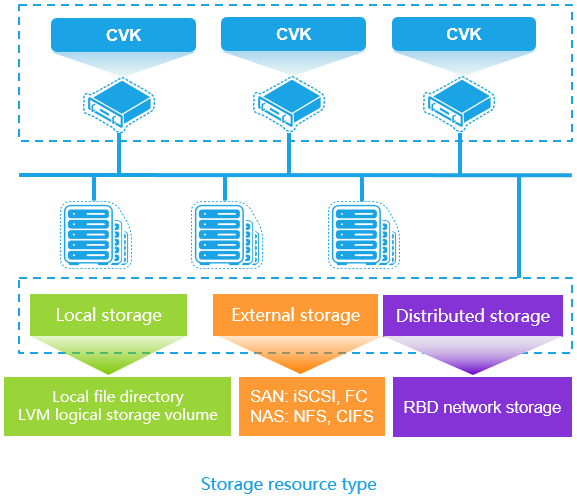
Manage storage pools
A storage pool is used to store storage volume files. You can configure multiple storage pools for a
host. After a host is added to the management platform, it has two local file directories named defaultpool and isopool by default. Storage pool defaultpool stores disk image files of VMs. Storage pool isopool stores vmptools.iso and Virtio driver files of OSs. Operators can add storage pools of other types as needed. defaultpool (/vms/images) and isopool (/vms/isos) are different subdirectories in the same physical storage path. They share the same underlying storage space, so their total and available capacity are identical.
Storage pool type
A host supports the following types of storage pools:
• Local storage—Local file directories and logical storage volumes.
• Distributed storage—.
• External storage:
○ IP SAN—iSCSI network storage and iSCSI shared file systems.
○ FC SAN—FC network storage and FC shared file systems.
○ NAS—Network file systems and Windows shared directories.
○ NVMe SAN—NVMe-oF shared file systems and NVMe-oF network storage.
Storage pool access modes
VMs access storage pools through the following objects:
• Block device—A block device does not have a file system. A VM can directly access the volume resources on block devices. Block devices are used in scenarios where large disk space is needed, for example, in a hospital information system.
• File—A file is a disk file in a file system. After a disk file is mounted to a VM, the file appears to be a physical disk. Disk files feature easy management.
For LVM logical storage volume, iSCSI network storage, FC network storage, NVMe-oF network storage,, VMs use their storage resources as block devices. For local file directory, shared file system, and network file system, VMs use their storage resources as files. For Windows system shared directory, VMs can perform only read operations. As a best practice, use storage pools of this type to store OS installation images. VMs can mount the ISO installation files in the storage pools to install an OS instead of copying the files to the local storage.
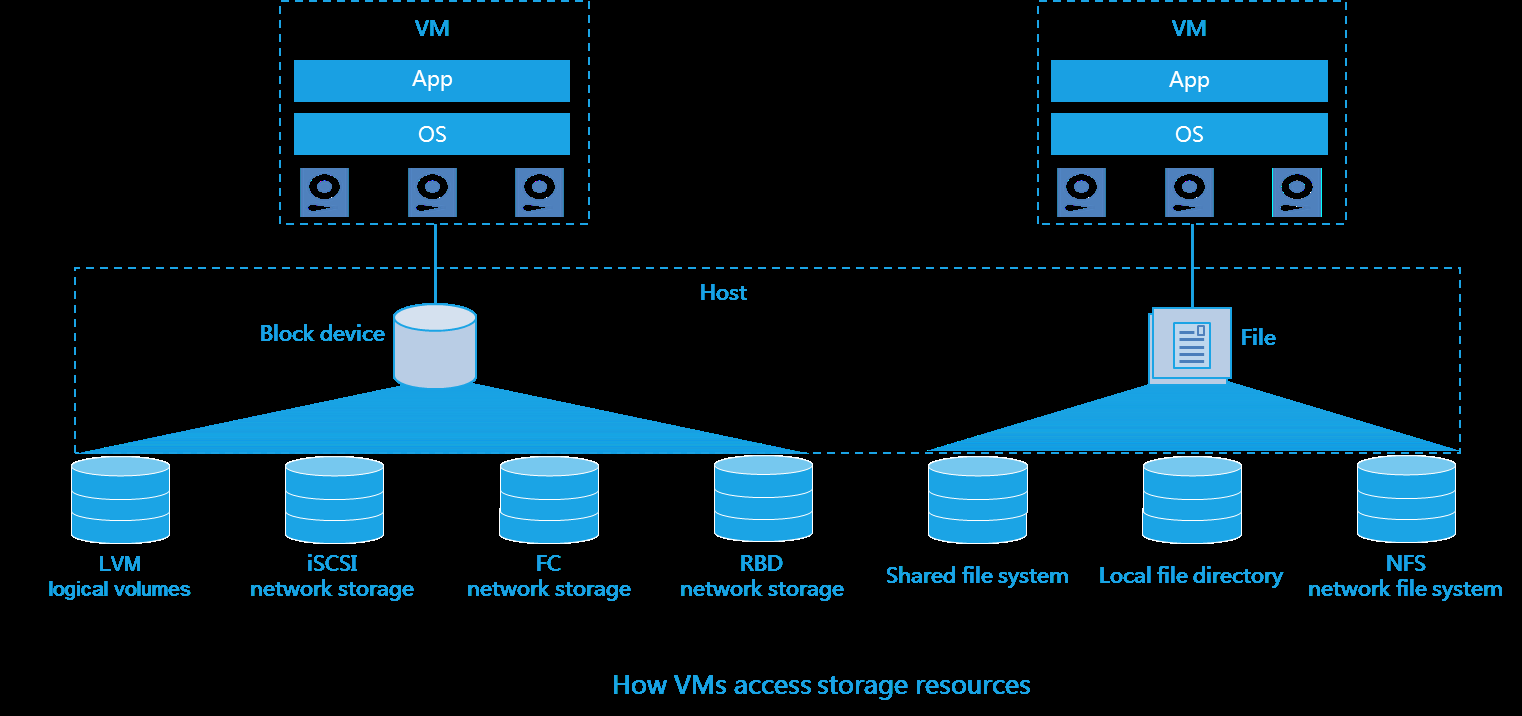
Restrictions and guidelines
iSCSI network storage and an iSCSI shared file system cannot share the LUN of an iSCSI storage device. To ensure the availability of the storage pools, make sure user mapping mode configured on the NFS server is no_root_squash and the system has the root access. The FC storage devices of some vendors do not support automatic LUN scanning. If you cannot find any LUNs for an FC SAN shared file system after adding it on a host, you must reboot the host.
After you suspend a storage pool of the FC network storage or local file directory type, VMs using the storage pool can still start correctly.
When you add a storage pool on a host, for the storage pool to support automatic VM migration, make sure the following requirements are met:
• For a network file system, the NFS source server path and the NFS storage pool name are the same as the network file systems on the other hosts in the same cluster.
• For iSCSI network storage, the name and target are the same as the iSCSI network storages on the other hosts in the same cluster.
• For FC or NVMe-oF network storage, the LUN used by VMs has been mapped to other hosts in the same cluster, and the FC or NVMe-oF network storage has the same name.
Hosts or clusters in the security zone cannot use the same shared storage as hosts or clusters not in the security zone.
The I/O throughput, IOPS, and disk I/O delay areas on the path details page display information about only active paths.
The available capacity of a shared file system formatted from a block device is 9 GB less than the capacity of that block device, because the shared file system occupies some space. You cannot format a block device as a shared file system when the capacity of that block device is less than 9 GB.
When you enter an alias in the search box above the storage pool list to search for a storage pool, the alias is case-sensitive. Make sure the specified alias is the same as the actual one.
Stretched clusters do not support NVMe-oF storage pools.
In an HCI cluster, avoid mixing iSCSI and NVMe-oF storage types as a best practice. If you use NVMe-oF shared file systems or NVMe-oF network storage in such clusters, make sure the storage protocol is set to iSCSI+RDMA or NVMe-oF on the Compute > Resource Navigation > All >
Resources > Data Center Name > Cluster Name > Configure > Cluster Planning page.
Add a storage pool
-
On the top navigation bar, click Compute.
-
From the left navigation pane, select Resource Navigation > All > Resources > Data Center Name > Cluster Name > Host Name.
-
Click the Storage tab.
-
Click Add.
-
Configure the parameters as described in "Parameters."
-
Click OK.
Edit the alias of a storage pool
-
On the top navigation bar, click Compute.
-
From the left navigation pane, select Resource Navigation > All > Resources > Data Center Name > Cluster Name > Host Name.
-
Click the Storage tab.
-
Click More in the Actions column for a storage pool, and then select Edit Alias.
-
Enter an alias, and then click OK.
Start a storage pool
-
On the top navigation bar, click Compute.
-
From the left navigation pane, select Resource Navigation > All > Resources > Data Center Name > Cluster Name > Host Name.
-
Click the Storage tab.
-
Click Start in the Actions column for the target storage pool.
-
In the dialog box that opens, click OK.
Suspend a storage pool
-
On the top navigation bar, click Compute.
-
From the left navigation pane, select Resource Navigation > All > Resources > Data Center Name > Cluster Name > Host Name.
-
Click the Storage tab.
-
Click Suspend in the Actions column for the target shared storage pool.
-
In the dialog box that opens, click OK.
Refresh a storage pool
-
On the top navigation bar, click Compute.
-
From the left navigation pane, select Resource Navigation > All > Resources > Data Center Name > Cluster Name > Host Name.
-
Click the Storage tab.
-
Click Refresh in the Actions column for a storage pool.
View detailed information about a storage pool
-
On the top navigation bar, click Compute.
-
From the left navigation pane, select Resource Navigation > All > Resources > Data Center Name > Cluster Name > Host Name.
-
Click the Storage tab.
-
Click More in the Actions column for a storage pool, and then select View Storage Pool Details.
Delete a storage pool
-
On the top navigation bar, click Compute.
-
From the left navigation pane, select Resource Navigation > All > Resources > Data Center Name > Cluster Name > Host Name.
-
Click the Storage tab.
-
Click More in the Actions column for the target shared storage pool, and then select Delete.
-
In the dialog box that opens, click OK.
Search for VM templates
Perform this task to search for VM templates in the back-end of a storage pool on a host. Then, you can import the VM templates into the storage pool on the host.
-
On the top navigation bar, click Compute.
-
From the left navigation pane, select Resource Navigation > All > Resources > Data Center Name > Cluster Name > Host Name.
-
Click the Storage tab.
-
Click More in the Actions column for a shared file system storage pool, and then select Scan Templates. The window that opens displays all VM templates.
-
To import the VM templates into the storage pool, click Import.
View path details
-
On the top navigation bar, click Compute.
-
From the left navigation pane, select Resource Navigation > All > Resources > Data Center Name > Cluster Name > Host Name.
-
Click the Storage tab.
-
Click More in the Actions column for a shared file system storage pool, and then select Path Details.
Reclaim the space of a storage pool
You can only reclaim space from storage pools of the shared file system type.
This feature releases physical storage space that is no longer in use. When you delete data or shrink a volume, file system, or VM, the underlying storage might not immediately recognize the change. The physical space remains marked as occupied. With space reclamation enabled, the system uses mechanisms such as TRIM/UNMAP, metadata scanning, or backend cleanup to identify these unused blocks. It then marks them as available, allowing the storage pool to reassign the space to other volumes or applications.
-
On the top navigation bar, click Compute.
-
From the left navigation pane, select Resource Navigation > All > Resources > Data Center Name > Cluster Name > Host Name.
-
Click the Storage tab.
-
Click More in the Actions column for a storage pool of the shared file system type, and then select Reclaim Space.
Add multipath IPs for a storage pool
To enhance the redundancy and load balancing capacity of an iSCSI shared storage system, perform this task to add multipath IP addresses for that system. When the system fails or load balancing is not even, the system can still operate correctly. This feature is available on the Storage tab of a host only if you add a storage pool of the iSCSI shared file system type.
-
On the top navigation bar, click Compute.
-
From the left navigation pane, select Resource Navigation > All > Resources > Data Center Name > Cluster Name > Host Name.
-
Click the Storage tab.
-
Click More in the Actions column for the target storage pool, and then select Add IP Address.
-
In the dialog box that opens, select storage IPs as needed.
Synchronize IPs
When the storage administrator has configured iSCSI network configuration, such as target IP, on the backend array but not on the host, or bulk updates are required, you can enable the system to automatically retrieve configured iSCSI target IPs from shared storage and synchronize them to the host storage pool at one click. When you add iSCSI shared storage by IP address, the host storage management page only provides the IP synchronization function for the system to automatically retrieve and update target IPs, and you cannot manually enter them.
-
On the top navigation bar, click Compute.
-
From the left navigation pane, select Resource Navigation > All > Resources > Data Center Name > Cluster Name > Host Name.
-
Click the Storage tab.
-
Click More in the Actions column for the target storage pool, and then select Sync IPs.
-
Click OK.
Parameters
• Type: Select a storage pool type.
• Name: Specify a name for the storage pool.
• Alias: Specify an alias for the storage pool, which is displayed on the system for storage pool identification.
Add a logical storage volume:
• Source Path: Select a volume group on the local disks of the host. Do not use a volume group as the source path if it has the swap, home, or var mount point. If you use a logical volume in such a volume group as the disk of a VM, the data in the system directory is corrupted on the host where the VM resides.
Add iSCSI network storage:
• Target Path: Local mount point of the storage pool. The default path is /dev/disk/by-id.
• Storage Resources: Select storage resources that are already added. To add a storage resource, click Add in the Other Info step when adding a storage pool. For more information, see "Storage resources ."
• IP Address: Enter the IP address of an iSCSI storage server.
• Target: Select an iSCSI Target.
• NAA: Specify an NAA. The NAA is the identifier of a physical LUN on a storage server. If storage multipathing is configured, the available NAAs are the intersection of the LUNs for all targets, and you must select at least one NAA from the available NAAs.
• Node for Affinity Scheduling: Name of the host associated with a node affinity policy.
Add FC network storage:
• Target Path: Local mount point of the storage pool. The default path is /dev/disk/by-id.
• NAA: Select an NAA on a storage server. An NAA is associated with a LUN.
• Size: Storage capacity of the storage pool.
Add NVMe-oF network storage:
• Target Path: Local mount point of the storage pool. The default path is /dev/disk/by-id.
• IP: Enter the IP address of a storage server.
• Target: Target on the storage server.
• UUID: UUID of the storage volume on the storage server. Each storage volume has a unique UUID.
• Node for Affinity Scheduling: Name of the host associated with a node affinity policy.
• Size: Size of the storage volume on the storage server.
Add a local file directory:
• High-Speed Memory Storage: This feature maps persistent memory into local storage to save base images of VMs, which improves the base image loading and access efficiency. In the current software version, only Intel AEP is supported.
• Mount Local Disks: Attach physical disks on the server to the storage pool as available storage resources for centralized management and use. This method is applicable to scenarios with low dependence on shared storage to improve storage usage by using idle local disks.
○ Mount Disks: Add unused physical disks on the server to the storage pool for the system to recognize and use them after they are initialized and formatted.
○ Mount Point: Map a mounted local disk to a directory path in the system. Through the mount point, users and applications access data on the mounted disk. A mount point is typically an empty directory. After mounting, this directory becomes the root directory of the mounted disk.
• Target Path: Enter the local level-2 directory of the storage pool. This parameter is configurable. The default path is /vms/storage pool name. For example, if the storage pool name is test, the default target path is /vms/test.
Add an NFS:
• Target Path: Enter the local mount point of the storage pool.
• Server: Enter the IP address or domain name of the host to which the shared directory belongs. For example, nas.it.com or 192.168.0.1.
• Source Path: Enter the path of the shared directory.
Add a shared file system:
• Shared File System: Select a shared file system. Before adding a shared file system storage pool, add a shared file system in the data center. For more information, see "Manage shared file systems."
• Set IQN: Specify an IQN for the host. The IQN must be globally unique.
• Configure NIC: Configure vSwitch settings for the host to communicate with the storage server when the server is inaccessible.
• Target Path: Local mount point of the storage pool. This parameter is not configurable. The default path is /vms/storage pool name. For example, if the storage pool name is test, the default target path is /vms/test.
• NAA: Unique identifier of a LUN.
• Device Model: Model of the FC SAN storage device.
• HBA: If multiple paths exist between the host and FC SAN storage device, configure multipathing to improve the reliability.
Add a Windows shared directory:
• Target Path: Local directory mount point used by the storage pool.
• Source Host IP: Enter the IP address of the host where the Windows system shared directory resides.
• Source Path: Enter the path of the shared directory. For example, if the share directory on drive X: is shared, enter /share. Only single-level directories are supported. You cannot enter a multi-level directory path, for example, /test/share1.
• Username: Enter the username for logging in to Windows.
• Password: Enter the password for logging in to Windows.
View storage pools and storage pool details:
• Path: Path information for the storage pool.
• Total: Total space of the storage pool. If the storage pool is an iSCSI or NVMe-oF network storage pool that has multiple LUNs, the size of the storage pool is the total size of all LUNs of the target, including LUNs used as shared file systems and template pools.
• Allocated: Total virtual storage size that is allocated to VM disks. For a storage pool of the iSCSI network storage type, FC network storage type, or NVMe-oF network storage type, this parameter displays the total size of block devices in the storage pool.
• Available: Available space of the storage pool.
• State: Whether the storage pool is active.
View path details
• NAA: Identifier of the physical LUN on the storage server.
• Multipath Policy: Multipath policy of the storage device.
○ --: The storage device does not use any multipath policy.
○ Most Recently Used: Use the path that is used most recently. When the path fails, the host randomly selects another path for I/O. When the failed path recovers, the host does not switch over to the path. You must perform a manual switchover. This policy does not support load balancing.
○ Fixed: Use the preferred path as long as it is available. If the preferred path becomes unavailable, the host selects another path. When the preferred path recovers, the host automatically switches over to the preferred path. This policy does not support load balancing.
○ Round Robin: Use an automatic path selection algorithm that rotates through all available paths to distribute I/O among these paths.
Manage storage volumes
For a local file directory, shared file system, or network file system, a storage volume is a file created in
a storage pool. The system supports the following storage volume formats:
• Raw—High-speed storage volume. This format has simple structure and high I/O performance. It does not support snapshots, online backup, or online clone.
• Qcow2—Intelligent storage volume. This format supports snapshots, fast clone, and online backup. When you create a storage volume, the default format is Qcow2.
For a storage pool of the LVM logical storage volume type, a storage volume is a logical volume in a volume group. VMs mount logical volumes as block devices. For a storage pool of the iSCSI network storage, FC network storage, or NVMe-oF storage type, a storage volume is a LUN on a storage server. VMs mount LUNs as block devices.
Restrictions and guidelines
• For an iSCSI network storage pool, if a target has multiple LUNs, only LUNs can be used by VMs as block devices are displayed in the storage volume list.
• If the host restarts during the creation of a storage volume, delete the storage volume and create it again after the host restarts.
• To avoid VM data loss during bulk storage volume migration, do not start, shut down, migrate, clone, snapshot, or back up VMs that use the storage volumes.
• RAW storage volumes that are being used by VMs cannot be migrated.
• You can create level-2 directories only in storage pools of the following types:
○ Local file directory.
○ FC shared file system, iSCSI shared file system, or NVMe-oF shared file system.
○ NFS.
• In a storage pool, you cannot create subdirectories in a level-2 directory.
• In a storage pool, you cannot migrate one level-2 directory to another level-2 directory.
• When you migrate a level-2 directory between two storage pools, make sure the destination storage pool does not have a directory or storage volume that uses a name identical to the level-2 directory name.
• You can perform the following operations for a level-2 directory of a storage pool:
○ Create storage volumes.
○ Delete storage volumes.
○ Migrate storage volumes.
○ Upload files.
○ Download storage volumes.
• The size of storage volumes created in a storage pool of the local directory type cannot exceed 16T.
• You cannot upload asp, jsp, exe, vbs, or com files.
• You cannot filter and then export the target storage volumes. The system exports all storage volumes even if you specify filter criteria or select target storage volumes.
Create a storage volume
-
On the top navigation bar, click Compute.
-
From the left navigation pane, select Resource Navigation > All > Resources > Data Center Name > Cluster Name > Host Name.
-
Click the Storage tab.
-
Click a storage pool.
-
(Optional.) Select a level-2 directory.
-
Click Add Storage Volume.
-
Configure the parameters as described in "Parameters."
-
Click OK.
Add a LUN
-
On the top navigation bar, click Compute.
-
From the left navigation pane, select Resource Navigation > All > Resources > Data Center Name > Cluster Name > Host Name.
-
Click the Storage tab.
-
Select an iSCSI network storage pool, FC network storage pool, or NVMe-oF network storage pool.
-
Click Add LUN.
-
Configure the parameters as described in "Parameters."
-
Click OK.
Create a level-2 directory
-
On the top navigation bar, click Compute.
-
From the left navigation pane, select Resource Navigation > All > Resources > Data Center Name > Cluster Name > Host Name.
-
Click the Storage tab.
-
Select a storage pool.
-
Click Create Level-2 Directory.
-
Enter a name for the directory.
-
Click OK.
Upload files to a storage pool
-
On the top navigation bar, click Compute.
-
From the left navigation pane, select Resource Navigation > All > Resources > Data Center Name > Cluster Name > Host Name.
-
Click the Storage tab.
-
Click a storage pool.
-
(Optional.) Select a level-2 directory.
-
Click Upload Files.
-
Click Select file or click in the dashed box to select files.
-
Click Start.
Bulk migrate storage volumes
-
On the top navigation bar, click Compute.
-
From the left navigation pane, select Resource Navigation > All > Resources > Data Center Name > Cluster Name > Host Name.
-
Click the Storage tab.
-
Click a storage pool.
-
(Optional.) Select a level-2 directory.
-
Select multiple storage volumes.
-
Click Bulk Migrate.
-
In the dialog box that opens, click OK.
-
Select the destination storage pool and its level-2 directory (optional) and click OK.
Bulk migrate level-2 directories
-
On the top navigation bar, click Compute.
-
From the left navigation pane, select Resource Navigation > All > Resources > Data Center Name > Cluster Name > Host Name.
-
Click the Storage tab.
-
Click a storage pool.
-
Select level-2 directories.
-
Click Bulk Migrate.
-
In the dialog box that opens, click OK.
-
Select the destination storage pool and then click OK.
Delete a storage volume or level-2 directory
-
On the top navigation bar, click Compute.
-
From the left navigation pane, select Resource Navigation > All > Resources > Data Center Name > Cluster Name > Host Name.
-
Click the Storage tab.
-
Click a storage pool.
-
Click Delete in the Actions column for a storage volume or level-2 directory.
-
In the dialog box that opens, click OK. If you delete a storage volume, select whether to destroy data.
-
If you delete a storage volume, enter DELETE in the dialog box that opens, and then click OK.
Download a storage volume
-
On the top navigation bar, click Compute.
-
From the left navigation pane, select Resource Navigation > All > Resources > Data Center Name > Cluster Name > Host Name.
-
Click the Storage tab.
-
Click a storage pool.
-
(Optional.) Select a level-2 directory.
-
Click Download in the Actions column for a storage volume.
-
Click OK.
Parameters
Create a storage volume:
• Name: Storage volume name, which cannot be identical to a level-2 directory name in the same storage pool.
• Available Size: Specify the available size of the storage volume. Once the storage volume is created, this setting is not editable.
• Max. Size: Specify the maximum size of the storage volume, which cannot exceed the available space of the storage pool.
• Format: Select the format of the storage volume.
• Base Image: Select the base image file, which is a storage volume installed with an OS and applications. Multiple VMs can share a base image. You must select a qcow2 or raw file. This parameter is required when the storage volume format is intelligent and the provision mode is thin.
• Provision: Select a storage volume provision mode. Options include Thin, Lazy Zeroed, and Eager Zeroed.
○ Thin—Allocates only as much storage space as the storage volume needs for its initial operations when the storage volume is created. If the storage volume needs more storage space later, the system allocates as much storage space as the volume would require based on the specified maximum storage size.
○ Lazy Zeroed—Allocates the specified maximum storage size to the storage volume when the storage volume is created. Data remaining on the physical device is not erased during creation, but is zeroed out on first write from the VM. NFS storage pools do not support storage volumes of the lazy zeroed provision mode.
○ Eager Zeroed—Allocates the specified maximum storage size to the storage volume when the storage volume is created. Data remaining on the physical device is zeroed out during creation. It might take a longer time to create storage volumes in this format than to create storage volumes of other formats.
• Disk Cluster Size: Set the smallest amount of disk space that can be used to store a file. If a file is larger than a disk cluster, it is stored in multiple disk clusters. If a file is smaller than a disk cluster, it is stored in a dedicated disk cluster. A shared file system is mainly used to store VM image files. As a best practice, set the value of this parameter as large as possible to enhance disk read performance and save disk space. You must configure this parameter when you add a Qcow2 storage volume.
• NAA: The NAA identifier of a storage volume on the storage server. Configure this parameter when adding a storage volume for FC network storage or iSCSI network storage.
• UUID: The UUID identifier of a storage volume on the storage server. Configure this parameter when adding a storage volume for an NVMe-oF network storage pool.
Monitor storage volume performance for a host
Perform this task to monitor the performance of storage volumes that have been added to the
management platform in real time. Through a graphical interface, you can easily view critical performance metrics, such as I/O read and write throughput, which helps in identifying potential performance bottlenecks.
Restrictions and guidelines
• The performance monitoring page only displays performance data for storage volumes used by VMs on the current host.
• For storage volumes shared by multiple VMs, the performance monitoring page displays performance data collected from different VMs, identified in the format of volume name[VM name].
Procedure
-
On the top navigation bar, click Compute.
-
From the left navigation pane, select Resource Navigation > All > Resources > Data Center Name > Cluster Name > Host Name.
-
Click the Storage tab.
-
Click a storage pool.
-
Click the Monitor tab.
-
In icon mode, click the icon to switch to list mode. To filter monitoring information, select File Name or User (VM).
-
In list mode, click the icon to switch to icon mode. a. To view storage performance monitoring information in a specific time period, select one from the Time Range list. To view the storage performance information for the Top N VMs, select a number from the TOP N list. The legend format in the TOP N chart is volume name[VM name]. If any names are duplicated, a number is added at the end to differentiate them. b. To export storage performance monitoring information, click Export Raw Data.
Parameters
• I/O Read Throughput: The amount of data read from a storage volume per unit of time, measured in kilobytes per second (kBps).
• I/O Write Throughput: The amount of data written to a storage volume per unit of time, measured in kilobytes per second (kBps).
• Disk I/O Read Latency: Time from when a read request is sent to when data is received, measured in milliseconds (ms).
• Disk I/O Write Latency: Time from when a write request is sent to when the data is acknowledged as successfully written, measured in milliseconds (ms).
• Disk Read Requests (IOPS): Number of read requests completed by a storage volume in a unit of time, measured in IOPS.
• Disk Write Requests (IOPS): Number of write requests completed by a storage volume in a unit of time, measured in IOPS.
• Disk Usage: Resource usage of a storage volume, typically expressed as a percentage (for example, 60.73%).
Manage read acceleration
Read acceleration allows you to boost the read performance of the shared file systems on a host by
configuring read cache disks for the shared file systems. Read acceleration is enabled by default for all VMs that use the disk storage provided by shared file systems with read acceleration enabled.
Restrictions and guidelines
VM I/O will be frozen temporarily if you configure or remove read acceleration settings. Make sure you are fully aware of the impact of your operations. Hosts running the Tencent OS do not support read acceleration.
Configure read acceleration
-
On the top navigation bar, click Compute.
-
From the left navigation pane, select Resource Navigation > All > Resources > Data Center Name > Host Name.
-
Click the Storage tab.
-
Click Read Acceleration.
-
Click Configure for a shared file system.
-
Configure an acceleration cache disk for the shared file system, and then click OK.
Remove read acceleration configuration
-
On the top navigation bar, click Compute.
-
From the left navigation pane, select Resource Navigation > All > Resources > Data Center Name > Host Name.
-
Click the Storage tab.
-
Click Read Acceleration.
-
Click Remove for a shared file system.
-
In the dialog box that opens, click OK.
Manage partitions of acceleration cache disks
-
On the top navigation bar, click Compute.
-
From the left navigation pane, select Resource Navigation > All > Resources > Data Center Name > Host Name.
-
Click the Storage tab.
-
Click Read Acceleration.
-
Click Configure for a shared file system.
-
When you select the SSD type: a. Click Partition for an SSD cache disk, and then configure the partition of the SSD cache disk. b. To delete the partition of an SSD cache disk, click Delete Partition for the SSD cache disk.
-
When you select the Host Mem SSD cache type: a. Set the memory ratio and size for cache acceleration based on the host's total and available memory. b. Click OK.
Manage storage pool alarms
Perform this task to manage local file directory shared file system alarms.
Review alarms
-
On the top navigation bar, click Compute.
-
From the left navigation pane, select Resource Navigation > All > Resources > Data Center Name > Host Name.
-
Click the Storage tab. Select the target shared file system.
-
Click the Alarm tab to view alarm information.
Acknowledges alarms
-
On the top navigation bar, click Compute.
-
From the left navigation pane, select Resource Navigation > All > Resources > Data Center Name > Host Name.
-
Click the Storage tab. Select the target shared file system.
-
Click the Alarm tab. Select the target alarms, and then click Acknowledge.
Delete alarms
-
On the top navigation bar, click Compute.
-
From the left navigation pane, select Resource Navigation > All > Resources > Data Center Name > Host Name.
-
Click the Storage tab. Select the target shared file system.
-
Click the Alarm tab. Select the target alarms, and then click Delete. In the dialog box that opens, click OK.
Clear alarms
-
On the top navigation bar, click Compute.
-
From the left navigation pane, select Resource Navigation > All > Resources > Data Center Name > Host Name.
-
Click the Storage tab. Select the target shared file system.
-
Click the Alarm tab. Select the target alarms, and then click Clear. In the dialog box that opens, click OK.
-
Select the state, severity, type, start time, and end time for the alarms, and then click OK.
Filter alarms
-
On the top navigation bar, click Compute.
-
From the left navigation pane, select Resource Navigation > All > Resources > Data Center Name > Host Name.
-
Click the Storage tab, and then select the target storage pool.
-
Configure the filter parameters, and then click Filter. The matching alarms are displayed.
-
To set the refresh interval, select an interval in the Refresh Interval field in the top right corner.
Ignore alarms
-
On the top navigation bar, click Compute.
-
From the left navigation pane, select Resource Navigation > All > Resources > Data Center Name > Host Name.
-
Click the Storage tab, and then select the target storage pool.
-
Click Ignore in the Actions column for an alarm.
-
In the dialog box that opens, enter the description, and then click OK.
Configure alarm threshold settings
- On the top navigation bar, click Compute.
Manage vSwitches for hosts
A vSwitch provides software-based switching between VMs, hosts, and the external network. A
vSwitch provides the following ports:
• VM port—A virtual NIC that connects to a VM.
• Local port—A port that connects to the protocol stack on the host.
• Uplink port—A physical NIC that connects to the host.
If a VLAN ID is configured on a vSwitch, you must assign the corresponding interface on the physical switch to the VLAN to ensure correct communication.
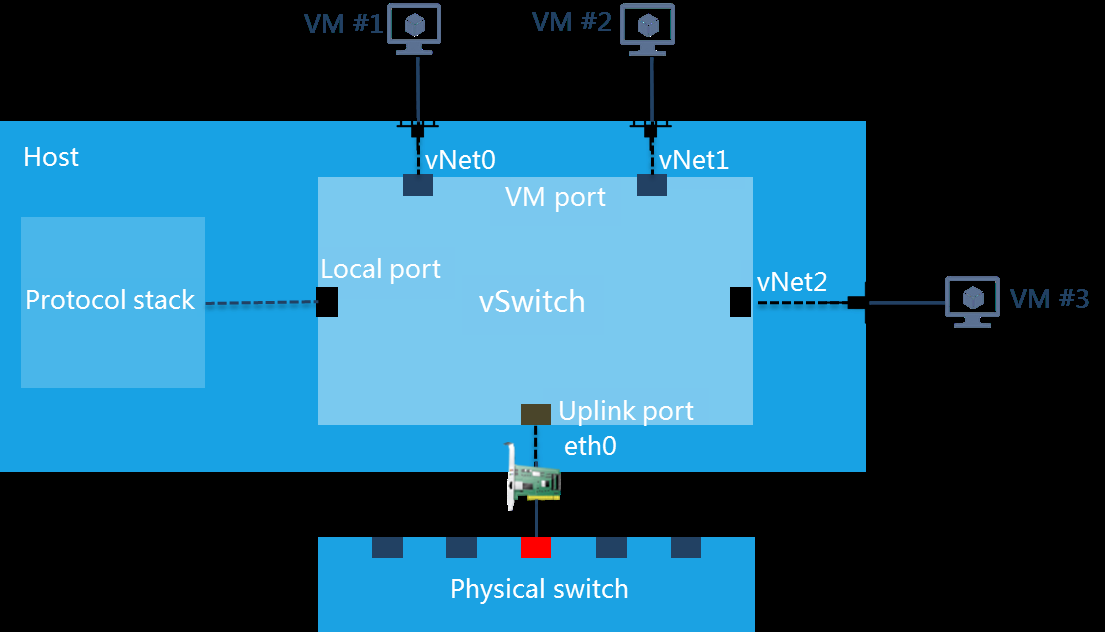
A vSwitch supports the following network types:
• Management—Transmits control layer data between the management platform and hosts.
• Service—Transmits service data for VMs.
• Storage—Transmits packets between hosts and IP SAN storage servers. This type of vSwitches cannot be used by VMs.
• Backup—Transmits the backup data of VMs and backup data for disaster recovery. A host can have only one vSwitch or subnet of this type, and the vSwitch cannot be used by VMs. If you do not specify a backup network vSwitch, backup data is transmitted through the management network vSwitch.
• Migration—Transmits the data for migrating VMs. A host can have only one vSwitch or subnet of this type, and the vSwitch cannot be used by VMs.
• Traffic redirection—Clears microsegmented VM traffic data.
• Mirroring—Receives traffic of port mirroring. If you select a vSwitch as the destination for port mirroring, make sure the network type of that vSwitch is mirroring.
After you add a host to the management platform, the system automatically creates a default vSwitch named vswitch0 for the management network on the host. If you do not configure any backup network or migration network, the backup and migration data for VMs will be transmitted through vswitch0.
Restrictions and guidelines
• Multiple vSwitches cannot belong to the same network.
• You cannot delete a vSwitch when it is being used by VMs.
• If only vSwitch vswitch0 exists in the system, do not delete the vSwitch. If you delete it, the management platform cannot be accessed.
• Editing a vSwitch might cause network connectivity issues and adversely impact services. Before you edit a vSwitch, verify the network settings for the vSwitch.
• As a best practice to ensure storage service performance, do not use the backup network vSwitch as the storage network vSwitch, and vice versa.
• After you edit a vSwitch with a backup network configured, you must reconfigure the network type of the vSwitch as backup if you want to use that network for disaster recovery.
• Deleting a vSwitch that uses an Smart NIC or deleting a NIC of a VM connected to such a vSwitch will not trigger traffic recalculation on the vSwitch.
Add a vSwitch
-
On the top navigation bar, click Compute.
-
From the left navigation pane, select Resource Navigation > All > Resources > Data Center Name > Cluster Name > Host Name.
-
Click the vSwitches tab.
-
Click Add.
-
Configure the parameters as described in "Parameters."
-
Click OK.
Edit a vSwitch
-
On the top navigation bar, click Compute.
-
From the left navigation pane, select Resource Navigation > All > Resources > Data Center Name > Cluster Name > Host Name.
-
Click the vSwitches tab.
-
Click Edit in the Actions column for a vSwitch.
-
Configure the parameters as described in "Parameters."
-
Click OK.
Start a vSwitch
-
On the top navigation bar, click Compute.
-
From the left navigation pane, select Resource Navigation > All > Resources > Data Center Name > Cluster Name > Host Name.
-
Click the vSwitches tab.
-
Click More in the Actions column for a vSwitch, and then select Start vSwitch.
-
In the dialog box that opens, click OK.
Delete a vSwitch
-
On the top navigation bar, click Compute.
-
From the left navigation pane, select Resource Navigation > All > Resources > Data Center Name > Cluster Name > Host Name.
-
Click the vSwitches tab.
-
Click Delete in the Actions column for a vSwitch.
-
In the dialog box that opens, click OK.
View shared networks
Perform this task to quickly identify whether the physical NICs bound to the current vSwitch are shared by other vSwitches and display the specific sharing relationships. This feature helps administrators clearly understand sharing of network resources and facilitates bandwidth planning, troubleshooting, and security audit.
-
On the top navigation bar, click Compute.
-
From the left navigation pane, select Resource Navigation > All > Resources > Data Center Name > Cluster Name > Host Name.
-
Click the vSwitches tab.
-
Click More in the Actions column for a vSwitch and then select Share Network.
-
This window shows which vSwitches use the NICs under the current vSwitch.
Change the network type for a vSwitch
Perform this task to change the vSwitch network type to meet different service requirements or performance optimization goals. You can change the network type only for vSwitches that contain host networks (where the network type includes any of the following: management, migration, backup, or storage).
-
On the top navigation bar, click Compute.
-
From the left navigation pane, select Resource Navigation > All > Resources > Data Center Name > Cluster Name > Host Name.
-
Click the vSwitches tab.
-
Click More in the Actions column for a vSwitch and then select Edit Network Type.
-
Select and update the network types as needed, and then click OK.
Change the network type of a vSwitch from backup to disaster recovery
Restrictions and guidelines
ARM hosts do not support disaster recovery.
Procedure
-
On the top navigation bar, click Compute.
-
From the left navigation pane, select Resource Navigation > All > Resources > Data Center Name > Cluster Name > Host Name.
-
Click the vSwitches tab.
-
Click More in the Actions column for a backup-network vSwitch or vSwitch vswitch0. vswitch0 can be used as a backup-network vSwitch by default. Then, select Set as Disaster Recovery Network from the pop-up menu.
-
In the dialog box that opens, click OK.
Configure RDMA settings
Perform this task to configure RDMA parameters for a vSwitch. You can configure Priority Flow Control (PFC) and Intelligent Lossless Network (iNOF), which can be used to build a lossless network environment for high-performance storage (such as NVMe-oF). Remote Direct Memory Access (RDMA) enables low-latency and high-throughput data transfer between servers with lower CPU overhead, enhancing storage network performance. By configuring PFC parameters, you can enable lossless transmission for RDMA network traffic of the specified priority, reducing the risk of packet loss caused by network congestion. With iNOF enabled, the management platform performs coordinated optimization of hosts, switches, and the storage network based on an intelligent lossless algorithm. This practice achieves autodiscovery of NVMe-oF devices, rapid detection of network status, and dynamic tuning of the RDMA network, thereby improving the stability and operations efficiency of the storage network.
Prerequisites
To enable iNOF, verify that NVMe-oF configuration has been completed for the storage network. For iNOF to take effect, the host server, physical switch, and storage server must be all configured with iNOF.
Restrictions and guidelines
• iNOF is not supported in the following scenarios:
○ Non-Euler versions (E0780 and earlier versions).
○ CVK management platform.
○ Scenarios where manual NVMe configuration coexists with automatic NVMe connection by the management platform.
○ Hosts with Tencent OS.
○ Migration from NSphere NVMe-SNSD (Linux Bridge) to third-party NVMe-SNSD.
○ IPv6 scenarios.
• In scenarios where compute nodes and storage nodes are deployed on different physical servers, you cannot configure RDMA or iNOF on CVM vSwitches.
• iNOF is available only on the NVMe-oF host side and is not available on the target side.
• iNOF takes effect for single NICs with only one IP. It does not apply to NICs with multiple IPs or NIC bonds.
Procedure
-
On the top navigation bar, click Compute.
-
From the left navigation pane, select Resource Navigation > All > Resources > Data Center Name > Cluster Name > Host Name.
-
Click the vSwitches tab.
-
Click More in the Actions column for the target vSwitch, and then select Set RDMA Parameters.
-
Configure the related parameters as needed. For more information about those parameters, see "Parameters."
-
Click OK.
Parameters
• Name: Name of the vSwitch.
• Description: Description of the vSwitch.
• Type: Type of the vSwitch.
○ Standard—A standard vSwitch is a vSwitch that is configured and managed on a single host. It provides basic Layer 2 network functions. You must set up standard vSwitches manually on each host. Standard vSwitches are suitable for small to medium virtualization deployments, supporting basic VLAN configuration and security policies.
○ Distributed—A distributed vSwitch is a vSwitch that includes standard vSwitch features while offering a centralized administration interface. It provides advanced network features such as port mirroring and private VLAN policies and supports migration of VMs between different hosts without reconfiguring networks. Distributed vSwitches are suitable for large-scale and complex virtualization deployments.
• Network Type: Select network types for the vSwitch.
○ Mgmt—Network for transmitting control layer data between the management platform and hosts.
○ Service—Network for transmitting service data of VMs.
○ Storage—Network for transmitting data between hosts and IP SAN storage servers or distributed storage. This type of vSwitches cannot be used by VMs.
○ Backup—Network for transmitting backup data between VMs and remote servers. A host can have only one vSwitch or subnet of this type and the vSwitch cannot be used by VMs.
○ Migration—Network for transmitting memory and disk image data for VM migration. A host can have only one vSwitch or subnet of this type and the vSwitch cannot be used by VMs.
○ Traffic Redirection—Network for clearing microsegmented VM data.
○ Mirror Network—Network for transmitting traffic of port mirroring. If you select a vSwitch as the destination for port mirroring, make sure the network type of that vSwitch is mirroring.
• Forwarding Mode: Select the forwarding mode of the vSwitch. The VXLAN (SDN) forwarding mode is available only when the network type for the vSwitch is Service.
○ VEB—Virtual Ethernet Bridge (VEB) mode. In this mode, the vSwitch forwards traffic based on software.
○ VXLAN (SDN)—Forwarding mode provided by the VXLAN solution based on SDN controllers and management platforms. NingOS 2.0 hosts do not support this mode.
• VLAN ID: Specify a VLAN ID for the local port of the vSwitch. You can use VLAN to isolate host traffic from VM traffic at Layer 2. This parameter is not available when the network type for the vSwitch is Mirror Network.
• Micro-Segmentation: Configure whether to enable micro-segmentation or not. If you enable micro-segmentation, the vSwitch will redirect the traffic of isolated VMs to a redirection vSwitch. To isolate VMs with microsegments, you must enable micro-segmentation. This parameter is available only if you select the service network type.
• Multicast: Enable multicast forwarding for the vSwitch. You cannot enable multicast for vSwitch vswitch0. This parameter is available only if you select the service network type.
• Acceleration Mode: Select an acceleration mode for the vSwitch. Hosts that run the Tencent operating system do not support Smart NICs. This parameter is available only if you select the service network, storage network, backup network, migration network, or mirroring network type.
○ Common: In this mode, advanced settings are not enabled.
○ DPDK: This mode can improve the network performance of the vSwitch. You must first enable DPDK in the advanced settings for the host attached to the vSwitch.
○ SmartNic: This mode can improve the network acceleration performance of the vSwitch.
• Physical Interface: Name of the interface on the physical NIC assigned to the vSwitch. A physical interface can be assigned to only one vSwitch. When all physical interfaces of the host are assigned to vSwitches, this parameter is not configurable. If the vSwitch is not assigned a physical interface, VMs attached to the vSwitch can communicate only with each other but cannot communicate with external networks. If you specify multiple physical interfaces for the vSwitch, you must configure the link aggregation mode and LB mode.
• Use Existing Networks: If you select this option, a vSwitch can share a physical interface with other vSwitches for resource sharing. vSwitches with the same acceleration mode can share the same physical interface.
○ A vSwitch can use the physical interface of other vSwitches only when its network type is service, forwarding mode is VEB, and acceleration mode is common or DPDK.
○ The physical interface of a vSwitch can be used by other vSwitches only when its network type is management, migration, backup, or storage, forwarding mode is VEB, and acceleration mode is common or DPDK.
○ To configure IP information or subnets, set them on the vSwitch whose physical interface is used by other vSwitches.
○ One physical interface can be shared by up to four vSwitches.
• MTU: Set the maximum packet length allowed by the vSwitch, in bytes. You can specify the vSwitch MTU of the current network as the default MTU. The default MTU of that network on the System > Parameters > Network Settings page will be replaced automatically. The MTU of vSwitch vswitch0 cannot be changed. This parameter is not available when the network type for the vSwitch is Traffic Redirection or Mirror Network.
• IPv4 Address: Enter an IPv4 address for the vSwitch.
• Subnet Mask: Enter the subnet mask of the IPv4 address.
• IPv4 Gateway: Enter an IPv4 gateway for the vSwitch. A host can have only one IPv4 gateway.
• IPv6 Address: Enter an IPv6 address for the vSwitch.
• Prefix Length: Enter the prefix length of the IPv6 address.
• IPv6 Gateway: Enter an IPv6 gateway for the vSwitch. A host can have only one IPv6 gateway.
• LAGG Mode: Set the link aggregation mode of the physical NICs. Options include Static and Dynamic. If dynamic link aggregation mode is used, you must enable LACP on the physical switch. This mode is configurable only when multiple physical interfaces exist.
• LB Mode: Set the load balancing mode of physical NICs. This parameter is configurable only when multiple physical interfaces exist.
○ Advanced—Performs load balancing for packets based on the Ethernet type, IP protocol, source IP address, destination IP address, source port number, and destination port number.
○ Basic—Performs load balancing for packets based on the source MAC address and VLAN tag.
○ Active/Standby—Performs load balancing for packets based on the primary and backup roles of physical NICs. If the primary NIC fails, traffic is automatically switched to the backup NIC.
• Fallback: Select whether to switch services from the backup NIC back to the primary NIC after the primary NIC recovers from a fault. This parameter is available only if you select the service or mirroring network type and the load balancing mode is set to Active/Standby.
• Primary NIC Selection: Select the method used to select the primary NIC. This parameter is available only if you select the service or mirroring network type and the load balancing mode is set to Active/Standby. The system performs a fallback based on the rate of the primary and backup NICs when the primary NIC recovers if you configure static link aggregation for a vSwitch, select Rate-Based as the primary NIC selection method, and enable fallback. If the rate of the primary and backup NICs is the same, for example, both are Gigabit NICs, the system does not perform a fallback.
○ Rate-Based—The system automatically selects the primary NIC based on the rates of the NICs. The NIC with the highest rate becomes the primary NIC. When multiple NICs have the same rate, the system randomly selects a NIC as the primary NIC.
○ Manual—Specify the primary NIC by arranging the LB priorities of the NICs. The NIC with the highest priority is the primary NIC. You must configure the LB priorities for the NICs in this mode.
• LB Priority: Arrange the physical interfaces to define their LB priorities. The physical interface on the top has the highest priority and is the primary physical interface. This parameter is available only if you select the service or mirroring network type, the load balancing mode is set to Active/Standby, and the primary NIC selection method is manual.
• PFC_TRUST: Specifies the NIC trust mode, which determines whether the NIC identifies traffic priority based on the Ethernet frame PCP field or the IP header DSCP field when applying PFC. Priority-based Flow Control (PFC) is an Ethernet link-layer traffic control mechanism that prevents packet loss for specific traffic priorities and is commonly used in HA scenarios.
○ pcp: The NIC determines traffic priority based on the PCP field in the VLAN header of the Ethernet frame. Higher PCP values indicate higher priority, and network devices forward higher-priority traffic first. As a best practice, set the value for PFC_PRIORITY to 3 if you select this mode.
○ dscp: The NIC determines traffic priority based on the DSCP field in the IP header. As a best practice, set the value for PFC_PRIORITY to 5 if you select this mode.
• PFC_PRIORITY: Specifies the RoCE traffic priority. PFC controls traffic for specific priorities to help prevent packet loss. This value must match the RDMA configuration on both the physical switch and the centralized storage system (for example, MacroSAN Storage). Common values are 3 and 5.
• INOF: Leveraging intelligent lossless algorithms and host dynamic management mechanisms, it achieves deep coordination between compute nodes and storage networks. It enables automatic discovery of massive storage devices and rapid perception of network outages.
Manage port mirroring
Port mirroring copies the packets passing through a port to a port that connects to a data monitoring
device for packet analysis and network diagnosis.
Restrictions and guidelines
The VM where the source port resides cannot be in VLAN 1. You can select multiple NICs that connect to the same vSwitch as the source ports. You can select a maximum of two NICs that connect to the same vSwitch as the destination ports. If you do not specify a destination port for port mirroring, mirrored packets are sent out of the uplink port of the host. As a mirroring destination port, a virtual NIC only can receive mirrored packets. It cannot be used for other communication purposes. If you select a vSwitch as the destination for port mirroring, make sure the network type of that vSwitch is mirroring. You cannot configure port mirroring for VMs for disaster recovery or VMs in a protection group. To prevent service traffic from being processed as mirror traffic, make sure the service VLAN ID for a VM is different from the probe VLAN ID for the VM. VMs with bridges configured support exporting/importing OVF templates, cloud rainbow migration, fault migration, automatic/manual migration, and backup and restoration. When you migrate such a VM, make sure the destination has a common vSwitch and a vSwitch with a network type of mirror network that have the same name, and neither of them is configured with other port mirroring items. VMs with bridges configured do not support cloud rainbow migration. For a vSwitch of the management, storage, backup, or migration network type, you can only configure the destination type as vSwitch in the port mirroring configuration.
Add a port mirroring item
-
On the top navigation bar, click Compute.
-
From the left navigation pane, select Resource Navigation > All > Resources > Data Center Name > Cluster Name > Host Name.
-
Click the vSwitches tab.
-
Click More in the Actions column for a vSwitch, and then select Advanced Settings.
-
Click the Port Mirroring tab.
-
Click Add.
-
Configure the parameters as described in "Parameters."
-
Click OK.
Edit a port mirroring item
-
On the top navigation bar, click Compute.
-
From the left navigation pane, select Resource Navigation > All > Resources > Data Center Name > Cluster Name > Host Name.
-
Click the vSwitches tab.
-
Click More in the Actions column for a vSwitch, and then select Advanced Settings.
-
Click the Port Mirroring tab.
-
Click Edit in the Actions column for a port mirroring item.
-
Configure the parameters as described in "Parameters."
-
Click OK.
Delete a port mirroring item
-
On the top navigation bar, click Compute.
-
From the left navigation pane, select Resource Navigation > All > Resources > Data Center Name > Cluster Name > Host Name.
-
Click the vSwitches tab.
-
Click More in the Actions column for a vSwitch, and then select Advanced Settings.
-
Click the Port Mirroring tab.
-
Click Delete in the Actions column for a port mirroring item.
-
In the dialog box that opens, click OK.
Parameters
• Name: Specify a name for the port mirroring item.
• Destination End Type: Specify the destination type. Options are VMs and vSwitches. If you select VMs as the destination type, you configure a port mirroring item. If you select vSwitches as the destination type, you configure bridges.
• Probe VLAN ID: Specify the dedicated VLAN for transmitting mirrored packets.
• Direction: Select the mirroring direction.
○ Inbound Direction—Traffic from a VM to the vSwitch.
○ Outbound Direction—Traffic from the vSwitch to a VM.
○ Bidirectional—Traffic in both directions.
Manage DHCP services
DHCP provides a framework to assign configuration information to hosts, including IP addresses,
gateway addresses, and DNS server addresses. You can specify a VLAN as the scope of a DHCP service and configure multiple DHCP services for a vSwitch. Each DHCP service applies to the VMs in the corresponding VLAN. The VLAN settings of VMs are configured by using a port profile on the vSwitch. DHCP provides efficient IP address assignment services for medium networks or large networks that contain more than 100 VMs. Configurations on VMs are simplified as VMs automatically obtain IP addresses and configurations through DHCP.
Restrictions and guidelines
The DHCP server of a DHCP service uses the start IP address in the IP address pool of the DHCP service. The IP address pools of DHCP services cannot overlap. After you delete a DHCP service from a vSwitch, VMs that have been assigned IP addresses lose the IP addresses after a period of time, and VMs newly join the vSwitch cannot obtain IP addresses.
Add a DHCP service
-
On the top navigation bar, click Compute.
-
From the left navigation pane, select Resource Navigation > All > Resources > Data Center Name > Cluster Name > Host Name.
-
Click the vSwitches tab.
-
Click More in the Actions column for a vSwitch, and then select Advanced Settings.
-
Click the DHCP Service tab.
-
Click Add.
-
Configure the parameters as described in "Parameters."
-
Click OK.
Edit a DHCP service
-
On the top navigation bar, click Compute.
-
From the left navigation pane, select Resource Navigation > All > Resources > Data Center Name > Cluster Name > Host Name.
-
Click the vSwitches tab.
-
Click More in the Actions column for a vSwitch, and then select Advanced Settings.
-
Click the DHCP Service tab.
-
Click Edit in the Actions column for a DHCP service.
-
Configure the parameters as described in "Parameters."
-
Click OK.
Delete a DHCP service
-
On the top navigation bar, click Compute.
-
From the left navigation pane, select Resource Navigation > All > Resources > Data Center Name > Cluster Name > Host Name.
-
Click the vSwitches tab.
-
Click More in the Actions column for a vSwitch, and then select Advanced Settings.
-
Click the DHCP Service tab.
-
Click Delete in the Actions column for a DHCP service.
-
In the dialog box that opens, click OK.
Parameters
• Name: Enter a name for the DHCP service.
• Description: Enter a description for the DHCP service.
• Name: Name of the vSwitch, which cannot be edited.
• VLAN ID: Enter a VLAN ID for the DHCP service. On a vSwitch, the VLAN ID of a DHCP service must unique. A VM configured with a vSwitch and VLAN ID can automatically obtain an IP address.
• IP Type: Select the IP protocol version of the IP addresses that the DHCP service assigns. Options include IPv4 and IPv6.
• Start Address: Enter the start IP address of the IP address pool. The DHCP server uses this IP address. The IP address pool cannot contain multicast or loopback addresses. The start IP address cannot start with 127.
Manage NetFlow configuration
NetFlow collects traffic passing through a vSwitch and periodically sends the traffic to a NetFlow
collector for monitoring and analysis.
Add a NetFlow collector
-
On the top navigation bar, click Compute.
-
From the left navigation pane, select Resource Navigation > All > Resources > Data Center Name > Cluster Name > Host Name.
-
Click the vSwitches tab.
-
Click More in the Actions column for a vSwitch, and then select Advanced Settings.
-
Click the NetFlow tab.
-
Click Add.
-
Configure the parameters as described in "Parameters."
-
Click OK.
Delete a NetFlow collector
-
On the top navigation bar, click Compute.
-
From the left navigation pane, select Resource Navigation > All > Resources > Data Center Name > Cluster Name > Host Name.
-
Click the vSwitches tab.
-
Click More in the Actions column for a vSwitch, and then select Advanced Settings.
-
Click the NetFlow tab.
-
Click Delete in the Actions column for a NetFlow collector.
-
In the dialog box that opens, click OK.
Configure the activity stream export timeout
-
On the top navigation bar, click Compute.
-
From the left navigation pane, select Resource Navigation > All > Resources > Data Center Name > Cluster Name > Host Name.
-
Click the vSwitches tab.
-
Click More in the Actions column for a vSwitch, and then select Advanced Settings.
-
Click the NetFlow tab.
Manage subnets
If a host does not have enough physical interfaces to transmit different types of traffic dedicatedly, you
can isolate the traffic by creating subnets on the vSwitches of the host and setting bandwidth ratios for the subnets. The subnets share the physical interfaces bound to the vSwitches. For example, if a server has a two-port 10 Gigabit NIC and a two-port Gigabit NIC, you can configure the management network, service network, and storage network as follows:
• Configure a service network vSwitch. Use the default switch vswitch0 as the management network vSwitch.
• Bind the two ports of the Gigabit NIC to management network vSwitch vswitch0 and configure link aggregation.
• Bind the two ports of the 10 Gigabit NIC to the service network vSwitch and configure link aggregation.
• Create a storage network subnet on the service network vSwitch and set the bandwidth ratio for the subnet.
Prerequisites
Before creating a subnet, make sure the vSwitch has been bound to a minimum of one active physical port.
Restrictions and guidelines
A subnet cannot be used to forward service traffic of VMs.
Add a subnet
-
On the top navigation bar, click Compute.
-
From the left navigation pane, select Resource Navigation > All > Resources > Data Center Name > Cluster Name > Host Name.
-
Click the vSwitches tab.
-
Click More in the Actions column for a vSwitch, and then select Add Subnet.
-
Configure the parameters as described in "Parameters."
-
Click OK.
Edit a subnet
-
On the top navigation bar, click Compute.
-
From the left navigation pane, select Resource Navigation > All > Resources > Data Center Name > Cluster Name > Host Name.
-
Click the vSwitches tab.
-
Click Edit in the Actions column for a subnet.
-
Configure the parameters as described in "Parameters."
-
Click OK.
Delete a subnet
-
On the top navigation bar, click Compute.
-
From the left navigation pane, select Resource Navigation > All > Resources > Data Center Name > Cluster Name > Host Name.
-
Click the vSwitches tab.
-
Click Delete in the Actions column for a subnet.
-
In the dialog box that opens, click OK.
Parameters
• Name: Specify a name for the subnet.
• Network Type: Select a network type for the subnet.
○ Storage—Network for transmitting data between hosts and IP SAN storage servers or distributed storage.
○ Backup—Network for transmitting backup data between VMs and remote servers. A host can have only one vSwitch or subnet of this type.
○ Migration—Network for transmitting memory and disk image data for VM migration. A host can have only one vSwitch or subnet of this type.
• IPv4 Address: Enter an IPv4 address for the subnet.
Manage hardware
You can manage physical NICs, GPUs, storage adapters, local disks, USB devices, and encryption
modules on the Hardware tab for a host.
Features
• Manage physical NICs
• Manage GPUs
• Manage storage adapters
• Manage local disks
• Manage USB devices
• Manage encryption modules
Manage physical NICs
Host that run the Tencent operating system do not support managing smart NICs.
After a host is added to the management platform, all physical NICs on the host are enabled by default. To view information about physical NICs on a host, click the Physical NICs tab of the host.
Restrictions and guidelines
If you add a physical NIC as a PCI device and use it as a passthrough NIC for a VM, the system displays "--" for the Rate, State, MTU, Carrier Wave, and Operating Mode fields, and Start and Suspend are grayed out. You cannot configure LLDP, SR-IOV, or network rate limit for the VM. To use the smart NIC feature, you must enable IOMMU. VF initialization for a smart NIC might take several minutes, depending on the number of VFs to create. You cannot enable both the smart NIC feature and SR-IOV.
Enable a physical NIC
-
On the top navigation bar, click Compute.
-
From the left navigation pane, select Resource Navigation > All > Resources > Data Center Name > Cluster Name > Host Name.
-
Click the Hardware tab, and then click Physical NICs in the navigation pane.
- Click Start in the Actions column for a physical NIC.
Suspend a physical NIC
-
On the top navigation bar, click Compute.
-
From the left navigation pane, select Resource Navigation > All > Resources > Data Center Name > Cluster Name > Host Name.
-
Click the Hardware tab, and then click Physical NICs in the navigation pane.
-
Click Suspend in the Actions column for a physical NIC.
Edit the driver and MTU of a physical NIC
-
On the top navigation bar, click Compute.
-
From the left navigation pane, select Resource Navigation > All > Resources > Data Center Name > Cluster Name > Host Name.
-
Click the Hardware tab, and then click Physical NICs in the navigation pane.
-
Click Edit in the Actions column for a physical NIC.
-
Configure the parameters as described in "Parameters."
-
Click OK.
View real-time traffic monitoring statistics for a physical NIC
-
On the top navigation bar, click Compute.
-
From the left navigation pane, select Resource Navigation > All > Resources > Data Center Name > Cluster Name > Host Name.
-
Click the Hardware tab, and then click Physical NICs in the navigation pane.
-
Click More in the Actions column for a physical NIC, and then select Real-Time Monitoring for Physical NIC Traffic to display traffic sent and received by the physical NIC in the last 10 minutes.
Enable or disable LLDP for a physical NIC
The Link Layer Discovery Protocol (LLDP) enables a device to advertise local device information to the directly connected devices, allowing network management systems to query and determine link status.
-
On the top navigation bar, click Compute.
-
From the left navigation pane, select Resource Navigation > All > Resources > Data Center Name > Cluster Name > Host Name.
-
Click the Hardware tab, and then click Physical NICs in the navigation pane.
-
Click a NIC, and then click the LLDP tab.
-
Enable or disable LLDP, and then click Save.
Configure the smart NIC feature for a physical NIC
A smart NIC uses a technology similar to SR-IOV passthrough to attach VMs directly to accelerate network transmission and remove the performance bottleneck in virtualization environments. The smart NIC feature requires hardware support of physical NICs.
-
On the top navigation bar, click Compute.
-
From the left navigation pane, select Resource Navigation > All > Resources > Data Center Name > Cluster Name > Host Name.
-
Click the Hardware tab, and then click Physical NICs in the navigation pane.
-
Select a physical NIC, and then click the Smart NIC tab.
-
Click the Enable Smart NIC toggle button to enable or disable the smart NIC feature, and the set the number of VFs to be created on the physical NIC as described in "Parameters."
-
Click Save.
Enable or disable SR-IOV for a physical NIC
SR-IOV virtualizes a single physical NIC into multiple virtual functions (VFs) that each have a dedicated virtual PCIe channel. The virtual PCIe channels share the PCIe channel of the physical NIC. A VM can use one or multiple VFs. It accesses a VF by using its VF driver. SR-IOV increases the throughput of the network, because VM access to VFs does not require participation of the hypervisor. You can enable SR-IOV only when the physical NIC supports this feature.
-
On the top navigation bar, click Compute.
-
From the left navigation pane, select Resource Navigation > All > Resources > Data Center Name > Cluster Name > Host Name.
-
Click the Hardware tab, and then click Physical NICs in the navigation pane.
-
Select a NIC, and then click the SR-IOV tab.
-
Enable or disable SR-IOV, and set the number of virtual NICs.
-
Click Save.
Set network rate limit for a physical NIC
-
On the top navigation bar, click Compute.
-
From the left navigation pane, select Resource Navigation > All > Resources > Data Center Name > Cluster Name > Host Name.
-
Click the Hardware tab, and then click Physical NICs in the navigation pane.
-
Click a NIC, and then click the Network Rate Limit tab.
-
Enter a rate limit and click Save.
Parameters
Display physical NICs:
• Physical Interface: Interfaces of the physical NIC.
• Model: Model of the physical NIC.
• MAC Address: MAC address of each interface on the physical NIC.
• State: Current state of the physical NIC.
• NUMA: NUMA node of the physical NIC.
• Rate: Physical NIC rate. If the host is a VM simulated through the management platform, the system cannot obtain the actual rate of the NIC because the NIC uses a virtio_net driver. In this scenario, this field displays -1.
• Device Address: PCI address of the physical NIC. PCI addresses are used to distinguish different PCI devices on the PCI bus. For example, 0000:04:10.5. 0000 represents the PCI address domain, and each PCI address domain can contain 256 PCI buses. 04 represents the bus number. 10 represents the slot number. .5 represents the function number.
• Carrier Wave: Whether the cable is connected to a network device. On indicates that the cable is connected to a network device, and Off indicates that the cable is not connected to a network device.
• Operating Mode: Operating mode of the physical NIC. Full represents full-duplex. Half represent half-duplex.
Edit driver and MTU settings:
• Driver: Select a driver for the physical NIC.
○ Kernel—Traditional system NIC driver.
○ VFIO—Driver that maps PCI devices to user space in a DPDK-enabled vSwitch. You can configure this driver for a physical NIC only if the related host has IOMMU or SMMU enabled.
• MTU: Set the MTU for the physical NIC. This parameter is available only when the physical NIC uses the kernel drive. If a physical NIC has been used by a vSwitch, you can only edit it on the vSwitch configuration page.
Configure LLDP settings:
• LLDP: Select whether to enable LLDP for the physical NIC.
• Remote Device: LLDP information about the peer device. If the peer device supports LLDP, it sends its information to the physical NIC through packets, and the information is displayed in this area. The information includes the bridge MAC address of the peer device and the lifetime of the local LLDP information on the peer device. Information like the management IP address, system description, and port description might also be displayed, depending on the model and vendor of the device. If the peer device does not support LLDP, this area displays LLDP is not supported on the peer device.
Configure SR-IOV settings:
• Enable SR-IOV: Set the state of SR-IOV.
• Virtual NICs: Set the number of virtual NICs. If the host BIOS or NIC firmware version is outdated, this parameter might display -1. In this condition, you cannot edit this parameter.
Configure the smart NIC feature:
• Enable Smart NIC: Enable or disable the smart NIC feature for a physical NIC.
• VFs of Smart NIC: Specify the number of VFs (smart NICs) to be created on the physical NIC.
Configure network rate limit:
Manage GPUs
• Only ARM Kunpeng servers support GPU device management.
• To passthrough a GPU to a VM, enable IOMMU and ACS in the target host's BIOS in advance. If you fail to do so, GPU passthrough might fail, causing VM startup failure.
• Hosts running NingOS 2.0 do not support Iluvatar GPUs, Ascend vGPUs, Intel vGPUs, or NVIDIA vGPUs.
The management platform integrates the virtual GPU technology to provide GPU virtualization services for VM users in Windows 10, 3D graphic design, and multimedia environments. GPU virtualization increases GPU resource usage by allowing multiple VMs to share a physical GPU resource. The typical vGPU application procedure is as follows:
-
Add vGPUs on hosts.
-
Add a vGPU iRS service.
-
Add vGPUs for VMs.
-
Install the NVIDIA driver on VMs and connect to the vGPU license server.
Restrictions and guidelines
• Before virtualizing a physical GPU, disable the Error Correcting Code (ECC) feature. After editing the ECC state, restart the host to make the new ECC state effective.
• A physical GPU can be virtualized into only one type of vGPUs.
• Before you virtualize an A-series GPU, for example, A100 or A800, enable IOMMU for the host.
• A physical GPU no longer supports passthrough after being virtualized into vGPUs. A physical GPU in passthrough mode cannot be virtualized into vGPUs.
• VMs with MIG-vGPUs mounted do not support online migration, but support offline migration and fault migration.
• MIG-vGPUs are C-series vGPUs and can only be deployed on Linux operating systems that support CUDA.
○ Compute Unified Device Architecture (CUDA) is a parallel computing platform that enables GPUs to address complex computational challenges. CUDA offers a direct access interface to GPUs, allowing developers to write programs in C language. These programs can run on CUDA-supported processors with exceptional performance.
• You can use MIG-vGPUs to allocate physical GPU resources effectively, and then allocate compute instances based on VM service requirements.
View GPU and vGPU information for a host
Perform this task to monitor and audit GPUs on a host.
-
On the top navigation bar, click Compute.
-
From the left navigation pane, select Resource Navigation > All > Resources > Data Center Name > Cluster Name > Host Name.
-
Click the Hardware tab, and then click GPUs in the navigation pane.
-
Click a GPU to view its vCPU information.
Add vGPUs
Perform this task to divide the compute and memory resources of a physical GPU into multiple independent virtual GPU instances.
-
On the top navigation bar, click Compute.
-
From the left navigation pane, select Resource Navigation > All > Resources > Data Center Name > Cluster Name > Host Name.
-
Click the Hardware tab, and then click GPUs in the navigation pane.
-
Click Add vGPUs in the Actions column for the target GPU.
-
Select a vGPU name and click OK.
Reclaim vGPUs
Perform this task to delete a vGPU instance to release the physical resources, including memory and compute units used by the vGPU back to the physical GPU resource pool.
-
On the top navigation bar, click Compute.
-
From the left navigation pane, select Resource Navigation > All > Resources > Data Center Name > Cluster Name > Host Name.
-
Click the Hardware tab, and then click GPUs in the navigation pane.
-
Click Reclaim vGPUs in the Actions column for a vGPU.
-
In the dialog box that opens, click OK.
Enable ECC
-
On the top navigation bar, click Compute.
-
From the left navigation pane, select Resource Navigation > All > Resources > Data Center Name > Cluster Name > Host Name.
-
Click the Hardware tab, and then click GPUs in the navigation pane.
-
Click Enable ECC in the Actions column for a GPU.
-
In the dialog box that opens, click OK.
Disable ECC
-
On the top navigation bar, click Compute.
-
From the left navigation pane, select Resource Navigation > All > Resources > Data Center Name > Cluster Name > Host Name.
-
Click the Hardware tab, and then click GPUs in the navigation pane.
-
Click Disable ECC in the Actions column for a GPU.
-
In the dialog box that opens, click OK.
Enable multi-instance GPU
Multi-instance GPU (MIG) is a GPU hardware-level virtualization technology introduced by NVIDIA. It enables a single physical GPU to be divided into multiple independent GPU instances, each with its own dedicated computing cores, memory, and cache resources, fully isolated at the hardware level to achieve an effect similar to GPU virtualization. After MIG is enabled, a GPU can be divided into multiple GPU instances, which can be allocated as needed. Each instance can operate independently like a GPU, significantly improving the usage, isolation, and flexibility of GPU resources.
-
On the top navigation bar, click Compute.
-
From the left navigation pane, select Resource Navigation > All > Resources > Data Center Name > Cluster Name > Host Name.
-
Click the Hardware tab, and then click GPUs in the navigation pane.
-
Click Enable Multi-Instance GPU in the Actions column for the target GPU.
-
In the dialog box that opens, click OK.
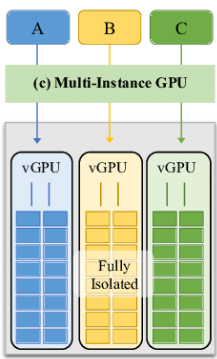
Disable multi-instance GPU
Before disabling MIG, make sure no MIG instances are in use. The system automatically deletes all created MIG instances after you disable MIG.
-
On the top navigation bar, click Compute.
-
From the left navigation pane, select Resource Navigation > All > Resources > Data Center Name > Cluster Name > Host Name.
-
Click the Hardware tab, and then click GPUs in the navigation pane.
-
Click Disable Multi-Instance GPU in the Actions column for the target GPU.
-
In the dialog box that opens, click OK.
Parameters
GPUs:
• Slot Number: Slot number of the GPU.
• Manufacturer: Vendor of the GPU.
• Type: Model of the GPU.
• ECC: ECC state.
vGPUs:
• UUID: UUID of the vGPU.
• Name: Name of the vGPU.
• Type: Type of the vGPU.
• Monitor Interfaces: Maximum number of monitor interfaces supported by the vGPU.
• Buffer: Frame buffer size of the vGPU.
• Resolution: Maximum resolution supported by the vGPU.
• MIG: MIG enabling state. Multi-Instance GPU (MIG) is GPU virtualization technology that allows a single physical GPU to be divided into multiple independent GPU instances. GPU instances can be allocated to different VMs.
Adding vGPUs:
• Instance Type: Type of the MIG-vGPU instance. For example, 4g.20gb indicates that the MIG-vGPU instance contains 4 compute slices and 20GB memory.
• Compute Slices: Number of compute slices of the MIG-vGPU instance.
Manage storage adapters
• Hosts that run the Tencent operating system do not support FCoE HBA and NVMe-oF storage adapters.
• Host running NingOS 2.0 do not support FCoE HBA.
A host uses storage adapters to access different types of storage devices. The management platform supports SCSI, iSCSI, FC HBA, FCoE HBA, and NVMe-oF storage adapters. A host has a default local-SCSI storage adapter and a default open-iSCSI storage adapter. The local-SCSI storage adapter is used to access local disks. The open-iSCSI storage adapter is used to access iSCSI storage. An Open-iSCSI storage adapter has an IQN by default. As a best practice to simplify management and maintenance, change the IQN. NVMe-oF storage adapters are used to connect NVMe-oF storage. If the host is configured with hardware FC HBAs or FCoE HBAs (for example, CNA) for accessing FC storage, the storage adapter list also displays detailed information about the FC HBAs or FCoE HBAs.
The system also supports software FCoE adapters. The FCoE protocol stack of the host performs protocol processing for software FCoE adapters, and the NIC performs FCoE forwarding. Software FCoE adapters must work with NICs that support data center bridging and FCoE offload.
If multiple paths exist between a host and a SAN storage, traffic can be switched to an available physical link when any element in the SAN network fails, for example, an adapter, switch, or cable.
Besides link switchover, the paths can load balance the traffic to reduce or even eliminate potential bottlenecks.
By default, the system applies the multipath policies defined by vendors to their respective storage devices. The system provides four multipath policy types, including most recently used, fixed, round robin, and optimal. You can choose a multipath policy according to the type of a storage device and enable the multipath policy feature on the storage device.
You can configure multipathing for different storage pools on a host as follows:
• iSCSI shared file system—When you add an iSCSI shared file system, enter multiple service IP addresses for an IP SAN. If you enter only one IP address, multipathing is still enabled by default. For more information, see "Manage shared file systems".
• FC shared file system—When you add an FC shared file system as a storage pool, select multipath for the HBA parameter. For more information, see "Manage storage pools".
• iSCSI network storage—Multipathing is enabled by default and is not configurable. When you add iSCSI network storage, you can add multiple IP addresses. Multipathing takes effect even if only one IP address is added.
• FC network storage—Multipathing is enabled by default and is not configurable.
• NVMe-oF network storage—Multipathing is enabled by default and is not configurable.
• NVMe-oF shared file system—Multipathing is enabled by default and is not configurable. You can enable multipathing by editing the /etc/multipath.conf configuration file.
Operators can scan storage adapters on the management platform to discover available LUNs after carving LUNs and configuring LUN mappings on storage servers. To discover the LUNs on iSCSI
storage that are assigned to a host, you must add the corresponding storage pools on the host. If the management platform cannot discover the LUNs on FC storage for a host, reboot the host.
Prerequisites
Before you configure software FCoE adapters, complete FCoE configuration on switches.
Restrictions and guidelines
• ARM hosts do not support software FCoE adapters.
• Use the following methods to troubleshoot the creation failure of a software FCoE adapter:
○ Verify that cables are correctly connected. Click Refresh on the Storage tab.
○ Verify that the FCF switch is correctly configured.
○ Execute the shutdown command and then the undo shutdown command on the interface that connects the FCF switch to the host NIC.
• If the rate of the NIC for the created adapter is 10 Gbps, the Rate column displays Unknown for the adapter, and the actual rate is 8Gbps.
• You cannot delete a software FCoE adapter if its storage devices have mounted storage pools. To delete the adapter, you must first delete the storage pools.
Set the IQN of a storage adapter
-
On the top navigation bar, click Compute.
-
From the left navigation pane, select Resource Navigation > All > Resources > Data Center Name > Cluster Name > Host Name.
-
Click the Hardware tab, and then click Storage Adapters in the navigation pane.
-
Click Set IQN in the Actions column for a storage adapter.
-
Enter an IQN, and then click OK.
Add a software FCoE adapter
-
On the top navigation bar, click Compute.
-
From the left navigation pane, select Resource Navigation > All > Resources > Data Center Name > Cluster Name > Host Name.
-
Click the Hardware tab, and then click Storage Adapters in the navigation pane.
-
Click Add.
-
Click the icon next to the Physical Interface field.
-
Select a physical interface, and then click OK.
-
Click OK.
Delete a software FCoE adapter
-
On the top navigation bar, click Compute.
-
From the left navigation pane, select Resource Navigation > All > Resources > Data Center Name > Cluster Name > Host Name.
-
Click the Hardware tab, and then click Storage Adapters in the navigation pane.
-
Click Delete in the Actions column for a software FCoE adapter.
-
In the dialog box that opens, click OK.
Configure multipathing for a storage device
This feature is mutually exclusive with the ALUA protocol on the storage > block storage > mappings > service hosts page. If you configure both of them, the multipathing policy takes effect.
-
On the top navigation bar, click Compute.
-
From the left navigation pane, select Resource Navigation > All > Resources > Data Center Name > Cluster Name > Host Name.
-
Click the Hardware tab, and then click Storage Adapters in the navigation pane.
-
Click Edit in the Actions column for a storage device.
-
Select a multipath policy, and then click OK.
Perform a device scan
-
On the top navigation bar, click Compute.
-
From the left navigation pane, select Resource Navigation > All > Resources > Data Center Name > Cluster Name > Host Name.
-
Click the Hardware tab, and then click Storage Adapters in the navigation pane.
-
Click Scan in the Actions column for a storage adapter or click Scan All.
-
Select a scan mode and click OK.
Parameters
Add a software FCoE adapter: Physical Interface: Select a physical NIC that supports data center bridging and FCoE offload.
Configure a multipath policy:
• NAA: Identifier of a LUN on a storage server.
• Multipath Policy: Select a multipath policy.
○ --: The default option. The Multipath Policy field is automatically populated if the multipath policies supported by the device are included in the multipath policy list of the system. If the system is incompatible with the multipath policies supported by the device or open-source multipath software is not supported, the default option is optimal.
○ Most Recently Used: Use the path that is used most recently. When the path fails, the host randomly selects another path for I/O. When the failed path recovers, the host does not switch over to the path. You must perform a manual switchover. This policy does not support load balancing.
○ Fixed: Use the preferred path as long as it is available. If the preferred path becomes unavailable, the host selects another path. When the preferred path recovers, the host automatically switches over to the preferred path. This policy does not support load balancing.
○ Round Robin: Use an automatic path selection algorithm that rotates through all available paths to distribute I/O among these paths.
○ Optimal: Use the recommended configuration in Asymmetric Logical Unit Access (ALUA) mode. Paths are grouped based on the storage SP. The path group with the highest priority is selected as the optimal path group. The host distributes I/O among all available paths in the optimal path group for load balancing. When all paths in the optimal path group fail, the host switches over to the backup path group. I/O is also distributed within the backup path group for load balancing. When the optimal path group recovers, the host switches over to the optimal path group.
• State: Path state.
Manage local disks
View local disks
-
On the top navigation bar, click Compute.
-
From the left navigation pane, select Resource Navigation > All > Resources > Data Center Name > Cluster Name > Host Name.
-
Click the Hardware tab, and then click Local Disks in the navigation pane.
-
View the path, SN, type, size, disk letter, mount point, owner VM, and state of each local disk.
Mount a local disk
-
On the top navigation bar, click Compute.
-
From the left navigation pane, select Resource Navigation > All > Resources > Data Center Name > Cluster Name > Host Name.
-
Click the Hardware tab, and then click Local Disks in the navigation pane.
-
Select a local disk, and then click Mount.
-
Configure a mount point, and then click OK.
Unmount a local disk
-
On the top navigation bar, click Compute.
-
From the left navigation pane, select Resource Navigation > All > Resources > Data Center Name > Cluster Name > Host Name.
-
Click the Hardware tab, and then click Local Disks in the navigation pane.
-
Select a local disk, and then click Unmount.
Format a lock disk
-
On the top navigation bar, click Compute.
-
From the left navigation pane, select Resource Navigation > All > Resources > Data Center Name > Cluster Name > Host Name.
-
Click the Hardware tab, and then click Local Disks in the navigation pane.
-
Select a local disk, and then click Format.
-
Click OK.
Manage USB devices
Manage encryption modules
Hosts that run the Tencent operating system or NingOS 2.0 do not support encryption modules.
The system supports interoperation with Sansec encryption modules. You can create virtual encryption modules for a physical encryption module and attach them to a VM for data encryption and decryption of VMs. This ensures security and integrity of sensitive data during transmission and storage, providing a secure and comprehensive key management mechanism.
Restrictions and guidelines
You cannot reclaim a virtual encryption module if it is being used by a VM.
Create a virtual encryption module
-
On the top navigation bar, click Compute.
-
From the left navigation pane, select Resource Navigation > All > Resources > Data Center Name > Cluster Name > Host Name.
-
Click the Hardware tab, and then click Encryption Modules in the navigation pane.
-
Click Create in the Actions column for an encryption module.
-
Configure the parameters as described in "Parameters."
-
Click OK.
View information about encryption modules
-
On the top navigation bar, click Compute.
-
From the left navigation pane, select Resource Navigation > All > Resources > Data Center Name > Cluster Name > Host Name.
-
Click the Hardware tab, and then click Encryption Modules in the navigation pane. The detailed physical encryption module information is displayed. If virtual encryption modules have been created, detailed information about the virtual encryption modules will also be displayed.
Reclaim a virtual encryption module
-
On the top navigation bar, click Compute.
-
From the left navigation pane, select Resource Navigation > All > Resources > Data Center Name > Cluster Name > Host Name.
-
Click the Hardware tab, and then click Encryption Modules in the navigation pane.
Configure advanced settings
Features
• Configure the boot settings for a host
• View information about NUMA nodes/CPUs for a host
• Configure static routes for a host
• Configure DPDK settings
• Configure the interrupt affinity settings of a host
• Configure memory settings
• Configure host firewall settings
• Configure host debugging mode
• Configure DNS settings
• View NTP information
Configure the boot settings for a host
• ARM hosts do not support CPU hyper-threading, or nested virtualization configuration.
• By default, IOMMU/SMMU is enabled on an ARM host.
This feature enables you to configure the boot settings of a host, including HugePage, IOMMU/SMMU, CPU isolation, CPU hyper-threading, and nested virtualization settings.
• HugePage—Compared to the traditional 4 KB page size, HugePage uses at least 8 GB memory to increase the memory size of the page table in the CPU cache. This increases the TLB hit rate.
• IOMMU/SMMU—An input/output memory management unit (IOMMU/SMMU) maps virtual addresses to physical addresses to allow physical devices to operate in a virtual memory system and improve the VM performance.
• CPU isolation—CPU isolation removes the specified CPUs from the CPU scheduling policy of a host. The system will not assign tasks to the isolated CPUs. The isolated CPUs are reserved for VMs and DPDK to ensure that the hosts enabled with DPDK and the VMs can obtain the CPU resources in time.
• CPU hyper-threading—With hyper-threading enabled, each CPU core can run multiple threads to improve the throughput and threading software performance.
• Nested virtualization—Nested virtualization enables KVM VMs to run on an x86 VM or a VM created on a physical host. That VM can provide physical CPU features. Nested VMs have lower performance than VMs on a physical host. Enabling nested virtualization for VMs will degrade the performance of the hosts where the VMs are located.
Restrictions and guidelines
• You cannot disable IOMMU/SMMU for a host if the NIC of the host uses a VFIO driver.
• If you enable CPU isolation and select CPUs created for CPU hyper-threading, do not disable CPU hyper-threading in the BIOS of physical servers. If you do so, CPU isolation will not take effect. For CPU isolation to operate correctly, enable CPU hyper-threading in the BIOS of the physical servers and reboot them.
• Nested virtualization is not supported by non-physical servers. Use this feature only for testing or demonstration.
• After you enable CPU isolation, you must bind VMs or applications (for example, vSwitches) to physical CPUs before you use them.
• You cannot specify the same CPU in CPU isolation and CPU grouping. If a CPU has been bound to VMs, that CPU must be assigned to the VMs in CPU grouping.
Procedure
-
On the top navigation bar, click Compute.
-
From the left navigation pane, select Resource Navigation > All > Resources > Data Center Name > Cluster Name > Host Name.
-
Click the Advanced tab.
-
Click the Boot Configuration tab.
-
Select Dynamic or Reserved for the HugePage type. If you select Reserved, specify the page size and page number.
-
Configure the IOMMU/SMMU state.
-
Configure the CPU isolation state. If you enable CPU isolation, click Isolate CPUs in the Actions column for a minimum of one NUMA node, select the CPUs to isolate, and then click OK.
-
Configure CPU grouping. If you enable CPU grouping, you can assign CPUs to VMs or custom resources. To do so, click Member CPUs in the Actions column for a VM or custom group, select the target CPUs, and then click OK.
-
Configure the CPU hyper-threading state.
-
Configure the nested virtualization state.
-
Click Save.
Parameters Configure HugePage settings:
• Current HugePage Type: Current HugePage type of the host, which can be Dynamic or Reserved.
• Configure HugePage Type: Select the HugePage type for the host. Options include Dynamic and Reserved.
○ Dynamic: The host dynamically sets the HugePage memory, with the page size fixed at 2M. After you enable HugePage for a VM, HugePage settings apply to the portion of memory occupied by the VM but not to the memory not occupied by the VM.
○ Reserved: The host sets the HugePage memory to all of its memory. You can specify 2M or 1G as the page size, and specify the number of pages based on the specified page size.
• Page Size: Specify the page size. When the HugePage type is Reserved, you can specify 2M or 1G as the page size. When the HugePage type is Dynamic, the page size is fixed at 2M.
• Pages: Specify the number of pages.
Configure IOMMU/SMMU settings:
• Current State: Current IOMMU/SMMU state of the host.
• IOMMU/SMMU: Configure the IOMMU/SMMU state of the host.
Configure CPU isolation settings:
• Current State: Current CPU isolation state of the host.
• CPU Isolation: Configure the CPU isolation state of the host. After you enable CPU isolation, you must bind a physical CPU to VMs or applications (such as vSwitches) in the CPU Grouping area to prevent performance degradation of VMs or applications caused by kernel scheduling. The recommended binding ratio is 1:1, which means you bind one physical CPU to each vCPU of a VM or bind one physical CPU to an application.
• NUMA Node: The number of NUMA nodes equals the number of physical CPUs on the host. The number of CPUs on a NUMA node equals the number of CPU cores (multiply the superscalar value if supported) of each CPU. The NUMA nodes are numbered from 0. Each NUMA node contains CPU, I/O bus, and memory resources.
• Isolated CPUs: Isolated CPUs of the host
• Actions: Actions that operators can perform on the isolated CPUs. To change the isolated CPUs on a NUMA node, click Isolated CPUs in the Actions column for that NUMA node. To clear configuration on a NUMA node, click Clear Configuration in the Actions column for that NUMA node.
Configure CPU grouping settings:
• CPU Grouping State: Current CPU grouping state of the host.
• CPU Group: Configure the CPU grouping state of the host.
• Used By: Resources that use the member CPUs in a CPU group, including VMs and custom resources, such as vSwitch.
• NUMA: CPUs on the current NUMA node that have been grouped.
• Actions: Actions that operators can perform on the isolated CPUs. To change the CPUs assigned to a type of resource, click Member CPUs in the Actions column for that resource. To clear CPU grouping configuration for a resource, click Clear Configuration in the Actions column for that resource.
Configure CPU hyper-threading:
• Current State: Enabling state of CPU hyper-threading on the physical host. Options include On and Configuring this feature through GUI is not supported on the host. By default, this state is the same as the CPU hyper-threading state of the physical host. If CPU hyper-threading is enabled on the physical host, this state is On. If CPU hyper-threading is disabled on the physical host, this field displays Configuring this feature through GUI is not supported on the host.
• CPU Hyper-Threading: Enable or disable CPU hyper-threading on the physical host. This parameter is available only when the Current State field displays On. Options include On and Off. If you disable CPU hyper-threading, the Current State field displays Configuring this feature through GUI is not supported on the host after you restart the host. To re-enable CPU hyper-threading, you must access the host from the CLI.
Configure nested virtualization:
• Current State: Current state of nested virtualization on the host. Nested virtualization allows for creating a KVM virtualization platform inside another by using VMs. This enables you to manage additional VMs within a VM, suitable for development, testing, and cloud computing scenarios. To use nested virtualization, first enable it and then save the configuration. Then, create a VM on the management platform to build a nested management platform. If the VM created in a nested
View information about NUMA nodes/CPUs for a host
virtualization environment requires KVM acceleration, set the VM's CPU operating mode to Host
Passthrough.
• Nested Virtualization: Set the state of nested virtualization on the host.
View information about NUMA nodes/CPUs for a host
Procedure
-
On the top navigation bar, click Compute.
-
From the left navigation pane, select Resource Navigation > All > Resources > Data Center Name > Cluster Name > Host Name.
-
Click the Advanced tab.
-
Click the NUMA/CPU tab.
Parameters
• CPU: Information about NUMA nodes.
• State: State of the physical CPU.
○ Free—The physical CPU is not bound to any virtual CPUs.
○ Used—The physical CPU has been bound to virtual CPUs.
• Bound vCPUs: Number of virtual CPUs bound to the physical CPU.
Configure static routes for a host
Restrictions and guidelines
The gateway for a host must reside on the same subnet as a vSwitch attached to the host. The routes that you configure take effect on that vSwitch. If the gateway is invalid, you cannot configure routes.
Add a static route
-
On the top navigation bar, click Compute.
-
From the left navigation pane, select Resource Navigation > All > Resources > Data Center Name > Cluster Name > Host Name.
-
Click the Advanced tab.
-
Click the Route tab.
-
Click Add Route.
-
Configure the parameters as described in "Parameters."
-
Click OK.
Edit a static route
-
On the top navigation bar, click Compute.
-
From the left navigation pane, select Resource Navigation > All > Resources > Data Center Name > Cluster Name > Host Name.
-
Click the Advanced tab.
-
Click the Route tab.
-
Click Edit in the Actions column for the target route.
-
Configure the parameters as described in "Parameters."
-
Click OK.
Delete a static route
-
On the top navigation bar, click Compute.
-
From the left navigation pane, select Resource Navigation > All > Resources > Data Center Name > Cluster Name > Host Name.
-
Click the Advanced tab.
-
Click the Route tab.
-
Click Delete in the Actions column for the target route.
-
In the dialog box that opens, click OK.
Parameters
• Destination Subnet: Enter the subnet to which the destination IP belongs.
• Destination Mask/Prefix: Enter the subnet mask or prefix for the destination IP address.
• Gateway: Enter the gateway IP for the host.
Configure DPDK settings
The Data Plane Development Kit (DPDK) is a set of libraries and network drivers for fast packet
processing in user space. It provides high forwarding performance through the following features: Kernel bypass by using an Environment Abstraction Layer (EAL), non-stop packet forwarding through poll mode drivers, ring buffers, optimization of memory, buffer, and queue management, multi-queue and flow identification based load balancing, HugePages memory, NUMA, and CPU isolation and binding. After you enable DPDK for a host, the network performance of VMs on the host will be improved.
Restrictions and guidelines
In the HCI scenario, you cannot enable DPDK for an HCI host. After you enable DPDK, do not set the HugePage page size or CPU binding to 0 for NUMA node 0. If you do so, the vSwitches network configured with DPDK to fail communication.
Procedure
-
On the top navigation bar, click Compute.
-
From the left navigation pane, select Resource Navigation > All > Resources > Data Center Name > Cluster Name > Host Name.
-
Click the Advanced tab.
-
Click the DPDK tab.
-
Configure the DPDK state. If you enable DPDK, click Edit in the Actions column for a minimum of one NUMA node, select a memory unit, set the HugePages memory size, select the CPUs to bind, and then click OK.
-
Click Save.
Configure the interrupt affinity settings of a host
This feature enables you to assign the interrupts that support affinity settings to the specified CPUs.
After that, the interrupt requests will be processed by the specified CPUs. As a best practice, do not assign the interrupts to isolated CPUs to make sure that the interrupts do not affect the tasks on the isolated CPUs.
Procedure
- On the top navigation bar, click Compute.
Configure memory settings
Memory settings include the following:
• Swap space—Extends the amount of available memory to ensure correct operation of a server when the memory resources are insufficient. Hosts running NingOS only allow VM processes with low or medium service priority to use the swap partition, preventing high-priority VMs and critical storage processes from triggering swap reclamation. This reduces the risk of performance fluctuations caused by page swapping and ensures the stability of core service operations and the performance of storage services.
• Memory sharing—Enables multiple processes and VMs to share memory pages that have identical contents. Memory sharing reduces the memory occupied by each VM to help achieve greater VM density on a host and maximize physical resource utilization.
• Memory isolation—Limits the total size of the memory resources used by running VMs to the configured memory isolation limit to reserve memory resources for a host and ensure correct operation of service systems. VMs cannot be created on a host when the memory isolation limit is reached on that host.
• Auto NUMA balancing—Dynamically optimizes VM resource allocation by monitoring system workload in real time. Within each detection period, it intelligently adjusts CPU and memory distribution across NUMA nodes. This enhances compute and memory locality, balances load, and improves overall system performance and resource usage.
Restrictions and guidelines
Auto NUMA balancing automatically selects suitable CPUs for binding. To avoid CPU scheduling conflicts, functions such as DPDK require CPU isolation in advance.
Procedure
-
On the top navigation bar, click Compute.
-
From the left navigation pane, select Resource Navigation > All > Resources > Data Center Name > Cluster Name > Host Name.
-
Click the Advanced tab.
-
Click the Memory Settings tab.
-
Configure the memory parameters.
-
Click Save.
Parameters
• Memory Swap Partition Status: Select whether to enable the memory swap partition. After this function is enabled, deficient memory usage can be compensated by creating disk partitions.
• Memory Compression: Select whether to enable memory compression. Once this feature is enabled, the swap partition compresses data, creating a compressed memory pool that occupies a certain percentage of the host memory. Enabling memory compression allows the host to store more data. You can select a compression level, including low, medium, and high, representing 20%, 30%, and 40% of the total host memory, respectively.
• Shared Memory Page Status: Select whether to enable shared memory pages. Shared memory pages allow the kernel to share identical memory pages among multiple processes (including VMs). Enabling this feature can reduce the actual memory usage of each VM. This allows more VMs to be created on a physical host, increases VM density, and improves physical resource utilization.
• VM: Set the memory isolation value of the VMs. When the total memory used by all online VMs exceeds the limit, the performance of the VMs will decrease.
• OVS: Set the memory isolation value of the vSwitch. When the total memory used by all vSwitches exceeds the limit, the performance of the vSwitches will decrease.
• Auto NUMA Balancing: The system continuously monitors VM resource allocation and physical NUMA node loads. When it detects imbalance, it automatically reassigns a VM’s CPU and memory to the optimal NUMA node within a monitoring period (default: 5 minutes), improving resource utilization and service performance. Make sure page sharing is disabled before you enable this feature.
Configure host firewall settings
A host firewall enables you to view the system-defined and custom services and the port numbers for
the services and set the IP addresses that are allowed to access specific port numbers. It can effectively control network access and prevent unauthorized access and attacks to protect hosts. A host firewall provides the following features:
• Displaying the system-defined and custom services and the port numbers for the services, and the IP addresses allowed to access the services.
• Adding custom ports and IP addresses that can access the ports.
• Configure the access limit type when IP addresses that can access the ports are specified.
• Setting a list of IP addresses allowed to access specific ports on a host. For example, you can configure 192.168.1.100/16 to access the SSH service with port number 22 on a host. You can set a list of allowed IP addresses for each port number. For example, you can allow 192.168.1.200/16 and 192.168.1.201/16 to access the virtualization Web service with a port number of 80 on the host, and allow 172.16.1.100/16 to access the HTTPS service with a port number of 8443 on the host.
Restrictions and guidelines
• If an IP address can access the management platform through HTTPS, it can still access the VNC Web service even if it is not in the allowed IP address list for the VNC Web service.
• The firewall feature is not available for hosts that use software versions E073x and E076x.
• After you enable the host firewall feature, only ports in firewall policies can access the system based on the configured direction and access control type. Access from all the other ports will be denied.
• Removing a host also deletes the firewall configuration for that host. After you change the IP address of a host from the XConsole of that host, you must restart that host to update the firewall configuration. If you fail to do so, the original allowed IP addresses will remain in the allowed IP address list for all ports.
• If a stateful failover system is deployed, you must make sure port 22 of the quorum node is reachable to the other nodes. The host firewall configuration in stateful failover management takes effect only on the primary and backup nodes and does not take effect on the quorum node.
• After a host is restored after stateful failover, you must click Synchronize in the firewall configuration in stateful failover management to synchronize the firewall configuration.
• To avoid affecting features running on the system, use the following table when you set the list of allowed IP addresses. Feature Description Recommended operations Allow access to the related Make sure the quorum node is reachable ports or disable the host to the primary and backup nodes. Ports Stateful failover firewall feature before you can 22, 20136, and 20138 on the primary and set up a stateful failover backup nodes are required. system. For the system to interoperate with NCloud, NCI NCloud, NCI Cloud, or third-party Open all ports to IP addresses Cloud, or software such as AnyBackup of Aishu, related to NCloud, NCI Cloud, third-party Runstor, and AsiaInfo, allow relevant IP or third-party software. interoperation addresses to access ports such as HTTP services. Port 8080 or 8443 is required when the Adding an external NSphere or NCI system is added as an Open ports 8080 and 8443. platform external platform. Bare metal Copying files from a management host to Open port 22. management a bare metal server requires using the SCP service. Site disaster recovery requires use of Site disaster ports 8080 and 8443 for the protected Open ports 8080 and 8443. recovery site and the recovery site. Same as NCloud, NCI Cloud, or Same as NCloud, NCI Cloud, Anti-virus third-party interoperation. or third-party interoperation. Site incorporation and VM migration Open ports 8080, 8443, 22, Cloud rainbow require use of ports 8080, 8443, 22, 20199, and 49152 through 20199, and 49152 through 49215. 49215. Management Management platform data migration Open ports 8080, 8443, and platform data requires use of ports 8080, 8443, and 22. 22. migration Log backup requires use of port 22 on Log backup. Open port 22. the destination. Data backup on a remote server in Data backup requires use of port 22 on Open port 22. backup the destination. management The management platform calls ports 26165 and 26167 of the host Host management Open ports 26165 and 26167. management platform to manage hosts and VMs on the hosts. Port 8081 of the management platform is Host scanning required for host scanning in cluster Open port 8081. creation.
View firewall settings for a host
-
On the top navigation bar, click Compute.
-
From the left navigation pane, select Resource Navigation > All > Resources > Data Center Name > Cluster Name > Host Name.
-
Click the Advanced tab.
-
Click the Firewall Configuration tab. You can view firewall policies for the host.
Add a host firewall
By configuring outbound rules for applications, ports, protocols, and destination addresses, host firewall enhancement effectively blocks unauthorized programs from accessing external networks and stops malware communication, improving host security.
-
On the top navigation bar, click Compute.
-
From the left navigation pane, select Resource Navigation > All > Resources > Data Center Name > Cluster Name > Host Name.
-
Click the Advanced tab.
-
Click the Firewall Configuration tab.
-
Click Add. You can select or add policies and set the access control type.
-
Set the following parameters when you add a policy:
○ Name: Specify a name for the policy.
○ Direction: Specify the direction of the traffic to be limited. Options are inbound, outbound, and inbound and outbound.
○ Description: Specify a description for the policy.
○ Protocol: Specify the protocol used for traffic limiting. Options are UDP, TCP, and TCP/UDP.
○ Port: Port for the firewall policy. You can specify multiple ports or a port group.
○ Access Limit Type: Select an access limit type. Options are the following:
▪ Allow All: If you select this option, all IP addresses can access the ports associated with this polity.
▪ Internal Only: If you select this option, only hosts on the platform can access the ports associated with this policy.
▪ Allowlist: If you select this option, only hosts on the platform (internal IPs) and the IP address in the allowlist can access the ports associated with this policy.
▪ Denylist: If you select this option, only hosts on the platform (internal IPs) and the IP address not in the denylist can access the ports associated with this policy.
-
Click OK.
Edit firewall settings for a host
Perform this task to adjust and optimize existing host firewall traffic control policies. By selecting different access limit types, you flexibly control outbound network connections from the host, allowing for dynamic security policy optimization.
-
On the top navigation bar, click Compute.
-
From the left navigation pane, select Resource Navigation > All > Resources > Data Center Name > Cluster Name > Host Name.
-
Click the Advanced tab.
-
Click the Firewall Configuration tab.
-
Click Edit in the Actions column for a service. You can change the access limit type only.
○ Allow All: If you select this option, all IP addresses can access the ports associated with this polity.
○ Internal Only: If you select this option, only hosts on the platform can access the ports associated with this policy.
○ Allowlist: If you select this option, only hosts on the platform (internal IPs) and the IP address in the allowlist can access the ports associated with this policy.
○ Denylist: If you select this option, only hosts on the platform (internal IPs) and the IP address not in the denylist can access the ports associated with this policy.
-
Click OK.
Synchronize firewall settings for a host
Perform this task to deploy and apply the configured firewall rules to bound hosts for the hosts to run the most recent access control policies.
-
On the top navigation bar, click Compute.
-
From the left navigation pane, select Resource Navigation > All > Resources > Data Center Name > Cluster Name > Host Name.
-
Click the Advanced tab.
-
Click the Firewall Configuration tab.
-
Click Sync on top of the service list.
-
In the dialog box that opens, click OK.
Remove the firewall settings from a host
Perform this task to deploy and apply the configured firewall rules to bound hosts for the hosts to run the most recent access control policies.
-
On the top navigation bar, click Compute.
-
From the left navigation pane, select Resource Navigation > All > Resources > Data Center Name > Cluster Name > Host Name.
-
Click the Advanced tab.
-
Click the Firewall Configuration tab.
-
To remove a firewall service from the host, click Remove in the actions for that service.
Configure host debugging mode
Host debugging mode is a set of advanced diagnostic tools for technical support engineers and
developers. When a host fails, such as crash, placing the host in debugging mode bypasses the normal boot process and captures the system state to preserve critical failure data. This practice can speed up issue identification, analysis, and repair.
Console output configuration
When a host has exceptions, the system log information is output through the serial console for failure location and analysis. The console data can be saved through screenshots or photos. If the server has a serial port, you can connect a serial cable to the server for debugging output or use the following ipmitool commands, for example:
• To enable serial console redirection on the server's Baseboard Management Controller (BMC) to allow remote access to the server's serial console via the IPMI protocol, execute the ipmitool -I lanplus -H 172.20.1.201 -U root -P iMC123456789 sol set enabled true command.
• To start a remote serial console session and view the console output (similar to using a serial cable to connect to the server), execute the ipmitool -I lanplus -H 172.20.1.201 -U root -P iMC123456789 sol activate command.
Memory allocator debugging configuration
When a host encounters memory issues, such as allocation failures or leaks, the system automatically logs detailed allocation and release data for later analysis.
Restrictions and guidelines
• The host debugging mode option is displayed for a host only after you enable host debugging mode on the system parameter configuration page.
• Console output and memory allocator debugging configuration for a host takes effect only after you restart that host.
Procedure
-
On the top navigation bar, click Compute.
-
From the left navigation pane, select Resource Navigation > All > Resources > Data Center Name > Cluster Name > Host Name
-
Click the Advanced tab.
-
Select Host Debugging Mode from the left menu.
-
Configure the related parameters, and then click Save.
Parameters
• Console Output: With this feature enabled for a host, the system output log messages from the serial console for issue analysis and resolution when that host has an exception.
Configure DNS settings
Perform this task to configure the DNS server address for a host. Then, the host can send domain
name requests to the specified DNS server to obtain an IP address. Configuring a DNS server also speeds up domain name resolution, improves network connection efficiency, and enhances network security and privacy protection.
Procedure
-
On the top navigation bar, click Compute.
-
From the left navigation pane, select Resource Navigation > All > Resources > Data Center Name > Cluster Name > Host Name.
-
Click the Advanced tab.
-
Select the DNS menu and configure the parameters as needed.
-
Click Save.
View NTP information
The NTP information displays NTP service information for a host, including service state, whether the
NTP server runs at device startup, NTP server, and synchronization state.
Procedure
-
On the top navigation bar, click Compute.
-
From the left navigation pane, select Resource Navigation > All > Resources > Data Center Name > Cluster Name > Host Name
-
Click the Advanced tab.
-
Select the NTP Info menu to view detailed NTP service information.
Parameters
• Service State: Status of the NTP service.
○ On: The NTP service is running.
○ Off: The NTP service is disabled.
• Run at Startup: Whether the NTP service runs at startup.
○ Yes: The NTP service runs at startup.
Manage permissions for hosts
Perform this task to assign permissions to other operators or operator groups to view and operate
hosts and their affiliated VMs. The administrator can manage all resources of data centers.
Add permissions for operators or operator groups
-
On the top navigation bar, click Compute.
-
From the left navigation pane, select Resource Navigation > All > Resources > Data Center Name > Cluster Name > Host Name.
-
Click the Permissions tab.
-
Click Add Permissions.
-
Select the operators for which you want to add permissions and then click OK. To add permissions for operator groups, click Operator Group, select the target operator groups, and then click OK.
-
Click OK.
View operators or operator groups that have permissions for a host
-
On the top navigation bar, click Compute.
-
From the left navigation pane, select Resource Navigation > All > Resources > Data Center Name > Cluster Name > Host Name.
-
Click the Permissions tab to view the operators and operator groups that have permissions to view and operate the host.
Change the permissions for an operator or operator group
-
On the top navigation bar, click Compute.
-
From the left navigation pane, select Resource Navigation > All > Resources > Data Center Name > Cluster Name > Host Name.
-
Click the Permissions tab.
-
Click Edit in the Actions column for an operator or operator group. Change the permissions as needed.
-
Click OK.
Remove the permissions for an operator or operator group
-
On the top navigation bar, click Compute.
-
From the left navigation pane, select Resource Navigation > All > Resources > Data Center Name > Cluster Name > Host Name.
-
Click the Permissions tab.
-
Click Remove in the Actions column for an operator or operator group.
-
In the dialog box that opens, click OK.
Parameters Add permissions for operators or operator groups:
• Propagate to Child Objects: If you select this option, permissions to the host and its affiliated VMs will be assigned to the current operator or operator group.
View operators or operator groups that have permissions for a host
• Operator/Operator Group: Name of the operator or operator group that has permissions to the host.
• Category: Operator or operator group that has permissions to the host.
• Scope: Object to which the operator or operator group has permissions.
○ This Object: The operator or operator group only has permissions to the current host.
○ This Object and Its Child Objects: The operator or operator group has permissions to the current host and its affiliated VMs.
Configure multiple hosts in bulk
• Edit multiple hosts in bulk—Edit the root passwords of multiple hosts in bulk.
• Delete multiple hosts in bulk—Delete multiple hosts from a data center or a cluster in bulk.
• Scan storage adapters for multiple hosts in bulk.
• Edit memory settings for multiple hosts in bulk—Edit the memory swapping, memory page sharing, and memory isolation settings of multiple hosts in bulk.
• Place multiple hosts into maintenance mode in bulk—After you place a host into maintenance mode, the system stops running new VMs on the host, so that you can maintain host hardware without affecting services.
• Remove multiple hosts from maintenance mode in bulk—After device maintenance, you can remove the hosts from maintenance mode in bulk for fast service recovery, ensuring service continuity.
• Place multiple hosts into quarantine mode in bulk—In this mode, you cannot create, migrate-in, or clone VMs on compute nodes. Existing VMs can still be shut down or deleted. This ensures system stability and security during maintenance.
• Remove multiple hosts from quarantine mode in bulk—You manually release hosts that are already quarantined and restore their normal resource scheduling capabilities. After this operation, hosts will be added to the cluster again for VM creation, migration, and cloning and all automated scheduling.
• Shut down multiple hosts in bulk—Only hosts in maintenance mode can be shut down.
• Restart multiple hosts in bulk—Only hosts in maintenance mode can be restarted.
• Grant operators administrative permissions to multiple hosts—An operator can view and configure a host and VMs on the host only after you grant the operator administrative permissions to the host. Super administrator admin can view and configure all hosts.
Edit multiple hosts in bulk
Delete multiple hosts in bulk
Scan storage adapters for multiple hosts in bulk
-
On the top navigation bar, click Compute.
- From the left navigation pane, select Resource Navigation > All > Resources > Data Center Name > Cluster Name.
Edit memory settings for multiple hosts in bulk
Place multiple hosts into maintenance mode in bulk
-
Click the Hosts tab. Select the target hosts in the host list, click Bulk Actions, and then select Scan Storage Adapters. Select a scanning mode. For more information about scanning modes, see " Manage storage adapters."
- Click OK.
Edit memory settings for multiple hosts in bulk
-
On the top navigation bar, click Compute.
-
From the left navigation pane, select Resource Navigation > All > Resources > Data Center Name > Cluster Name.
-
Click the Hosts tab. Select the target hosts in the host list, click Bulk Actions, and then select Edit Host Memory Settings. Edit the parameters as needed. For more information about the parameters, see "Configure memory settings."
-
Click OK.
Place multiple hosts into maintenance mode in bulk
-
On the top navigation bar, click Compute.
-
From the left navigation pane, select Resource Navigation > All > Resources > Data Center Name > Cluster Name.
-
Click the Hosts tab. Select the target hosts in the host list, click Bulk Actions, and then select Enter Maintenance Mode. In the dialog box that opens, click OK.
Remove multiple hosts from maintenance mode in bulk
Place multiple hosts into quarantine mode in bulk
Remove multiple hosts from quarantine mode in bulk
Remove multiple hosts from maintenance mode in bulk
-
On the top navigation bar, click Compute.
-
From the left navigation pane, select Resource Navigation > All > Resources > Data Center Name > Cluster Name.
-
Click the Hosts tab. Select the target hosts in the host list, click Bulk Actions, and then select Exit Maintenance Mode. In the dialog box that opens, click OK.
Place multiple hosts into quarantine mode in bulk
-
On the top navigation bar, click Compute.
-
From the left navigation pane, select Resource Navigation > All > Resources > Data Center Name > Cluster Name.
-
Click the Hosts tab. Select the target hosts in the host list, click Bulk Actions, and then select Enter Quarantine Mode.
-
In the dialog box that opens, click OK.
Remove multiple hosts from quarantine mode in bulk
-
On the top navigation bar, click Compute.
-
From the left navigation pane, select Resource Navigation > All > Resources > Data Center Name > Cluster Name.
Shut down multiple hosts in bulk
Restart multiple hosts in bulk
Grant operators administrative permissions to multiple hosts
-
Click the Hosts tab. Select the target hosts in the host list, click Bulk Actions, and then select Exit Quarantine Mode.
- In the dialog box that opens, click OK.
Shut down multiple hosts in bulk
-
On the top navigation bar, click Compute.
-
From the left navigation pane, select Resource Navigation > All > Resources > Data Center Name > Cluster Name.
-
Click the Hosts tab. Select the target hosts in the host list, click Bulk Actions, and then select Shut Down Host. In the dialog box that opens, click OK.
Restart multiple hosts in bulk
-
On the top navigation bar, click Compute.
-
From the left navigation pane, select Resource Navigation > All > Resources > Data Center Name > Cluster Name.
-
Click the Hosts tab. Select the target hosts in the host list, click Bulk Actions, and then select Restart Host. In the dialog box that opens, click OK.
Grant operators administrative permissions to multiple hosts
-
On the top navigation bar, click Compute.
-
From the left navigation pane, select Resource Navigation > All > Resources > Data Center Name > Cluster Name.
View host summary
Perform this task to view host summary information, top 5 VMs by CPU or memory usage, CPU and
memory usage of hosts, and network throughput.
Restrictions and guidelines
• For the modifications to be displayed on the host overview page, reconnect the management platform to the host after you edit the CPU or memory resources of a host.
• If a host only has an IPv6 address, the host summary does not display the iLO parameter. If a host has an IPv4 address and an IPv6 address, the iLO parameter of the host summary displays only the IPv4 address.
Procedure
-
On the top navigation bar, click Compute.
-
From the left navigation pane, select Resource Navigation > All > Resources > Data Center Name > Cluster Name > Host Name.
-
Click the Summary tab.
Parameters
• Resource Attributes: Displays and manages the hierarchical affiliation and related information of resources (such as hosts). This function helps users quickly locate resources within the infrastructure, thereby improving resource management efficiency and facilitating operations visualization.
○ Data Center: Name of the data center to which the host belongs.
○ Cluster: Name of the cluster to which the host belongs. It is used to identify the host group in which the host operates. A cluster typically consists of multiple hosts sharing storage/network resources for load balancing and high availability.
○ Host: Name and management IP address of the host.
○ Tags: Tags configured for the host. To add or assign tags to the host, click the icon to the right of this field.
• Basic Info: Detailed host information.
○ CPUs: Total CPU cores of the host.
○ Total Memory: Size of physical memory available for the system.
○ Free Memory: Size of unoccupied and usable physical memory.
○ Local Storage: Total storage capacity of internal disks or SSDs on the device.
○ Available Storage: Storage capacity that has not been occupied by data and is available for further data writing.
○ CPU Frequency: Clock frequency at which the CPU operates, which used to measure computing performance.
○ Host Model: Product specifications and hardware type identifier of the device.
○ CPU Model: Brand and specifications of the CPU.
○ Classification Level: Data security and access control level corresponding to the device.
○ iLO: IP address used to access the management interface used for remote operations and hardware management.
○ Version: CVK version of the host.
○ Host Time: System date and time of the host.
○ Uptime: Duration for which the host has been continuously operating since its last startup.
○ Host Type: Purpose or deployment category to which the host belongs.
○ Host Role: Functional role the host plays in the application system architecture.
• Operation Overview: Displays the real-time resource usage and alarm status of the host.
○ VM Statistics: Total number of VMs on the host and number of VMs in each state (including running and shutdown.
○ Alarm Statistics: Total number of alarms on the host and number of alarms for each level (including critical, major, minor, and info).
○ Resource Usage: CPU usage, memory usage, storage usage, CPU allocation ratio, memory allocation ratio, CPU allocation ratio for online VMs, memory allocation ratio for online VMs on the host.
○ Memory Status: Memory usage statistics about the host.
▪ Total Memory: Total available memory, used memory, and memory usage on the host. For example, 55.8% (68.99GB/125.44GB) indicates that the total memory is 125.44 GB, the used memory is 68.99 GB used, and the memory usage is (68.99/(125.44))*100% on the host.
▪ HugePages (Reserved): Total reserved HugePages memory, used reserved HugePages memory, and HugePages memory usage on the host. For example, 96% (60.00GB/62.50GB) indicates that the total reserved HugePages memory is 62.50GB, the used reserved HugePages memory is 60.00GB, and the reserved HugePages memory usage is (60/62.50)*100% on the host.
▪ HugePages (Dynamic): Total HugePages memory dynamically managed by the host, used dynamic HugePages memory, and dynamic HugePages memory usage. For example, 96.45% (67.99GB/70.50GB) indicates that the total dynamic HugePages memory is 70.50GB, the used dynamic HugePages memory is 67.99GB, and the dynamic HugePages memory usage is (67.99/70.50)*100% on the host.
▪ VM Group: Total isolated memory, used isolated memory, and isolated memory usage for the VM group.
▪ OVS Group: Total isolated memory, used isolated memory, and isolated memory usage for the OVS group.
○ Network Throughput: Network throughput in Mbps for the last 5 minutes. The horizontal axis represents time, and the vertical axis represents throughput.
• Top 5 by Resource Performance: During the current monitor period, the system automatically collects and ranks performance metrics for all managed objects (typically VMs). Then, the system displays the top five objects with the highest resource usage to help you quickly identify high-load resource instances.
○ Top 5 VMs by CPU Usage: Statistics about the five VMs with the highest CPU usage values on the host.
○ Top 5 VMs by Memory Usage: Statistics about the five VMs with the highest memory usage values on the host.
○ Top 5 VMs by Network Throughput: Statistics about the five VMs with the highest network throughput values on the host.
○ Top 5 VMs by Disk Requests: Statistics about the five VMs with the highest number of disk access requests on the host.
View hardware monitoring information for a host
View performance monitoring information for a host
View hardware monitoring information for a host
Perform this task to view the host hardware monitoring information, including summary, CPU, memory, temperature, power supply, and fan information.
Procedure
-
On the top navigation bar, click Compute.
-
From the left navigation pane, select Resource Navigation > All > Resources > Data Center Name > Cluster Name > Host Name.
-
Click the Hardware Monitor tab. The Summary menu displays the device state, system, and BIOS information for the host. You can click Export to export the summary information.
-
To view the processor information about the host, click the Processors tab menu.
-
To view the memory information about the host, click the Memory tab menu.
-
To view the temperature chart and sensor information about the host, click the Temperature tab menu.
-
To view the power supply information about the host, click the Power tab menu.
-
To view the fan information about the host, click the Fans tab.
View performance monitoring information for a host
Perform this task to view the CPU usage, memory usage, disk I/O throughput statistics, network throughput statistics, total packets, dropped packets, IOPS, disk I/O delay, and disk usage of a host.
Procedure
-
On the top navigation bar, click Compute.
-
From the left navigation pane, select Resource Navigation > All > Resources > Data Center Name > Cluster Name > Host Name.
-
Click the Performance Monitor tab.
-
To export detailed performance monitoring information, click Export.
Parameters
• CPU Usage: CPU usage of the host. The horizontal axis represents time and the vertical axis represents CPU usage. This chart is used to display CPU usage within a specified time range. By default, it shows the average usage across all cores. You can select specific CPUs for monitoring to analyze the load distribution and performance of each core.
• Memory Usage: Memory usage of the host. The horizontal axis represents time and the vertical axis represents memory usage.
• CPU Ready Time (Ratio): The CPU ready time chart shows the amount of time the vCPU waits for physical CPU resources within the time range in the chart. High CPU ready time might indicate that the VM is waiting for available physical CPU resources, causing performance degradation. When the ready time remains high in the chart, you might need to adjust the VM's resource configuration or load allocation to optimize performance. The horizontal axis represents time, and the vertical axis represents CPU ready time.
• Swap/Cache/Buffer Usage: Swap, cache, and buffer usage of the host. The horizontal axis represents time and the vertical axis represents the usage.
• Shared Memory(GB): Physical memory saved by VMs using memory-sharing techniques. A larger value means the host has saved more physical memory via sharing, which helps improve the host's memory usage. The horizontal axis represents the time and the vertical axis represents the shared memory value.
• Bloated Memory(GB): The memory that the host reclaims from VMs by using memory ballooning so it can be allocated to other VMs. A high ballooned memory value indicates the host's memory resources are constrained and memory is being reclaimed via ballooning. The horizontal axis represents the time and the vertical axis represents the shared memory value.
• I/O Throughput (KBps): I/O throughput in KBps. The horizontal axis represents time, and the vertical axis represents throughput.
• Network Throughput (Mbps): Network throughput in Mbps. The horizontal axis represents time, and the vertical axis represents throughput. You can select a specific NIC to view its network throughput details.
• Total Number of Packets: Total number of packets sent and received by the NIC. The horizontal axis represents time, and the vertical axis represents the number of packets. You can select a specific NIC to view its packet number details. For an RDMA NIC, RDMA will be marked to the right of its MAC address.
• Number of Dropped Packets: Number of dropped packets in sending and receiving packets by the NIC. The horizontal axis represents time, and the vertical axis represents the number of dropped packets. You can select a specific NIC to view its packet dropping details. For an RDMA NIC, RDMA will be marked to the right of its MAC address.
• Disk Requests (IOPS): IOPS of the specified disk. The horizontal axis represents time, and the vertical axis represents IOPS.
• Disk I/O Delay (ms): Disk I/O delay in milliseconds, which is the time taken for the system to complete an I/O operation on a disk. You can select a disk to view its I/O delay statistics. A smaller delay indicates that the disk can respond to requests faster, while a larger delay
View information about VMs on a host
Perform this task to view information about VMs on a host.
Procedure
-
On the top navigation bar, click Compute.
-
From the left navigation pane, select Resource Navigation > All > Resources > Data Center Name > Cluster Name > Host Name.
-
Click the VMs tab.
-
To display the VM list in full screen mode, click Full Screen in list view. To exit full screen mode, press Esc.
-
(Optional.) To export VM information, click Export, select the desired file format, and then click OK.
-
(Optional.) To perform bulk operations on VMs, select the target VMs, and then click Bulk Actions. For more information, see "Perform bulk operations for VMs."
Customize column display settings
Perform this task to customize the VM information to be displayed. After you perform this task in a data center, the customized column display settings will apply to all VM tabs under that resource pool.
-
On the top navigation bar, click Compute.
-
From the left navigation pane, select Resource Navigation > All > Resources > Data Center Name > Cluster Name > Host Name.
-
Click the VMs tab.
-
Click the Customize Columns button, and then perform the following operations as needed:
○ Select whether to display a column.
○ Set the width of a column.
○ Adjust the sequence of columns by dragging.
○ Reset the column display settings to the default.
Manage host alarms
Perform this task to filter, ignore, view, acknowledge, or clear alarms generated on a host and its VMs
most recently, and configure alarm thresholds.
Restrictions and guidelines
By default, the system refreshes alarm information every 10 seconds. Configure an appropriate refresh interval to ensure that operators can confirm the alarms before the page is refreshed. The alarm threshold configuration takes effect in the priority order of VM, host, cluster, and O&M center. If you enable and configure the same alarm threshold for a VM, a host, a cluster, and O&M center, only the configuration with the highest priority takes effect.
Obtain information about alarms
-
On the top navigation bar, click Compute.
-
From the left navigation pane, select Resource Navigation > All > Resources > Data Center Name > Cluster Name > Host Name.
-
Click the Notifications tab.
-
Configure the filter parameters (see "Parameters"), and then click Filter. The matching alarms are displayed.
-
To set the alarm list refresh interval, select an option from the Refresh Interval list.
Ignore alarms
-
On the top navigation bar, click Compute.
-
From the left navigation pane, select Resource Navigation > All > Resources > Data Center Name > Cluster Name > Host Name.
-
Click the Notifications tab.
-
Click Ignore in the Actions column for an alarm.
-
In the dialog box that opens, enter the description, and then click OK.
View alarm details
-
On the top navigation bar, click Compute.
-
From the left navigation pane, select Resource Navigation > All > Resources > Data Center Name > Cluster Name > Host Name.
-
Click the Notifications tab.
-
Click the alarm information in the Contents column for an alarm to view detailed information about that alarm.
-
To edit maintenance experience, click Modify Maintenance Experience.
-
Click OK.
Acknowledge an alarm
-
On the top navigation bar, click Compute.
-
From the left navigation pane, select Resource Navigation > All > Resources > Data Center Name > Cluster Name > Host Name.
-
Click the Notifications tab.
-
Select target alarms, and then click OK.
Delete alarms
-
On the top navigation bar, click Compute.
-
From the left navigation pane, select Resource Navigation > All > Resources > Data Center Name > Cluster Name > Host Name.
-
Click the Notifications tab.
-
Select the target alarms, and then click Delete on top of the alarm list. In the dialog box that opens, click OK.
Clear alarms at one click
-
On the top navigation bar, click Compute.
-
From the left navigation pane, select Resource Navigation > All > Resources > Data Center Name > Cluster Name > Host Name.
-
Click the Notifications tab.
-
Click Clear on top of the alarm list. In the dialog box that opens, set the parameters as required, and then click OK.
Configure alarm thresholds
-
On the top navigation bar, click Compute.
-
From the left navigation pane, select Resource Navigation > All > Resources > Data Center Name > Cluster Name > Host Name.
-
Click the Notifications tab.
-
Click Alarm Threshold, and configure the parameters. For more information, see "Manage alarm thresholds."
Parameters
• Refresh Interval: Select the interval at which the alarm list is refreshed. Options include 5 sec, 10 sec, 30 sec, 1 min, and 5 min.
• State: Select an alarm state. Options include All States, Acknowledged, and Unacknowledged.
• Severity: Select an alarm severity. Options include All, Critical, Major, Minor, and Info.
• Source: Information about the source device of the alarm, including the device type, device name, and management IP address.
• Type: Select an alarm type. Options include All Types, Host Alarms, VM Alarms, Failure Alarms, Other Alarms, Network Suboptimal Health Alarms, and Security Alarms.
• Contents: Contents of the alarm.
• Last Triggered At: Last time when the alarm was triggered.
• First Triggered At: First time when the alarm was triggered.
• Alarm Count: Number of occurrences of the alarm.
• Alarm Cause: Reason why the alarm was generated. The reasons are predefined by the system and cannot be edited. This field displays the same information for the same type of alarms.
• Recommended Action: Remedies for the alarm. The remedies are predefined by the system and cannot be edited. This field displays the same information for the same type of alarms.
View host operation logs
VMs
A VM operates independently and has its CPUs, memory, network devices, storage devices, and BIOS.
The operating system and applications on a VM run the same way as they do on a physical host. After creating a VM, you can edit the flavors of the VM, including CPUs, memory, NICs, disks, graphics cards, and PCI devices. You can also migrate the VM to optimize the system performance or improve data security by taking a snapshot for the VM or backing up the VM.
Restrictions and guidelines
• If you select the management node as the destination host when creating, deploying, cloning, importing, or migrating VMs, make sure a minimum of 20 GB memory resources have been reserved on the management node.
• Bulk VM operations for example, starting, restarting, and migrating VMs are resources intensive and can degrade host performance. As a best practice, perform this operation when no services are running on VMs.
• You cannot select as NFS network file system or Windows system shared directory as the destination storage pool for creating VMs, deploying VMs from templates, and migrating VMs.
Features
• Create VMs
• Edit a VM
• Migrate a VM
• Migrate VMs through disaster recovery
• Manage VM snapshots
• Manage VM states
• Delete a VM
• Clone or convert a VM to a template
• Export a VM as an OVF template
• Back up and restore VMs
• Merge VM image files
• Manage VM VMPtools
• Perform bulk operations for VMs
• Display summary information about a VM
• Display VM performance monitoring information
• Display VM process monitoring information
• Display VM backup history
• Display VM migration history
• Orchestrate VM migration tasks
• View console information for a VM
• Manage permissions
• Configure a serial port for a Linux VM
• Manage VM alarms
• Display VM operation logs
• Perform hot upgrade for VMs
• VM groups
Create VMs
To create VMs, use one of the following methods:
• Add VMs from scratch—Configure VMs with hardware resources and an OS from scratch. This method is typically used for the initial deployment.
• Create VMs from a template—Create VMs from a template that includes a set of system configuration, OS, and applications. This method accelerates the deployment of VMs that use the same or similar configuration. Options include:
○ Creating VMs from a VM template in the management platform. To create VM templates, see "Clone or convert a VM to a template."
○ Creating VMs from an OVF template imported from a third-party platform.
• Clone VMs—Create VMs by cloning an existing VM in the system. This method accelerates the deployment of VMs that use the same configuration.
• Register VMs—Use VM configuration files saved in a storage pool to fast restore mistakenly deleted VMs.
Features
• Create a VM
• Deploy VMs by using a VM template
• Deploy a VM by using an OVF template
• Clone a VM
• Register VMs
Create a VM
Perform this task to create a VM on a host or in a cluster. When you create a VM in a cluster, the
system creates the VM on the host with the least VMs and the lowest memory and CPU usage ratios. To use a VM, you must install an operating system for it. If a VM runs the Windows 11 operating system, you must configure a TPM or vTPM 2.0 facility for that VM. If you do not configure one, the system will automatically add a vTPM 2.0 facility and set the boot firmware type to UEFI for that VM, and you cannot change the boot firmware type to BIOS.
Procedure
-
Add a VM: a. On the top navigation bar, click Compute. b. From the left navigation pane, select Resource Navigation > All > Resources > Data Center Name > Cluster Name > Host Name. c. Click Add VM. d. Select Create VM, and then click Next. e. Follow the configuration wizard to configure the VM parameters.
-
Install an OS for the VM: a. From the left navigation pane, select the VM. b. Click the Console tab. c. Click Java Console or Webpage Console. d. Click Virtual Drive to load a local image file.
Parameters x86 hosts Basic settings
• Alias: Enter the alias for the VM.
• Description: Enter the description for the VM.
• Operating System: Select the operating system installed on the VM. To avoid drive operation and operating system installation failures, make sure the operating system you actually install is the same as the selected operating system in type and version.
• Operating System: Select the version of the operating system installed on the VM.
• VM Group: Select a VM group to accommodate the VM. For more information about VM groups, see "VM groups."
• Classification Level: Select a VM classification level. This parameter is available only when secure mode is enabled for the system.
• Encryption: Select whether to enable encryption for the VM. The encryption is enabled by default and cannot be disabled when the VM's classification level is top secret, secret, or confidential. This parameter is available only when secure mode is enabled for the system.
• Encryption Method: Select an encryption method. Options include SM4 and AES. This parameter is available only when secure mode is enabled for the system.
• Key: Enter the encryption key. The key is used for encrypting and decrypting VM disk data to ensure data security. This parameter is available only when secure mode is enabled for the system.
• You can create encrypted VMs only after the system is enabled with secure mode. You can set the classification level of a VM to top secret, secret, or confidential only after the VM's cluster joins the security zone. The classification level of a VM can only be internal use only if the VM's cluster is not in the security zone. For information about the secure mode, see "Configure ISLP and security hardening." For information about the security zone, see "Configure the security zone."
• When the classification level of a VM is top secret, secret, or confidential, you must delete and format a disk when uninstalling the disk from the VM and completely delete and format the VM when deleting the VM. You cannot mount any cloud disks or encrypted cloud disks to the VM.
• When the classification level of a VM is internal use only, the disk key and VM key of the VM can be different. You can mount disks to and unmount disks from the VM.
• The classification level of a VM must be consistent with that of the host to which the VM belongs.
• VMs with different classification levels must belong to different hosts and different storage pools.
• Start Now: Enable this feature to enable the VM to automatically start up after VM creation.
• Auto Migration: Enable this feature to enable the VM to automatically migrate in the cluster after DRS or DPM takes effect.
• VMPtools Upgrade: Enable this feature to enable the system to automatically upgrade the VMPtools of the VM.
• Service Priority: Set the service level of the VM. When the host has insufficient memory, VMs will be shut down according to their service priority. Low-priority VMs are more likely to be shutdown to ensure the correct operation of high-priority VMs.
• I/O Priority: Set the I/O priority of the VM. When the I/O access volume is high, the I/O access of high-priority VMs will be ensured preferentially according to the I/O priority.
• Advanced NUMA Policy: Configure an advanced NUMA policy for the VM. Options are the following:
○ Off: Does not enable advanced NUMA policy.
○ Auto NUMA Balancing: The system monitors in real time the resource distribution of all VMs that have auto NUMA balancing enabled and the load of each physical NUMA node, and automatically identifies available physical NUMA nodes. If it detects uneven resource distribution, the system automatically reallocates one VM’s CPU and memory to the most suitable NUMA node within a monitoring period (5 minutes by default) to improve resource usage and service performance. To use this feature, you must disable memory page sharing.
• You cannot enable auto NUMA balancing for a VM that has memory reservation, exclusive use of resources enabled.
• For a VM enabled with HugePages, if vNUMA is manually bound or auto vNUMA binding is off, you can enable auto NUMA balancing. However, that VM cannot start on a host with reserved HugePages configured.
• To disable auto NUMA balancing for a VM, make sure the VM is offline.
• Exclusive Use of Resources: This feature allows a VM to have exclusive use of specific memory nodes and CPU cores on a physical server with a NUMA architecture. It can enhance the performance and resource usage of the VM, especially in applications with high latency and bandwidth requirements. With this feature enabled, a VM will be assigned to specific physical CPU cores and memory nodes and can only use these resources and other VMs cannot use these resources, reducing resource contention.
• Multi-Queue Acceleration: This feature improves VM storage performance by assigning a dedicated I/O queue to each vCPU and using multithreaded concurrent processing. It reduces lock contention and wait time, significantly increasing throughput and reducing latency. To enable this feature, make sure the guest operating system supports multi-queue (Linux 3.13 or later, Windows Server 2012 or later). For optimal performance, configure at least 4 vCPU cores and use SSD storage devices. This feature is not available for the following:
○ Hosts running Tencent OS.
○ IDE/USB disks
○ Encrypted disks
○ FC block device with a high-speed SCSI bus.
After this feature is enabled, the following functions are unavailable:
○ I/O failover and VM freezing upon host storage failure
○ Hot upgrade
○ Online vCPU hot-add
○ Agentless CDP backup
Make sure your environment meets these requirements before enabling the feature.
CPU settings
• CPU: Specify the CPU sockets, which cannot exceed the number of CPUs on the host. Windows 7 supports a maximum of two CPUs. To improve processing performance, you can set multiple cores for each CPU.
• CPU Cores: Specify the CPU cores. The number of CPU cores of a VM cannot exceed that of the host.
• Max. CPUs: Set the maximum CPUs can be assigned to the VM, which is the number of CPU sockets multiplied by the number of CPU cores.
• Bind Physical CPU: Bind the vCPUs of the VM to one or multiple physical CPUs of the host. After that, the VM can use only the bound physical CPUs. To avoid misbindings between
vCPUs and NUMA nodes as well as VM startup failures, do not disable hyper-threading on the host after binding vCPUs to physical CPUs.
• CPU Mode: Select a CPU operating mode. When you install a Windows Server 2025 VM, set the VM CPU mode to host model or passthrough to ensure that the VM runs correctly.
○ Compatible—Virtualizes physical CPUs of different models into vCPUs of the same model. This mode features good migration compatibility.
○ Host Model—Virtualizes physical CPUs of different models into vCPUs of different models. This mode features bad compatibility but provides better performance for OSs of VMs than the Compatible mode.
○ Host Passthrough—Passes physical CPUs to VMs. This mode features bad compatibility but provides better performance for OSs of VMs than the Compatible and Host Matching modes. VMs with the passthrough CPU operating mode can be migrated only between hosts with the same CPU model.
○ EMC: Virtualizes a physical CPU into a specified CPU model. A virtual machine can be enabled with EMC mode only when the cluster has EMC mode enabled. This mode avoids the CPU model changes caused by VM migration and has good migration compatibility. However, a VM can migrated only when the source and destination cluster meet the EMC migration requirements. You can enable this mode for either Intel or AMD hosts.
• Architecture: Select a CPU architecture. A 32-bit operating system supports both the 32-bit and 64-bit architectures. A 64-bit operating system supports only the 64-bit architecture. If you select the 32-bit architecture for a VM using a 64-bit operating system, the VM cannot be started.
• Schedule Priority: Select a priority for the processes on the VM to preempt physical CPU resources.
• Reserve: Enter the CPU size of the host to reserve for the VM.
• Limit: Enter the maximum host CPU frequency that a single CPU core of the VM can use.
• Overall CPU Limit: Select whether to enable overall CPU limit. For example, if you set maximum host CPU frequency that a single CPU core can use to 2 GHz and enable overall CPU limit for a VM that has 4 CPU cores, the maximum host CPU frequency is 8 GHz for both the VM and a single CPU core of the VM.
• Hot Remove: Select whether to enable hot removal of CPUs. CPU hot removal requires a VM hardware version of 2.7 or higher. You can view the hardware version information in the advanced settings area on the Configure tab of the page for editing VMs. If you have never added CPUs for a VM after that VM was created, CPU hot removal is not allowed. Additionally, the number of CPUs after hot removal cannot be less than the amount set when the VM was created.
• Hot Add: Select whether to enable CPU hot add. This feature requires the support of the VM operating system. For more information, see Server Virtualization Software and Hardware Compatibility. You cannot edit this parameter for a running VM.
Memory settings
• Memory: Specify the memory size. The memory size is the memory size of the VM OS. The maximum memory size available for the VM depends on the physical memory size.
• Reserve: Enter the memory size to be reserved for the VM to the total available memory size of the host in percentage. The host allocates specific memory to a VM based on the actual memory usage of the VM. You can reserve memory for a VM in case the VM needs more memory after the host memory is exhausted.
• Limit: Enter the maximum host memory size that the VM can use.
• Resource Priority: Select the priority for the VM to request memory resources.
• Ballooning: Select whether to enable ballooning for the VM. With ballooning enabled, the system dynamically allocates host memory to VMs without shutting down VMs. You can enable this feature for a VM only when the VM has VMPtools installed.
○ Memory ballooning, exclusive mode, GPU-powered VM, and HugePages are mutually exclusive with each other. You can enable only one of them.
○ Memory ballooning is exclusive with PCI passthrough devices and SR-IOV NICs. You cannot enable memory ballooning for a VM when that VM has PCI passthrough devices or SR-IOV NICs. For a system upgraded from other versions, a VM might have both passthrough devices or NICs and have memory ballooning enabled. In this case, disable memory ballooning to ensure stable system operation and proper resource allocation.
○ Memory ballooning can cause minor performance loss and jitter during memory reclamation. Memory usage in the VM might briefly rise, but it returns to normal after reclamation finishes. As a best practice, disable memory ballooning for VMs running key services, requiring high performance, or demanding low latency.
○ After memory is reclaimed through memory ballooning, you can enable memory overcommitment for VMs. The amount of overcommitted memory is limited by the host’s physical memory and available swap space. Without a swap partition, the host is more susceptible to Out-of-Memory (OOM) errors when memory resources become insufficient. As a best practice, enable swap partition.
• HugePages: Select whether to enable VMs to use HugePages memory of hosts. In addition, this feature is mutually exclusive with memory reservation, memory limit, resource priority, and ballooning.
Network settings
• Network: Select the vSwitch or port group to be associated with the vNIC. To select a vSwitch, click switch to detailed network configuration in the prompt on the Hardware
tab. To select a port group, click switch to port group configuration in the prompt on the Hardware tab. In role-based access control (RBAC) mode, you cannot switch to port group configuration. If you have completed advanced network initialization, and completed advanced network configuration for the host selected upon VM creation, you can enable advanced network mode.
○ Basic: Select a vSwitch for the VM.
○ Advanced: Select a private network for the VM. The private network can be selected only after it is created in network and security configuration.
• When you select basic network, set the following parameters:
• Port Profile: Select a port profile for the VM. A port profile defines the VLAN, ACL, and network bandwidth settings for a VM. This parameter is required only in detailed network configuration.
• Virtual Firewall: Select a vFirewall for the VM. You can rearrange the vFirewalls by dragging and dropping to change their priorities. To increase the priority of a vFirewall, move it downwards. To decrease the priority of a vFirewall, move it upwards. The default action of a vFirewall is deny. You can click Add to add more vFirewalls. For information about vFirewall configuration, see "Manage vFirewalls." The incoming and outgoing data packets of the VM will be filtered based on the firewall rules. This parameter is required only in detailed network configuration. You can edit the default action of a vFirewall only when both allowlist and denylist rules are configured for the vFirewall.
• VLAN Policies: Configure VLAN policies for VMs, including VLAN passthrough policies and private VLAN policies. This parameter is required only in detailed network configuration.
○ VLAN Passthrough Policies—Select a VLAN passthrough policy. To add a policy, see "Manage VLAN passthrough policies" The policies are used by the VMs to identify incoming and outgoing traffic of different virtual networks.
○ Private VLAN policies—Select a private VLAN policy. For more information, see "Manage private VLAN policies."
• When you select advanced network, set the following parameters:
○ Subnet: Select a subnet for the VM. The subnet can be selected only after it is created in the private network.
○ QoS: Select a QoS profile for the VM. The QoS profile can be selected only after it is created in network and security configuration.
• NIC Type: Select a NIC type. High-speed NICs are driven by CVK. Hosts that run the Tencent operating system do not support smart NICs. If you select High-Speed NIC or Smart NIC, fast forwarding is enabled by default. If you select SR-IOV Passthrough NIC, you must select a driver type and VLAN ID.
• Driver Type: Select a driver type for the SR-IOV passthrough NIC.
• Bound IPv4/IPv6 Address: Enter the IP address bound to the MAC address of the VM’s NIC. If the IP address specified for the VM's NIC is different from the bound IP address, the NIC cannot communicate correctly.
• MAC Assignment: Select a MAC address assignment mode.
• VLAN ID: Select a VLAN ID for the VM NIC. This parameter is available only when the NIC type is SR-IOV Passthrough NIC.
○ If a VLAN is configured for an SR-IOV passthrough NIC on a VM, packets sent by the VM will be tagged by a VF and sent to the peer. Upon receiving packets with the same VLAN tag, the peer will strip the tag and send the packets to the source VM. Packets with a different VLAN tag will be discarded.
○ If no VLAN is configured for an SR-IOV passthrough NIC on a VM, VLAN packets from that VM can be transmitted transparently.
• Fast Forwarding: Enable fast forwarding to improve the network performance of the VM. This feature is available only for high-speed NICs and smart NICs. Hosts that run the Tencent operating system do not support smart NICs.
• Queue Number: Set the number of queues for the virtual NIC. Multi-queue support can enhance data processing performance for the virtual NIC. The maximum value is the vCPU count × cores. Hosts that run the Tencent operating system do not support smart NICs. This parameter is available for high-speed NICs and smart NICs with fast forwarding enabled.
• Queue Depth: Set the queue depth for VM NICs, that is, the packet-receiving buffer capacity. If the low queue depth is set, the NICs can cache 256 packets simultaneously. If the high queue depth is set, the NICs can cache 1024 packets simultaneously.
• Hot Swappable: Enable or disable NIC hot swapping. This option is available only for high-speed NICs.
• MTU: Set the MTU of the VM's NIC. This parameter is applicable only to common, high-speed, intelligent, and Intel e1000 NICs. Hosts that run the Tencent operating system do not support smart NICs.
• TCP Checksum: Select whether to enable TCP checksum for the VM. This feature is enabled by default. If you enable this feature, the calculation of TCP checksum during the transmission of TCP packets by the VM is delayed in order to reduce the computational pressure on the CPU during the transmission of a large number of data packets, thereby improving the network performance of the system. This feature can be enabled only when the VM uses a high-speed NIC.
• Inbound Limit: Select whether to limit the traffic in the inbound direction of a vNIC. If you enable this option for a VM and the port profile for the selected vNIC contains inbound and outbound traffic limit settings, this option takes effect preferentially. If a network rate limiting policy is configured, this option is unavailable. VMs managed by the cloud platform do not support this option.
○ Avg. Bandwidth: Enter the average inbound bandwidth in Kbps.
○ Burst Buffer: Enter the inbound burst buffer in KBytes.
• Outbound Limit: Select whether to limit the traffic in the outbound direction of a vNIC. If you enable this option for a VM and the port profile for the selected vNIC contains inbound and outbound traffic limit settings, this option takes effect preferentially. If a network rate limiting policy is configured, this option is unavailable. VMs managed by the cloud platform do not support this option.
○ Avg. Bandwidth: Enter the average outbound bandwidth in Kbps.
○ Burst Buffer: Enter the outbound burst buffer in KBytes. If a VM configured with network QoS is added to a disaster recovery protection group, the system does not configure network QoS for the VM at the remote site automatically during operations such as test, recovery, and reverse recovery.
Disk settings
• Default Storage Pool: Select a default storage pool. The system will assign this pool to all disks (including those added during the current VM creation and any added subsequently), eliminating the need to manually specify a storage pool separately for different disks.
• Disk: Configure the storage volume used as the VM disk and the storage pool to which the storage volume belongs.
• Type: Specify a disk type.
○ New File: For the VM, a file is a disk based on a virtual disk file. This disk type is more manageable than the block device disk type. If you select this option, an empty file is created as the disk of the VM.
○ Existing File: If you select this option, specify an existing storage file that is not used by other VMs as the disk of the VM.
○ Block Device: A block device is also called a raw device, which does not have a file system, for example, a storage LUN on an IP SAN or FC SAN. Block devices are typically used in a virtualization environment that requires high performance, for example, databases and high-performance I/O compute.
• Storage Pool: Select the target storage pool of the new disk. NFS storage pools cannot be used to deploy VMs.
• File Name: Enter the file name of the disk if a new file is used as the disk. Select a disk format. Options include the following:
○ Intelligent: Use the qcow2 disk format.
○ High-Speed: Use the raw disk format. The raw format provides high I/O efficiency.
○ Encrypted: Use the LUKS-encrypted qcow2 disk format.
• Encryption Method: Select an encryption method. Options include SM4 and AES. Configure this parameter when the VM uses encrypted disks.
• KMS Encryption: Enable or disable the Key Management Service (KMS) to encrypt VM disks for protection. When KMS encryption is enabled, you must set the KMS server parameters. In secure mode, when the confidential level for a host is not internal use only, KMS encryption is not supported in creating and deploying VMs and adding disks to VMs.
• KMS Server: Select the KMS server to be used.
• Key: Enter the encryption key. The key is used for encrypting and decrypting VM disk data to ensure data security. This parameter is available only when disk encryption is enabled and KMS encryption is disabled.
• If a VM has snapshots, non-qcow2 disks, or multi-level disks, you cannot perform disk encryption or decryption for that VM.
• If a VM with encrypted disks has backup records, you cannot change disk encryption information.
• After you encrypt disks for a VM migrated from VMware to the management platform, it cannot be migrated back to VMware.
• VMs that use encrypted disks do not support the following features:
○ Restore point creation or restoration.
○ Exporting as OVF templates.
○ Conversion to templates.
○ CBT backup.
○ Differential backup.
○ Incremental backup.
○ Cloud rainbow.
○ Disaster recovery backup.
○ Fast clone.
○ Image consolidation.
○ Fast deployment.
○ Online storage migration.
○ External snapshots.
• Image: Select an image file. This parameter is available only if you select the Use Existing or Block Device type.
• Associate Block Device for CBT Backup: Select a storage volume not used by any VMs to store CBT backup data. The size of the storage volume cannot be smaller than the disk size of the VM. The storage volume must reside in an iSCSI network storage pool starting with /dev/disk/by-id/ or an FC network storage pool. Configure this parameter when the VM disk type is block device. With this feature enabled, a VM can migrate between hosts based on the HA policy configured for the cluster. If the destination host does not have block devices with CBT backup associated, you must configure this feature again.
• Provision: Select a storage volume provision mode. This parameter is available only when the disk type is New File.
○ Thin—Allocates only as much storage space as the storage volume needs for its initial operations when the storage volume is created. If the storage volume needs more storage space later, you can allocate as much storage space as the volume would require based on the specified maximum storage size.
○ Lazy Zeroed—Allocates the specified maximum storage size to the storage volume when the storage volume is created. Data remaining on the physical device is not erased during creation, but is zeroed out on first write from the VM.
○ Eager Zeroed—Allocates the specified maximum storage size to the storage volume when the storage volume is created. Data remaining on the physical device is zeroed out during creation. It might take a longer time to create storage volumes in this format than to create storage volumes of other formats.
• Auto Reclaim Space: Select whether to enable the space auto-reclamation feature. When this feature is enabled, you can log in to the backend of the VM and execute the fstrim command to reclaim storage space occupied by deleted files from the VM disk. This parameter is available only when the disk bus type is high-speed SCSI and the provision mode is thin.
• Disk Cluster Size: Set the smallest amount of disk space that can be used to store a file. If a file is larger than a disk cluster, it is stored in multiple disk clusters. If a file is smaller than a disk cluster, it is stored in a dedicated disk cluster. A shared file system is mainly used to store VM image files. As a best practice, set the value of this parameter as large as possible to enhance disk read performance and save disk space. You must configure this parameter when you add an intelligent disk.
• Bus Type: Select a bus type.
• Cache Mode: Select a VM data cache mode. By default, the cache mode is none when the disk format is qcow2, raw, or block device. The writethrough and writeback modes all use caches. When the server powers off unexpectedly, data loss will occur if cached data is not written to the physical disk.
○ Directsync—The system reads data from the physical disk.
○ Writethrough—The system writes data to the host cache, and then to the physical disk.
○ Writeback—The system writes data to the VM cache, then to the host cache, and finally to the physical disk.
○ None—The system writes data to the VM cache, and then to the physical disk.
• Disk I/O Mode: Select a disk I/O mode, which determines how read and write requests to the backend storage are issued and processed by the VM. You cannot edit this parameter for a VM when that VM is online. Options include the following:
○ native: This mode features local async I/O and high performance.
○ threads: This mode features high reliability.
○ io uring: Using the high-performance I/O interface provided by the Linux kernel, this mode enables VMs to directly submit and retrieve I/O requests to the kernel in user mode. By leveraging a shared ring buffer between user mode and kernel mode, it significantly reduces the number of system calls and context switches, enhancing the throughput and response efficiency of disk I/O. Hosts running the Tencent and NingOS 2.0 operating systems do not support this parameter.
• Disk Mode: Select whether to include the VM's disk in snapshots. This parameter is available only when the VM uses a file-type disk. You cannot change the disk mode for a VM if an external snapshot has been created for that VM.
○ Dependent—Includes the disk in snapshots. When you use a snapshot to restore the VM, the disk is also restored.
○ Independent-Persistent——Does not include the disk in snapshots. When you use a snapshot to restore the VM, the disk is not restored.
• Hot Swappable: Enable or disable disk hot swapping. This option is available only for the high-speed bus type.
• Serial Number: Serial number of the disk in the guest OS. The serial number uniquely identifies a virtual disk. You can customize the serial number of a disk. To avoid unknown errors, do not assign the same serial number to multiple virtual disks on a VM, and do not assign the same serial number to multiple virtual disks in a cluster or on a host.
Floppy disk settings
Floppy Disk: Select a floppy disk. The system will automatically load the high-speed driver compatible with the selected OS version.
CD-ROM settings
• CD-ROM: Select a CD/DVD or image file. To avoid migration failure when the destination host does not have a physical CD-ROM drive, unmount the physical CD-ROM drive from a VM after the VM finishes using that drive.
• Connection Mode: Select a connection mode.
Hardware settings
Add Hardware: Select the hardware to add for the VM, including NIC, disk, CD-ROM drive, floppy drive, GPU device, USB device, remote USB device, PCI device, watchdog, and vTPM device. VMs that run the Anolis 8.8 operating system do not support USB 2.0 devices. As a best practice to ensure the startup of a VM, follow these restrictions when you add PCI devices for a VM:
• If the memory size of a VM is smaller than 2 GB, the total memory size of PCI devices added to the VM cannot exceed 2 GB.
• If the memory size of a VM is larger than 2 GB, the total memory size of PCI devices added to the VM cannot exceed 1 GB.
Configure the following parameters to add hardware:
• GPU Device: Select a Graphics Processing Unit (GPU) device. A GPU device acts a CPU to process images so that the CPU can perform other tasks. A VM that has a GPU or vGPU device mounted does not support cloud rainbow. If the VM is attached with a vGPU device, the following actions are not allowed when the VM is in running state: hibernate, clone as template, convert as template, and clone. If the VM is attached with a GPU device, the following actions are not allowed when the VM is in running state: hibernate, clone as template, convert as template, clone, migration by changing host, and migration by changing host and storage. To passthrough a GPU to a VM, enable IOMMU and ACS in the target host's BIOS in advance. If you fail to do so, GPU passthrough might fail, causing VM startup failure. Hosts running NingOS 2.0 do not support Iluvatar GPUs, Ascend vGPUs, Intel vGPUs, or NVIDIA vGPUs.
○ Resource Pool: Select a resource pool, which contains all available GPUs in the cluster. If you select a GPU resource pool, the VM accesses the physical GPU resources of the host through GPU passthrough. If you select a vGPU resource pool, the VM accesses the vGPU resources of the host.
○ Service Template: Select a service template. The service template defines the rule that how VMs use the GPU resources on the host. The host allocates these resources to VMs based on the priorities of the VMs.
• Driver Type: Select a driver type.
• Exclusive Mode: Select whether the VM can exclusively use the specified GPU/vGPU resources. If you select Yes, the GPU/vGPU resources cannot be used by any other VMs. This feature is available only when the host has available GPU/vGPU resources that have been added to the selected GPU resource pool. To migrate a VM when this feature is enabled, make sure sufficient GPU/vGPU resources are available on the target host. VMs that use vGPUs can be migrated when they are in running state. VMs that use GPUs can be migrated only when they are not running.
• Resource Count: Set the maximum number of GPU/vGPU resources that can be used by the VM. The value depends on the resource pool type and state of the exclusive mode feature:
○ If you select a vGPU resource pool, only 1 is available.
○ If you select a GPU resource pool and exclusive mode is disabled, the value is the maximum number of GPUs on a single host in the resource pool. For example, if the resource pool has three hosts, and the hosts have three, two, and two GPUs, respectively, the value is 3.
○ If you select a GPU resource pool and exclusive mode is enabled, the value is the number of available GPUs on the host attached to the VM.
• Watchdog: Select the action to take on VMs upon receipt of interrupt requests.
• vTPM: Select a TPM protocol version based on the guest OS, 1.2 or 2.0.
• Virtual Encryption Modules: Click to the right of Virtual Encryption Modules, select a virtual encryption module, and then click OK.
ARM hosts Basic settings
• Alias: Enter the alias for the VM.
• Description: Enter the description for the VM.
• Operating System: Select the operating system installed on the VM. To avoid drive operation and operating system installation failures, make sure the operating system you actually install is the same as the selected operating system in type and version. Some early ARM operating system versions (such as Kylin 4.0.2) cannot open the installation page when they use the pflash boot mode. To resolve this issue, change the boot mode to ROM on the VM editing page.
• VM Group: Select a VM group to accommodate the VM. For more information about VM groups, see "VM groups."
• Classification Level: Select a VM classification level. This parameter is available only when secure mode is enabled for the system.
• Encryption: Select whether to enable encryption for the VM. VM encryption is enabled by default and cannot be disabled when the VM's classification level is top secret, secret, or confidential. This parameter is available only when secure mode is enabled for the system.
• Encryption Method: Select an encryption method. The value is AES. This parameter is available only when secure mode is enabled for the system.
• Key: Enter the encryption key. The key is used for encrypting and decrypting VM disk data to ensure data security. This parameter is available only when secure mode is enabled for the system.
• You can create encrypted VMs only after the system is enabled with secure mode. You can set the classification level of a VM to top secret, secret, or confidential only after the VM's cluster joins the security zone. The classification level of a VM can only be internal use only if the VM's cluster is not in the security zone. For information about the secure mode, see "Configure ISLP and security hardening." For information about the security zone, see "Configure the security zone."
• When the classification level of a VM is top secret, secret, or confidential, you must delete and format a disk when uninstalling the disk from the VM and completely delete and format the VM when deleting the VM. You cannot mount any cloud disks or encrypted cloud disks to the VM.
• When the classification level of a VM is internal use only, the disk key and VM key of the VM can be different. You can mount disks to and unmount disks from the VM.
• The classification level of a VM must be consistent with that of the host to which the VM belongs.
• VMs with different classification levels must belong to different hosts and different storage pools.
• Start Now: Enable this feature to enable the VM to automatically start up after VM creation.
• Auto Migration: Enable this feature for the VM to automatically migrate in the cluster after DRS or DPM takes effect.
• VMPtools Upgrade: Enable this feature for the system to automatically upgrade the VMPtools of the VM.
• Service Priority: Set the service level of the VM. When the host has insufficient memory, VMs will be shut down according to their service priority. Low-priority VMs are more likely to be shutdown to ensure the correct operation of high-priority VMs.
• I/O Priority: Set the I/O priority of the VM. When the I/O access volume is high, the I/O access of high-priority VMs will be ensured preferentially according to the I/O priority.
• Advanced NUMA Policy: Configure an advanced NUMA policy for the VM. Options are the following:
○ Off: Does not enable advanced NUMA policy.
○ Auto NUMA Balancing: The system monitors in real time the resource distribution of all VMs that have auto NUMA balancing enabled and the load of each physical NUMA node, and automatically identifies available physical NUMA nodes. If it detects uneven resource distribution, the system automatically reallocates one VM’s CPU and memory to the most suitable NUMA node within a monitoring period (5 minutes by default) to improve resource usage and service performance. To use this feature, you must disable memory page sharing.
• You cannot enable auto NUMA balancing for a VM that has memory reservation and exclusive use of resources enabled.
• For a VM enabled with HugePages, if vNUMA is manually bound or auto vNUMA binding is off, you can enable auto NUMA balancing. However, that VM cannot start on a host with reserved HugePages configured.
• To disable auto NUMA balancing for a VM, make sure the VM is offline.
○ Exclusive Use of Resources: This feature allows a VM to have exclusive use of specific memory nodes and CPU cores on a physical server with a NUMA architecture. It can enhance the performance and resource usage of the VM, especially in applications with high latency and bandwidth requirements. With this feature enabled, a VM will be assigned to specific physical CPU cores and memory nodes and can only use these resources and other VMs cannot use these resources, reducing resource contention.
CPU settings
• CPU: Specify the CPU sockets, which cannot exceed the number of CPUs on the host.
• CPU Cores: Specify the CPU cores. The number of CPU cores of a VM cannot exceed that of the host.
• Bind Physical CPU: Bind the vCPUs of the VM to one or multiple physical CPUs of the host. After that, the VM can use only the bound physical CPUs. To avoid misbindings between vCPUs and NUMA nodes as well as VM startup failures, do not disable hyper-threading on the host after binding vCPUs to physical CPUs.
• CPU Operating Mode: Only the passthrough mode is supported, which passes physical CPUs to VMs. VMs with the passthrough CPU operating mode can be migrated only between hosts with the same CPU model.
• Schedule Priority: Select a priority for the processes on the VM to preempt physical CPU resources.
• Reserve: Enter the CPU size of the host to reserve for the VM.
• Limit: Enter the maximum host CPU frequency that a single CPU core of the VM can use.
• Overall CPU Limit: Select whether to enable overall CPU limit. For example, if you set maximum host CPU frequency that a single CPU core can use to 2 GHz and enable overall CPU limit for a VM that has 4 CPU cores, the maximum host CPU frequency is 8 GHz for both the VM and a single CPU core of the VM.
• Hot Add: Select whether to enable CPU hot add. This feature requires the support of the VM operating system. For more information, see Server Virtualization Software and Hardware Compatibility. You cannot edit this parameter for a running VM.
Memory settings
• Memory: Specify the memory size. The memory size is the memory size of the VM OS. The maximum memory size available for the VM depends on the physical memory size.
• Reserve: Enter the memory size to be reserved for the VM to the total available memory size of the host in percentage. The host allocates specific memory to a VM based on the actual memory usage of the VM. You can reserve memory for a VM in case the VM needs more memory after the host memory is exhausted.
• Limit: Enter the maximum host memory size that the VM can use.
• Resource Priority: Select the priority for the VM to request memory resources.
• Memory Ballooning: Select whether to enable ballooning for the VM. With ballooning enabled, the system dynamically allocates host memory to VMs without shutting down VMs. You can enable this feature for a VM only when the VM has VMPtools installed.
○ Memory ballooning, exclusive mode, GPU-powered VM, and HugePages are mutually exclusive with each other. You can enable only one of them.
○ Memory ballooning is exclusive with PCI passthrough devices and SR-IOV NICs. You cannot enable memory ballooning for a VM when that VM has PCI passthrough devices or SR-IOV NICs. For a system upgraded from other versions, a VM might have both passthrough devices or NICs and have memory ballooning enabled. In this case, disable memory ballooning to ensure stable system operation and proper resource allocation.
○ Memory ballooning can cause minor performance loss and jitter during memory reclamation. Memory usage in the VM might briefly rise, but it returns to normal after reclamation finishes. As a best practice, disable memory ballooning for VMs running key services, requiring high performance, or demanding low latency.
○ After memory is reclaimed through memory ballooning, you can enable memory overcommitment for VMs. The amount of overcommitted memory is limited by the host’s physical memory and available swap space. Without a swap partition, the host is more susceptible to Out-of-Memory (OOM) errors when memory resources become insufficient. As a best practice, enable swap partition.
• HugePages: Select whether to enable VMs to use HugePages memory of hosts. HugePages memory is mutually exclusive with memory reservation, memory limit, resource priority, and ballooning.
Network settings
• Network: Select the vSwitch or port group to be associated with the vNIC. To select a vSwitch, click switch to detailed network configuration in the prompt on the Hardware tab. To select a port group, click switch to port group configuration in the prompt on the Hardware tab. In role-based access control (RBAC) mode, you cannot switch to port group configuration.
• Port Profile: Select a port profile for the VM. A port profile defines the VLAN, ACL, and network bandwidth settings for a VM. The ACLs configured in the port profile do not take effect if a vFirewall is configured. This parameter is required only in detailed network configuration.
• Virtual Firewall: Select vFirewalls for the VM. You can rearrange the vFirewalls by dragging and dropping to change their priorities. To increase the priority of a vFirewall, move it downwards. To decrease the priority of a vFirewall, move it upwards. The default action of a vFirewall is deny. You can click Add to add more vFirewalls. For information about vFirewall configuration, see "Manage vFirewalls." The incoming and outgoing data packets of the VM
will be filtered based on the firewall rules. This parameter is required only in detailed network configuration.
You can edit the default action of a vFirewall only when both allowlist and denylist rules are configured for the vFirewall.
• VLAN Policies: Configure VLAN policies for VMs, including VLAN passthrough policies and private VLAN policies. This parameter is required only in detailed network configuration.
○ VLAN Passthrough Policies—Select a VLAN passthrough policy. To add a policy, see "Manage VLAN passthrough policies" The policies are used by the VMs to identify incoming and outgoing traffic of different virtual networks.
○ Private VLAN policies—Select a private VLAN policy. For more information, see "Manage private VLAN policies."
• NIC Type: Select a NIC type from common NIC, high-speed NIC, Intel e1000, and SR-IOV passthrough NIC, and SmartNIC. High-speed NICs are driven by CVK. Hosts that run the Tencent operating system do not support smart NICs. A smart NIC uses Vhost Data Path Acceleration (VDPA) and hardware offload technologies for direct interaction between VM traffic and NIC hardware. By default, fast forwarding is enabled for high-speed NICs and smart NICs. You must select a driver type and specify a VLAN ID for an SR-IOV passthrough NIC.
• Driver Type: Select a driver type for the SR-IOV passthrough NIC.
• Bound IPv4/IPv6 Address: Enter the IP address bound to the MAC address of the VM’s NIC. If the IP address specified for the VM's NIC is different from the bound IP address, the NIC cannot communicate correctly.
• MAC Assignment: Select a MAC address assignment mode.
• VLAN ID: Set the VLAN ID of the VM. This option is available only if the NIC type is SR-IOV passthrough.
○ If an SR-IOV pass-through NIC is configured with a VLAN ID, it operates in a mode similar to access mode. Packets sent by the VM are tagged with the configured VLAN tag on the VF and sent towards the destination. If the VF receives a packet with the same VLAN tag, it will strip the tag and forward it to the VM. If a packet has a different VLAN tag, the packet will be discarded.
○ If an SR-IOV pass-through NIC is not configured with a VLAN ID, it operates in a mode similar to trunk mode. The NIC performs transparent transmission of VM VLAN packets.
• Fast Forwarding: Set the state of fast forwarding. If you enable this feature, a high-speed NIC will be simulated as a separate thread in the CVK kernel to enhance the VM network performance. Set this parameter when the NIC type is high-speed NIC or smart NIC. Hosts that run the Tencent operating system do not support smart NICs.
• Queue Number: Set the number of queues for the virtual NIC. Multi-queue support can enhance data processing performance for the virtual NIC. The maximum value is the vCPU count × cores. This parameter is available for high-speed NICs with fast forwarding enabled.
• Queue Depth: Set the queue depth for VM NICs, that is, the packet-receiving buffer capacity. If the low queue depth is set, the NICs can cache 256 packets simultaneously. If the high queue depth is set, the NICs can cache 1024 packets simultaneously.
• Hot Swappable: Enable or disable NIC hot swapping. This option is available only for high-speed NICs.
• MTU: Set the MTU of the VM's NIC. This option is available only for high-speed and smart NICs. Hosts that run the Tencent operating system do not support smart NICs.
• TCP Checksum: Select whether to enable TCP checksum for the VM. This feature is enabled by default. If you enable this feature, the calculation of TCP checksum during the transmission of TCP packets by the VM is delayed in order to reduce the computational pressure on the CPU during the transmission of a large number of data packets, thereby improving the network performance of the system. This feature can be enabled only when the VM uses a high-speed NIC.
• Inbound Limit: Select whether to limit the traffic in the inbound direction of a vNIC. If you enable this option for a VM and the port profile for the selected vNIC contains inbound and outbound traffic limit settings, this option takes effect preferentially. If a network rate limiting policy is configured, this option is unavailable VMs managed by the cloud platform do not support this option.
○ Avg. Bandwidth: Enter the average inbound bandwidth in Kbps.
○ Burst Buffer: Enter the inbound burst buffer in KBytes.
• Outbound Limit: Select whether to limit the traffic in the outbound direction of a vNIC. If you enable this option for a VM and the port profile for the selected vNIC contains inbound and outbound traffic limit settings, this option takes effect preferentially. If a network rate limiting policy is configured, this option is unavailable. VMs managed by the cloud platform do not support this option.
○ Avg. Bandwidth: Enter the average outbound bandwidth in Kbps.
○ Burst Buffer: Enter the outbound burst buffer in KBytes. If a VM configured with network QoS is added to a disaster recovery protection group, the system does not configure network QoS for the VM at the remote site automatically during operations such as test, recovery, and reverse recovery.
Disk settings
• Default Storage Pool: Select a default storage pool. The system will assign this pool to all disks (including those added during the current VM creation and any added subsequently), eliminating the need to manually specify a storage pool separately for different disks.
• Disk: Configure the storage volume used as the VM disk and the storage pool to which the storage volume belongs.
• Type: Specify a disk type.
○ New File: For the VM, a file is a disk based on a virtual disk file. This disk type is more manageable than the block device disk type. If you select this option, an empty file is created as the disk of the VM.
○ Existing File: If you select this option, specify an existing storage file that is not used by other VMs as the disk of the VM.
○ Block Device: A block device is also called a raw device, which does not have a file system, for example, a storage LUN on an IP SAN or FC SAN. Block devices are typically used in a virtualization environment that requires high performance, for example, databases and high-performance I/O compute.
• Storage Pool: Select the target storage pool of the new disk. NFS storage pools cannot be used to deploy VMs.
• File Name: Enter the file name of the disk if a new file is used as the disk. Select a disk format. Options include the following:
○ Intelligent: Use the qcow2 disk format.
○ High-Speed: Use the raw disk format. The raw format provides high I/O efficiency.
○ Encrypted: Use the LUKS-encrypted qcow2 disk format.
• Encryption Method: Select an encryption method. Options include SM4 and AES. Configure this parameter when the VM uses encrypted disks.
• KMS Encryption: Enable or disable the Key Management Service (KMS) to encrypt VM disks for protection. When KMS encryption is enabled, you must set the KMS server parameters. In secure mode, when the confidential level for a host is not internal use only, KMS encryption is not supported in creating and deploying VMs and adding disks to VMs.
• KMS Server: Select the KMS server to be used.
• Key: Enter the encryption key. The key is used for encrypting and decrypting VM disk data to ensure data security. This parameter is available only when disk encryption is enabled and KMS encryption is disabled.
• If a VM has snapshots, non-qcow2 disks, or multi-level disks, you cannot perform disk encryption or decryption for that VM.
• If a VM with encrypted disks has backup records, you cannot change disk encryption information.
• After you encrypt disks for a VM migrated from VMware to the management platform, it cannot be migrated back to VMware.
• VMs that use encrypted disks do not support the following features:
○ Restore point creation or restoration.
○ Exporting as OVF templates.
○ Conversion to templates.
○ CBT backup.
○ Differential backup.
○ Incremental backup.
○ Cloud rainbow.
○ Disaster recovery backup.
○ Fast clone.
○ Image consolidation.
○ Fast deployment.
○ Online storage migration.
○ External snapshots.
• Image: Select an image file. This parameter is available only if you select the Use Existing or Block Device type.
• Associate Block Device for CBT Backup: Select a storage volume not used by any VMs to store CBT backup data. The size of the storage volume cannot be smaller than the disk size of the VM. The storage volume must reside in an iSCSI network storage pool starting with /dev/disk/by-id/ or an FC network storage pool. Configure this parameter when the VM disk type is block device. With this feature enabled, a VM can migrate between hosts based on the HA policy configured for the cluster. If the destination host does not have block devices with CBT backup associated, you must configure this feature again.
• Provision: Select a storage volume provision mode. This parameter is available only when the disk type is New File.
○ Thin—Allocates only as much storage space as the storage volume needs for its initial operations when the storage volume is created. If the storage volume needs more storage space later, you can allocate as much storage space as the volume would require based on the specified maximum storage size.
○ Lazy Zeroed—Allocates the specified maximum storage size to the storage volume when the storage volume is created. Data remaining on the physical device is not erased during creation, but is zeroed out on first write from the VM.
○ Eager Zeroed—Allocates the specified maximum storage size to the storage volume when the storage volume is created. Data remaining on the physical device is zeroed out during creation. It might take a longer time to create storage volumes in this format than to create storage volumes of other formats.
• Auto Reclaim Space: Select whether to enable the space auto-reclamation feature. When this feature is enabled, you can log in to the backend of the VM and execute the fstrim command to reclaim storage space occupied by deleted files from the VM disk. This parameter is available only when the disk bus type is high-speed SCSI and the provision mode is thin.
• Disk Cluster Size: Set the smallest amount of disk space that can be used to store a file. If a file is larger than a disk cluster, it is stored in multiple disk clusters. If a file is smaller than a disk cluster, it is stored in a dedicated disk cluster. A shared file system is mainly used to store VM image files. As a best practice, set the value of this parameter as large as possible to enhance disk read performance and save disk space. You must configure this parameter when you add an intelligent disk.
• Bus Type: Select a bus type. Options are IDE, USB, high-speed, and high-speed SCSI disks.
• Cache Mode: Select a VM data cache mode. By default, the cache mode is none when the disk format is qcow2, raw, or block device. The writethrough and writeback modes all use caches. When the server powers off unexpectedly, data loss will occur if cached data is not written to the physical disk.
○ Directsync—The system reads data from the physical disk.
○ Writethrough—The system writes data to the host cache, and then to the physical disk.
○ Writeback—The system writes data to the VM cache, then to the host cache, and finally to the physical disk.
○ None—The system writes data to the VM cache, and then to the physical disk.
• Disk I/O Mode: Select a disk I/O mode, which determines how read and write requests to the backend storage are issued and processed by the VM. You cannot edit this parameter for a VM when that VM is online. Options include the following:
○ native: This mode features local async I/O and high performance.
○ threads: This mode features high reliability.
○ io uring: Using the high-performance I/O interface provided by the Linux kernel, this mode enables VMs to directly submit and retrieve I/O requests to the kernel in user mode. By leveraging a shared ring buffer between user mode and kernel mode, it significantly reduces the number of system calls and context switches, enhancing the throughput and response efficiency of disk I/O. Hosts running the Tencent and NingOS 2.0 operating systems do not support this parameter.
• Disk Mode: Select whether to include the VM's disk in snapshots. This parameter is available only when the VM uses a file-type disk.
○ Dependent—Includes the disk in snapshots. When you use a snapshot to restore the VM, the disk is also restored.
○ Independent-Persistent——Does not include the disk in snapshots. When you use a snapshot to restore the VM, the disk is not restored.
• Hot Swappable: Enable or disable disk hot swapping. This option is available only for the high-speed bus type.
• Serial Number: Serial number of the disk in the guest OS. The serial number uniquely identifies a virtual disk. You can customize the serial number of a disk. To avoid unknown errors, do not assign the same serial number to multiple virtual disks on a VM, and do not assign the same serial number to multiple virtual disks in a cluster or on a host.
Deploy VMs by using a VM template
You can create a VM template by converting a VM to a template or cloning a VM to a template for fast
creation and configuration of VMs in bulk. VMs deployed using a VM template have the same OS and applications as the template.
Before deploying VMs by using a VM template, you must create a VM template. For more information, see "Clone or convert a VM to a template."
Restrictions and guidelines
• For ARM hosts restored from an old version through template deployment, upgrade, or backup, they do not support adding hardware devices online.
• As a best practice, do not deploy VM templates created on a host that uses a higher software version to a host that uses a lower software version. For example, if the management platform manages both E0783 and E0730P11 hosts, you cannot deploy VM templates created on an E0783 host to an E0730P11 host.
• When you deploy VMs to a shared storage file system that uses distributed locks, ensure the stability of the host management network. Management network issues might trigger storage isolation, freezing the VMs and subsequently migrating them to other hosts through the HA mechanism.
Procedure
-
To deploy a VM on the cluster or host management page: a. On the top navigation bar, click Compute. b. From the left navigation pane, select Resource Navigation > All > Resources > Data Center Name > Cluster Name > Host Name. c. Click Add VM, select Deploy VM, and then click Next.
-
To deploy a VM on the VM management page: a. On the top navigation bar, click Compute. b. From the left navigation pane, select VM Templates. c. Click Deploy in the Actions column for a VM template.
-
Configure basic information, and then click Next.
○ Quantity: Enter the number of VMs to create.
○ Alias: If the number of VMs to be deployed is 1, you must specify the VM alias. If the number of VMs to be deployed is larger than 1, you must specify a method to set the VM alias. If you select Generate, the system generates VM aliases based on the alias prefix and start number. If you select Specify, you must manually specify an alias for each VM or import VM aliases from a file.
○ Alias Prefix: Specify an alias prefix. This parameter is available only when you deploy multiple VMs and the select Generate for the alias field.
○ Start Number: Specify the start number for bulk deploying VMs. This parameter is available only when you deploy multiple VMs and the select Generate for the alias field.
○ Classification Level: Select a VM classification level. If you select internal use only, a VM can be deployed only to the non-security zone. If you select other options, a VM can be deployed only to the security zone. Configure this parameter when the secure mode is enabled.
○ Encryption: Select whether to enable encryption for the VM. VM encryption is enabled by default and cannot be disabled when the VM's classification level is top secret, secret, or confidential. This parameter is available only when secure mode is enabled for the system.
○ Encryption Method: Select an encryption method. Options are SM4 and AES. This parameter is available only when secure mode is enabled for the system.
○ Key: Enter the encryption key. The key is used for encrypting and decrypting VM disk data to ensure data security. This parameter is available only when secure mode is enabled for the system.
• You can create encrypted VMs only after the system is enabled with secure mode. You can set the classification level of a VM to top secret, secret, or confidential only after the VM's cluster joins the security zone. The classification level of a VM can only be internal use only if the VM's cluster is not in the security zone. For information about the secure mode, see "Configure ISLP and security hardening." For information about the security zone, see "Configure the security zone."
• When the classification level of a VM is top secret, secret, or confidential, you must delete and format a disk when uninstalling the disk from the VM and completely delete and format the VM when deleting the VM. You cannot mount any cloud disks or encrypted cloud disks to the VM.
• When the classification level of a VM is internal use only, the disk key and VM key of the VM can be different. You can mount disks to and unmount disks from the VM.
• The classification level of a VM must be consistent with that of the host to which the VM belongs.
• VMs with different classification levels must belong to different hosts and different storage pools.
○ CPUs: Set the number of CPUs and CPU cores.
○ Memory: Set the memory size.
○ VM Group: Select a VM group.
○ Fast Deployment: Select VM deployment based on the base image file of the VM template as needed. To shorten the VM creation time and save server storage space, select this option.
○ Start Now: Set whether to start the VMs immediately after they are created.
○ Configure OS: Set whether to initialize the operating systems of VMs.
▪ Fast—Initializes the OS and user account information about a VM by using VMPtools and does not clear the SID of the OS. VMPtools is required. This mode is applicable to Windows and Linux OSs that support VMPtools.
▪ Full—Initializes the OS and user account information about a VM and clears the SID of the OS. VMPtools and Sysprep are required. This mode is applicable to Windows operating systems. ARM hosts do not support this option.
○ Compatibility Upgrade: From the E078* series, you can hot-add CPUs and memory for a VM on an ARM host only after you set the boot firmware for the VM to PFlash. Before you hot-add CPUs or memory for a VM, check the compatibility matrix to identify whether the VM supports CPU and memory hot-add. With this feature, you can deploy VM templates from an ARM host that runs a lower software version to all ARM hosts managed by the management platform. The system automatically adjusts the boot firmware type based on the selected target host for a VM, allowing you to add CPUs and memory to that VM when it is online. x86 hosts do not support this feature. The following tables show support of automatic VM boot firmware change for VM templates that use different firmware: Table-1 VM deployment through a VM template that uses ROM firmware Automatic VM boot Target host Remarks firmware change No. To change the VM boot E0730 series firmware to another type other than PFlash, you must The system automatically adjusts change it manually. the maximum memory for the VMs based on the model of the Yes (changed to PFlash). To target host. E0760 series, change the VM boot E078* series, and firmware to another type higher version other than PFlash, you must change it manually. Table-2 VM deployment through a VM template that uses PFlash firmware Automatic VM boot firmware Target host Remarks change No. To change the VM boot firmware E0730 series to another type other than PFlash, you must change it The system automatically manually. adjusts the maximum memory for the VMs based No. on the model of the target host. E0760 series, E078* To change the VM boot firmware series, and higher to another type other than version PFlash, you must change it manually.
○ Multi-Queue Acceleration: This feature improves VM storage performance by assigning a dedicated I/O queue to each vCPU and using multithreaded concurrent processing. It reduces lock contention and wait time, significantly increasing throughput and reducing latency. To enable this feature, make sure the guest operating system supports multi-queue (Linux 3.13 or later, Windows Server 2012 or later). For optimal performance, configure at least 4 vCPU cores and use SSD storage devices. This feature is not available for the following:
▪ ARM hosts
▪ Hosts running Tencent OS
▪ IDE/USB disks
▪ Encrypted disks
▪ FC block device with a high-speed SCSI bus.
After this feature is enabled, the following functions are unavailable:
▪ I/O failover and VM freezing upon host storage failure
▪ Hot upgrade
▪ vCPU hot-add
▪ Agentless CDP backup
Make sure your environment meets these requirements before enabling the feature.
-
Select the destination cluster and host for the VM, and then click Next.
-
Configure storage pool settings, and then click Next.
○ Bulk Select Storage Pools: If a VM template has multiple storage files, you can choose to specify the same or different target storage pools for the VM to be deployed. To specify the same storage pool, click this button, select a storage pool, and then click OK. All the target storage pools for the storage files will automatically become the selected one.
○ Original Storage File: Name of the storage file for the source VM. The name is not editable.
○ Target Storage File: Enter the name of the storage file.
○ Storage Size: Size of the source storage file.
○ Target Storage Pool: Select the storage pool for the created VMs. NFS storage pools cannot be used for VM deployment.
○ Disk Format: Specify the disk format for the VMs. This parameter is available only when the Fast Deployment option is not selected.
▪ Same Format—Same disk format as the VM template.
▪ Intelligent—Qcow2 format.
▪ High-Speed—Raw format. This format provides high I/O efficiency.
○ Provision: Select a storage volume provision mode.
▪ Thin—Allocates only as much storage space as the storage volume needs for its initial operations when the storage volume is created. If the storage volume needs more storage space later, you can allocate as much storage space as the volume would require based on the specified maximum storage size.
▪ Lazy Zeroed—Allocates the specified maximum storage size to the storage volume when the storage volume is created. Data remaining on the physical device is not erased during creation, but is zeroed out on first write from the VM.
▪ Eager Zeroed—Allocates the specified maximum storage size to the storage volume when the storage volume is created. Data remaining on the physical device is zeroed out during creation. It might take a longer time to create storage volumes in this format than to create storage volumes of other formats.
-
Click switch to port group configuration to configure network settings for VMs. a. To view network information for a VM, click View in the Network column. This parameter is available only the number of VMs to be deployed is greater than 1. b. To edit network information for a VM, click Edit in the Actions column. This parameter is available only the number of VMs to be deployed is greater than 1. c. To delete a VM, click Delete in the Actions column for that VM. You can deploy VMs only when the number of VMs in detailed network configuration and that in the basic information are the same. d. To bulk select port groups for VMs, click Bulk Select Port Groups. For more information about port groups, see "Port profiles." e. To manually define port group and IPv4 mode information for VMs, click Manually Define.
▪ Computer Name: Computer name.
▪ Belong To: Organization, department, or project to which the VM belongs. This parameter is available only when you select Configure OS in basic settings and the operating system type is Windows in the template.
▪ Domain/Work Group: Domain or work group name for the VM. This parameter is available only when you select Configure OS in basic settings and the operating system type is Windows in the template.
▪ Login Account: Login account of the VM OS. This parameter is available only when you select Configure OS in basic settings.
▪ Login Password: Login password of the VM OS. Set a strong password. This parameter is available only when you select Configure OS in basic settings.
▪ Confirm: Confirm the password. This parameter is available only when you select Configure OS in basic settings.
▪ Local Group: Specify the local user group to which the account belongs, for example, Administrators or Users. This parameter is available only when you select Configure OS in basic settings and the operating system type is Windows in the template.
▪ Time Zone: Set the time zone for the virtual machine operating system. Select the correct time zone based on the actual location. This parameter is available only when you select Configure OS in basic settings and the operating system type is Windows in the template.
▪ Default User Password: Specify the login password for the Administrator user in Windows. If you leave it blank, the system does not set the Administrator password. This parameter is available only when you select Configure OS in basic settings and Domain is selected.
▪ Activation Key: Specify the key to activate the VM operating system. Make sure the key is valid. This parameter is available only when you select Configure OS in basic settings and the operating system type is Windows in the template.
▪ Port Group: Select the port group to be associated with the VM. This parameter is required only in port group configuration. In role-based access control (RBAC) mode, you cannot switch to port group configuration.
▪ IPv4 Mode/IPv6 Mode: Specify IP address assignment parameters for the VMs. The IPv6 Mode option is available only if you enable VM IPv6 address management on the System > Parameters > System Parameters > Basic System Parameters page.
▪ Default: The system does not configure the network parameters of the new VM. The network configuration of the new VM will be the same as that of the source VM. If the source VM has been manually assigned an IP addresses, make sure the source and new VMs use different IP addresses.
▪ DHCP: Automatically configure the network parameters of the VM through DHCP.
▪ Manual: Configure VM network parameters manually.
▪ IPv4 Address: Enter an IPv4 address for the VM.
▪ Subnet Mask: Enter a subnet mask for the VM.
▪ Default Gateway: Enter a default gateway address for the VM.
▪ Primary DNS: Enter the IP address of the primary DNS server.
▪ Secondary DNS: Enter the IP address of the backup DNS server.
▪ IPv4 Address-MAC Binding: Set whether to bind the IP address to the MAC address of the NIC. Use semicolons to separate multiple bindings.
▪ IPv6 Address: Enter an IPv6 address for the VM.
▪ Prefix Length: Enter a prefix length of the IPv6 address for the VM.
▪ Default Gateway: Enter a default gateway address for the VM.
▪ Primary DNS: Enter the IPv6 address of the primary DNS server.
▪ Secondary DNS: Enter the IPv6 address of the backup DNS server.
▪ IPv6 Address-MAC Binding: Set whether to bind the IPv6 address to the MAC address of the NIC. Use semicolons to separate multiple bindings. The system displays only addresses in RFC 5952 standard format. For example, it displays 172:20::3C:137 as 172:20::3c:137.
f. To use a template file to bulk deploy VMs, click Import from File.
▪ Select File: Select a pre-filled template file in .txt or .csv format. Make sure the first line is not empty and all rows have the same column count.
▪ Delimiter: Select the delimiter used in the file (comma, semicolon, tab, or space) to correctly split and identify each column.
▪ Start Line: Set the starting line for data import. Use this to skip header rows and import only required data.
g. Click Template File to download the template. Enter the VM's network configuration in the
file and import it to the management platform. To check the imported file details, click Preview, and then click Next.
▪ Alias: Alias of the VMs in the management platform, used to identify and distinguish VMs. If you choose to manually specify a VM alias, manually fill this parameter in the template file. In the system information area, this parameter indicates the corresponding column in the imported file. To check template file information, click Preview.
▪ Computer Name: Computer name.
▪ Description: Description of the VM. If you choose to manually specify a VM alias, manually fill this parameter in the template file. In the system information area, this parameter indicates the corresponding column in the imported file. To check template file information, click Preview.
▪ Domain/Work Group: Domain or work group name for the VM.
▪ Login Account: Account for logging in to the VM OS.
▪ Login Password: Password for logging in to the VM OS.
▪ IPv4 Address: IPv4 address of the VM. In the system information area, this parameter indicates the corresponding column in the imported file if the IPv4 mode is manual. To check template file information, click Preview.
▪ Subnet Mask: Subnet mask for the VM. In the system information area, this parameter indicates the corresponding column in the imported file if the IPv4 mode is manual. To check template file information, click Preview.
▪ Default Gateway: Default gateway address for the VM. In the system information area, this parameter indicates the corresponding column in the imported file if the IPv4 mode is manual. To check template file information, click Preview.
▪ Primary DNS: IPv4 address of the primary DNS server. In the system information area, this parameter indicates the corresponding column in the imported file if the IPv4 mode is manual. To check template file information, click Preview.
▪ Secondary DNS: IPv4 address of the backup DNS server. In the system information area, this parameter indicates the corresponding column in the imported file if the IPv4 mode is manual. To check template file information, click Preview.
▪ IPv4 Address-MAC Binding: Binding between the IP address and the MAC address of the NIC. Multiple bindings are separated by semicolons. In the system information area, this parameter indicates the corresponding column in the imported file if the IPv4 mode is manual. To check template file information, click Preview.
▪ IPv6 Address: IPv6 address of the VM. In the system information area, this parameter indicates the corresponding column in the imported file if the IPv6 mode is manual. To check template file information, click Preview.
▪ Prefix Length: Prefix length of the IPv6 address for the VM. In the system information area, this parameter indicates the corresponding column in the imported file if the IPv6 mode is manual. To check template file information, click Preview.
▪ Default Gateway: Default gateway address for the VM. In the system information area, this parameter indicates the corresponding column in the imported file if the IPv6 mode is manual. To check template file information, click Preview.
▪ Primary DNS: IPv6 address of the primary DNS server. In the system information area, this parameter indicates the corresponding column in the imported file if the IPv6 mode is manual. To check template file information, click Preview.
▪ Secondary DNS: IPv6 address of the backup DNS server. In the system information area, this parameter indicates the corresponding column in the imported file if the IPv6 mode is manual. To check template file information, click Preview.
▪ IPv6 Address-MAC Binding: Binding between the IPv6 address and the MAC address of the NIC. Multiple bindings are separated by semicolons. In the system information area, this parameter indicates the corresponding column in the imported file if the IPv6 mode is manual. To check template file information, click Preview. The system displays only addresses in RFC 5952 standard format. For example, it displays 172:20::3C:137 as 172:20::3c:137.
h. To set the login password for VMs that do not have a login password configured in the
template file, click Set VM Password.
i. Configure network parameters, and then click OK.
- Click switch to detailed network configuration to configure network settings for VMs. a. To view network information for a VM, click View in the Network column. This parameter is available only the number of VMs to be deployed is greater than 1. b. To edit network information for a VM, click Edit in the Actions column. This parameter is available only the number of VMs to be deployed is greater than 1. c. If the number of VMs displayed in the details is larger than the number of VMs to be deployed in the basic settings, click Delete to remove the extra ones. If the number is less than the number in the basic settings, click Import from File to add more VMs. You can proceed with deployment only when the number of VMs in the details is the same as that in the basic settings. d. To bulk select port profiles for the VMs, click Bulk Select Port Profiles. For more information about port profiles, see "Port profiles." e. To bulk select vSwitches, click Bulk Select vSwitches. For more information about vSwitches, see "Manage vSwitches for hosts." f. To manually configure network settings for VMs, click Manually Define.
▪ Computer Name: Computer name.
▪ Belong To: Organization, department, or project to which the VM belongs. This parameter is available only when you select Configure OS in basic settings and the operating system type is Windows in the template.
▪ Domain/Work Group: Domain or work group name for the VM. This parameter is available only when you select Configure OS in basic settings and the operating system type is Windows in the template.
▪ Login Account: Login account of the VM OS. This parameter is available only when you select Configure OS in basic settings.
▪ Login Password: Login password of the VM OS. Set a strong password. This parameter is available only when you select Configure OS in basic settings.
▪ Confirm: Confirm the password. This parameter is available only when you select Configure OS in basic settings.
▪ Local Group: Specify the local user group to which the account belongs, for example, Administrators or Users. This parameter is available only when you select Configure OS in basic settings and the operating system type is Windows in the template.
▪ Time Zone: Set the time zone for the virtual machine operating system. Select the correct time zone based on the actual location. This parameter is available only when you select Configure OS in basic settings and the operating system type is Windows in the template.
▪ Default User Password: Specify the login password for the Administrator user in Windows. If you leave it blank, the system does not set the Administrator password. This parameter is available only when you select Configure OS in basic settings and Domain is selected.
▪ Activation Key: Specify the key to activate the VM operating system. Make sure the key is valid. This parameter is available only when you select Configure OS in basic settings and the operating system type is Windows in the template.
▪ vSwitch: Specify a vSwitch for the VMs.
▪ Port Profile: Select a port profile. A newly deployed VM uses the most recent port profile, the VLAN and QoS settings in which might be different from those in the VM template.
▪ Virtual Firewall: Select a vFirewall. The incoming and outgoing data packets of the VM will be filtered based on the firewall rules.
▪ VLAN Policy: Configure VLAN policies for VMs, including VLAN passthrough policies and private VLAN policies. The policies are used by the VMs to identify incoming and outgoing traffic of different virtual networks. To add a VLAN passthrough policy, click Add. For more information, see "Manage VLAN passthrough policies."
▪ Private VLAN: For more information, see "Manage private VLAN policies."
▪ IPv4 Mode/IPv6 Mode: Specify IP address assignment parameters for the VMs. The IPv6 Mode option is available only if you enable VM IPv6 address management on the System > Parameters > System Parameters > Basic System Parameters page.
▪ Default: The system does not configure the network parameters of the new VM. The network configuration of the new VM will be the same as that of the source VM. If the source VM has been manually assigned an IP addresses, make sure the source and new VMs use different IP addresses.
▪ DHCP: Automatically configure the network parameters of the VM through DHCP.
▪ Manual: Configure VM network parameters manually.
▪ IPv4 Address: Enter an IPv4 address for the VM.
▪ Subnet Mask: Enter a subnet mask for the VM.
▪ Default Gateway: Enter a default gateway address for the VM.
▪ Primary DNS: Enter the IP address of the primary DNS server.
▪ Secondary DNS: Enter the IP address of the backup DNS server.
▪ IPv4 Address-MAC Binding: Set whether to bind the IP address to the MAC address of the NIC. Use semicolons to separate multiple bindings.
▪ IPv6 Address: Enter an IPv6 address for the VM.
▪ Prefix Length: Enter a prefix length of the IPv6 address for the VM.
▪ Default Gateway: Enter a default gateway address for the VM.
▪ Primary DNS: Enter the IPv6 address of the primary DNS server.
▪ Secondary DNS: Enter the IPv6 address of the backup DNS server.
▪ IPv6 Address-MAC Binding: Set whether to bind the IPv6 address to the MAC address of the NIC. Use semicolons to separate multiple bindings. The system displays only addresses in RFC 5952 standard format. For example, it displays 172:20::3C:137 as 172:20::3c:137.
g. To use a template file to bulk deploy VMs, click Import from File. This field is available
only if you select Specify for the Alias field in basic information configuration.
▪ Select File: Select a pre-filled template file in .txt or .csv format. Make sure the first line is not empty and all rows have the same column count.
▪ Delimiter: Select the delimiter used in the file (comma, semicolon, tab, or space) to correctly split and identify each column.
▪ Start Line: Set the starting line for data import. Use this to skip header rows and import only required data.
h. Click Template File to download the template. Enter the VM's network configuration in the
file and import it to the management platform. To check the imported file details, click Preview, and then click Next.
i. Configure network parameters, and then click OK.
▪ Alias: Alias of the VMs in the management platform, used to identify and distinguish VMs. If you choose to manually specify a VM alias, manually fill this parameter in the template file. In the system information area, this parameter
indicates the corresponding column in the imported file. To check template file information, click Preview.
▪ Computer Name: Computer name.
▪ Description: Description of the VM. If you choose to manually specify a VM alias, manually fill this parameter in the template file. In the system information area, this parameter indicates the corresponding column in the imported file. To check template file information, click Preview.
▪ Domain/Work Group: Domain or work group name for the VM.
▪ Login Account: Account for logging in to the VM OS.
▪ Login Password: Password for logging in to the VM OS.
▪ IPv4 Address: IPv4 address of the VM. In the system information area, this parameter indicates the corresponding column in the imported file if the IPv4 mode is manual. To check template file information, click Preview.
▪ Subnet Mask: Subnet mask for the VM. In the system information area, this parameter indicates the corresponding column in the imported file if the IPv4 mode is manual. To check template file information, click Preview.
▪ Default Gateway: Default gateway address for the VM. In the system information area, this parameter indicates the corresponding column in the imported file if the IPv4 mode is manual. To check template file information, click Preview.
▪ Primary DNS: IPv4 address of the primary DNS server. In the system information area, this parameter indicates the corresponding column in the imported file if the IPv4 mode is manual. To check template file information, click Preview.
▪ Secondary DNS: IPv4 address of the backup DNS server. In the system information area, this parameter indicates the corresponding column in the imported file if the IPv4 mode is manual. To check template file information, click Preview.
▪ IPv4 Address-MAC Binding: Binding between the IP address and the MAC address of the NIC. Multiple bindings are separated by semicolons. In the system information area, this parameter indicates the corresponding column in the imported file if the IPv4 mode is manual. To check template file information, click Preview.
▪ IPv6 Address: IPv6 address of the VM. In the system information area, this parameter indicates the corresponding column in the imported file if the IPv6 mode is manual. To check template file information, click Preview.
▪ Prefix Length: Prefix length of the IPv6 address for the VM. In the system information area, this parameter indicates the corresponding column in the imported file if the IPv6 mode is manual. To check template file information, click Preview.
▪ Default Gateway: Default gateway address for the VM. In the system information area, this parameter indicates the corresponding column in the imported file if the IPv6 mode is manual. To check template file information, click Preview.
▪ Primary DNS: IPv6 address of the primary DNS server. In the system information area, this parameter indicates the corresponding column in the imported file if the IPv6 mode is manual. To check template file information, click Preview.
▪ Secondary DNS: IPv6 address of the backup DNS server. In the system information area, this parameter indicates the corresponding column in the imported file if the IPv6 mode is manual. To check template file information, click Preview.
▪ IPv6 Address-MAC Binding: Binding between the IPv6 address and the MAC address of the NIC. Multiple bindings are separated by semicolons. In the system information area, this parameter indicates the corresponding column in the imported file if the IPv6 mode is manual. To check template file information, click Preview. The system displays only addresses in RFC 5952 standard format. For example, it displays 172:20::3C:137 as 172:20::3c:137.
-
If advanced network initialization has completed and advanced network configuration has been completed for the host selected when the VM was created, you can enable the advanced network mode. Select Advanced.
-
Set the private network used by the vNIC. The private network must have been created on the Network > Advanced Network > Cloud Network page. Configure the following parameters:
○ Subnet: Select the subnet where the vNIC is located. The subnet must have been created on the Network > Advanced Network > Cloud Network page.
○ QoS: Select the QoS policy used by the vNIC. The QoS policy must have been created on the Network > Advanced Network > QoS page.
○ Network Parameters: Set the network parameters for the clone VM. IPv6-related parameters are displayed only if VM IPv6 address management is enabled on the System > Parameters > System Parameters page.
▪ Default—Does not configure network parameters for the clone VM. If the source VM has been manually assigned an IP addresses, make sure the source and new VMs use different IP addresses.
▪ DHCP—Uses DHCP to configure network parameters for the clone VM.
▪ Manual—Manually configures the following network parameters for the clone VM:
▪ IPv4 Address: Enter an IP address for the clone VM.
▪ Subnet Mask: Enter a subnet mask for the clone VM.
▪ Default Gateway: Enter a default gateway address for the clone VM.
▪ Primary DNS: Enter the IP address of the primary DNS server.
▪ Secondary DNS: Enter the IP address of the secondary DNS server.
▪ IPv4 Address-MAC Binding: Set whether to bind the IP address to the MAC address of the NIC of the clone VM. To specify multiple bindings, separate them with semicolons.
▪ IPv6 Address: Enter an IPv6 address for the clone VM.
▪ Prefix Length: Enter the prefix length for the IPv6 address.
▪ Default Gateway: Enter a default IPv6 gateway address for the clone VM.
▪ Primary DNS: Enter the IPv6 address of the primary DNS server.
Deploy a VM by using an OVF template
Open Virtualization Format (OVF) is an open standard defining the file format that allows for
compatibility of VMs across management platforms.
Restrictions and guidelines
• The time required for uploading an OVF template depends on the disk size that is occupied by the VM image file. As a best practice, adjust the idle timeout to ensure that the OVF template can be uploaded without interruption. For more information, see "Configure system parameters."
• The current software version does not support deployment of OVF templates that contain disk partitions.
• An OVF template cannot be used to deploy VMs if it contains disk files or files with invalid names. A file name is invalid if it meets one of the following conditions:
○ Contains characters other than letters, digits, minus signs (-), underscores (_), and dots (.).
○ Starts with a minus sign (-) or dot (.).
○ Contains only digits.
• To convert a VMware vSphere VM or VirtualBox VM that uses the Windows XP operating system to an OVF template, make sure the VM has good hardware compatibility. If you cannot ensure the hardware compatibility of the VM, edit the registry to enable the operating system of the VM to support IDE (piix3/piix4). If you do not follow this guideline, blue screen issues might occur after you deploy VMs by using the OVF template.
• In the current software version, ARM hosts support deploying only the OVF templates exported from the management platform.
Procedure
-
On the top navigation bar, click Compute.
-
From the left navigation pane, select Resource Navigation > All > Resources > Data Center Name > Cluster Name > Host Name.
-
Click Add VM, select Deploy OVF Template, and then click Next.
-
To deploy a VM by using an existing template, click Existing Template.
-
To deploy a VM by using an uploaded OVF template, click Upload Template, click in the dashed box and select the target OVF template package (.tar.gz file), or drag the target OVF template package to the dashed box. Then, click Start.
-
To deploy a VM by using an OVF template on a remote server, click URL, and then enter the URL of an OVF template on a remote server to download the OVF template. URL: Specify the path to access the OVF template on a remote server. FTP, HTTP, and HTTPS paths are supported. For example, you can specify
https://10.99.219.241:8443/ovf/ws0/ws0.ovf,http://10.99.231.189:8080/ovf/ws0/ws0.ovf, or ftp://10.125.52.2/wu/ws0/ws0.ovf&userName=root&pwd=root123. When you use FTP as the access method, enter the username and password. -
Select a template, and then click Next.
-
Configure basic settings, and then click Next.
○ Alias: Enter an alias for the VM. Chinese characters are supported.
○ CPUs: Specify the CPU number and CPU cores.
○ Memory: Specify the memory size of the VM.
○ VM Group: Click to select or add a new VM group for the VM to be deployed.
○ Start Now: Select whether to start the VM immediately after it is being deployed.
-
Configure an advanced NUMA policy for the VM. Options are the following:
○ Off: Does not enable advanced NUMA policy.
○ Auto NUMA Balancing: The system monitors in real time the resource distribution of all VMs that have auto NUMA balancing enabled and the load of each physical NUMA node, and automatically identifies available physical NUMA nodes. If it detects uneven resource distribution, the system automatically reallocates one VM’s CPU and memory to the most suitable NUMA node within a monitoring period (5 minutes by default) to improve resource usage and service performance. To use this feature, you must disable memory page sharing.
• You cannot enable auto NUMA balancing for a VM that has memory reservation and exclusive use of resources enabled.
• For a VM enabled with HugePages, if vNUMA is manually bound or auto vNUMA binding is off, you can enable auto NUMA balancing. However, that VM cannot start on a host with reserved HugePages configured.
• To disable auto NUMA balancing for a VM, make sure the VM is offline.
○ Exclusive Use of Resources: This feature allows a VM to have exclusive use of specific memory nodes and CPU cores on a physical server with a NUMA architecture. It can enhance the performance and resource usage of the VM, especially in applications with high latency and bandwidth requirements. With this feature enabled, a VM will be assigned to specific physical CPU cores and memory nodes and can only use these resources and other VMs cannot use these resources, reducing resource contention.
-
Configure disk settings, and then click Next.
○ Original Storage File: Name of the source VM's storage file. The field cannot be edited.
○ Target Storage File: Name of the VM's storage volume.
○ Target Storage Pool: Select a storage pool for the VM's storage volume. NFS storage pools cannot be used for VM deployment.
○ Bus Type: Select a bus type. As a best practice, select IDE as the disk bus type when you deploy an OVF template exported from a third-party system. After the deployment, install VMPtools for the VM online and then change the disk bus type to high-speed offline to improve the disk I/O performance. When you install VMPtools, the system installs a virtio driver for the VM by default.
○ Provision: Select a storage volume provision mode. This parameter is available only when the disk type is New File.
▪ Thin—Allocates only as much storage space as the storage volume needs for its initial operations when the storage volume is created. If the storage volume needs more storage space later, you can allocate as much storage space as the volume would require based on the specified maximum storage size.
▪ Lazy Zeroed—Allocates the specified maximum storage size to the storage volume when the storage volume is created. Data remaining on the physical device is not erased during creation, but is zeroed out on first write from the VM.
▪ Eager Zeroed—Allocates the specified maximum storage size to the storage volume when the storage volume is created. Data remaining on the physical device is zeroed out during creation. It might take a longer time to create storage volumes in this format than to create storage volumes of other formats.
-
Configure network settings, and then click Finish.
○ Network: Select the vSwitch or port group to be associated with the vNIC. To select a vSwitch, click switch to detailed network configuration in the prompt on the Hardware tab. To select a port group, click switch to port group configuration in the prompt on the Hardware tab. In role-based access control (RBAC) mode, you cannot switch to port group configuration. If advanced network initialization has completed and advanced network configuration has been completed for the host selected when the VM was created, you can enable the advanced network mode. If you select basic network mode, configure the following parameters:
○ Port Profile: Select a port profile for the VM. This parameter is required only in detailed network configuration.
○ vFirewalls: Select a vFirewall for the VM. The incoming and outgoing data packets of the VM will be filtered based on the firewall rules. This parameter is required only in detailed network configuration.
○ VLAN Policy: Configure VLAN policies for VMs, including VLAN passthrough policies and private VLAN policies. This parameter is required only in detailed network configuration.
▪ VLAN Passthrough Policies—To add a policy, see "Manage VLAN Passthrough Policies" The policies are used by the VMs to identify incoming and outgoing traffic of different virtual networks.
▪ Private VLAN policies—For more information, see "Manage private VLAN policies".
If you select advanced network mode, set the private network used by the vNIC. The private network must have been created on the Network > Advanced Network > Cloud Network page. Configure the following parameters:
▪ Subnet: Select the subnet where the vNIC is located. The subnet must have been created on the Network > Advanced Network > Cloud Network page.
▪ QoS: Select the QoS policy used by the vNIC. The QoS policy must have been created on the Network > Advanced Network > QoS page.
○ NIC Type: Select a NIC type. High-speed NICs are driven by CVK.
○ Bound IPv4/IPv6 Address: Enter the IP address bound to the MAC address of the VM's NIC. If the IP address specified for the VM's NIC is different from the bound IP address, the NIC cannot communicate correctly.
○ Fast Forwarding: Enable fast forwarding to improve the network performance of the VM. This feature is available for high-speed NICs.
○ Queue Number: Set the number of queues for the virtual NIC. Multi-queue support can enhance data processing performance for the virtual NIC. The maximum value is the vCPU count × cores. This parameter is available for high-speed NICs with fast forwarding enabled.
○ Queue Depth: Set the queue depth for VM NICs, that is, the packet-receiving buffer capacity. If the low queue depth is set, the NICs can cache 256 packets simultaneously. If the high queue depth is set, the NICs can cache 1024 packets simultaneously.
○ TCP Checksum: Select whether to enable TCP checksum for the VM. If you enable this feature, the calculation of TCP checksum during the transmission of TCP packets by the VM is delayed to reduce the computational pressure on the CPU during the transmission of a large number of data packets, improving the network performance of the system. This feature can be enabled only when the VM uses a high-speed NIC.
○ Inbound Limit: Select whether to limit the traffic in the inbound direction of a vNIC. If you enable this option for a VM and the port profile for the selected vNIC contains inbound and outbound traffic limit settings, this option takes effect preferentially. If a network rate limiting policy is configured, this option is unavailable. VMs managed by the cloud platform do not support this option.
▪ Avg. Bandwidth: Enter the average inbound bandwidth in Kbps.
▪ Burst Buffer: Enter the inbound burst buffer in KBytes.
○ Outbound Limit: Select whether to limit the traffic in the outbound direction of a vNIC. If you enable this option for a VM and the port profile for the selected vNIC contains
Clone a VM
Cloning a VM creates a VM with the same hardware configuration, OS, applications, and data as the
original. The clone has a new vNIC MAC address and UUID.
Restrictions and guidelines
• When you specify a storage pool other than the one of the source VM for storing the image file of the clone, make sure the remaining size of the storage pool of the source VM is larger than the disk size of the clone.
• Before cloning a VM that uses an SUSE openSUSE or Ubuntu Linux operating system, clear its NIC configuration file. If you do not clear the file, network parameter modifications do not take effect on the new VM.
• Cloning an offline VM does not clone the GPU/vGPU devices mounted on that VM.
• VMs that use encrypted disks do not support fast clone.
• Cloning a VM that uses SR-IOV passthrough NICs does not clone the SR-IOV passthrough NICs on that VM.
• When you clone (fast or common mode) a VM that has multi-level images, remnant base images exist even if you cancel the clone task. You can delete the remnant base images from the storage pool.
Procedure
-
To clone a VM on the cluster or host management page: a. On the top navigation bar, click Compute. b. From the left navigation pane, select Resource Navigation > All > Resources > Data Center Name > Cluster Name > Host Name. c. Click Add VM, select Clone VM, and then click Next.
-
To clone a VM on the VM management page: a. On the top navigation bar, click Compute. b. From the left navigation pane, select Resource Navigation > All > Resources > Data Center Name > Cluster Name > Host Name > VM Name. c. On the VM Summary tab, click More and select Clone.
-
Configure basic settings, and then click Next.
○ Source VM: Alias of the source VM to be used as the cloning source.
○ Alias: Enter the alias of the clone VM.
○ VM Group: Select the VM group to which the clone VM belongs. For more information about VM groups, see "VM groups."
○ Clone Mode: Select the VM cloning mode.
○ Normal.
▪ If you clone a shutdown VM whose disk type is file, the clone VM and the source VM have identical disk data. If the source VM uses a level-3 image, the clone VM and the source VM share the basic disk image.
▪ If you clone a running VM, the disks of the clone VM are combined into a level-1 image. The clone VM does not share the disk image with the source VM. In this scenario, normal clone has the same effect as full clone.
○ Fast—This method creates a VM based on incremental files. The clone VM shares the base image with the source VM and does not have the incremental data of the source VM. The clone VM uses level-3 images. This method increases the VM creation speed and saves storage space on servers. Only VMs that use thin-provisioned disks supports fast clone.
○ Complete—The clone VM and the source VM have identical disk data. The clone VM uses a level-1 image and does not share a disk image with the source VM. If multiple VMs are created by using this method, the storage space required for clone VMs is the size of the source VM multiplied by the number of the clone VMs.
○ Clone Destination: Select the clone destination.
▪ Intra-Host—The source VM and the clone are on the same host.
▪ Inter-Host—The source VM and the clone are on different hosts.
○ Start Now: Set whether to start the clone VM immediately after cloning is finished.
-
Configure storage settings, and then click Next.
○ Original Storage File: Specify a source storage file for the clone VM.
○ Target Storage File: Specify a target storage file for the clone VM.
○ Target Storage Pool: Specify a target storage pool for the clone VM.
▪ Fast or normal clone—If the VM to clone uses a file as the disk, you can select a target storage pool of the local directory, shared file system, or NFS file system type.
▪ Full clone—You can select any storage pool as the target storage pool.
○ Specify Format: Set the disk format for the clone VM. You can configure this parameter for normal clone of a source VM that does not use multi-level images or full clone. This parameter takes effect only if you select a target storage pool of the local directory, shared file system, or NFS file system type.
▪ Same Format—The disk format of the clone VM is the same as that of the source VM.
▪ Intelligent—The disk format is qcow2.
▪ High-Speed—The disk format is raw. This format has high I/O efficiency.
○ Provision: Select a storage volume provision mode. Options are Same Format, Thin, Lazy Zeroed, and Eager Zeroed. If you select format, the provision mode for the clone VM is the same as that for the source VM. This parameter is available only when you select the normal clone mode. For more information about the thin, lazy zeroed, and eager zeroed modes, see "Parameters" in "Create a VM."
-
Configure network settings, and then click OK.
Basic: To switch between detail network configuration mode and port group configuration mode, click the link. Port group configuration is not supported in RBAC mode.
• MAC: MAC address of the source VM.
• Network: Select the vSwitch or port group to be associated with the vNIC.
• vSwitch: Select a vSwitch for the clone VM.
• Network Parameters: Set the network parameters for the clone VM.
○ Default—Does not configure network parameters for the clone VM. If the source VM has been manually assigned an IP addresses, make sure the source and new VMs use different IP addresses.
○ DHCP—Uses DHCP to configure network parameters for the clone VM.
○ Manual—Manually configures the following network parameters for the clone VM:
▪ IPv4 Address: Enter an IP address for the clone VM.
▪ Subnet Mask: Enter a subnet mask for the clone VM.
▪ Default Gateway: Enter a default gateway address for the clone VM.
▪ Primary DNS: Enter the IP address of the primary DNS server.
▪ Secondary DNS: Enter the IP address of the secondary DNS server.
▪ IPv4 Address-MAC Binding: Set whether to bind the IP address to the MAC address of the NIC of the clone VM. The NIC cannot work correctly if the bound IP address is different from the one you assign to the NIC.
• Advanced: If advanced network initialization has completed and advanced network configuration has been completed for the host selected when the VM was created, you can enable the advanced network mode. To switch to advanced network mode, click Advanced.
○ MAC: MAC address of the source VM.
○ Network: Set the private network used by the vNIC. The private network must have been created on the Network > Advanced Network > Cloud Network page.
○ Subnet: Select the subnet where the vNIC is located. The subnet must have been created on the Network > Advanced Network > Cloud Network page.
○ QoS: Select the QoS policy used by the vNIC. The QoS policy must have been created on the Network > Advanced Network > QoS page.
○ Network Parameters: Set the network parameters for the clone VM. IPv6-related parameters are displayed only if VM IPv6 address management is enabled on the System > Parameters > System Parameters page.
▪ Default—Does not configure network parameters for the clone VM. If the source VM has been manually assigned an IP addresses, make sure the source and new VMs use different IP addresses.
Register VMs
VM registration ensures availability of a VM upon disaster recovery, data migration, management
platform exceptions (for example, failure of both the management node and service nodes), or operating system reinstallation. You can register a VM deployed on one management platform to another management platform to fast recover the VM. To prevent IP address conflicts after registration, the system will determine if an identical VM already exists on the current management platform based
on the UUID of the VM during the registration process. If the UUID has changed, the network connection status of the virtual machine will be inactive. Identify whether there is an IP address conflict and change it if necessary, and then access the VM configuration modification page to manually enable the network connection. After you register a VM, reconfigure the port profile, vSwitch, vFirewall, VLAN policy, anti-virus, PCI devices, virtual encryption modules, USB devices, network USB devices, vGPUs, GPUs, SR-IOV enabled devices, TPM devices, passthrough network, smart NICs (hosts that run the Tencent operating system do not support smart NICs), NUMA nodes, Intel RDT noisy neighbor quieting, VNC proxy, VM CPU operating mode, microsegmentation, and integrity check.
Restrictions and guidelines
• When you register a VM with a cluster, you must select a shared storage pool.
• When you register a VM with a host, make sure the VM uses shared storage or local storage.
• If you register a VM that contains snapshots, only the last snapshot will be retained and the image chain for the snapshots will be consolidated.
• For a VM that contains snapshots to have a snapshot retained after it restores, use caution when you unmount a disk from that VM when you register that VM. Only the restore point snapshot for the VM will be retained after the VM is restored. The image chain for the snapshots taken before the restore point will be consolidated and the snapshots taken after the restore point will be deleted.
• If you register a VM that contains snapshots, memory snapshots will not be retained.
• As a best practice, use VM registration and VM DRS in conjunction. This allows a cluster with enough resources to boot all registered VMs correctly and helps maintain load balancing of compute resources.
Edit a VM
Perform this task to reconfigure the VM with software and hardware options.
Restrictions and guidelines
• If you select a high-speed hard disk for a VM, the high-speed disk can be used after you update its driver. For more information, see "FAQ."
• If you add or delete a high-speed disk for a running VM, the operation takes effect immediately. If you add or delete other types of disks for the VM, the operation takes effect when the VM starts again.
• When you delete a NIC from a running VM, the NIC is deleted immediately if the operating system of the VM supports online NIC deletion. The NIC is deleted on the next startup if the operating system of the VM does not support online NIC deletion.
• To avoid VM or host errors, do not directly remove the USB device from a host if the host contains a running VM using the USB device.
• VMs that run the Anolis 8.8 operating system do not support USB 2.0 devices.
• Hosts running NingOS 2.0 do not support Iluvatar GPUs, Ascend vGPUs, Intel vGPUs, or NVIDIA vGPUs.
• After you mount an image file to the virtual drive and open the drive from the VM console, display failure might occur. To resolve this issue, eject the drive, and then re-mount the image file to the drive from the VM console or from the VM editing page.
• As a best practice, use the following procedure to change the bus type for the disk of a VM: a. Shut down the VM without powering it off. b. Delete the disk on the VM editing page. c. Add a disk with the desired bus type. d. Select the disk file (block device) of the deleted disk. e. Start the VM.
• For a VM in a disk backup disaster recovery protection group, you must reboot the disaster recovery client of the VM after you edit the network information for the VM.
• After you take an external snapshot for a VM, you cannot edit the disk mode of the VM.
• For ARM hosts restored from an old version through template deployment, upgrade, or backup, they do not support adding hardware devices online.
• On the management platform deployed on a server with Hygon CPUs installed, an error might occur if you modify the CPU settings of a CentOS VM. The CentOS operating system does not support live CPU scaling out.
• After VMPtools is installed, if the VM uses NetworkManager for network management, configure the IP address for the VM before configuring the MTU parameter. Otherwise, the MTU parameter configured for the VM might not take effect.
• If a VM runs the Windows 11 operating system, you cannot change the boot firmware type to BIOS for that VM. For the VM to operate correctly, you cannot delete the TPM or vTPM 2.0 facility from that VM.
Procedure
-
On the top navigation bar, click Compute.
-
From the left navigation pane, select Resource Navigation > All > Resources > Data Center Name > Cluster Name > Host Name > VM Name.
-
Click Edit or click the Configure tab.
-
Click the tabs to edit the settings of the VM. Click Apply after you edit the settings on a tab.
-
To add hardware facilities for the VM, click Add Hardware.
-
To delete a hardware facility for the VM, select the hardware facility from the left tab tree, click Delete Hardware, and then click OK in the dialog box that opens.
Parameters x86 hosts Basic settings
• Alias: Enter an alias for the VM. Chinese characters are supported.
• Auto Migration: Enable this feature to enable the VM to automatically migrate in the cluster after the DRS and DPM policies take effect.
• HA: Click Yes or No to enable or disable HA for the VM. If you select No, the VM will not be managed by cluster HA. This parameter is available only when the cluster is enabled with HA.
• Time Sync: Click Yes or No to enable or disable time synchronization between the VM and the host where the VM resides. If you select Yes, the system time of the VM is automatically synchronized to the system time of the host when their system time has an offset of 300 milliseconds.
• VMPtools Upgrade: Enable this feature to enable the system to automatically upgrade the VMPtools of the VM. After you enable this feature for a VM, the system upgrades the VMPtools for the VM at one o'clock a.m. the VM time by default. If you want to upgrade the VMPtools for the VMs at the same time, you must enable the time synchronization feature.
• VM Group: Select the group to which the VM belongs. For more information about VM groups, see "VM groups."
Advanced settings
• Clock Type: Select a clock type. Options include World Clock and Local Clock. To set the local system time, select the local clock. To set the UTC time, select the world clock.
• I/O Priority: Select the priority for the VM to read and write disks of the host to which the VM is attached. When multiple VMs are accessing the disks of the host to perform read and write operations, VMs with a high I/O priority take precedence.
• Startup Priority: Select a startup priority for the VM. When a host in an HA-enabled cluster fails, the system migrates the VMs on the host based on their startup priorities. This parameter is available only when the host to which the VM is attached is in an HA-enabled cluster.
• Service Priority: Set the service priority of the VM. The service priority indicates the importance of a VM. When the host is short on memory, VMs are shut down based on priority. Low-priority VMs are at risk of shutdown to ensure that high-priority VMs run correctly.
• Blue Screen Policy: Select the action to take on the VM after the VM fails. To use the blue screen policy, you must enable HA and install VMPtools for the VM.
○ No processing—Not take any action.
○ Restart—Restart the VM.
○ Failover—Migrate the VM to another host in the cluster.
• VMPtools Type: Select a VMPtools type.
• Hardware Version: Select the version used by the VM. The larger the value, the later the version. If the hardware of a VM is incompatible with its OS, a blue screen or boot failure might occur. To solve this issue, use a hardware version compatible with the OS.
• Integrity Check: Configure whether to enable integrity check. Integrity check verifies integrity of the disks of a VM when the VM starts. If integrity check fails, the VM cannot start. Disk integrity check might cost a long time.
• Advanced NUMA Policy: Configure an advanced NUMA policy for the VM. Options are the following:
○ Off: Does not enable advanced NUMA policy.
○ Auto NUMA Balancing: The system monitors in real time the resource distribution of all VMs that have auto NUMA balancing enabled and the load of each physical NUMA node, and automatically identifies available physical NUMA nodes. If it detects uneven resource distribution, the system automatically reallocates one VM’s CPU and memory to the most suitable NUMA node within a monitoring period (5 minutes by default) to improve resource usage and service performance. To use this feature, you must disable memory page sharing.
• You cannot enable auto NUMA balancing for a VM that has memory reservation and exclusive use of resources enabled.
• For a VM enabled with HugePages, if vNUMA is manually bound or auto vNUMA binding is off, you can enable auto NUMA balancing. However, that VM cannot start on a host with reserved HugePages configured.
• To disable auto NUMA balancing for a VM, make sure the VM is offline.
○ Exclusive Use of Resources: This feature allows a VM to have exclusive use of specific memory nodes and CPU cores on a physical server with a NUMA architecture. It can enhance the performance and resource usage of the VM, especially in applications with high latency and bandwidth requirements. With this feature enabled, a VM will be assigned to specific physical CPU cores and memory nodes and can only use these resources and other VMs cannot use these resources, reducing resource contention.
• VM Escape Interception: VM escape is the process where a program running inside a VM breaks out and interacts with the host operating system. This vulnerability enables a VM to access the underlying physical host and potentially other VMs on the same host through use of malicious software or misconfiguration. It then gains control privileges over that VM or host to compromise them or obtain sensitive data. For the system to display interception alarms in real-time alarms when VM escape interception is enabled, you must enable VM escape alarm on the Ops > Alarm Management > Alarm Thresholds > Default Threshold Settings > Security Alarms page.
• Multi-Queue Acceleration: This feature improves VM storage performance by assigning a dedicated I/O queue to each vCPU and using multithreaded concurrent processing. It reduces lock contention and wait time, significantly increasing throughput and reducing latency. To enable this feature, make sure the guest operating system supports multi-queue (Linux 3.13 or later, Windows Server 2012 or later). For optimal performance, configure at least 4 vCPU cores and use SSD storage devices. This feature is not available for the following:
○ Hosts running Tencent OS
○ IDE/USB disks
○ Encrypted disks
○ FC block device with a high-speed SCSI bus.
After this feature is enabled, the following functions are unavailable:
○ I/O failover and VM freezing upon host storage failure
○ Hot upgrade
○ Online vCPU hot-add
○ Agentless CDP backup
Make sure your environment meets these requirements before enabling the feature.
CPU settings
• Current Quota: This field displays the number of CPUs allocated to the VM and is not configurable.
• CPUs: Set the number of CPUs for the VM, which cannot be more than the maximum number of CPUs on the host. If you change the number of CPUs on a VM that supports hot-add of CPUs, the operating system of the VM might operate slowly for 3 to 5 seconds. For a Linux VM, do not perform CPU hot-add during VM startup. Windows 7 supports a maximum of two CPUs. To improve processing performance, you can set multiple cores for each CPU.
• CPU Cores: Specify the number of CPU cores.
• Bind Physical CPU: Bind the vCPUs of the VM to one or multiple physical CPUs of the host. After that, the VM can use only the bound physical CPUs. To avoid misbindings between vCPUs and NUMA nodes as well as VM startup failures, do not disable hyper-threading on the host after binding vCPUs to physical CPUs.
• Operating Mode: Select a CPU operating mode.
○ Compatible—Virtualizes physical CPUs of different models into vCPUs of the same model. This mode features good migration compatibility.
○ Host Matching—Virtualizes physical CPUs of different models into vCPUs of different models. This mode features bad compatibility but provides better performance for Oss of VMs than the Compatible mode.
○ Straight-Through—Enables the VM to access the physical CPUs directly. This mode features bad compatibility but provides better performance for OSs of VMs than the Compatible and Host Matching modes. To migrate a VM that uses the passthrough CPU operating mode, the source and destination hosts must use CPUs of the same model.
○ EMC: Virtualizes a physical CPU into a specified CPU model. A virtual machine can be enabled with EMC mode only when the cluster has EMC mode enabled. This mode avoids the CPU model changes caused by VM migration and has good migration compatibility. However, a VM can migrated only when the source and destination cluster meet the EMC migration requirements. You can enable this mode for either Intel or AMD hosts.
• Architecture: Select a CPU architecture. This parameter is available only when you select Compatible as the CPU operating mode. The 32-bit architecture supports only 32-bit operating systems. If you select the 32-bit architecture for a VM using a 64-bit operating system, the VM cannot be started after being shut down.
• Scheduling Priority: Select a priority for the processes on the VM to preempt physical CPU resources. You can edit the scheduling priority for an online VM.
• Reserve: Enter the number of CPUs on the host to reserve for the VM.
• Limit: Enter the maximum host CPU frequency that a single CPU core of the VM can use.
• Overall CPU Limit: Select whether to enable overall CPU limit. For example, if you set maximum host CPU frequency that a single CPU core can use to 200 MHz and enable overall CPU limit for a VM has 4 CPU cores, the maximum host CPU frequency is 800 MHz for both the VM and a single CPU core of the VM.
• Hot Remove: Select whether to enable online CPU scale-down. Online CPU scale-down requires a VM hardware version 2.7 or later. To view the hardware version of a VM, see the advanced settings on the VM summary page when you are editing the VM. If the CPUs of the VM have not been scaled up after creation, you cannot reduce the number of CPUs. The number of CPUs after scaling down cannot be less than the value set during VM creation.
• Intel RDT Noisy Neighbor Quieting: Select whether to enable Intel RDT noisy neighbor quieting. With this feature enabled, a single VM can use up to 20% of the CPU cache and each vCPU can use up to 10% of the memory bandwidth. Before enabling Intel RDT noisy neighbor quieting for a VM, you must enable this feature on Configure system parameters. This feature requires the support of the physical CPUs on the host to which the VM belongs.
• Hot Add: Select whether to enable CPU hot add. This feature requires the support of the VM operating system. For more information, see Server Virtualization Software and Hardware Compatibility. You cannot edit this parameter for a running VM.
Memory settings
• Host Memory: Memory size of the host where the VM is located.
• Max. Quota: The maximum amount of memory that can be allocated to the VM. For a powered-off VM, the maximum quota is the host memory size. For a running VM, the maximum quota is 16 times the initially allocated memory size, but cannot exceed the host memory size.
• Memory: Edit the memory size to be assigned to the VM. The maximum memory size depends on the host memory size. If the OS of the VM supports hot-add memory (VMPtools is required for some Linux operating systems), the memory added to the VM takes effect without rebooting. If the OS of the VM does not support hot-add memory, you must shut down the VM before editing the memory size. Hot-add memory is not supported for a VM if the VM uses a Linux OS, has an initial memory less than 4 GB, and has an IDE disk attached.
• Reserve: Enter the memory to be reserved for the VM to the total available memory of the host in percentage. The host allocates specific memory to a VM based on the actual memory usage of the VM. You can reserve memory for a VM in case the VM needs more memory after the host memory is exhausted.
• Limit: Enter the maximum host memory size that the VM can use.
• Resource Priority: Select the priority for the VM to request memory resources.
• Memory Ballooning: Select whether to enable ballooning for the VM. With ballooning enabled, the system dynamically allocates host memory to VMs without shutting down VMs. You can enable this feature for a VM only when the VM has VMPtools installed.
○ Memory ballooning, exclusive mode, GPU-powered VM, and HugePages are mutually exclusive with each other. You can enable only one of them.
○ Memory ballooning is exclusive with PCI passthrough devices and SR-IOV NICs. You cannot enable memory ballooning for a VM when that VM has PCI passthrough devices or SR-IOV NICs. For a system upgraded from other versions, a VM might have both passthrough devices or NICs and have memory ballooning enabled. In this case, disable memory ballooning to ensure stable system operation and proper resource allocation.
○ Memory ballooning can cause minor performance loss and jitter during memory reclamation. Memory usage in the VM might briefly rise, but it returns to normal after reclamation finishes. As a best practice, disable memory ballooning for VMs running key services, requiring high performance, or demanding low latency.
○ After memory is reclaimed through memory ballooning, you can enable memory overcommitment for VMs. The amount of overcommitted memory is limited by the host’s physical memory and available swap space. Without a swap partition, the host is more susceptible to Out-of-Memory (OOM) errors when memory resources become insufficient. As a best practice, enable swap partition.
• HugePages: Specify whether the VM can use HugePages memory of the host.
Disk settings
• Storage Format: Select a storage format. You cannot edit the storage format if the VM is running, has snapshots, or has multi-level image files.
• Non-encrypted disks can be switched to encrypted disks. Encrypted disks cannot be switched to high-speed disks.
• You can switch only an intelligent disk from non-encrypted state to encrypted state.
• You cannot switch a block device or a disk with an existing restore point to encrypted state.
• VMs that have historical backup records do not support switching to KMS encryption.
• Encryption Method: Select an encryption method. Options include SM4 and AES. Configure this parameter when the VM uses encrypted disks.
• KMS Encryption: Enable or disable the Key Management Service (KMS) to encrypt VM disks for protection. When KMS encryption is enabled, you must set the KMS server parameters. In secure mode, when the confidential level for a host is not internal use only, KMS encryption is not supported in creating and deploying VMs and adding disks to VMs.
○ KMS Server: Select the KMS server to be used. To add a KMS server, click Add, and configure the related parameters. For more information, see "Configure KMS."
○ Regenerate KMS Keys: Select Yes for this parameter to regenerate a KMS key for the disk, implementing periodical key change or avoiding key compromise. This is a one-off operation. Each time a new KMS key is required, you must perform this operation.
• Key: Enter the encryption key. The key is used for encrypting and decrypting VM disk data to ensure data security. This parameter is available only when disk encryption is enabled and KMS encryption is disabled.
• You cannot encrypt or decrypt disks for a VM if that VM has snapshots, the VM disks are not the qcow2 type, or that VM has multi-level disks.
• You cannot edit disk encryption information for a VM if that VM has backup records.
• After you encrypt the disks on a VMware VM migrated to the management platform, you cannot migrate that VM back to VMware vCenter.
• A VM with an encrypted disk does not support the following operations:
○ Creating restore points and performing restoration.
○ Exporting as an OVF template.
○ Converting to a VM template.
○ CBT backup.
○ Differential backup or incremental backup.
○ Cloud rainbow.
○ Disaster recovery backup.
○ Fast clone.
○ Consolidating images.
○ Fast deployment.
○ Online VM migration by changing storage.
○ External snapshots.
• Storage: Edit the storage size of the VM.
○ The storage size you specified in this field defines the size of the user data space. The VM disk image file also contains system space. The used space equals the VM disk image file size, which is the system space size plus the user data space size. Therefore, the used space size might be larger than the configured storage size.
○ You cannot edit the disk size of a VM if the VM has snapshots or multi-level image files.
○ When you add a new disk to a running VM that uses the eager zeroed or lazy zeroed disk provisioning mode, the provisioning mode of the new disk is thin. To use the same provisioning mode for the new disk, shut down the VM before adding the new disk to it.
○ To avoid data input/output failure when you expand the high-speed disk of a running VM, make sure no data is being transmitted.
• Provision: Disk provision mode. This parameter cannot be modified if the VM is in running state, the VM has snapshots, or the disk of the VM has multi-level image files. This parameter is not available if the disk type is block device.
• Auto Reclaim Space: Select whether to enable the space auto-reclamation feature. When this feature is enabled, you can log in to the backend of the VM and execute the fstrim command to reclaim storage space occupied by deleted files from the VM disk. This parameter is available only when the disk bus type is high-speed SCSI and the provision mode is thin.
• Disk I/O Mode: Select a disk I/O mode, which determines how read and write requests to the backend storage are issued and processed by the VM. You cannot edit this parameter for a VM when that VM is online. Options include the following:
○ native: This mode features local async I/O and high performance.
○ threads: This mode features high reliability.
○ io uring: Using the high-performance I/O interface provided by the Linux kernel, this mode enables VMs to directly submit and retrieve I/O requests to the kernel in user mode. By leveraging a shared ring buffer between user mode and kernel mode, it significantly reduces the number of system calls and context switches, enhancing the throughput and response efficiency of disk I/O. Hosts running the Tencent and NingOS2.0 operating systems do not support this parameter.
• Disk Cluster Size: Set the smallest amount of disk space that can be used to store a file. If a file is larger than a disk cluster, it is stored in multiple disk clusters. If a file is smaller than a disk cluster, it is stored in a dedicated disk cluster. A shared file system is mainly used to store VM image files. As a best practice, set the value of this parameter as large as possible to enhance disk read performance and save disk space. This parameter cannot be modified if the VM is in running state, the VM has snapshots, or the disk of the VM has multi-level image files. This parameter is not available if the disk type is block device.
• Disk Mode: Select whether to include the VM's disk in snapshots. This parameter is available only when the VM uses a file-type disk. You cannot change the disk mode of a VM if an external snapshot has been created for the VM.
○ Dependent—Includes the disk in snapshots. When you use a snapshot to restore the VM, the disk is also restored.
○ Independent-Persistent—Does not include the disk in snapshots. When you use a snapshot to restore the VM, the disk is not restored.
• Encryption: Whether disk encryption is enabled. This parameter cannot be edited.
• I/O Limit: Enter the I/O read and write rate limits in KBps. If no value is specified, I/O read and write rates are not limited.
• IOPS Limit: Enter the IOPS read and write limits. If no value is specified, IOPS read and write rates are not limited.
• Cache Mode: Select a VM data cache mode. By default, the cache mode is none when the disk format is qcow2, raw, or block device. The writethrough and writeback modes all use caches. When the server powers off unexpectedly, data loss will occur if cached data is not written to the physical disk.
○ Directsync—The VM reads and writes through the physical disk.
○ Writethrough—The VM writes data to the host cache, and then to the physical disk.
○ Writeback—The VM writes data to the VM cache, then to the host cache, and finally to the physical disk.
○ None—The VM writes data to the VM cache, and then to the physical disk.
• Hot Swappable: Enable or disable disk hot swapping. This option is available only for the high-speed bus type. The configuration takes effect only after the VM restarts. As a best practice, restart the VM at idle time.
• Serial Number: Enter the serial number of the disk.
• Data File Cleanup Mode: Select a VM data file cleanup mode. This option is available only if you click Delete Hardware.
○ Retain—When the system deletes a VM disk, it retains the image files on the disk.
○ Delete—When the system deletes a VM disk, it also deletes the data files on the disk. If you select Low-Level Format, the system first clears the disk image file data stored on the physical disk, and then deletes the files. This process might take a long time for larger storage volumes. Use this option with caution. As a best practice, do not select this option for non-sensitive data.
Network settings
• Network Mode: Select Basic or Advanced. If advanced network initialization has completed and advanced network configuration has been completed for the host selected when the VM was created, you can enable the advanced network mode. Basic:
○ vSwitch: Select a vSwitch for the VM. A VM that uses a DPDK vSwitch does not support vFirewalls. This parameter is required only in detailed network configuration.
○ Port Group: Select a port group for the VM. This parameter is required only in port group configuration. In role-based access control (RBAC) mode, you cannot switch to port group configuration.
○ Port Profile: Select a port profile for the VM. The ACL configuration in the port profile does not take effect when vFirewalls are configured. This parameter is required only in detailed network configuration.
○ Virtual Firewall: Select vFirewalls for the VM. You can rearrange the vFirewalls by dragging and dropping to change their priorities. To increase the priority of a vFirewall, move it downwards. To decrease the priority of a vFirewall, move it upwards. The default action of a vFirewall is deny. You can click Add to add more vFirewalls. For information about vFirewall configuration, see "Manage vFirewalls" The incoming and outgoing data packets of the VM will be filtered based on the firewall rules. This parameter is required only in detailed network configuration. You can edit the default action of a vFirewall only when both allowlist and denylist rules are configured for the vFirewall.
○ Distributed Firewall: The security policies and rules associated with the VM. All rules take effect, and when conflicts occur between policies, the system will execute the rules based on the policy priority set in the distributed firewall. After a vFirewall is converted to a distributed firewall, the traffic rules for the VMs will be processed according to the settings in the distributed firewall. Configure and associate security policies on the Configure the distributed firewall page.
○ VLAN policy: Configure VLAN policies for VMs, including VLAN passthrough policies and private VLAN policies. This parameter is required only in detailed network configuration.
▪ VLAN Passthrough Policies—To add a policy, see "Manage VLAN passthrough policies." The policies are used by the VMs to identify incoming and outgoing traffic of different virtual networks.
▪ Private VLAN policies—For more information, see "Manage private VLAN policies."
○ MAC: Configure the MAC address of the VM.
Advanced:
○ Network: Set the private network used by the vNIC. The private network must have been created on the Network > Advanced Network > Cloud Network page.
○ Subnet: Select the subnet where the vNIC is located. The subnet must have been created on the Network > Advanced Network > Cloud Network page.
○ QoS: Select the QoS policy used by the vNIC. The QoS policy must have been created on the Network > Advanced Network > QoS page.
• IPv4/IPv6 Info: Configure the network parameters for the VM.
○ IP-MAC Binding—Assign an IP address to the vNIC and bind the IP address to the MAC address of the vNIC. The VM can communicate over the network only by using the bound IP address and MAC address. IP-MAC binding prevents attackers from sending forged IP packets by using the IP address or MAC address of the VM.
○ Manually Specify—Configure the network parameters through VMPtools.
○ DHCP—Configure the network parameters through DHCP. Make sure the VM is installed with VMPtools and VMPtools does not conflict with other services. For example, before configuring network settings for a Linux VM, you must disable NetworkManager.
• Device Model: Select a NIC type. This parameter cannot be edited if the current NIC type is SR-IOV passthrough or intelligent. Hosts that run the Tencent operating system do not support smart NICs.
• Fast Forwarding: Enable fast forwarding to improve the network performance of the VM. This feature is available only for high-speed NICs and smart NICs. Hosts that run the Tencent operating system do not support smart NICs.
• Queue Number: Set the number of queues for the virtual NIC. Multi-queue support can enhance data processing performance for the virtual NIC. The maximum value is the vCPU count × cores. This parameter is available for high-speed NICs and smart NICs with fast forwarding enabled. Hosts that run the Tencent operating system do not support smart NICs.
• Queue Depth: Set the queue depth for VM NICs, which is the packet-receiving buffer capacity. If the low queue depth is set, the NICs can cache 256 packets simultaneously. If the high queue depth is set, the NICs can cache 1024 packets simultaneously.
• Hot Swappable: Enable or disable NIC hot swapping. This option is available only for high-speed NICs.
• Connection Status: Enable or disable network connection for the vNIC.
• MTU: Set the MTU for the VM NIC.
• TCP Checksum: Select whether to enable TCP checksum for the VM. If you enable this feature, the calculation of TCP checksum during the transmission of TCP packets by the VM is delayed in order to reduce the computational pressure on the CPU during the transmission of a large number of data packets, thereby improving the network performance of the system. This feature can be enabled only when the VM uses a high-speed NIC.
• Inbound Limit: Select whether to limit the traffic in the inbound direction of a vNIC. If you enable this option for a VM and the port profile for the selected vNIC contains inbound and outbound traffic limit settings, this option takes effect preferentially. If a network rate limiting policy is configured, this option is unavailable. VMs managed by the cloud platform do not support this option.
○ Avg. Bandwidth: Enter the average inbound bandwidth in Kbps.
○ Burst Buffer: Enter the inbound burst buffer in KBytes.
• Outbound Limit: Select whether to limit the traffic in the outbound direction of a vNIC. If you enable this option for a VM and the port profile for the selected vNIC contains inbound and outbound traffic limit settings, this option takes effect preferentially. If a network rate limiting policy is configured, this option is unavailable. VMs managed by the cloud platform do not support this option.
○ Avg. Bandwidth: Enter the average outbound bandwidth in Kbps.
○ Burst Buffer: Enter the outbound burst buffer in KBytes. If a VM configured with network QoS is added to a disaster recovery protection group, the system does not configure network QoS for the VM at the remote site automatically during operations such as test, recovery, and reverse recovery.
SR-IOV passthrough NICs
• Device Model: Specify a network adapter type. This parameter cannot be edited when the VM's NIC is an SR-IOV passthrough NIC.
• PCI Device: Set the SR-IOV NIC address. This parameter cannot be edited when the VM's NIC is an SR-IOV passthrough NIC.
• SR-IOV Resource Pool: Specify the SR-IOV resource pool name. This parameter cannot be edited when the VM's NIC is an SR-IOV passthrough NIC.
• Physical Interface: Specify a physical NIC. This parameter cannot be edited when the VM's NIC is an SR-IOV passthrough NIC.
• MAC Address: Set the MAC address for the VM.
• Driver Type: Specify a driver type for the SR-IOV passthrough NIC.
• VLAN ID: Specify a VLAN ID for the SR-IOV passthrough NIC.
○ If a VLAN is configured for an SR-IOV passthrough NIC on a VM, packets sent by the VM will be tagged by a VF and sent to the peer. Upon receiving packets with the same VLAN tag, the peer will strip the tag and send the packets to the source VM. Packets with a different VLAN tag will be discarded.
○ If no VLAN is configured for an SR-IOV passthrough NIC on a VM, VLAN packets from that VM can be transmitted transparently.
Console settings
• Change Password: Whether to change the password for accessing the VM console.
○ Password: Enter the new password for accessing the VM console.
• Enable VNC Proxy: Enable or disable VNC proxy for the VM. You can click the icon to configure the VNC proxy server parameters, including VNC proxy server address, login name, and password. To access the management platform through HTTPS, you must specify the management IP address of the management host as the proxy server's address. If the VNC proxy server is on a host managed by the management platform, the login name and password do not take effect.
Graphics card settings
• Device Model: Select a graphics card model. If the VM OS is Fedora19 or Fedora20, do not select Cirrus, which might cause display error.
• Video Memory: Video memory for the graphics card, typically in MB. The size of the video memory affects the graphics card's ability to process graphics and video data.
Serial port settings
• Port Monitoring: Enable or disable the port monitoring feature.
• Console Logs: Enable or disable console logging. If you enable this feature, you can view console logs from the VM console.
Virtual encryption module
To detach a virtual encryption module from a VM, click to the right of that virtual encryption module, and then click OK in the dialog box that opens.
vNUMA settings
• vNUMA: Configure whether to enable vNUMA. If you enable vNUMA, the virtual NUMA node preferentially uses the CPU and memory resources of the same physical NUMA node. If you enable vNUMA, you must make sure the VM is offline and all vCPUs have been bound to physical CPUs. After vNUMA is enabled, you cannot change the CPU quantity, memory size, or hugepages configuration.
• Auto NUMA Node Binding: This feature first automatically calculates the number of vNUMA nodes required for the VM on the current server based on the number of vCPUs and the size of memory of the VM. Then, it selects the physical NUMA node with a lower load and binds the CPU and memory to the node based on the availability of the current physical NUMA nodes. This feature takes effect on a VM only after that VM starts.
• Configuring an advanced NUMA policy will clear the existing vNUMA settings. The system will allocate CPU resources to VMs automatically to optimize CPU and memory distribution. After you enable auto NUMA node binding, CPU hot-add, memory hot-add, vNUMA, and HugePages are not supported.
• If the NUMA topology of the source host and destination host is inconsistent, for example, the source host has NUMA0, NUMA1, and NUMA2, and the destination host has only NUMA0, first disable this feature. After the migration is completed, re-enable this feature.
Boot device settings
• Auto Start: Enable this feature to configure the VM to start immediately after its host starts.
• Boot Firmware: Select the boot mode. If you select UEFI and multiple CD-COM drives are mounted with different Windows system installation files, the VM might not be booted from the boot device with the highest priority. When you select UEFI as the boot firmware, select a firmware load mode: ROM or pFlash.
○ ROM: The firmware is loaded directly from the ROM and dynamic updates is not supported. This mode offers fast startup and high security but low flexibility.
○ pFlash: The firmware is loaded from parallel flash memory (pFlash), and dynamic updates and persistent storage are supported. This mode is more flexible. When using this mode, you must also configure the update mode.
▪ Common Mode—Allows firmware updates through the OS or tools (for example, BIOS upgrades). This mode supports unsigned firmware writes, providing high flexibility. However, it carries risks of malicious tampering and relies on external security mechanisms.
▪ Safe Mode—Enables firmware integrity protection and only allows signed and verified firmware updates. It relies on hardware trust chains (for example, TPM) and digital signature verification. This prevents unauthorized firmware modifications and is applicable to high-security scenarios (for example, servers, financial devices).
• VM boot device: Select the boot device for the VM.
Advanced settings
• Anti-Virus Enable Anti-Virus: Enable this feature to prevent VMs from virus attacks. If you disable AsiaInfo anti-virus for an online VM, the system displays an XML error when you re-enable AsiaInfo anti-virus for that online VM. To re-enable AsiaInfo anti-virus for an online VM, shut down the VM, enable anti-virus, and then start the VM. The VM anti-virus settings depend on the anti-virus settings of the management platform For more information, see "Configure the anti-virus service."
• USB Redirection Policy
○ USB Redirection: Enable this feature to enable the VM to use the USB devices of the client in remote desktop sessions.
○ USB Redirections: Specify the number of USB devices on the client that the VM can use in remote desktop sessions.
• SPICE Client Access Policy
○ Enable SSL: Enable this feature to enable SSL encryption for SPICE clients.
○ SSL Encrypted Channel Name: Select one or multiple channels.
Hardware settings
If you add a disk to an online VM that has multiple disks attached, first shut down the VM and then add the disk to it.
• Hardware type: Select a hardware type.
• Storage
○ Bus Type: Select a bus type for the disk. The system supports USB 2.0 controller by default. If the system cannot recognize a USB device, you must manually install a driver. The floppy drive bus type is applicable to VFD files.
○ Type: Select a disk type. The available options depend on the VM type. If the VM is a common VM, options are Create New, Block Device, Local Disk, and Use Existing.
○ Storage Pool: Select the target storage pool of the new disk.
○ Storage Volume: Select the target storage volume of the new disk.
○ File Name: Enter the file name of the disk if a new file is used as the disk. Select a disk format. Options include the following:
▪ Intelligent: Use the qcow2 disk format.
▪ High-Speed: Use the raw disk format. The raw format provides high I/O efficiency.
▪ Encrypted: Use the LUKS-encrypted qcow2 disk format.
○ File Path: Select a storage volume path.
○ Block Device Path: Select a block device path.
○ Local Disk Path: Select a local disk path of the host.
○ Size: Disk size.
○ Associate Block Device for CBT Backup: Select a storage volume not used by any VMs to store CBT backup data. The size of the storage volume cannot be smaller than the disk size of the VM. The storage volume must reside in an iSCSI network storage pool starting with /dev/disk/by-id/ or an FC network storage pool. Configure this parameter when the VM disk type is block device. With this feature enabled, a VM can migrate between hosts based on the HA policy configured for the cluster. If the destination host does not have block devices with CBT backup associated, you must configure this feature again.
○ Cache Mode: Select a VM data cache mode. By default, the cache mode is none when the disk format is qcow2, raw, or block device. The writethrough and writeback modes all use caches. When the server powers off unexpectedly, data loss will occur if cached data is not written to the physical disk.
○ Disk Mode: Select whether to include the VM's disk in snapshots. This parameter is available only when the VM uses a file-type disk.
▪ Dependent—Includes the disk in snapshots. When you use a snapshot to restore the VM, the disk is also restored.
▪ Independent-Persistent—Does not include the disk in snapshots. When you use a snapshot to restore the VM, the disk is not restored.
○ I/O Limit: Specify the maximum read/write rate in KBps for the disk. If you leave this field empty, the read/write rate of the disk is not limited.
○ IOPS Limit: Specify the maximum IOPS. If you leave this field empty, the IOPS is not limited.
○ Hot Swappable: Enable or disable disk hot swapping. This option is available only for the high-speed bus type. The configuration takes effect only after the VM restarts. As a best practice, restart the VM at idle time.
○ Serial Number: Enter the serial number of the disk.
• Network
○ Device Model: Select a NIC type. Hosts that run the Tencent operating system do not support smart NICs.
○ Fast Forwarding: Enable fast forwarding to improve the network performance of the VM. This feature is available only for high-speed NICs and smart NICs. Hosts that run the Tencent operating system do not support smart NICs.
○ Queue Number: Set the number of queues for the virtual NIC. Multi-queue support can enhance data processing performance for the virtual NIC. The maximum value is the vCPU count × cores. This parameter is available for high-speed NICs and smart NICs with fast forwarding enabled. Hosts that run the Tencent operating system do not support smart NICs.
○ Queue Depth: Set the queue depth for VM NICs, that is, the packet-receiving buffer capacity. If the low queue depth is set, the NICs can cache 256 packets
simultaneously. If the high queue depth is set, the NICs can cache 1024 packets simultaneously.
○ vSwitch: Select a vSwitch for the VM NIC.
○ Port Profile: Select a port profile for the VM NIC.
○ Virtual Firewall: Select a vFirewall for the VM NIC. The incoming and outgoing data packets of the VM will be filtered based on the firewall rules.
○ VLAN passthrough policies: Configure VLAN policies for VMs, including VLAN passthrough policies and private VLAN policies.
▪ VLAN passthrough policies—To add a policy, see "Manage VLAN passthrough policies." The policies are used by the VMs to identify incoming and outgoing traffic of different virtual networks.
▪ Private VLAN policies—For more information, see "Manage private VLAN policies".
○ MAC Assignment: Select a MAC address assignment mode.
○ MAC: Enter the MAC address of the VM's NIC. This parameter can be configured only when you select the manual MAC address assignment mode.
○ IPv4/IPv6 Bound to the NIC: Enter the IPv4 or IPv6 address bound to the MAC address of the VM’s NIC. If the IPv4 or IPv6 address specified for the VM's NIC is different from the bound IPv4 or IPv6 address, the NIC cannot communicate correctly.
○ Hot Swappable: Enable or disable NIC hot swapping. This option is available only for high-speed NICs.
○ MTU: Set the MTU for the VM NIC. This parameter is applicable only to common, high-speed, intelligent, and Intel e1000 NICs. Hosts that run the Tencent operating system do not support smart NICs.
○ Inbound Limit: Select whether to limit the traffic in the inbound direction of a vNIC. If you enable this option for a VM and the port profile for the selected vNIC contains inbound and outbound traffic limit settings, this option takes effect preferentially. If a network rate limiting policy is configured, this option is unavailable. VMs managed by the cloud platform do not support this option.
▪ Avg. Bandwidth: Enter the average inbound bandwidth in Kbps.
▪ Burst Buffer: Enter the inbound burst buffer in KBytes.
○ Outbound Limit: Select whether to limit the traffic in the outbound direction of a vNIC. If you enable this option for a VM and the port profile for the selected vNIC contains inbound and outbound traffic limit settings, this option takes effect preferentially. If a network rate limiting policy is configured, this option is unavailable. VMs managed by the cloud platform do not support this option.
▪ Avg. Bandwidth: Enter the average outbound bandwidth in Kbps.
▪ Burst Buffer: Enter the outbound burst buffer in KBytes. If a VM configured with network QoS is added to a disaster recovery protection group, the system does not configure network QoS for the VM at the remote site automatically during operations such as test, recovery, and reverse recovery.
○ TCP Checksum: Select whether to enable TCP checksum for the VM. If you enable this feature, the calculation of TCP checksum during the transmission of TCP packets by the VM is delayed in order to reduce the computational pressure on the CPU during the transmission of a large number of data packets, thereby improving the network performance of the system. This feature can be enabled only when the VM uses a high-speed NIC.
○ Driver Type: Select a driver type for the SR-IOV passthrough NIC.
○ SR-IOV Resource Pool: Select a resource pool for the SR-IOV passthrough NIC.
○ VLAN ID: Specify a VLAN for an SR-IOV passthrough NIC.
▪ If a VLAN is configured for an SR-IOV passthrough NIC on a VM, packets sent by the VM will be tagged by a VF and sent to the peer. Upon receiving packets with the same VLAN tag, the peer will strip the tag and send the packets to the source VM. Packets with a different VLAN tag will be discarded.
▪ If no VLAN is configured for an SR-IOV passthrough NIC on a VM, VLAN packets from that VM can be transmitted transparently.
• Input
○ Type: Select a device type.
○ Bus: Bus used by the input device.
• Console
○ Type: Select a console type.
○ Password: Enter the console login password.
○ Enable VNC Proxy: Enable or disable VNC proxy.
○ Port Assignment: Select a port assignment mode.
○ IPv4 Port: Specify the console IPv4 port number. This parameter is available when you select the manual port assignment mode.
○ IPv6 Port: Specify the console IPv6 port number. This parameter is available when you select the manual port assignment mode.
○ Use Host Keyboard Mapping: Configure whether the disk mapping mode of the console is the same as that of the host.
○ Other: Select a keyboard mapping mode.
• Audio card
○ Type: Select an audio card type.
• Graphics card
○ Type: Type of the graphics card. This field is Qxl. If a VM has multiple graphics cards, the system will set the type of all the graphics cards to Qxl.
○ Video Memory: Video memory of the graphics card, in M. The size of the video memory affects the graphics card's ability to process graphics and video data.
• USB device
○ Controller: Select a controller type.
○ Device Name: Name of the USB device.
○ Supplier: Manufacturer of the USB device.
○ Product Name: USB product name.
• Remote USB device
○ Controller: Select a controller type. To ensure compatibility, configure the same type of USB controller for the VM based on the host's USB controller type (check the type by using the lsusb command from the CLI of the host).
○ Remote USB View: Click this button to view the usage information of the remote USB devices in the cluster.
○ Device Name: Name of the remote USB device.
○ Supplier: Manufacturer of the remote USB device.
○ Product Name: Remote USB product name.
○ State: State of the remote USB device.
○ Action: Click the icons in this column to start or suspend a USB device.
• PCI device As a best practice to ensure the startup of a VM, follow these restrictions when you add PCI devices for a VM:
○ If the memory size of a VM is smaller than 2 GB, the total memory size of PCI devices added to the VM cannot exceed 2 GB.
○ If the memory size of a VM is larger than 2 GB, the total memory size of PCI devices added to the VM cannot exceed 1 GB.
Configure the following parameters to add a PCI device:
○ Driver Type: Select a driver type for the PCI device.
○ Device Name: Name of the PCI device.
○ Supplier: Manufacturer of PCI device.
○ Product Name: PCI product name.
○ Physical Interface: Physical NIC name.
• Serial port
○ Type: Select a serial port type.
○ Serial Port: Specify the serial port number.
○ Path: Enter the serial port path. To add a dev serial port, you must enter an available path, /dev/ttyS0, for example. If you do not enter an available path, the VM cannot start.
• TPM device
○ TPM Device: Trusted Platform Module (TPM) provides trusted computing services. Trusted computing aims to protect the system from untrusted codes.
○ Location: Select the location of the TPM device.
• vTPM device
○ vTPM Device: Virtual Trusted Platform Module (vTPM) can protect VMs from unauthorized users.
○ Device Version: Select a TPM protocol version based on the guest OS, 1.2 or 2.0.
• Virtual encryption module Click to the right of Virtual Encryption Modules, select a virtual encryption module, and then click OK.
• Watchdog
○ Action: Select the action to take on VMs upon receipt of interrupt requests.
• GPU device: Select a Graphics Processing Unit (GPU) device. A GPU device acts a CPU to process images so that the CPU can perform other tasks. A VM that has a GPU or vGPU device mounted does not support cloud rainbow. If the VM is attached with a vGPU device, the following actions are not allowed when the VM is in running state: hibernate, clone as template, convert as template, and clone. If the VM is attached with a GPU device, the following actions are not allowed when the VM is in running state: hibernate, clone as template, convert as template, clone, migration by changing host, and migration by changing host and storage.
○ Resource Pool: Select a resource pool, which contains all available GPUs in the cluster. If you select a GPU resource pool, the VM accesses the physical GPU resources of the host through GPU passthrough. If you select a vGPU resource pool, the VM accesses the vGPU resources of the host.
○ Service Template: Select a service template. The service template defines the rule that how VMs use the GPU resources on the host. The host allocates these resources to VMs based on the priorities of the VMs.
○ Driver Type: Select a driver type for the GPU device.
○ Exclusive Mode: Select whether the VM can exclusively use the specified GPU/vGPU resources. If you select Yes, the GPU/vGPU resources cannot be used by any other VMs. This feature is available only when the host has available GPU/vGPU resources that have been added to the selected GPU resource pool. To migrate a VM when this feature is enabled, make sure sufficient GPU/vGPU resources are available on the target host. VMs that use vGPUs can be migrated when they are in running state. VMs that use GPUs can be migrated only when they are not running.
○ Resource Count: Set the maximum number of GPU/vGPU resources that can be used by the VM. The value depends on the resource pool type and state of the exclusive mode feature:
▪ If you select a vGPU resource pool, only 1 is available.
▪ If you select a GPU resource pool and exclusive mode is disabled, the value is the maximum number of GPUs on a single host in the resource pool. For example, if the resource pool has three hosts, and the hosts have three, two, and two GPUs, respectively, the value is 3.
▪ If you select a GPU resource pool and exclusive mode is enabled, the value is the number of available GPUs on the host attached to the VM.
Delete hardware
Select the hardware to be deleted from the VM, including storage, network, input, sound card, USB, remote USB, PCI, TPM, vTPM, watchdog, and GPU devices. Data File Cleanup Mode: Select a data file cleanup mode.
• Retain—The data in the disk file is retained when the VM disk is deleted.
• Delete—The data in the disk file is deleted when the VM disk is deleted.
ARM hosts Basic settings
• Alias: Enter an alias for the VM. Chinese characters are supported.
• Description: Enter a description for the VM.
• Auto Migration: Enable this feature to enable the VM to automatically migrate in the cluster after the DRS and DPM policies take effect.
• HA: Click Yes or No to enable or disable HA for the VM. If you select No, the VM will not be managed by cluster HA. This parameter is available only when the cluster is enabled with HA.
• Time Sync: Click Yes or No to enable or disable time synchronization between the VM and the host where the VM resides. If you select Yes, the system time of the VM is automatically synchronized to the system time of the host when their system time has an offset of 300 milliseconds.
• VMPtools Upgrade: Enable this feature to enable the system to automatically upgrade the VMPtools of the VM. After you enable this feature for a VM, the system upgrades the VMPtools for the VM at one o'clock a.m. the VM time by default. If you want to upgrade the VMPtools for the VMs at the same time, you must enable the time synchronization feature.
• Clock Type: Select a clock type. Options include World Clock and Local Clock. To set the local system time, select the local clock. To set the UTC time, select the world clock.
• I/O Priority: Select the priority for the VM to read and write disks of the host. Options include Low, Medium, and High. When access contention occurs, the VM with higher I/O priority takes precedence.
• Startup Priority: Select a startup priority for the VM. When a host in an HA-enabled cluster fails, the system migrates the VMs on the host based on their startup priorities. This parameter is available only when the host to which the VM is attached is in an HA-enabled cluster.
• Service Priority: Set the service priority of the VM. The service priority indicates the importance of a VM. When the host is short on memory, VMs are shut down based on priority. Low-priority VMs are at risk of shutdown to ensure that high-priority VMs run correctly.
• Blue Screen: Select the action to take on the VM after the VM fails. Options include No Action, Restart, and Migrate. Blue screen action takes effect only when HA is enabled and the VM has an agent tool.
○ No Action—No action to take.
○ Restart—Restart the VM.
○ Migrate—Migrate the VM to another host in the cluster.
• VMPtools Type: Select a VMPtools type. ARM hosts support only VirtIO serial ports.
• Hardware Version: Select the version used by the VM. The larger the value, the later the version. If the hardware of the VM is incompatible with its OS, a blue screen or boot failure might occur. To solve this issue, use a hardware version compatible the OS. ARM hosts support only 2.12 and 5.0.
• Advanced NUMA Policy: Configure an advanced NUMA policy for the VM. Options are the following:
○ Off: Does not enable advanced NUMA policy.
○ Auto NUMA Balancing: The system monitors in real time the resource distribution of all VMs that have auto NUMA balancing enabled and the load of each physical NUMA node, and automatically identifies available physical NUMA nodes. If it detects uneven resource distribution, the system automatically reallocates one VM’s CPU and memory to the most suitable NUMA node within a monitoring period (5 minutes by default) to improve resource usage and service performance. To use this feature, you must disable memory page sharing.
• You cannot enable auto NUMA balancing for a VM that has memory reservation and exclusive use of resources enabled.
• For a VM enabled with HugePages, if vNUMA is manually bound or auto vNUMA binding is off, you can enable auto NUMA balancing. However, that VM cannot start on a host with reserved HugePages configured.
• To disable auto NUMA balancing for a VM, make sure the VM is offline.
○ Exclusive Use of Resources: This feature allows a VM to have exclusive use of specific memory nodes and CPU cores on a physical server with a NUMA architecture. It can enhance the performance and resource usage of the VM, especially in applications with high latency and bandwidth requirements. With this feature enabled, a VM will be assigned to specific physical CPU cores and memory nodes and can only use these resources and other VMs cannot use these resources, reducing resource contention.
• Integrity Check: Configure whether to enable integrity check. Integrity check verifies integrity of the disks of a VM when the VM starts. If integrity check fails, the VM cannot start. Disk integrity check might cost a long time.
• VM Escape Interception: VM escape is the process where a program running inside a VM breaks out and interacts with the host operating system. This vulnerability enables a VM to access the underlying physical host and potentially other VMs on the same host through use of malicious software or misconfiguration. It then gains control privileges over that VM or host to compromise them or obtain sensitive data. For the system to display interception alarms in real-time alarms when VM escape interception is enabled, you must enable VM escape alarm on the Ops > Alarm Management > Alarm Thresholds > Default Threshold Settings > Security Alarms page.
CPU settings
• Current Quota: This field displays the number of CPUs allocated to the VM and is not configurable.
• CPUs: Set the number of CPUs for the VM, which cannot be more than the maximum number of CPUs on the host.
○ To hot-add CPUs for a VM, first check the compatibility matrix to identify whether the VM supports CPU hot-add. Then, select Boot Device menu on the Configure tab, select pflash as the boot firmware, and then hot-add CPUs.
○ After you edit the CPU quantity of a VM that supports CPU hot-add, a temporary (three to five seconds) performance degradation might occur on the VM's operating system.
○ Do not perform CPU hot-add on a VM that uses a Linux operating system during VM startup.
• CPU Cores: Specify the number of CPU cores.
• Bind Physical CPU: Bind the vCPUs of the VM to one or multiple physical CPUs of the host. After that, the VM can use only the bound physical CPUs. To avoid misbindings between vCPUs and NUMA nodes as well as VM startup failures, do not disable hyper-threading on the host after binding vCPUs to physical CPUs.
• Operating Mode: Only the passthrough mode is supported, which passes physical CPUs to VMs. To migrate a VM that uses the passthrough CPU operating mode, the source and destination hosts must use CPUs of the same model.
• Schedule Priority: Select a priority for the processes on the VM to preempt physical CPU resources.
• Reserve: Enter the CPU size of the host to reserve for the VM.
• Limit: Enter the maximum host CPU frequency that a single CPU core of the VM can use.
• Overall CPU Limit: Select whether to enable overall CPU limit. For example, if you set maximum host CPU frequency that a single CPU core can use to 2 GHz and enable overall CPU limit for a VM that has 4 CPU cores, the maximum host CPU frequency is 8 GHz for both the VM and a single CPU core of the VM.
• Hot Add: Select whether to enable CPU hot add. This feature requires the support of the VM operating system. For more information, see Server Virtualization Software and Hardware Compatibility. You cannot edit this parameter for a running VM.
Memory settings
• Host Memory: Memory size of the host where the VM is located.
• Max. Quota: The maximum amount of memory that can be allocated to the VM. For a powered-off VM, the maximum quota is the host memory size. For a running VM, the maximum quota is 16 times the initially allocated memory size, but cannot exceed the host memory size.
• Memory: Edit the memory size to be assigned to the VM. This value cannot exceed the memory size of the host. If the OS of the VM supports hot-add memory (VMPtools is required for some Linux operating systems), the memory added to the VM takes effect without rebooting. If the OS of the VM does not support hot-add memory, you must shut down the VM before editing the memory size. Hot-add memory is not supported for a VM if the VM uses a Linux OS, has an initial memory less than 4 GB, and has an IDE disk attached.
• Reserve: Enter the memory size to be reserved for the VM to the total available memory size of the host in percentage. The host allocates specific memory to a VM based on the actual memory usage of the VM. You can reserve memory for a VM in case the VM needs more memory after the host memory is exhausted.
• Limit: Enter the maximum host memory size that the VM can use.
• Resource Priority: Select the priority for the VM to request memory resources.
• Memory Ballooning: Select whether to enable ballooning for the VM. With ballooning enabled, the system dynamically allocates host memory to VMs without shutting down VMs. You can enable this feature for a VM only when the VM has VMPtools installed.
○ Memory ballooning, exclusive mode, GPU-powered VM, and HugePages are mutually exclusive with each other. You can enable only one of them.
○ Memory ballooning is exclusive with PCI passthrough devices and SR-IOV NICs. You cannot enable memory ballooning for a VM when that VM has PCI passthrough devices or SR-IOV NICs. For a system upgraded from other versions, a VM might have both passthrough devices or NICs and have memory ballooning enabled. In this case, disable memory ballooning to ensure stable system operation and proper resource allocation.
○ Memory ballooning can cause minor performance loss and jitter during memory reclamation. Memory usage in the VM might briefly rise, but it returns to normal after reclamation finishes. As a best practice, disable memory ballooning for VMs running key services, requiring high performance, or demanding low latency.
○ After memory is reclaimed through memory ballooning, you can enable memory overcommitment for VMs. The amount of overcommitted memory is limited by the host’s physical memory and available swap space. Without a swap partition, the host is more susceptible to Out-of-Memory (OOM) errors when memory resources become insufficient. As a best practice, enable swap partition.
• HugePages: Specify whether to enable VMs to use HugePages memory of hosts.
Disk settings
• Storage Format: Select a storage format. You cannot edit the storage format if the VM is running, has snapshots, or has multi-level image files.
• Non-encrypted disks can be switched to encrypted disks. Encrypted disks cannot be switched to high-speed disks.
• You can switch only an intelligent disk from non-encrypted state to encrypted state.
• You cannot switch a block device or a disk with an existing restore point to encrypted state.
• VMs that have historical backup records do not support switching to KMS encryption.
• Encryption Method: Select an encryption method. Options include SM4 and AES. Configure this parameter when the VM uses encrypted disks.
• KMS Encryption: Enable or disable the Key Management Service (KMS) to encrypt VM disks for protection. When KMS encryption is enabled, you must set the KMS server parameters. In secure mode, when the confidential level for a host is not internal use only, KMS encryption is not supported in creating and deploying VMs and adding disks to VMs.
○ KMS Server: Select the KMS server to be used. To add a KMS server, click Add, and configure the related parameters. For more information, see “Configure KMS.”
○ Regenerate KMS Keys: Select Yes for this parameter to regenerate a KMS key for the disk, implementing periodical key change or avoiding key compromise. This is a one-off operation. Each time a new KMS key is required, you must perform this operation.
• Key: Enter the encryption key. The key is used for encrypting and decrypting VM disk data to ensure data security. This parameter is available only when disk encryption is enabled and KMS encryption is disabled.
• You cannot encrypt or decrypt disks for a VM if that VM has snapshots, the VM disks are not the qcow2 type, or that VM has multi-level disks.
• You cannot edit disk encryption information for a VM if that VM has backup records.
• After you encrypt the disks on a VMware VM migrated to the management platform, you cannot migrate that VM back to VMware vCenter.
• A VM with an encrypted disk does not support the following operations:
○ Creating restore points and performing restoration.
○ Exporting as an OVF template.
○ Converting to a VM template.
○ CBT backup.
○ Differential backup or incremental backup.
○ Cloud rainbow.
○ Disaster recovery backup.
○ Fast clone.
○ Consolidating images.
○ Fast deployment.
○ Online VM migration by changing storage.
○ External snapshots.
• Storage: Edit the storage size of the VM.
○ The storage size you specified in this field defines the size of the user data space. The VM disk image file also contains system space. The used space equals the VM disk image file size, which is the system space size plus the user data space size. Therefore, the used space size might be larger than the configured storage size.
○ You cannot edit the disk size of a VM if the VM has snapshots or multi-level image files.
○ When you add a new disk to a running VM that uses the eager zeroed or lazy zeroed disk provisioning mode, the provisioning mode of the new disk is thin. To use the same provisioning mode for the new disk, shut down the VM before adding the new disk to it.
○ To avoid data input/output failure when you expand the high-speed disk of a running VM, make sure no data is being transmitted.
• Provision: Disk provision mode. This parameter cannot be modified if the VM is in running state, the VM has snapshots, or the disk of the VM has multi-level image files. This parameter is not available if the disk type is block device.
• Auto Reclaim Space: Select whether to enable the space auto-reclamation feature. When this feature is enabled, you can log in to the backend of the VM and execute the fstrim command to reclaim storage space occupied by deleted files from the VM disk. This parameter is available only when the disk bus type is high-speed SCSI and the provision mode is thin.
• Disk I/O Mode: Select a disk I/O mode, which determines how read and write requests to the backend storage are issued and processed by the VM. You cannot edit this parameter for a VM when that VM is online. Options include the following:
○ native: This mode features local async I/O and high performance.
○ threads: This mode features high reliability.
○ io uring: Using the high-performance I/O interface provided by the Linux kernel, this mode enables VMs to directly submit and retrieve I/O requests to the kernel in user mode. By leveraging a shared ring buffer between user mode and kernel mode, it significantly reduces the number of system calls and context switches, enhancing the throughput and response efficiency of disk I/O. Hosts running the Tencent and NingOS 2.0 operating systems do not support this parameter.
• Disk Cluster Size: Set the smallest amount of disk space that can be used to store a file. If a file is larger than a disk cluster, it is stored in multiple disk clusters. If a file is smaller than a disk cluster, it is stored in a dedicated disk cluster. A shared file system is mainly used to store VM image files. As a best practice, set the value of this parameter as large as possible to enhance disk read performance and save disk space. This parameter cannot be modified if the VM is in running state, the VM has snapshots, or the disk of the VM has multi-level image files. This parameter is not available if the disk type is block device.
• Disk Mode: Select whether to include the VM's disk in external snapshots. This parameter is available only when the VM uses a file-type disk.
○ Dependent—Includes the disk in snapshots. When you use a snapshot to restore the VM, the disk is also restored.
○ Independent-Persistent—Does not include the disk in snapshots. When you use a snapshot to restore the VM, the disk is not restored.
• I/O Limit: Enter the I/O read and write rate limits in KBps. If no value is specified, I/O read and write rates are not limited.
• IOPS Limit: Enter the IOPS read and write limits. If no value is specified, IOPS read and write rates are not limited.
• Cache Mode: Select a VM data cache mode. By default, the cache mode is none when the disk format is qcow2, raw, or block device. The writethrough and writeback modes all use caches. When the server powers off unexpectedly, data loss will occur if cached data is not written to the physical disk.
○ Directsync—The VM reads and writes through the physical disk.
○ Writethrough—The VM writes data to the host cache, and then to the physical disk.
○ Writeback—The VM writes data to the VM cache, then to the host cache, and finally to the physical disk.
○ None—The VM writes data to the VM cache, and then to the physical disk.
• Hot Swappable: Enable or disable disk hot swapping. This option is available only for the high-speed bus type. The configuration takes effect only after the VM restarts. As a best practice, restart the VM at idle time.
• Serial Number: Enter the serial number of the disk.
• Data File Cleanup Mode: Select a VM data file cleanup mode. This option is available only if you click Delete Hardware.
○ Retain—When the system deletes a VM disk, it retains the image files on the disk.
○ Delete—When the system deletes a VM disk, it also deletes the data files on the disk. If you select Low-Level Format, the system first clears the disk image file data stored on the physical disk, and then deletes the files. This process might take a long time for larger storage volumes. Use this option with caution. As a best practice, do not select this option for non-sensitive data.
Network settings
• vSwitch: Select a vSwitch for the VM. A VM that uses a DPDK vSwitch does not support vFirewalls. This parameter is required only in detailed network configuration.
• Port Group: Select a port group for the VM. This parameter is required only in port group configuration. In role-based access control (RBAC) mode, you cannot switch to port group configuration.
• Port Profile: Select a port profile for the VM. The ACL configuration in the port profile does not take effect when vFirewalls are configured. This parameter is required only in detailed network configuration.
• Virtual Firewall: Select vFirewalls for the VM. You can rearrange the vFirewalls by dragging and dropping to change their priorities. To increase the priority of a vFirewall, move it downwards. To decrease the priority of a vFirewall, move it upwards. The default action of a vFirewall is deny. You can click Add to add more vFirewalls. For information about vFirewall configuration, see "Manage vFirewalls." The incoming and outgoing data packets of the VM will be filtered based on the firewall rules. This parameter is required only in detailed network configuration. You can edit the default action of a vFirewall only when both allowlist and denylist rules are configured for the vFirewall.
• Distributed Firewall: The security policies and rules associated with the VM. All rules take effect, and when conflicts occur between policies, the system will execute the rules based on the policy priority set in the distributed firewall. After a vFirewall is converted to a distributed firewall, the traffic rules for the VMs will be processed according to the settings in
the distributed firewall. Configure and associate security policies on the Distributed firewall page.
• VLAN policy: Configure VLAN policies for VMs, including VLAN passthrough policies and private VLAN policies. This parameter is required only in detailed network configuration.
○ VLAN Passthrough Policies—To add a policy, see "Manage VLAN passthrough policies" The policies are used by the VMs to identify incoming and outgoing traffic of different virtual networks.
○ Private VLAN policies—For more information, see "Manage private VLAN policies".
• MAC: Configure the MAC address of the VM.
• IPv4/IPv6 Info: Configure the network parameters for the VM, Select IP-MAC Binding to configure the IPv4/IPv6 address of the NIC. If the IP address specified for the VM's NIC is different from the bound IP address, the NIC cannot communicate correctly. Select Manually Specify to configure the network parameters through VMPtools. Select DHCP to configure the network parameters through DHCP. Make sure the VM is installed with VMPtools and VMPtools does not conflict with other services. For example, before configuring network settings for a Linux VM, you must disable NetworkManager.
• Device Model: Select a NIC type. This parameter cannot be modified if the current NIC type is SR-IOV passthrough or smartNIC. Hosts that run the Tencent operating system do not support smart NICs.
• Fast Forwarding: Enable fast forwarding to improve the network performance of the VM. If you enable this feature, a high-speed NIC will be simulated as a separate thread in the CVK kernel to enhance the VM network performance. This feature is available only for high-speed NICs and smart NICs. Hosts that run the Tencent operating system do not support smart NICs.
• Hot Swappable: Enable or disable NIC hot swapping. This option is available only for high-speed NICs.
• MTU: Set the MTU for the VM NIC.
• TCP Checksum: Select whether to enable TCP checksum for the VM. If you enable this feature, the calculation of TCP checksum during the transmission of TCP packets by the VM is delayed in order to reduce the computational pressure on the CPU during the transmission of a large number of data packets, thereby improving the network performance of the system. This feature can be enabled only when the VM uses a high-speed NIC.
• Inbound Limit: Select whether to limit the traffic in the inbound direction of a vNIC. If you enable this option for a VM and the port profile for the selected vNIC contains inbound and outbound traffic limit settings, this option takes effect preferentially. If a network rate limiting policy is configured, this option is unavailable. VMs managed by the cloud platform do not support this option.
○ Avg. Bandwidth: Enter the average inbound bandwidth in Kbps.
○ Burst Buffer: Enter the inbound burst buffer in KBytes.
• Outbound Limit: Select whether to limit the traffic in the outbound direction of a vNIC. If you enable this option for a VM and the port profile for the selected vNIC contains inbound and outbound traffic limit settings, this option takes effect preferentially. If a network rate limiting policy is configured, this option is unavailable. VMs managed by the cloud platform do not support this option.
○ Avg. Bandwidth: Enter the average outbound bandwidth in Kbps.
○ Burst Buffer: Enter the outbound burst buffer in KBytes. If a VM configured with network QoS is added to a disaster recovery protection group, the system does not configure network QoS for the VM at the remote site automatically during operations such as test, recovery, and reverse recovery.
SR-IOV passthrough NICs
• Device Model: Specify a network adapter type. This parameter cannot be edited when the VM's NIC is an SR-IOV passthrough NIC.
• PCI Device: Set the SR-IOV NIC address. This parameter cannot be edited when the VM's NIC is an SR-IOV passthrough NIC.
• SR-IOV Resource Pool: Specify the SR-IOV resource pool name. This parameter cannot be edited when the VM's NIC is an SR-IOV passthrough NIC.
• Physical Interface: Specify a physical NIC. This parameter cannot be edited when the VM's NIC is an SR-IOV passthrough NIC.
• MAC Address: Set the MAC address for the VM.
• Driver Type: Specify a driver type for the SR-IOV passthrough NIC.
• VLAN ID: Specify a VLAN ID for the SR-IOV passthrough NIC.
Console settings
Enable VNC Proxy: Enable or disable VNC proxy for the VM. You can click the icon to configure the VNC proxy server parameters, including VNC proxy server address, login name, and password. To access the management platform through HTTPS, you must specify the management IP address of the management host as the proxy server's address. If the VNC proxy server is on a host managed by the management platform, the login name and password do not take effect.
Graphics card settings
Device Model: Select a graphics card model.
Serial port settings
• Port Monitoring: Enable or disable the port monitoring feature.
• Console Logs: Enable or disable console logging. If you enable this feature, you can view console logs from the VM console.
• Windows VMs do not support console logging.
• Before you enable console logging, configure the serial port of the target Linux VM. For more information, see "Configure a serial port for a Linux VM."
vNUMA settings
• vNUMA: Configure whether to enable vNUMA. If you enable vNUMA, the virtual NUMA node preferentially uses the CPU and memory resources of the same physical NUMA node. If you enable vNUMA, you must make sure the VM is offline and all vCPUs have been bound to physical CPUs. After vNUMA is enabled, you cannot change the CPU quantity, memory size, or hugepages configuration.
• Auto NUMA Node Binding: This feature first automatically calculates the number of vNUMA nodes required for the VM on the current server based on the number of vCPUs and the size of memory of the VM. Then, it selects the physical NUMA node with a lower load and binds the CPU and memory to the node based on the availability of the current physical NUMA nodes. This feature takes effect on a VM only after that VM starts.
• Configuring an advanced NUMA policy will clear the existing vNUMA settings. The system will allocate CPU resources to VMs automatically to optimize CPU and memory distribution. After you enable auto NUMA node binding, CPU hot-add, memory hot-add, vNUMA, and HugePages are not supported.
• If the NUMA topology of the source host and destination host is inconsistent, for example, the source host has NUMA0, NUMA1, and NUMA2, and the destination host has only NUMA0, first disable this feature. After the migration is completed, re-enable this feature.
Boot device settings
• Auto Start: Enable this feature to configure the VM to start immediately after its host starts.
• Boot Firmware: Select a boot mode for the VM. Options include ROM and pflash. Some early ARM operating system versions (such as Kylin 4.0.2) cannot open the installation page when they use the pflash boot mode. To resolve this issue, change the boot mode to ROM manually.
• VM boot device: Select the boot device for the VM.
• USB Redirection Policy
○ USB Redirection: Enable this feature to enable the VM to use the USB devices of the client in remote desktop sessions.
○ USB Redirections: Specify the number of USB devices on the client that the VM can use in remote desktop sessions.
• SPICE Client Access Policy
○ Enable SSL: Enable this feature to enable SSL encryption for SPICE clients.
○ SSL Encrypted Channel Name: Select one or multiple channels.
Advanced settings
• Anti-Virus Enable Anti-Virus: Enable this feature to prevent VMs from virus attacks. If you disable AsiaInfo anti-virus for an online VM, the system displays an XML error when you re-enable AsiaInfo anti-virus for that online VM. To re-enable AsiaInfo anti-virus for an online VM, shut down the VM, enable anti-virus, and then start the VM. The VM anti-virus settings depend on the anti-virus settings of the management platform. For more information, see "Configure the anti-virus service."
• USB Redirection Policy
○ USB Redirection: Enable this feature to enable the VM to use the USB devices of the client in remote desktop sessions.
○ USB Redirections: Specify the number of USB devices on the client that the VM can use in remote desktop sessions.
• SPICE Client Access Policy
○ Enable SSL: Enable this feature to enable SSL encryption for SPICE clients.
○ SSL Encrypted Channel Name: Select one or multiple channels.
Hardware settings
If you add a disk to an online VM that has multiple disks attached, first shut down the VM and then add the disk to it.
• Hardware type: Select a hardware type. For ARM hosts restored from an old version through template deployment, upgrade, or backup, they do not support adding hardware devices online.
• Storage
○ Bus Type: Select a bus type for the disk.
○ Type: Select a disk type.
○ Storage Pool: Select the target storage pool of the new disk.
○ File Name: Enter the file name of the disk if a new file is used as the disk. Select a disk format. Options include the following:
▪ Intelligent: Use the qcow2 disk format.
▪ High-Speed: Use the raw disk format. The raw format provides high I/O efficiency.
▪ Encrypted: Use the LUKS-encrypted qcow2 disk format.
○ File Path: Select a storage volume path.
○ Block Device Path: Select a block device path.
○ Local Disk Path: Select a local disk path of the host.
○ Size: Disk size.
○ Associate Block Device for CBT Backup: Select a storage volume not used by any VMs to store CBT backup data. The size of the storage volume cannot be smaller than the disk size of the VM. The storage volume must reside in an iSCSI network storage pool starting with /dev/disk/by-id/ or an FC network storage pool. Configure this parameter when the VM disk type is block device. With this feature enabled, a VM can migrate between hosts based on the HA policy configured for the cluster. If the destination host does not have block devices with CBT backup associated, you must configure this feature again.
○ Cache Mode: Select a VM data cache mode. By default, the cache mode is none when the disk format is qcow2, raw, or block device. The writethrough and writeback modes all use caches. When the server powers off unexpectedly, data loss will occur if cached data is not written to the physical disk.
○ Disk Mode: Select whether to include the VM's disk in external snapshots. This parameter is available only when the VM uses a file-type disk.
▪ Dependent—Includes the disk in snapshots. When you use a snapshot to restore the VM, the disk is also restored.
▪ Independent-Persistent—Does not include the disk in snapshots. When you use a snapshot to restore the VM, the disk is not restored.
○ I/O Limit: Specify the maximum read/write rate in KBps for the disk. If you leave this field empty, the read/write rate of the disk is not limited.
○ IOPS Limit: Specify the maximum IOPS. If you leave this field empty, the IOPS is not limited.
○ Hot Swappable: Enable or disable disk hot swapping. This option is available only for the high-speed bus type. The configuration takes effect only after the VM restarts. As a best practice, restart the VM at idle time.
○ Serial Number: Enter the serial number of the disk.
• Network
○ Device Model: Select a NIC type. Hosts that run the Tencent operating system do not support smart NICs.
○ Fast Forwarding: Enable fast forwarding to improve the network performance of the VM. If you enable this feature, a high-speed NIC will be simulated as a separate thread in the CVK kernel to enhance the VM network performance. This feature is available only for high-speed NICs and smart NICs. Hosts that run the Tencent operating system do not support smart NICs.
○ Queue Number: Set the number of queues for the virtual NIC. Multi-queue support can enhance data processing performance for the virtual NIC. The maximum value is the vCPU count × cores. This parameter is available for high-speed NICs and smart NICs with fast forwarding enabled. Hosts that run the Tencent operating system do not support smart NICs.
○ vSwitch: Select a vSwitch for the VM.
○ Port Profile: Select a port profile for the VM NIC.
○ Virtual Firewall: Select a vFirewall for the VM NIC. The incoming and outgoing data packets of the VM will be filtered based on the firewall rules.
○ VLAN Passthrough Policies: Configure VLAN passthrough policies for VMs. To add a policy, see "Manage VLAN passthrough policies." The policies are used by the VMs to identify incoming and outgoing traffic of different virtual networks.
○ MAC Assignment: Select a MAC address assignment mode.
○ MAC: Enter the MAC address of the VM's NIC. This parameter can be configured only when you select the manual MAC address assignment mode.
○ IPv4/IPv6 Bound to the NIC: Enter the IPv4 or IPv6 address bound to the MAC address of the VM’s NIC. If the IPv4 or IPv6 address specified for the VM's NIC is different from the bound IPv4 or IPv6 address, the NIC cannot communicate correctly.
○ Hot Swappable: Enable or disable NIC hot swapping. This option is available only for high-speed NICs.
○ MTU: Set the MTU for the VM NIC. This parameter is applicable only to high-speed and smart NICs. Hosts that run the Tencent operating system do not support smart NICs.
○ Inbound Limit: Select whether to limit the traffic in the inbound direction of a vNIC. If you enable this option for a VM and the port profile for the selected vNIC contains inbound and outbound traffic limit settings, this option takes effect preferentially. If a network rate limiting policy is configured, this option is unavailable. VMs managed by the cloud platform do not support this option.
▪ Avg. Bandwidth: Enter the average inbound bandwidth in Kbps.
▪ Burst Buffer: Enter the inbound burst buffer in KBytes.
○ Outbound Limit: Select whether to limit the traffic in the outbound direction of a vNIC. If you enable this option for a VM and the port profile for the selected vNIC contains inbound and outbound traffic limit settings, this option takes effect preferentially. If a network rate limiting policy is configured, this option is unavailable. VMs managed by the cloud platform do not support this option.
▪ Avg. Bandwidth: Enter the average outbound bandwidth in Kbps.
▪ Burst Buffer: Enter the outbound burst buffer in KBytes. If a VM configured with network QoS is added to a disaster recovery protection group, the system does not configure network QoS for the VM at the remote site automatically during operations such as test, recovery, and reverse recovery.
○ TCP Checksum: Select whether to enable TCP checksum for the VM. If you enable this feature, the calculation of TCP checksum during the transmission of TCP packets by the VM is delayed in order to reduce the computational pressure on the CPU during the transmission of a large number of data packets, thereby improving the network performance of the system. This feature can be enabled only when the VM uses a high-speed NIC.
○ Driver Type: Specify a driver type. This option is available only if the NIC type is SR-IOV passthrough.
○ SR-IOV Resource Pool: Select a resource pool for the SR-IOV passthrough NIC.
○ VLAN ID: Set the VLAN ID of the VM’s NIC. This option is available only if the NIC type is SR-IOV passthrough.
• Input
○ Type: Select a device type.
○ Bus: Bus used by the input device.
• Console
○ Type: Select a console type.
○ Password: Enter the console login password.
○ Enable VNC Proxy: Enable or disable VNC proxy.
○ Port Assignment: Select a port assignment mode.
○ Port: Specify the console port number. This parameter is available when you select the manual port assignment mode.
○ Use Host Keyboard Mapping: Configure whether the disk mapping mode of the console is the same as that of the host.
○ Other: Select a keyboard mapping mode.
• Audio card
○ Type: Select an audio card type.
• USB device
○ Controller: Select a controller type. To ensure compatibility, configure the same type of USB controller for the VM based on the host's USB controller type (check the type by using the lsusb command from the CLI of the host).
○ Device Name: Name of the USB device.
○ Supplier: Manufacturer of the USB device.
○ Product Name: USB product name.
• Remote USB device
○ Controller: Select a controller type.
○ Remote USB View: Click this button to view the usage information of the remote USB devices in the cluster.
○ Device Name: Name of the remote USB device.
○ Supplier: Manufacturer of the remote USB device.
○ Product Name: Remote USB product name.
○ State: State of the remote USB device.
○ Action: Click the icons in this column to start or suspend a USB device.
• PCI device As a best practice to ensure the startup of a VM, follow these restrictions when you add PCI devices for a VM:
○ If the memory size of a VM is smaller than 2 GB, the total memory size of PCI devices added to the VM cannot exceed 2 GB.
○ If the memory size of a VM is larger than 2 GB, the total memory size of PCI devices added to the VM cannot exceed 1 GB.
Configure the following parameters to add a PCI device:
○ Driver Type: Select a driver type for the PCI device.
○ Device Name: Name of the PCI device.
○ Supplier: Manufacturer of PCI device.
○ Product Name: PCI product name.
○ Physical Interface: Physical NIC name.
• Graphics card
○ Type: Type of the graphics card. This field is Qxl. If a VM has multiple graphics cards, the system will set the type of all the graphics cards to Qxl.
○ Video Memory: Video memory of the graphics card, in M. The size of the video memory affects the graphics card's ability to process graphics and video data.
• Serial port
○ Type: Select a serial port type. Options include Physical Host Character Device (dev) and Pseudo TTy (pty).
○ Serial Port: Specify the serial port number.
○ Path: Enter the serial port path. If you are adding a dev serial port, make sure the file path (for example, /dev/ttyS0) exists so the VM can start up.
• Watchdog
Migrate a VM
Perform this task to migrate a VM between hosts and storages.
VM migration changes the carriers of a VM, including computing resources and storage resources. For example, you can change the host where a VM runs, or change the storage pool that stores disks (image files) of a VM.
VM migration types
Based on the VM state, VM migration includes online migration and offline migration.
• Online migration—Migrates a running VM. To ensure a successful online migration, make sure the target host has enough memory before you migrate a VM.
• Offline migration—Migrates a shutdown VM.
Based on the application mode, VM migration includes dynamic migration and manual migration.
• Dynamic migration—VMs are dynamically migrated in a cluster when they are running. Dynamic migration occurs when hosts fail, resources are allocated unevenly, or DPM policies are configured. Dynamic VM migration is implemented through HA, DRS, and DPM configuration of a cluster.
• Manual migration—VMs are migrated manually by an administrator. Manual migration is performed during maintenance to optimize system performance. For example, you can manually migrate the VMs on a host before you upgrade the hardware of the host. After the hardware upgrade, you can migrate the VMs back to the host.
Migration methods
• Change host—Migrates a VM between hosts. This method is available only for VMs that use a shared storage pool, and the shared storage pool must be mounted to the migration destination host.
○ When a host fails or is overloaded, you can migrate VMs on that host to other hosts to ensure VM service availability.
○ When multiple hosts are in light-load state, you can migrate VMs on these hosts to one of them and shut down the other hosts to save resources.
○ You can cancel online VM migration between hosts.
• Change storage—Migrates the disks of a VM to another storage pool that is mounted to the host where the VM is running.
• Change host and storage—Migrates a VM between hosts, and changes the storage pool to which its disks are attached. The destination host can be any host in the cloud resource, and the destination storage pool must be mounted to the destination host. Use this method when a VM uses a local disk or the disk of the VM is in a shared storage pool but the storage pool is not mounted to the destination host.
Table-1 Networks used in VM migration
Migration method VM state Change host Change storage Change host and storage
Migration network and Migration network, management network, Online Storage network management network and storage network
Migration network, management network, Offline Management network Storage network and storage network
• Management network—Transmits control layer data between the management platform and hosts, including configuration information and control commands.
• Storage network—Transmits packets from hosts to the storage. The storage network and management network can share the same IP range.
• Migration network—Transmits service data during VM migration, including VM memory and disk image data. The migration network and management network can share the same IP range.
If you migrate the host and storage for a VM or migrate only the host for a VM, the system uses the following rules to select the networks:
• If the migration networks of the source and destination hosts are available, the system uses the migration networks. During migration, the management networks are used to transmit configuration information and control commands.
• If the migration networks of the source and destination hosts are unavailable, the system uses the management networks.
Wait timeout timer
The wait timeout timer refers to the maximum duration the management platform waits for a migration result from a CVK host after it deploys a migration task to that CVK host. If the management platform does not receive a migration result from the CVK host before the wait timeout timer expires, it will terminate the migration task. The wait timeout timer varies by VM migration method as follows:
• If the VM migration method is Change host, the wait timeout timer is three days.
• If the VM migration method is Change storage, the total wait timeout timer depends on the disk count of the VM. The disks will be migrated in sequence, and the wait timeout timer for each disk is three days.
• If the VM migration method is Change host and storage, the VM is migrated between hosts after its disks are migrated to another storage pool in sequence. The wait timeout timer for each disk is three days, which is the same as that for host change.
Restrictions and guidelines
• To avoid VM startup failure or slow VM startup after migration, make sure the target storage pool has sufficient space and the target host has enough CPU and memory resources.
• For successful migration, make sure the available space of the target storage pool is larger than the storage volume size of a VM when you migrate the VM by using the Storage and Host and Storage migration type. If you change the disk format, you must also make sure the available space of the target storage pool is at least twice the space of the storage volume on the source VM. During the migration process, if other operations use too much storage space, the migration task might get stuck and unable to complete. In this case, you must manually clear the target storage space to ensure that there is enough free space to accommodate the VM disk files, allowing the migration task to complete successfully.
• When you migrate a VM by using the Host or Host and Storage migration type, the VM list of the destination host might contain two entries about the VM before the migration is finished. After the migration is finished, only one entry about the VM is displayed in the VM list of the destination host.
• If a VM has snapshots, you can only change the storage of the VM between file system type storage pools in the same distributed storage system.
• VMs that act as Kubernetes cluster nodes cannot be migrated to another cluster. If you migrate VMs across clusters in bulk, VMs that act as Kubernetes cluster nodes will be filtered out.
• Migrating VM storage while a VM is online will rate limit disk I/O and might degrade service performance or cause other service issues. As a best practice, perform this operation while the service running on the VM is idle.
• You cannot migrate a VM between an x86 host and an ARM host.
• To avoid migration failures, do not shut down a VM during online migration of that VM.
• During online migration of a VM, if a message displays that the VM is not installed with VMPtools or VMPtools is not running on the VM, you can ignore this message. This message is displayed because the migration has not completed before the alarm monitoring period expires and the system generates a false alarm.
• VMs that use encrypted disks do not support online storage migration.
• When you migrate an online VM that has multi-level images, remnant base images exist even if you cancel the migration task. You can delete the remnant base images from the storage pool.
• Bulk online VM migration supports post-copy memory. When the VM migration task starts, you can click Details in the task console to view the migration progress. On the console, you cannot manually switch to post-copy memory state.
• Before migrating a VM, make sure the port group configuration in the distributed firewall for the destination host is the same as that for the source host. If they are not the same, you cannot migrate the VM.
• Before you migrate a VM, verify that the distributed firewall port group configuration on the target host matches the source host. If the configuration is not the same, you cannot migrate the VM.
Procedure
-
On the top navigation bar, click Compute.
-
From the left navigation pane, select Resource Navigation > All > Resources > Data Center Name > Cluster Name > Host Name > VM Name.
-
Click More and select Migrate.
-
Follow the configuration wizard to migrate the VM. If post-copy memory is not enabled in a migration task, click Post-Copy Memory in the Actions column for that task in the task console after the task starts to enable post-copy memory.
-
To cancel a VM migration task where post-memory is enabled, select the task in the task console, and then click Details. Then click Cancel in the upper right corner of the page that opens or click Cancel in the task console.
-
To cancel a VM migration task where post-memory is not enabled, click Details in the Actions column for that task and then click Cancel in the upper right corner of the page that opens or click Cancel in the task console.
Parameters
• Select migration type:
○ Host: Migrate the VM to another host. This method applies to VMs that use shared storage pools. The target host and the destination host must use the same shared storage pool.
○ Storage: Migrate the disks of a VM to another storage pool that is mounted to the host to which the VM is attached.
○ Host and Storage: Migrate the VM to another host and migrate the disks of a VM to another storage pool that is mounted to the host to which the VM is attached. The target host can be any host in the same cloud resource.
• Target Host: Select a destination host for migration if you migrate the VM by changing the host or both the host and storage.
• Network Type: vSwitch network type of the selected target host. This parameter is automatically populated after you select a target host for a VM migration by changing the host.
• Post-Copy Memory: Enable post-copy memory to ensure that VM migration finishes within the migration timeout period. This feature is available if you manually migrate a running VM by changing the host or changing the host and storage. To avoid VM service interruption during the migration, make sure the storage resources and networks of the source and target operate correctly. Follow these restrictions when you use this feature:
○ In the upgrade scenario, the post-copy memory feature has the following limitations:
▪ For an upgrade from E0520 or earlier to E0730P08 or later, the post-copy memory feature is not supported for VMs running on the hosts that have completed the upgrade but have not yet restarted.
▪ In the ARM host upgrade scenario, the post-copy memory feature is not supported for VMs migrating during the upgrade process from the E0730 series to the E0760 series.
VMs with the following configurations do not support the post-copy memory feature:
▪ VMs using DPDK vSwitches or smart NICs. Hosts that run the Tencent operating system do not support smart NICs.
▪ VMs with vGPUs.
▪ Suspended VMs.
○ Post-copy memory is not supported when a VM has HugePage configuration enabled and the host has reserved hugepages configured, but the source and destination hosts have different HugePage page sizes.
○ Post-copy memory is not supported when a VM has HugePage configuration enabled and the host has 1GB reserved pages configured, and the migration network is a GE network.
• Post-Copy Memory First: When you manually migrate a running VM by changing the host or changing the host and storage" you can choose to enable the post-copy memory first feature. This feature reduces memory access latency within a VM during post-copy memory migration, which can improve memory access performance during migration.
• Estimated Migration Duration: Estimated length of time that the system will use to migrate a VM. You can select this option when you migrate a running VM by changing the host. With this option enabled, the system estimates the migration duration based on the destination host. If a migration network is available between the source and destination hosts, the migration duration is estimated based on the migration network condition. If no migration network is available between the source and destination hosts, the migration duration is estimated based on the management network condition. As a best practice, enable post-copy memory for the migration if this duration is longer than 24 hours.
• Concurrent VM Migration: Enable migration of the memory of an online VM through multiple channels. To enable this feature, make sure you migrate the VM by changing the host or by changing the host and storage and the speed of both the source and destination vSwitches is greater than or equal to 10000 Mbps. Concurrent VM migration is not supported if any of the following conditions is met:
○ Post-copy memory is enabled.
○ Disk encryption is enabled.
○ The average CPU usage of both the source and destination hosts is greater than 95% in the past 5 minutes.
○ The migration network is also used as a storage, backup, or service network.
• Rate Limit for Concurrent VM Migration: This feature controls the network bandwidth to prevent excessive traffic from causing the management network to be unresponsive when VM migration is performed on the management network. When you perform an online VM migration, you can configure the limit on the speed of concurrent VM migration, in MB/s. To use this feature, you must enable concurrent VM migration.
• Initiative CPU Frequency Underlocking: Select whether to enable initiative CPU frequency underlocking. After you enable this feature, the system will reduce the CPU scheduling frequency of a VM to reduce the migration data and accelerate its migration. Enabling this feature might decrease VM performance. This feature takes effect only when you migrate a running VM by changing its host or changing both its host and storage.
• Encryption: Set whether to encrypt the data to be transmitted during migration of a running or suspended by changing the host or changing the host and storage. This option is not available for VMs enabled with multi-queue acceleration.
Configure destination storage:
• Destination Storage Pool: Select a new storage pool for the VM disk. If the VM has multiple disks, you can select different storage pools for the disks.
• Set Format: Specify the disk format. If the disk of a VM has base image files, the disk format cannot be changed. This parameter takes effect only if you select a destination storage pool of the local directory, shared file system, or NFS file system type.
○ Same Format—The disk format keeps unchanged.
○ Intelligent—The disk format is qcow2.
○ High-Speed—The disk format is raw. This format has high I/O efficiency.
• Provision: Specify a provision mode. Options are Same Format, Thin, Eager Zeroed, and Lazy Zeroed. In the mixed management scenario (the management platform manages E0730 or E0760 hosts), do not change the provision mode for VM disks when you migrate VMs between clusters. If you fail to do so, the migration will fail.
• Timeout: Set the migration timeout timer, which specifies the maximum running time for the VM migration task. The migration task is cancelled automatically when the migration timeout timer expires. To prevent a migration task from occupying system resources for a long time, configure a migration timeout timer for that migration task. If you leave this parameter empty, the migration timeout timer equals the default wait timeout timer. The migration task is cancelled automatically when the default wait timeout timer expires. For more information about the wait timeout timer, see "Wait timeout timer." This parameter is available only when you migrate a VM by changing its storage or by changing its host and storage.
• Migration Policy: Select a migration policy. This parameter is required only when you choose to migrate a VM by changing its storage or changing its host and storage.
○ Migration First—Features fast VM migration. However, using this policy might cause VM I/O failure if VMs are busy. As a best practice, use this policy when VMs are relatively idle.
○ Service First—Features slow VM migration. As a best practice, use this policy when VMs are busy.
• Migration Rate Limit Policy: Select a migration rate limit policy. This parameter is available when you choose to migrate a VM by changing its storage or changing its host and storage.
○ Auto—The system tunes the migration speed automatically based on the service latency of VMs.
○ Custom—You manually set the migration speed for VMs.
• Migration Speed: Set the storage data migration speed. This parameter is required only when you choose to migrate a VM by changing its storage or changing its host and storage and select the custom migration rate limit policy.
○ Medium: Set the migration speed to about 20 Mbps. To save system resources, select this option.
○ Fast: Set the migration speed to about 30 Mbps. Faster migration requires more system resources. If you select this option, migrate the VM when services are not busy.
○ Unlimited: Do not limit the migration speed. The VM will be migrated at the maximum speed, and performance of running VMs will be affected. If you select this option, migrate the VM when system load is light.
○ Limit Max Speed: Enable limiting the maximum migration speed. If you select this option, the system will set a default max speed. You can set a max speed as needed, in Mbps.
• The migration speed parameter does not take effect if the migrated VM is running and has internal snapshots.
• Migration Acceleration: This feature relies on support of the XCOPY attribute and is suitable for data copying between different LUNs within the same physical storage. The acceleration process involves write amplification. As a best practice, use this feature to migrate VMs that are not sensitive to service latency. This parameter is required only when you choose to migrate a VM by changing its storage.
• Change Network: Select whether to change the network settings after VM migration. After you enable this option, you can click Next to configure the network for the vNIC. This option is available only when you select Host or Host and Storage as the migration type. In role-based access control (RBAC) mode and bulk VM migration mode , you cannot switch to port group configuration.
Migrate VMs through disaster recovery
This feature enables you to migrate VMs on a host that has exceptions to a host in another cluster.
Typically, hosts in the same cluster are deployed in the same equipment room. When a power outage or other failures occur, all hosts in that cluster might fail simultaneously. In this case, the cluster HA feature cannot ensure correct operation of the VMs. When VM migration through disaster recovery is enabled, you can manually migrate VMs to another cluster with similar hardware configuration, for example CPU frequency and CPU model, to ensure service continuity and reliability.
Restrictions and guidelines
• Make sure all disks on the VM to be migrated are in a shared file system. In addition, and make sure the source and destination clusters are in the same data center and mounted with the same shared file system and have the same vSwitch attached.
Manage VM snapshots
A snapshot is a replica of a VM as it was when you took the snapshot. A snapshot saves VM settings
and disk data, and can be used for VM recovery. You can create a snapshot for a VM for VM recovery when application software and VM OS incompatibility occur because of new application software installation, VM OS upgrade, or application software upgrade. To create a snapshot policy that takes effect periodically on multiple VMs, see "Snapshot policies." You can create either internal or external snapshots for a VM. If a VM has an internal snapshot, you cannot create external snapshots for it, and vice versa.
Internal snapshots
When you create a snapshot for a VM, the system sets the allocated clusters in the disk of the VM to read-only state to indicate that these clusters have been referenced by the snapshot. Before writing new data into a cluster, the system copies the data in the cluster to a new cluster, and subsequent edits will be executed in the new cluster. Internal snapshots are stored in the disk files of VMs. Therefore, if the disk file of a VM is corrupted or deleted, the snapshot data will be lost. You can set the timeout timer when you create an internal snapshot for an online VM. For more information about the timeout timer settings, see "Parameters." Create internal snapshots during off-peak business hours. Deleting internal snapshots releases disk space. As a best practice to save disk space, do not create too many snapshots for a VM. When necessary, you can delete some snapshots to release disk space.
External snapshots
When you create a snapshot for a VM, the system sets the disk of the VM to read-only state and creates an incremental image file for the VM. Subsequent edits to the VM's disk will be executed in the incremental image file. When you create a snapshot for the VM again, the system sets both the original disk and the incremental image file of the VM to read-only state and creates a new incremental image file for the VM to form an image chain. External snapshots store only incremental data, so they do not affect the VM services and are applicable to VMs with frequent service changes. Deleting external snapshots for a VM does not affect the VM or other snapshots of the VM. When you delete an external snapshot of a VM, the image files of the VM are merged. The data stored in the incremental image file created after the snapshot is taken will be written into the upper-level image file. As a best practice to avoid long image chains, do not create too many snapshots for a VM. When necessary, you can delete some snapshots to consolidate the image chain and improve VM performance. After you create or restore external snapshots multiple times for a VM, redundant incremental image files might exist, for example, the incremental image file that is not merged into the upper-level image
file after you delete the associated external snapshot. To prevent redundant incremental image files from affecting VM performance, you can consolidate the image chain of the VM to merge the images and increase the disk read speed. After you consolidate the image chain of the VM, incremental image files will be merged into their upper-level images on the premise that data dependency is not affected. Figure-1 Image chain

When creating an external snapshot, you can specify the snapshot as a consistency snapshot to snapshot all disks of the VM at the same time, ensuring VM data consistency.
Restrictions and guidelines
• Do not use VM snapshots as VM backups.
• Creating snapshots for a VM will increase the disk file size of the VM. Make sure the storage pool on which the image file of the target VM is saved has sufficient space.
• When a VM snapshot is created, the scheduled execution mechanism might cause the actual creation time of the snapshot file to be later than the time when the snapshot creation operation is performed.
• You can set a timeout for creating a snapshot for an online VM. For more information, see "Parameters." Create VM snapshots during off-peak business hours.
• You can create multiple snapshots for a VM. As a best practice to save disk space and avoid long image chains, do not create too many snapshots for a VM. When necessary, you can delete some snapshots to release disk space or improve VM performance. As a best practice, retain only external snapshots created in the past 72 hours.
• You can create an internal snapshot for a VM that uses encrypted disks mode.
• When you create an external snapshot for a VM, only dependent disks are included in the snapshot.
• As a best practice to avoid VM restoration failure, do not edit VM settings during the snapshot creation or VM restoration process.
• When you take a snapshot of a running VM, the VM will be suspended temporarily. You cannot operate the VM during the VM suspension.
• You cannot create a memory snapshot for a VM if live VM migration, VMPtools upgrade, CPU hot add, VM reboot, VM hibernation, or VM shutdown is in progress.
• You can create consistency snapshots for a VM only when the VMPtools version of the VM supports consistency snapshots. High disk IO load might cause consistency snapshot creation failures. As a best practice, create consistency snapshots when the disk IO load is low.
• If a VM on an x86 host is mounted with a shared disk, the VM does not support memory snapshots or consistency snapshots. When you create a common snapshot for such a VM, the shared disk will not be snapshotted.
• VMs that use Windows Server 2003, Windows XP, FreeBSD, and SUSE operating systems do not support consistency snapshots.
• VMs that use encrypted disks do not support external snapshots.
• You cannot restore a VM in hibernate state by using a snapshot.
• By default, when you create a VM snapshot, an external snapshot is created. If you are prompted whether to create an internal snapshot, it is because the VM does not support creating an external snapshot. You need to confirm the operation again.
• If you use a snapshot to restore a VM with either a GPU or SR-IOV device, its state after restoration remains consistent with that before restoration. If the VM has a GPU or SR-IOV device, it will retain this information after restoration. If it did not have these devices before restoration, it will not have the device information after restoration.
• If you use a snapshot to restore a VM with either a network USB or PCI device, the device will be deleted from the VM after restoration.
• If a snapshot contains a memory snapshot, the VM created from that snapshot does not include the memory snapshot information.
• You cannot use the snapshot of a VM with encrypted disks to create a new VM.
Create a snapshot
-
On the top navigation bar, click Compute.
-
From the left navigation pane, select Resource Navigation > All > Resources > Data Center Name > Cluster Name > Host Name > VM Name.
-
Click Snapshot. The VM Snapshot Management dialog box opens.
-
Click Create.
-
Enter the snapshot name and description and select a snapshot type. If the VM is in running or suspended state, you can specify whether to include memory state in the snapshot. For internal snapshots, you can set the snapshot creation timeout. For more information, see "Parameters."
-
Click OK.
Change the display mode of snapshots
-
On the top navigation bar, click Compute.
-
From the left navigation pane, select Resource Navigation > All > Resources > Data Center Name > Cluster Name > Host Name > VM Name.
-
Click Snapshot. The VM Snapshot Management dialog box opens.
-
Switch the VM snapshot display mode between snapshot chain and list.
○ Snapshot chain: Displays VM snapshots as a chain based on their relationships. It offers better usability and clarity than a list.
○ List: Displays detailed snapshot information in a list, such as snapshot name, type, and creation time.
Edit a snapshot
-
On the top navigation bar, click Compute.
-
From the left navigation pane, select Resource Navigation > All > Resources > Data Center Name > Cluster Name > Host Name > VM Name.
-
Click Snapshot. The VM Snapshot Management dialog box opens.
-
From the VM snapshot tree, select a snapshot, and then click Edit.
-
Enter the snapshot name and description.
-
Click OK.
Restore a VM by using a snapshot
-
On the top navigation bar, click Compute.
-
From the left navigation pane, select Resource Navigation > All > Resources > Data Center Name > Cluster Name > Host Name > VM Name.
-
Click Snapshot.
-
From the VM snapshot tree, select a snapshot, and then click Restore.
-
In the dialog box that opens, click OK.
Create a VM by using a snapshot
-
On the top navigation bar, click Compute.
-
From the left navigation pane, select Resource Navigation > All > Resources > Data Center Name > Cluster Name > Host Name > VM Name.
-
Click Snapshot.
-
From the VM snapshot tree, select a snapshot, and then click Create VM.
-
In the dialog box that opens, click OK.
Delete a snapshot
-
On the top navigation bar, click Compute.
-
From the left navigation pane, select Resource Navigation > All > Resources > Data Center Name > Cluster Name > Host Name > VM Name.
-
Click Snapshot.
-
From the VM snapshot tree, select one or multiple snapshots, and then click Delete.
-
In the dialog box that opens, click OK. The system supports setting the deletion rate and cancelling the deletion of an external snapshot. To cancel the deletion of an external snapshot, right click that external snapshot deletion task on the task console, and then click Cancel Task. If you cancel the task of deleting a VM snapshot, some data might be edited and the snapshot cannot be used for VM restoration.
Consolidate the image chain of a VM
-
On the top navigation bar, click Compute.
-
From the left navigation pane, select Resource Navigation > All > Resources > Data Center Name > Cluster Name > Host Name > VM Name.
-
Click Snapshot.
-
Click Consolidate Image Chain.
-
In the dialog box that opens, click OK.
Parameters
• Name: Name of the snapshot.
• Description: Description for the snapshot.
• Snapshot Memory: Whether to include VM memory in the snapshot. This parameter is available only when a VM is powered on. Creating a snapshot with VM memory included for a VM when the memory usage of that VM is high might limit CPU performance of that VM. Memory snapshots are applicable to VMs with small memory and low snapshot timing sensitivity. As a best practice to avoid excessive dirty pages, large snapshot files, and service lag, perform this operation during off-peak hours. Alternatively, you can enable initiative CPU frequency underlocking to reduce dirty pages.
• Timeout: Timeout timer for creating a memory snapshot for VMs. If memory snapshot creation is not finished before this timeout timer expires, the snapshot creation task will be canceled. A value of 0 indicates that the memory snapshot duration is not limited. You can manually cancel a snapshot task on the task console.
• Initiative CPU Frequency Underlocking: Select whether to enable initiative CPU frequency underlocking. After you enable this feature, the system will reduce the CPU scheduling frequency of a VM to reduce the migration data and accelerate its migration. Enabling this feature might decrease VM performance.
• Consistency Snapshot: Select whether to create a consistency snapshot. This feature is enabled by default if the VMPtools version of the VM and the tool running state support consistency snapshots. If the VMPtools version of the VM or the tool running state does not support consistency snapshots, this feature is disabled by default. To create consistency snapshots for a VM, you must install a VMPtools version for E0750 or later on the VM. Memory snapshot and consistency snapshot are mutually exclusive.
• ARM hosts do not support consistency snapshot.
• You can create only external snapshots when consistency snapshot is enabled.
• Max Deletion Rate (MB/s): Specify a maximum deletion rate for external snapshots. This parameter is available for only external snapshots when the VM is enabled. A higher rate indicates a more severe adverse impact on VM performance, because data processing might slow down as more data is transmitted over the storage I/O channel. The value range is 10 to 500. This parameter is available only when the VM is online and external snapshots are deleted for the VM.
Snapshot details:
• Snapshot Name: Name of the created VM snapshot.
• Snapshot Type: Type of the created VM snapshot. Options are internal snapshot and external snapshot.
Manage VM states
You can perform the following tasks to manage VM states:
• Start a VM—Starts a VM.
• Shut down a VM—Shuts down a VM. The system saves the data before shutting down the VM.
• Power off a VM—Forcibly powers off a VM.
• Hibernate a VM—Hibernates a VM in running or suspended state. When you hibernate a VM, the system saves the data in the memory into the hard disk as files, and then powers off the VM to hibernate it.
• Restart a VM—Restarts a VM when the VM fails or when configuration changes, such as CPU, memory, or disk scaling, occur on the VM.
Restrictions and guidelines
Powering off a VM will cause data loss and might cause guest OS failure. As a best practice, shut down the VM from its guest OS. Whether a VM can be shut down successfully depends on the OS of the VM. Therefore, the actual state of the VM might be different from that displayed in the management platform.
Start a VM
-
On the top navigation bar, click Compute.
-
From the left navigation pane, select Resource Navigation > All > Resources > Data Center Name > Cluster Name > Host Name > VM Name.
-
Click Start.
-
In the dialog box that opens, click OK.
Shut down a VM
-
On the top navigation bar, click Compute.
-
From the left navigation pane, select Resource Navigation > All > Resources > Data Center Name > Cluster Name > Host Name > VM Name.
-
Click Shut Down.
-
In the dialog box that opens, click OK.
Power off a VM
-
On the top navigation bar, click Compute.
-
From the left navigation pane, select Resource Navigation > All > Resources > Data Center Name > Cluster Name > Host Name > VM Name.
-
Click Power Off.
-
In the dialog box that opens, click OK.
Hibernate a VM
-
On the top navigation bar, click Compute.
-
From the left navigation pane, select Resource Navigation > All > Resources > Data Center Name > Cluster Name > Host Name > VM Name.
-
Click More, and then select Hibernate.
-
In the dialog box that opens, click OK.
Delete a VM
Restrictions and guidelines
• You cannot delete a VM in running state. Shut down the VM if the VM is running.
• Before you delete a VM, make sure the VM is not in use, and will not be used any more.
• After you delete a VM that has block devices, you cannot import it through a backup file.
• If the image file of a VM is saved in a level-2 directory not in use by other VMs in a file storage pool, deleting the VM also deletes the directory.
Procedure
-
On the top navigation bar, click Compute.
-
From the left navigation pane, select Resource Navigation > All > Resources > Data Center Name > Cluster Name > Host Name > VM Name.
-
Click More, and then select Delete.
-
In the dialog box that opens, select a deletion mode.
○ If you select the Move to Recycle Bin option, set the recycled VM lifetime, select a VM storage file cleanup mode, select whether to delete VM backup files, and then click OK. In the dialog box that opens, click OK. When the lifetime expires, the system processes the VM storage files and backup files based on the configured VM destroy mode.
○ If you select the Delete VM option, select a VM storage file cleanup mode, select whether to delete VM backup files, and then click OK. In the dialog box that opens, click OK. In the dialog box that opens, enter DELETE and then click OK.
Parameters
• VM Destroy Mode:
○ Move to Recycle Bin: Move the VM to the recycle bin. When the lifetime expires, the system automatically deletes the VM from the system. The default value is consistent with the VM recycle retention period in the system parameters. You can set the lifetime of the VM in the recycle bin as needed. The value range is 0 to 30 days or 0 to 720 hours. If you set the value to 0, the system will not delete VMs in the recycle bin.
○ Delete VM: Delete the VM permanently from the system.
• VM Storage File Cleanup Mode:
○ Retain Data Files—When the system deletes a VM, the system deletes only the configuration files, and retains the data files. The location of the VM image file remains unchanged. To restore the VM, create a new one and mount the image file.
○ Delete Data Files—When the system deletes a VM, the system deletes the configuration files and data files.
○ Low-Level Format and Delete Data Files—The system first low-level formats the storage data, and then deletes the files. This process might take a long time for larger
Clone or convert a VM to a template
Perform this task to create a template from a VM in the system.
• Clone a VM as a template—Copy a VM to create an identical VM as a template. The source VM remains usable after being cloned.
• Convert a VM to a template—Convert a VM in shutdown state to a template. After conversion, the source VM only acts as a template and is removed from the navigation pane.
Restrictions and guidelines
• For a VM that has mounted GPU/vCPU devices, you can create a VM template from the VM only when the VM is offline. VMs deployed by using this template do not contain GPU devices.
• Before you clone or convert a Linux VM, delete the /etc/udev/rules.d/70-persistent-net.rules file from the Linux OS. If you do not delete this file, VMs deployed using the template cannot find the eth0 NIC.
• To ensure successful OS configuration for a VM deployed through a VM template, do not use the /usr directory as an independent partition when cloning or converting a VM installed with a Linux OS to a template.
• To prevent source VM static IP from being kept on the NIC of a VM deployed through the VM template, change the IP addressing mode to automatic before cloning or converting a VM to a template.
• Before you convert or clone a VM that uses an SUSE openSUSE or Ubuntu Linux operating system to a VM template, clear its NIC configuration files. If you do not clear the files, network parameter modifications do not take effect on the VMs created based on the VM template.
• For a VM that runs a Windows 7 operating system, you must disable the hibernation feature for that VM before you can clone or convert it to a template. If you do so, the VM deployed from that template might be unable to be woken up.
Procedure
-
On the top navigation bar, click Compute.
-
From the left navigation pane, select Resource Navigation > All > Resources > Data Center Name > Cluster Name > Host Name > VM Name.
-
Click More, and then select Clone as Template or Convert to Template.
-
Enter the template name and description, and then select a directory to store the template and the template owner.
-
Click OK.
Parameters
• Name: Name of the VM template cloned or converted from a VM.
• Storage Location: Select the location whether the VM template to be stored.
Export a VM as an OVF template
Open Virtualization Format (OVF) is an open standard defining the file format that allows for
compatibility of VMs across management platforms. After you export an OVF template, you can import the OVF template to the system again, and the imported OVF template has the same data as the original VM. Perform this task to export a VM in shutdown state to an OVF template. Then, you can use the OVF template to create VMs in other systems.
Restrictions and guidelines
• You cannot create an OVF template from a VM that has a floppy disk drive mounted.
• A VM in the security zone cannot be exported as an OVF template.
Back up and restore VMs
VM backup is a stable disaster recovery functionality. The backup file for a VM will not be lost if the VM
image file is damaged or deleted.
When VM data loss occurs because of server or storage device failure, software bug or virus, or misoperations, you can use the backup file to restore a VM.
VM backup
You can select any of the following backup types to back up your VMs as needed:
• By backup time:
○ Scheduled backup—Backs up data through backup policies. See "Manage backup policies."
○ Backup now—Allows for manual data backup in real time. See "Back up a VM."
• By file location:
○ Local backup—Backs up data to a local directory.
○ Remote backup—Backs up data to a directory on a remote server.
• By backup range:
○ VM backup—Backs up the entire VM, including data on all disks and VM configuration files. You can restore the VM by using the backup file.
○ Disk backup—Backs up only data on the disks. You can restore the data on the disks of a VM by using the backup file.
• By backup method:
○ Full backup—Backs up all data and applications before a specific time.
○ Incremental—Backs up the data that has changed since the previous full or incremental backup.
○ Differential—Backs up the data that has changed since the previous full backup.
• CBT backup:
○ Changed Block Tracking (CBT) backs up only the incremental data without comparing the disks or disk snapshots, which improves incremental backup efficiency.
○ CBT backup is supported in NSphere E0525 and higher. The system creates a bitmap for each disk to record the incremental data of the disk. The bitmaps are stored in the flash memory and their sizes are small, so NSphere can quickly parse the bitmaps to obtain and then back up the incremental data.
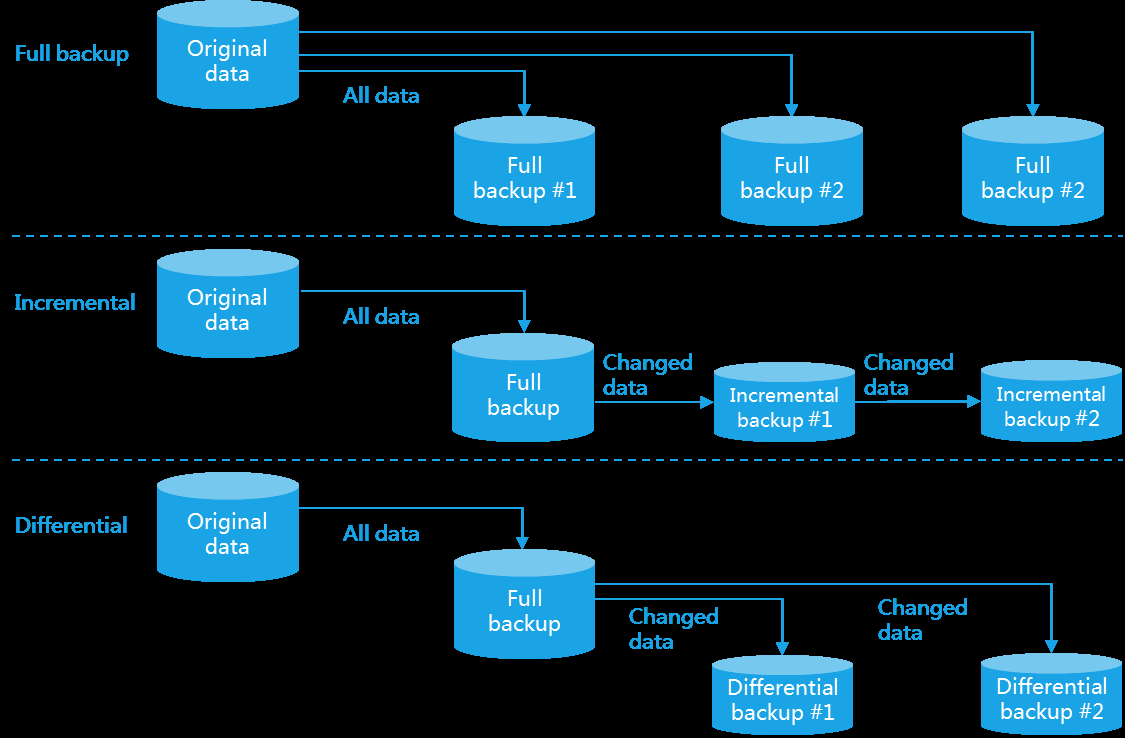
VM restoration
You can use the following methods to restore a VM:
• Restore a VM—Restores a shutdown VM to a state at a specific time by specifying a backup file. To restore a VM by using a backup file in the backup history, see "Restore a VM from a backup file." To restore a VM by importing a backup file, see "Import VMs to a host."
• Import VMs—Restores a deleted VM to a state at a specific time by importing a VM backup file. For more information, see "Import VMs to a host."
• Restore VMs on one click—Restores the state of VMs to a past point in time, which is called a restore point. You must create restore points before you can perform this task. For information about creating restore points, see "Create a restore point for a VM." For information about restoring VMs on one click, see "Restore VMs."
Back up a VM
Perform this task to perform a full, incremental, or differential backup on a VM or the disks of a VM.
You can save backup files to shared storage or a remote server. To perform scheduled backup of VMs, see "Manage backup policies."
Restrictions and guidelines
• The system does not back up permission information, boot priority, automatic migration settings, and GPU settings of VMs.
• For VMs that use block devices as disks or use raw disks, online backup, incremental backup, and differential backup are not supported.
• Snapshots do not support changed block tracking (CBT) backup. If you restore a VM with snapshots by using a CBT backup file, the snapshots of the VM will be lost.
• To avoid backup failure, do not change the running state of a VM during a CBT backup.
• For CBT backup, only CBT full backup and CBT incremental backup are supported in the current software version.
• To use CBT backup, make sure the VMs use intelligent disks and single-level image files.
Procedure
-
On the top navigation bar, click Compute.
-
From the left navigation pane, select Resource Navigation > All > Resources > Data Center Name > Cluster Name > Host Name > VM Name.
-
Click More, and then select Back Up Now.
-
Configure the backup parameters as needed, and then click Finish.
-
To cancel the VM backup task after it starts, click the icon on the top right of the page, right-click the VM backup task, and then select Cancel Backup.
Parameters
Configure basic settings:
• Backup File Name: Enter the name of the VM backup file.
• Retained Full Backup Files: Set the number of full backup files to be retained in the same backup directory. This parameter limits the number of backup files to be retained for incremental full backup or differential full backup. If you do not set a value, the number of full backup files to be retained is not limited.
• Disk Read Rate Limit: Set the limit on the disk read rate during backup.
• Disk Write Rate Limit: Set the limit on the disk write rate during backup.
• Temp Directory: Enter the temporary directory used during backup. During the backup, the system saves backup data to the temporary directory. After the backup is finished, data saved in the temporary directory will be deleted. If the directory you specify does not exist, the system automatically creates the directory during backup.
• Type: Select a backup type.
Restore a VM from a backup file
Perform this task to restore a shutdown VM to the state at a specific time point by using a backup file. If
a VM has multiple incremental backup files, you can restore the VM to the state when one of the incremental backup file was created. The VM will be overwritten during restoration.
Prerequisites
Make sure the VM to restore is in shutdown state.
Restrictions and guidelines
• The duration of VM restoration depends on the size of the VM backup file. The larger the file, the longer it takes to restore a VM.
• If you use a backup file on a remote server to restore a VM configured with CPU bindings, and the number of CPU cores on the host where the VM resides is less than the number of CPU cores bound to the VM, the CPU bindings are lost after VM restoration.
• If a VM has snapshots, the snapshot files will be deleted during VM restoration. If a VM has GPUs attached, the GPU device information will not be restored during VM restoration. For a VM, if the mappings between device names and storage volumes are inconsistent with the backup file used for restoration, the VM cannot be restored.
Procedure
-
On the top navigation bar, click Compute.
-
From the left navigation pane, select Resource Navigation > All > Resources > Data Center Name > Cluster Name > Host Name > VM Name.
-
Click the Backup Management tab.
-
Click Restore in the Actions column for a backup file.
-
In the dialog box that opens, enter a temporary directory path, and then click OK.
Parameters
• Backup File Name: Name of the VM backup file.
• Created At: Time when the VM backup file was created.
• Backup Type: Type of the VM backup.
• Directory: Directory that stores the VM backup file.
• Size: Size of the VM backup file.
• Type: VM backup type.
• Storage Path: Storage path of disk backups. This parameter is available only when the backup type is disk backup.
• CBT Backup: Whether the backup mode is CBT. CBT backs up only the data that has changed since the last backup, which saves time and system resources. To use CBT backup, make sure the VM is created on NSphere E0525 or later and uses intelligent disks and single-level image files.
• Temp Directory: Enter the temporary directory used during the restoration. If the directory you specify does not exist, the system automatically creates the directory during the restoration.
• Configure NIC: Specify whether to configure network information for the VM to restore. You must set the following parameters when this feature is enabled:
• If the management platform manages hosts running a version earlier than E0920, the VMs on those hosts do not support this function.
• During the upgrade of the management platform or a host, the system does not back up the VM network configuration on the original host. After the upgrade completes, when you restore a VM by resetting or importing it, the related network configuration items will be displayed as
Delete VM backup files
Perform this task to delete backup files in bulk or one by one for a VM. If you select the forcible deletion
option, the system also clears related information in the database when deleting backup files. If the backup files to delete are saved on a remote server that is disconnected temporarily, the system only deletes the related database information. However, those backup files cannot be used for VM restoration even if the remote server is connected again.
Restore a VM to a new VM
Perform this task to create a new VM based on a backup file. The original VM will not be deleted or
overwritten. To avoid IP address conflicts, manually edit the network settings of the new VM. After verifying correctness of new VM's internal data, you can use the new VM to replace a production VM.
-
On the top navigation bar, click Compute.
-
From the left navigation pane, select Resource Navigation > All > Resources > Data Center Name > Cluster Name > Host Name > VM Name.
-
Click the Backup Management tab.
-
Click More in the Actions column for a backup file and select Restore As New VM.
-
Configure the parameters, and then click Finish.
Parameters
Data source parameters
• Target Host: Select a host in a cluster to accommodate the new VM.
Import VMs to a host
Perform this task to import or restore VMs by using VM backup files.
Prerequisites
Make sure the VM to import or restore is not in the recycle bin.
Restrictions and guidelines
Importing the backup file of a VM in shutdown state will overwrite the original VM, deleting the snapshot, and restoring the VM to the state when the data was backed up.
Procedure
-
On the top navigation bar, click Compute.
-
From the left navigation pane, select Resource Navigation > All > Resources > Data Center Name > Cluster Name > Host Name.
-
Click Import VM.
-
Configure the parameters as described in "Parameters."
Parameters
Specify data source:
• Temp Directory: Enter the temporary directory used for VM import or recovery. If the specified directory does not exist, the system automatically creates the directory during the import or recovery.
• Backup Pool: Select a location to save the VM backup file, shared storage or remove server. The default is shared storage. For more information about backup pool parameters, see "Manage backup pools."
• New VM Alias: Enter a new VM alias. The imported VM will be renamed based on the new VM alias you specified. If you do not specify a new VM alias, the imported VM uses the original name.
• VM Group: Select a VM group for the VM.
Configure VM settings: VM: Select the VM to be restored or imported. Configure backup time: Backup Time: Select a backup time.
Import VM backup files
Perform this task to import a VM backup file to the system. The backup file can be used to restore a
VM to the state at a specific time. For more information, see "Restore a VM from a backup file."
Procedure
-
On the top navigation bar, click Compute.
-
From the left navigation pane, select Resource Navigation > All > Resources > Data Center Name > Cluster Name > Host Name > VM Name.
-
Click the Backup Management tab.
-
Click Import.
-
Configure the parameters as described in "Parameters."
Create a restore point for a VM
Perform this task to create a restore point for a shutdown VM. Then, you can use the restore point to
restore the VM to the state when the restore point was created. For more information about restoring VMs, see "Restore VMs."
Prerequisites
Make sure the VM is in shutdown state, uses the intelligent disk format, and uses the thin provisioning mode before you create a restore point for a VM.
Restrictions and guidelines
• Creating a new restore point will overwrite an existing one.
• When you create a restore point for a VM, all snapshots of the VM will be deleted.
• You cannot create a restore point for a VM that has external snapshots.
• You cannot create an external snapshot for a VM that has a restore point.
Merge VM image files
Perform this task to merge the multilevel image files of a shutdown VM to a level-1 image file. If the VM
has multiple disks that have multilevel image files, the files are merged respectively for each disk.
Prerequisites
Make sure the target VM is in shutdown state and does not have any snapshots or restore points, and the storage pool of the image files has sufficient space.
Restrictions and guidelines
VMs that use encrypted disks do not support this task.
Procedure
-
On the top navigation bar, click Compute.
-
From the left navigation pane, select Resource Navigation > All > Resources > Data Center Name > Cluster Name > Host Name > VM Name.
Manage VM VMPtools
Restrictions and guidelines
• As a best practice, use the automatic VMPtools upgrade feature for VMs in protection mode.
• If the VMPtools version in a VM template is low and does not support upgrade, the VMPtools on VMs in protection mode deployed by using that template does not support upgrade.
• To avoid configuration failure of VMs deployed by using a VM template converted or cloned from a VM, restart the VM after upgrading its VMPtools.
Load VMPtools
-
On the top navigation bar, click Compute.
-
From the left navigation pane, select Resource Navigation > All > Resources > Data Center Name > Cluster Name > Host Name > VM Name.
-
Click Edit in the upper right corner of the page or click the Configure tab.
-
Click Edit.
-
Click the CD-ROM tab, and then click Connect.
-
Select Install VMPtools from the Type list. The vmptools.iso image will be automatically mounted.
-
Click OK.
Perform bulk operations for VMs
Features
• Bulk start VMs
• Bulk resume VMs
• Bulk hibernate VMs
• Bulk restart VMs
• Bulk shut down VMs
• Bulk delete VMs
• Bulk migrate VMs
• Bulk create a restore point for VMs
• Bulk edit VMs
• Bulk create snapshots for VMs
• Bulk upgrade VMPtools for VMs
• Bulk detach the CD-ROM from VMs
• Bulk add permissions for operators or operator groups
• Bulk add disks
Bulk start VMs
Bulk resume VMs
Resume multiple VMs in abnormal state in bulk when necessary when a failure occurs on CVM.
-
On the top navigation bar, click Compute.
-
From the left navigation pane, select Resource Navigation > All > Resources > Data Center Name > Cluster Name > Host Name.
-
Click the VMs tab.
-
Select the target VMs, click Bulk Actions on top of the VM list, and then select Resume.
-
In the dialog box that opens, click OK.
Bulk hibernate VMs
Bulk restart VMs
Bulk shut down VMs
Shut down multiple running VMs in bulk.
Bulk power off VMs
Bulk delete VMs
Delete multiple VMs in bulk to release resources and reduce management workload.
-
On the top navigation bar, click Compute.
-
From the left navigation pane, select Resource Navigation > All > Resources > Data Center Name > Cluster Name > Host Name.
-
Click the VMs tab.
-
Select the target VMs, click Bulk Actions on top of the VM list, and then select Delete.
Bulk migrate VMs
Bulk create a restore point for VMs
Create a restore point for multiple VMs in bulk, allowing fast resumption to the state at the restore point
when needed.
-
On the top navigation bar, click Compute.
-
From the left navigation pane, select Resource Navigation > All > Resources > Data Center Name > Cluster Name > Host Name.
-
Click the VMs tab.
-
Select the target VMs, click Bulk Actions on top of the VM list, and then select Create Restore Point.
-
In the dialog box that opens, click OK.
Bulk edit VMs
Edit configuration for multiple VMs in bulk.
Restrictions and guidelines
When you edit the number of CPUs for VMs, if the number of CPUs has not been increased after the VMs were created, you cannot reduce the number of CPUs. If you reduce the number of CPUs, make sure the number of CPUs after reduction is not lower than the number set when the VM was created.
Procedure
-
On the top navigation bar, click Compute.
-
From the left navigation pane, select Resource Navigation > All > Resources > Data Center Name > Cluster Name > Host Name.
-
Click the VMs tab.
-
Select the target VMs, click Bulk Actions on top of the VM list, and then select Edit.
-
In the dialog box that opens, click OK.
Parameters
• CPUs: Edit the number of CPUs and CPU cores for the VMs, which cannot be more than the maximum number of CPUs on the host. If you change the number of CPUs for a VM that supports hot-add of CPUs, the operating system of the VM might operate slowly for 3 to 5 seconds. For a Linux VM, do not perform CPU hot-add during VM startup. Windows 7 supports a maximum of two CPUs. To improve processing performance, you can set multiple cores for each CPU.
• Memory: Edit the memory size to be assigned to the VMs.
• Edit VNC Password: Edit the password for accessing the VM console.
• Enable Time Sync: Enable or disable time synchronization between the VMs and the host where the VMs reside. If you enable time synchronization, the system time of the VM is automatically synchronized to the system time of the host when their system time has an offset of 300 milliseconds.
• Enable Auto VMPtools Upgrade: Select whether to enable automatic VMPtools upgrade. For the system to automatically upgrade the VMPtools for VMs, enable this feature.
• Enable Anti-Virus: To prevent VMs from virus attacks, enable this feature. To disable this feature, first shut down the VMs.
• HA: Enable or disable HA for VMs. If you disable HA, the VMs will not be managed by cluster HA. This parameter is available only when the cluster is enabled with HA.
Advanced settings:
• I/O Priority: Edit the I/O priority for VMs. When multiple VMs are accessing the disks of the host to perform read and write operations, VMs with a high I/O priority take precedence. For the configuration to take effect, restart the VMs.
• Startup Priority: Select a startup priority for VMs. When a host in an HA-enabled cluster fails, the system migrates the VMs on the host based on their startup priorities.
• Edit Memory Priority: Edit the memory priority for VMs.
• Edit Service Priority: Set the service priority of VMs. The service priority indicates the importance of a VM. When the host does not have sufficient memory, VMs are shut down based on priority. Low-priority VMs are at risk of shutdown to ensure that high-priority VMs run correctly.
• Enable Auto Migration: To enable VMs to automatically migrate in the cluster after the DRS and DPM policies take effect, enable this feature.
• Schedule Priority: Edit the schedule priority for VMs. For the configuration to take effect, restart the VMs.
• Enable Auto Start: For VMs to start immediately after the attached host starts, enable this feature.
• VM Escape Interception: VM escape allows an attacker to exploit vulnerabilities in the software or configuration errors to break out of a VM and gain unauthorized access to the underlying hypervisor or other VMs to obtain sensitive data. For the system to display interception alarms in real-time alarms when VM escape interception is enabled, you must enable VM escape alarm in Security Alarms on the Ops > Alarm Management > Alarm Thresholds > Default Threshold Settings.
• Advanced NUMA Policy: Configure an advanced NUMA policy for the VM. Options are the following:
○ Off: Does not enable advanced NUMA policy.
○ Auto NUMA Balancing: The system monitors in real time the resource distribution of all VMs that have auto NUMA balancing enabled and the load of each physical NUMA node, and automatically identifies available physical NUMA nodes. If it detects uneven resource distribution, the system automatically reallocates one VM’s CPU and memory to the most suitable NUMA node within a monitoring period (5 minutes by default) to improve resource usage and service performance. To use this feature, you must disable memory page sharing.
• You cannot enable auto NUMA balancing for a VM that has memory reservation and exclusive use of resources enabled.
• For a VM enabled with HugePages, if vNUMA is manually bound or auto vNUMA binding is off, you can enable auto NUMA balancing. However, that VM cannot start on a host with reserved HugePages configured.
• To disable auto NUMA balancing for a VM, make sure the VM is offline.
○ Exclusive Use of Resources: This feature allows a VM to have exclusive use of specific memory nodes and CPU cores on a physical server with a NUMA architecture. It can enhance the performance and resource usage of the VM, especially in applications with high latency and bandwidth requirements. With this feature enabled, a VM will be assigned to specific physical CPU cores and memory nodes and can only use these resources and other VMs cannot use these resources, reducing resource contention.
• Ballooning: Select whether to enable ballooning for the VM. With ballooning enabled, the system dynamically allocates host memory to VMs without shutting down VMs. You can enable this feature for a VM only when the VM has VMPtools installed.
○ Memory ballooning, exclusive mode, GPU-powered VM, and HugePages are mutually exclusive with each other. You can enable only one of them.
○ Memory ballooning is exclusive with PCI passthrough devices and SR-IOV NICs. You cannot enable memory ballooning for a VM when that VM has PCI passthrough devices or SR-IOV NICs. For a system upgraded from other versions, a VM might have both passthrough devices or NICs and have memory ballooning enabled. In this case, disable memory ballooning to ensure stable system operation and proper resource allocation.
○ Memory ballooning can cause minor performance loss and jitter during memory reclamation. Memory usage in the VM might briefly rise, but it returns to normal after reclamation finishes. As a best practice, disable memory ballooning for VMs running key services, requiring high performance, or demanding low latency.
○ After memory is reclaimed through memory ballooning, you can enable memory overcommitment for VMs. The amount of overcommitted memory is limited by the
Bulk create snapshots for VMs
Bulk upgrade VMPtools for VMs
Upgrade VMPtools for multiple VMs in bulk.
-
On the top navigation bar, click Compute.
-
From the left navigation pane, select Resource Navigation > All > Resources > Data Center Name > Cluster Name > Host Name.
-
Click the VMs tab.
-
Select the target VMs, click Bulk Actions on top of the VM list, and then select Upgrade VMPtools.
-
In the dialog box that opens, click OK.
Bulk detach the CD-ROM from VMs
Bulk add permissions for operators or operator groups
Bulk detach the CD-ROM from VMs
Detach the CD-ROM for multiple VMs in bulk to reduce resource consumption.
-
On the top navigation bar, click Compute.
-
From the left navigation pane, select Resource Navigation > All > Resources > Data Center Name > Cluster Name > Host Name.
-
Click the VMs tab.
-
Select the target VMs, click Bulk Actions on top of the VM list, and then select Detach from CD-ROM.
-
In the dialog box that opens, click OK.
Bulk add permissions for operators or operator groups
Add permissions to multiple VMs for operators or operator groups in bulk.
-
On the top navigation bar, click Compute.
-
From the left navigation pane, select Resource Navigation > All > Resources > Host Pool Name > Cluster Name > Host Name,.
-
Click the VMs tab.
-
Select the target VMs, click Bulk Actions on top of the VM list, and then select Add Permissions.
-
Select operators or operator groups, and then click OK.
Bulk add disks
View summary information about a VM
Perform this task to view the basic settings, advanced settings, hardware, CPU usage, and memory
usage information about a VM.
Restrictions and guidelines
If you place a host in emergency mode on the CVK platform, the status of the VMs on that host displayed on the VM summary page will be inconsistent with that on the left navigation pane.
Procedure
-
On the top navigation bar, click Compute.
-
From the left navigation pane, select Resource Navigation > All > Resources > Data Center Name > Cluster Name > Host Name > VM Name.
Parameters
• Resource Attributes: Displays and manages the hierarchical affiliation and related information of resources (such as VMs). This function helps users quickly locate resources within the infrastructure, thereby improving resource management efficiency and facilitating operations visualization.
○ Data Center: Name of the data center to which the VM belongs to identify the VM's resource environment and facilitates cross-location resource management.
○ Cluster: Name of the compute resource cluster to which the VM belongs to identify the host group where the VM runs. A cluster typically contains multiple hosts and they share storage and network resources for load balancing and high availability.
○ Host: Name and management IP address of the physical host where the VM is running to locate the physical node for the VM.
○ Tags: Tags of the VM. To set tags, click the icon.
• Basic Info: you can click the expand or collapse button to displayed information of interest.
○ Alias: Alias of the VM. You can click the icon to edit the alias.
○ Description: Description for the VM. To edit the description, click the icon.
○ VMPtools: Running status of VMPtools on the VM.
○ VMPtools Version: Version of VMPtools on the VM. If the VMPtools version is lower than the version provided by the system, the to be upgraded link is displayed. You can click the link to upgrade VMPtools.
○ Version: Version of the operating system running on the VM.
○ Auto Migration: Whether automatic migration is enabled for the VM.
○ Operating System: Operating system running on the VM.
○ Uptime: Uptime of the VM.
○ Console: Console type for VM login. The current software version supports only the VNC type.
○ Storage: Size of the VM disks.
○ Created At: Time when the VM was created.
○ Protection Mode: Whether protection mode is enabled for the VM.
○ VNC Proxy: Whether VNC proxy is enabled for the VM.
○ VNC Port: VNC port number for remotely logging in to the VM.
○ IPv6 VNC Port: IPv6 VNC port number for remotely logging in to the VM.
○ Name: Name of the VM.
○ Stretched Region: Host group to which the attached host of the VM belongs. This field is available only when stretched cluster is enabled.
○ Current Stretched Region: Host group to which the attached host of the VM belongs after VM migration. This field is available only when a VM migrates automatically because of HA or DRS and the destination host is not a host in the source host group. To have the VM stay in the current stretched region, click Join.
○ Preferred Stretched Region: Host group to which the attached host of the VM belongs before VM migration. This field is available only when a VM migrates automatically because of HA or DRS and the destination host is not a host in the source host group. To move the VM to its preferred stretched region, click Move.
○ VM Type: VM type.
▪ Common VM: The VM is not a recovered VM.
▪ Backup VM: The VM is created based on a storage replication or disk backup disaster recovery plan. The VM is not configured with network or storage mappings, and it cannot provide services.
▪ Recovered VM: The VM is recovered through a storage replication disaster recovery plan. Both network and storage mappings have been configured for the VM, and the VM can provide services.
▪ -: The VM is not created in the management platform.
○ Anti-Virus Configuration: Anti-virus configuration status for the VM. Options include:
▪ On—The VM is enabled with anti-virus.
▪ Off—The VM is enabled with anti-virus.
▪ On (Unsupported by OS)—The VM is enabled with anti-virus but the system does not support anti-virus.
▪ On (Driver Not Installed)—The VM is enabled with anti-virus but does not have the anti-virus driver installed.
▪ On (Driver Installation Failed)—The VM is enabled with anti-virus but fails to install the anti-virus driver.
○ CPU Scheduling Priority: Priority for CPU scheduling.
○ Memory Resource Priority: Priority for memory assignment.
○ UUID: UUID of the VM. The UUID uniquely identifies a VM.
○ Architecture: CPU architecture of the VM.
○ Classification Level: Classification level of the VM.
○ Encryption: State of encryption.
○ I/O Priority: I/O priority of the VM. ARM hosts do not support this parameter.
○ Backup Policy: Backup policy applied to the VM.
○ Snapshot Policy: Snapshot policy applied to the VM.
○ HA State: State of HA.
○ Memory Ballooning: State of memory ballooning.
○ VM Escape Interception: State of VM escape interception.
○ Advanced NUMA Policy: Advanced NUMA policy.
• Resource Performance: Displays the real-time resource usage for the VM.
○ CPU Usage: CPU usage trend graph. The horizontal axis represents the time, and the vertical axis represents the CPU usage.
○ Memory Usage: Memory usage trend graph. The horizontal axis represents the time, and the vertical axis represents the memory usage.
• Hardware settings:
○ CPU: CPU settings of the VM and the average CPU usage for the past hour. You can click the icon to edit the number of CPUs and the number of CPU cores.
○ Memory: Memory settings of the VM and the average memory usage for the past hour. You can click the icon to edit the memory size.
○ Disk: Disk settings of the VM, including the disk size, bus type, storage path (if the VM has multi-level images, you can click More to view its image chain), disk name, disk type, provision type, storage format, cache mode, disk encryption, and disk base image information.
• If a VM has an encrypted disk, you cannot perform the following operations: fast deployment, fast clone, cloning VMs to templates, converting VMs to templates, exporting VMs as OVF templates, downloading VM templates, CBT disk backup, CBT VM backup, taking snapshots for encrypted disks merging images, online storage migration, and cloud rainbow.
• If the storage pool that contains the directory of the VM image file is not defined, the disk size is displayed as 0. After you create a local file directory storage pool by using the path of the image file, the disk size is correctly displayed.
• This field will display an icon if the storage path of the VM's disk cannot be displayed or is not the same as the actual storage path. You can click this icon to synchronize and display the correct storage path.
View VM performance monitoring information
Perform this task to view the following information of a VM: CPU usage, memory usage, I/O throughput
statistics, network throughput statistics, disk I/O delay, disk request statistics, CPU frequency, disk usage, number of connections, and partition usage. You can also view GPU or NPU monitoring information for a VM only if that VM has a GPU or vGPU device attached.
Restrictions and guidelines
• The management platform obtains the CPU usage and the memory usage of a VM through VMPtools. For correct monitoring of the CPU usage and the memory usage, please install VMPtools on a VM.
• The system cannot obtain information of a VM and does not display the disk usage or partition usage when the VM is in shutdown or suspended state or VMPtools is not installed.
• During an online VM migration, the CPU usage, memory usage, I/O throughput, and network throughput of the migrated VM might be incorrect.
• When you migrate a VM by using the Host or Host and Storage migration type, the performance monitoring information list might contain two entries about the VM before the migration is finished. After the migration is finished, only one entry about the VM is displayed in the performance monitoring information list.
• The disk usage of a VM that uses block device disks might be incorrect on the performance monitoring page.
• If you place a CVK host in emergency mode on the CVK platform, you cannot display the network throughput statistics for any VM on that host on the VM performance monitoring page.
Procedure
-
On the top navigation bar, click Compute.
-
From the left navigation pane, select Resource Navigation > All > Resources > Data Center Name > Cluster Name > Host Name > VM Name.
-
Click the Performance Monitor tab.
-
To export detailed performance monitoring information, click Export Original Data.
Parameters
• CPU Usage: CPU usage trend graph. The horizontal axis represents the time, and the vertical axis represents the CPU usage.
• Memory Usage: Memory usage trend graph. The horizontal axis represents the time, and the vertical axis represents the memory usage.
• CPU Frequency (MHz): CPU frequency trend graph. The horizontal axis represents the time, and the vertical axis represents the CPU frequency of the host where the VM resides in MHz.
• Shared Memory (MB): Physical memory that the VM saves by using memory sharing. A larger value means the host saves more physical memory through sharing, which improves host memory usage. The horizontal axis represents the time, and the vertical axis represents the shared memory values, including average, maximum, and minimum.
• CPU Ready Time (Ratio): Time that the VM waits for physical CPU resources. The ratio shows how much this wait time accounts for in the total uptime. A higher ratio means the VM waits longer for CPU resources and might suffer CPU contention or insufficient allocation. The horizontal axis represents the time, and the vertical axis represents the CPU ready time values, including average, maximum, and minimum.
• Swap Memory (MB): Memory data that the VM temporarily stores in disk swap space when physical memory is insufficient to free physical memory for other processes or VMs. The horizontal axis represents the time, and the vertical axis represents the swapped memory values, including average, maximum, and minimum.
• CPU Ready Time (ms): Time in the selected time range when the VM is ready but waits to be scheduled on a physical CPU. The horizontal axis represents the time, and the vertical axis represents the CPU ready time.
• Balloon Memory (MB): Memory that the host reclaims from unused VM memory through ballooning, so it can allocate it to other VMs. The horizontal axis represents the time, and the vertical axis represents the balloon memory values, including average, maximum, and minimum.
• I/O Throughput (Kbps): I/O throughput trend graph for each disk. The horizontal axis represents the time, and the vertical axis represents the I/O throughput in KBps.
• Network Throughput (Mbps): NIC throughput trend graph. The horizontal axis represents the time, and the vertical axis represents the NIC throughput in Mbps.
• Disk I/O Delay (ms): Average I/O delay per 30 seconds for each disk. The horizontal axis represents the time, and the vertical axis represents the I/O delay in milliseconds.
• Disk Requests (IOPS): Average requests of each disk per 30 seconds. The horizontal axis represents the time, and the vertical axis represents the number of requests.
• Connections: TCP connection count trend graph for the past 30 minutes. The horizontal axis represents the time, and the vertical axis represents the real-time count of TCP connections in established state. This graph is available only after you install VMPtools on VMs.
• Disk Usage: Disk usage trend graph. The horizontal axis represents the time, and the vertical axis represents the disk usage in percentage. The disk usage is equal to the used space of the disk divided by the total disk space of the VM.
• Partitions: Information about each partition. The VM system memory occupies storage space. Therefore, the used system partition size might be different from the used disk size displayed on the page for editing a VM.
• GPU/vGPU Usage: GPU/vGPU usage trend graph. The horizontal axis represents the time, and the vertical axis represents the GPU/vGPU usage.
• GPU/vGPU Video Memory Usage: GPU/vGPU video memory usage trend graph. The horizontal axis represents the time, and the vertical axis represents the GPU/vGPU video memory usage.
• GPU/vGPU Encoding Rate: GPU/vGPU encoding rate trend graph. The horizontal axis represents the time, and the vertical axis represents the GPU/vGPU encoding rate.
• GPU/vGPU Decoding Rate: GPU/vGPU decoding rate trend graph. The horizontal axis represents the time, and the vertical axis represents the GPU/vGPU decoding rate.
View VM process monitoring information
Perform this task to view the following information about the processes that are running on a VM:
username, process ID, process name, CPU usage, memory usage, and used memory size.
Prerequisites
• The VM is in running state.
• The VM is installed with an operating system and VMPtools, and the operating system is compatible with VMPtools.
Restrictions and guidelines
During an online VM migration, monitoring information such as CPU usage and memory usage might not be accurate.
View VM backup history
Perform this task to view the backup files of a VM.
Restrictions and guidelines
For CBT backup or common backup, the incremental and differential backup files of the most recent backup chain in a backup directory cannot be deleted.
View VM migration history
Perform this task to view detailed information about the migration history of a VM, including source and
destination hosts and storage pools, migration mode, operator, start time of migration, and time consumed.
Orchestrate VM migration tasks
Perform this task to orchestrate VM migration tasks and view VM task status.
View console information for a VM
Perform this task to view console information for a VM, including VM UUID, VNC port, MAC address,
and IP address.
Prerequisites
Verify the following information before opening the Web console:
• The browser version meets the requirements. As a best practice, use Chrome46, Firefox46, or their higher version.
• VNC proxy is enabled and the IP address of the management platform is configured as the proxy server address if the login method is HTTPS.
• If the host where the management platform is installed is on a different network than the host where the VM resides, you must enable VNC proxy for the VM and then configure the IP address of the management platform as the proxy server address.
• To access the management platform through a Firefox browser in secure mode, you must add CVMIP:8081 to the exceptions list on the Certificate Manager tab of the Firefox browser before accessing the VNC console.
Restrictions and guidelines
If a DNS server is configured for the host attached to a VM, the VNC console for that VM responds slowly.
Procedure
-
On the top navigation bar, click Compute.
-
From the left navigation pane, select Resource Navigation > All > Resources > Data Center Name > Cluster Name > Host Name > VM Name.
-
Click the Console tab.
-
Click Java Console and then save and open the JNLP file as prompted, or click Webpage Console.
-
To view console logs, click Console Logs.
• Windows VMs do not support console logs.
• Before enabling the console log feature, you must configure the serial port of the Linux VM operating system. For more information, see "Configure a serial port for a Linux VM."
○ UUID: UUID of the VM. The UUID uniquely identifies a VM.
○ VM State: State of the VM.
○ Host IP: IP address of the host where the VM resides.
○ VNC Port: VNC IPv4 or IPv6 port number for remotely logging in to the VM.
○ Console: Select a method for logging in to the remote console. Options include Java Console and Webpage Console. The Java console is not displayed if VNC password is enabled on the System > Parameters > System Parameters > VNC Console Parameters page.
○ MAC: MAC address of the VM.
○ IPv4 Address/IPv6 Address: IPv4 or IPv6 address of the VM.
○ Actions: Actions that operators can perform on the remote desktop.
-
To open the remote desktop, click Remote Desktop.
-
(Optional.) Click Console to access the remote console. You can then perform the following operations:
○ To start and load the OS when the VM is shut down, click Start.
○ To send a graceful shutdown command to the VM, click Shut Down. This prevents data loss or system damage.
○ To immediately power off the VM, click Power Off. This action might cause data loss or file system damage. Use it with caution.
○ To send the keyboard shortcut to the VM, select a shortcut from the Send Keys list.
○ To open and manage the virtual drive, click Virtual Drive. The virtual drive is used to mount an ISO image to install or run programs.
▪ Java: Use the Java client to mount a remote or local ISO image.
▪ Local: Select a local ISO image file, select Restart the VM immediately to install the operating system, and then click OK.
○ To disconnect the virtual drive from the VM, click Disconnect.
○ To connect the selected CD-ROM or ISO image to the VM, click Connect.
○ To update the VM state, click Refresh.
○ To switch to full screen mode, click Full Screen. To exit full screen mode, press ESC.
○ To install VMPtools for the VM, click Install Now.
Manage permissions
Perform this task to assign permissions to other operators or operator groups to view and operate a
VM. The administrator can manage all resources.
Add permissions for operators or operator groups
-
On the top navigation bar, click Compute.
-
From the left navigation pane, select Resource Navigation > All > Resources > Data Center Name > Cluster Name > Host Name > VM Name.
-
Click the Permissions tab.
-
Click Add Permissions.
-
Select the operators for which you want to add permissions and then click OK. To add permissions for operator groups, click Operator Group, select the target operator groups, and then click OK.
-
Click OK.
View operators or operator groups that have permissions for a VM
-
On the top navigation bar, click Compute.
-
From the left navigation pane, select Resource Navigation > All > Resources > Data Center Name > Cluster Name > Host Name > VM Name.
-
Click the Permissions tab to view the operators and operator groups that have permissions to the VM.
Change the permissions for an operator or operator group
-
On the top navigation bar, click Compute.
-
From the left navigation pane, select Resource Navigation > All > Resources > Data Center Name > Cluster Name > Host Name > VM Name.
-
Click the Permissions tab.
-
Click Edit in the Actions column for an operator or operator group. Change the permissions as needed.
-
Click OK.
Remove the permissions for an operator or operator group
-
On the top navigation bar, click Compute.
-
From the left navigation pane, select Resource Navigation > All > Resources > Data Center Name > Cluster Name > Host Name > VM Name.
-
Click the Permissions tab.
-
Click Remove in the Actions column for an operator or operator group.
-
In the dialog box that opens, click OK.
Parameters
• Operator/Operator Group: Name of the operator or operator group that has permissions to the VM.
Configure a serial port for a Linux VM
About this task
Perform this task to configure a serial port for a Linux VM. Before viewing console logs from the console of a VM, verify that ttyS0 in kernel boot parameter console=ttyS0,115200 already exists, which means that the VM is configured with a minimum of one serial port. If this requirement is not met, the VM will fail to start, and its console logs will be empty.
Restrictions and guidelines
• You must log in to the VM as the root user.
• If the VM uses the ARM architecture and is configured with kernel boot parameters by default, you do not need to re-configure them.
Procedure
• The following procedure uses the CentOS 6 series as an example to modify the menu.lst file of an x86 VM. a. Execute the following command to view the files in the /boot/grub directory: ls /boot/grub b. Execute the following command to open the /boot/grub/menu.lst file with the VI editor: vi /boot/grub/menu.lst c. Enter i to enter the edit mode. d. At the end of the line where the kernel parameter is located, enter a space, and then enter console=ttyS0,115200 console=tty0.
e. Press ESC, enter wq, and then press Enter to save the settings and exit the editor. f. Restart the VM.
• The following procedure uses the CentOS 7 series as an example to modify the /default/grub file of an ARM VM. g. Execute the following command to view the files in the /etc/default directory: ls /etc/default h. Execute the following command to open the /etc/default/grub file with the VI editor: vi /etc/default/grub i. Enter i to enter the edit mode. j. Enter GRUB_CMDLINE_LINUX_DEFAULT="console=tty0 console=ttyS0,9600. k. Press ESC, enter wq, and then press Enter to save the settings and exit the editor. l. Execute the following command to update the grub2 configuration file: grub2-mkconfig -o /boot/grub2/grub.cfg m. Restart the VM.
• The following tables show the methods for configuring a serial port for different Linux operating systems: Table-1 Serial port configuration methods for x86 VMs Operating system type Boot configuration file Configuration method
• CentOS 5 series
• CentOS 6 series Add console=ttyS0,115200 • Red Hat Enterprise /boot/grub/ menu.lst console=tty0 to the end of the Linux 5 series kernel parameter line
• Red Hat Enterprise Linux 6 series
• CentOS 7 series
• Red Hat Enterprise Linux 7 series Add console=ttyS0,115200 • Oracle Enterprise Linux /boot/grub2/grub.cfg console=tty0 to the end of the Server 7 series linux16 parameter line
• Fedora series
• EulerOS 2.1
• SUSE Linux Enterprise Server 11 series Add console=ttyS0,115200 /boot/grub/menu.lst console=tty0 to the end of the • Oracle Enterprise Linux kernel parameter line Server 6 series
• SUSE Linux Enterprise Server 12 series Add console=ttyS0,115200 /boot/grub2/grub.cfg console=tty0 to the end of the • OpenSUSE 13 series linux parameter line • OpenSUSE 42 series
• Debian series Add console=ttyS0,115200 • Ubuntu 14 series /boot/grub/grub.cfg console=tty0 to the end of the linux parameter line • Ubuntu 16 series Execute the cat /proc/cmdline | grep ttyS0 command to identify whether ttyS0 is configured. If ttyS0 is not configured, configure it as follows:
-
Find the /usr/share/oem/grub.cfg CoreOS series /usr/share/oem/grub.cfg file. If the file does not exist, manually create it.
-
Open the /usr/share/oem/grub.cfg file, and then add set linux_append="console =ttyS0,115200 console=tty0 into the file.
Table-2 Serial port configuration methods for ARM VMs
Operating system type Boot configuration file Configuration method
• CentOS 7 series Add console=ttyS0,115200 • Red Hat Enterprise /boot/grub2/grub.cfg console=tty0 to the end of the Linux 7 series linux16 parameter line • Fedora series
Manage VM alarms
Perform this task to filter, ignore, view, acknowledge, or clear alarms generated on a VM most recently,
set the refresh interval, and configure alarm thresholds.
Restrictions and guidelines
By default, the system refreshes alarm information every 10 seconds. Configure an appropriate refresh interval to ensure that operators can confirm the alarms before the page is refreshed. The alarm threshold configuration takes effect in the priority order of VM, host, cluster, and O&M center. If you enable and configure the same alarm threshold for a VM, a host, a cluster, and O&M center, only the configuration with the highest priority takes effect.
Obtain information about alarms
-
On the top navigation bar, click Compute.
-
From the left navigation pane, select a VM.
-
Click the Notifications tab.
-
Configure the filter parameters (see "Parameters"), and then click Filter. The matching alarms are displayed.
-
To set the alarm list refresh interval, select an option from the Refresh Interval list.
Ignore alarms
-
On the top navigation bar, click Compute.
-
From the left navigation pane, select a VM.
-
Click the Notifications tab.
-
Click Ignore in the Actions column for an alarm.
-
In the dialog box that opens, enter the description, and then click OK.
View alarm details
-
On the top navigation bar, click Compute.
-
From the left navigation pane, select a VM.
-
Click the Notifications tab.
-
Click the alarm information in the Contents column for an alarm to view detailed information about that alarm.
-
To edit maintenance experience, click Modify Maintenance Experience.
-
Click OK.
Acknowledge an alarm
-
On the top navigation bar, click Compute.
-
From the left navigation pane, select a VM.
-
Click the Notifications tab.
-
Select target alarms, and then click OK.
Delete alarms
-
On the top navigation bar, click Compute.
-
From the left navigation pane, select a VM.
-
Click the Notifications tab.
-
Select the target alarms, and then click Delete on top of the alarm list. In the dialog box that opens, click OK.
Clear alarms at one click
-
On the top navigation bar, click Compute.
-
From the left navigation pane, select a VM.
-
Click the Notifications tab.
-
Click Clear on top of the alarm list. In the dialog box that opens, set the parameters as required, and then click OK.
Configure alarm thresholds
-
On the top navigation bar, click Compute.
-
From the left navigation pane, select a VM.
-
Click the Notifications tab.
-
Click Alarm Threshold Configuration, and configure the parameters. For more information, see "Manage alarm thresholds."
Parameters
• Refresh Interval: Select the interval at which the alarm list is refreshed. Options include 5 sec, 10 sec, 30 sec, 1 min, and 5 min.
• State: Select an alarm state. Options include All States, Acknowledged, and Unacknowledged.
• Severity: Select an alarm severity. Options include All, Critical, Major, Minor, and Info.
• Source: Information about the source device of the alarm, including the device type, device name, and management IP address.
• Type: Select an alarm type. Options include All Types, VM Alarms, Failure Alarms, and Other Alarms.
• Contents: Contents of the alarm.
• Last Triggered At: Last time when the alarm was triggered.
• First Triggered At: First time when the alarm was triggered.
• Alarm Count: Number of occurrences of the alarm.
• Alarm Cause: Reason why the alarm was generated. The reasons are predefined by the system and cannot be edited. This field displays the same information for the same type of alarms.
• Recommended Action: Remedies for the alarm. The remedies are predefined by the system and cannot be edited. This field displays the same information for the same type of alarms.
View VM operation logs
Perform hot upgrade for VMs
During an upgrade, the management platform can check whether VMs support hot upgrade. If a VM
supports hot upgrade, the management platform automatically upgrades the VM during host upgrade. Hot upgrade does not require VM migration or reboot and simplifies O&M. The management platform displays hot upgrade-related prompts only when hot upgrade fails on VMs. To handle hot upgrade failure, see "Handle hot upgrade failure on VMs."
Handle hot upgrade failure on VMs
If hot upgrade fails on VMs, the dashboard will list those VMs in a dialog box after you log in. You can
migrate, boot, shut down, and power off those VMs. If you perform one of these operations, the management platform will automatically upgrade the VMs to restore them.
Restrictions and guidelines
• The management platform displays the hot upgrade failure prompt only upon your login after hot upgrade failure occurs. To view the prompt after login, click the icon in the top right corner. If the operator idle timeout is set to 0 second, the prompt will not appear after the Web interface is refreshed. To view the prompt, you must log in to the management platform again.
• When storage pool space is insufficient, virtual machine live upgrades may fail. To ensure a smooth upgrade, please release storage pool space in advance, including but not limited to:
○ Delete unnecessary files.
○ Migrate storage data to other storage pools.
○ Thin image chains.
Migrate a VM
-
Log in to the management platform, and click Process when you are prompted to handle hot upgrade failure.
-
Click Migrate in the Actions column for a VM.
-
Configure the parameters as described in "Migrate a VM," and then click OK.
VM groups
A VM group is a logical collection of VMs. A VM group can span hosts, clusters, and data centers for
organizing VMs logically, such as grouping VMs by service type or dependency for simple management. You can configure VM boot rules only if VMs exist in a VM group.
• After you configure boot rules, the sub groups and VM sequence displayed on the VM group page indicate the order to start VMs in bulk. When shutting down VMs, the system shuts them down in reverse order of their startup order.
• The startup or shutdown interval is the interval between the startup or shutdown completion time of a sub group or VM and the startup or shutdown time of the next sub group or VM.
• A typical use case is to configure VMs to start in a specific order. For example, three VMs with database, application, and WebService software installed respectively require a specific startup order. You assign the VMs to a VM group, configure boot rules as needed, and then execute the bulk boot operation.
You can set permissions on a VM group. For more information, see "Manage permissions for VM groups."
Restrictions and guidelines
• The VM Group group is the default top group and cannot be deleted or used to bookmark VMs.
• After boot rules are configured, the priority of the boot rules is higher than the VM rules when VMs in a VM group are started or shut down in bulk, which causes the associated actions in the VM rules to become ineffective. For example, VM 1, VM 2, and VM 3 are in a VM directory, the startup sequence is set to VM 1, VM 2, and VM 3, and the startup interval is set to 5 minutes. VM 2 and VM 3 are associated with a VM rule for simultaneous startup. If a bulk startup operation is executed, VM 2 and VM 3 will start in turn according to the boot rules.
• VMs are booted in the configured order and shut down in reverse order.
• Only operator groups of the same role can share VM group information. Assume that a user created a VM group as a system administrator. After logging in to the management platform with a role other than system administrator, the user cannot manage the VM group created by using the system administrator role.
Add a group
You can customize VM groups and create sub groups to group VMs. You can assign VMs of the same type to a group for unified management, such as assigning VMs into different groups based on department or business type.
-
On the top navigation bar, click Compute.
-
From the left navigation pane, select Resource Navigation > VM Group.
-
Click Add Group.
-
Enter a group name. The parent group is the one you selected in step 2.
-
Click OK.
Configure a boot rule
Set the startup and shutdown order of VMs within a specific VM group. If multiple VMs have the same sequence number, they will start or shut down simultaneously. This feature is available only if VMs exist in a group. The system will generate an ascending startup and shutdown order based on the time at which the VMs were added to the group.
-
On the top navigation bar, click Compute.
-
From the left navigation pane, select Resource Navigation > VM Group.
-
Click a group in the left directory tree.
-
Click Set Boot Rule.
-
Configure the parameters.
-
Click OK.
Create a VM in a VM group
Perform this task to create a VM in a VM group. The VM is available only when you install an OS for it.
-
On the top navigation bar, click Compute.
-
From the left navigation pane, select Resource Navigation > VM Group.
-
Select a group in the left directory tree.
-
Click Create VM.
-
Select a host, and then click OK.
-
In the dialog box that opens, configure the parameters as needed. For more information, see "Create a VM."
-
Click OK.
Rename a VM group
-
On the top navigation bar, click Compute.
-
From the left navigation pane, select Resource Navigation > VM Group.
-
Select a group in the left directory tree.
-
Click More in the upper right corner, and select Rename.
-
Enter a group name.
-
Click OK.
Delete a group
You can delete a group, including all VMs in it.
-
On the top navigation bar, click Compute.
-
From the left navigation pane, select Resource Navigation > VM Group.
-
Select a group in the left directory tree.
-
Click More in the upper right corner, and select Delete Group.
-
In the dialog box that opens, click OK.
Bulk start VMs
Perform this task to start multiple VMs in a group in bulk. The system bulk starts VMs according to the set boot order for the VM group. You can start up to eight VMs simultaneously for a host. The other VMs will be queued for startup in the order of task start time.
-
On the top navigation bar, click Compute.
-
From the left navigation pane, select Resource Navigation > VM Group.
-
Select a group in the left directory tree.
-
Click More in the upper right corner, and select Bulk Start VMs.
-
Click OK.
Bulk shut down VMs
Perform this task to shut down multiple VMs in a group in bulk. When shutting down VMs in a VM group, the system shuts them down in reverse order of their startup order. You can shut down up to eight VMs simultaneously for a host. The other VMs will be queued for shutdown in the order of task start time.
-
On the top navigation bar, click Compute.
-
From the left navigation pane, select Resource Navigation > VM Group.
-
Select a group in the left directory tree.
-
Click More in the upper right corner, and select Bulk Shut Down VMs.
-
Click OK.
Bookmark VMs
Add VMs with the same purpose or business type to a custom VM group for quick access and management.
-
On the top navigation bar, click Compute.
-
From the left navigation pane, select Resource Navigation > VM Group.
-
Select a group in the left directory tree.
-
Click Bookmark VMs.
-
Select one or multiple VMs.
-
Click OK.
Remove VMs from a group
You can remove one or more VMs from a group if the VMs are no longer needed.
-
On the top navigation bar, click Compute.
-
From the left navigation pane, select Resource Navigation > VM Group.
-
Select a group in the left directory tree.
-
Select target VMs.
-
Click Uncollect VM.
-
Click OK.
Move VMs to another group
-
On the top navigation bar, click Compute.
-
From the left navigation pane, select Resource Navigation > VM Group.
-
Select a group in the left directory tree.
-
To move VMs in bulk to another group, select target VMs, and then click Move to Other Group on top of the VM list.
-
To move a single VM to another group, right-click the target VM, and then select Move to Other Group.
-
To add a VM group, click Add Group. To delete a VM group, click Delete Group.
-
Select a VM group, and then click OK.
Perform bulk actions
Perform this task to operate multiple VMs in a VM group in bulk, for example, start, restore, restart, shut down, power off, or delete the VMs, create a restore point or snapshot for the VMs, edit the VMs, upgrade the VMPtools for the VMs, or disconnect the optical drivers for the VMs.
-
On the top navigation bar, click Compute.
-
From the left navigation pane, select Resource Navigation > VM Group.
-
Select a group in the left directory tree.
-
Select target VMs.
-
Click Bulk Actions, and then select an action to perform. For more information, see the related sections in "VMs."
Edit a VM in a group
Perform this task to edit settings for a VM in a VM group, and add or delete hardware for a VM.
-
On the top navigation bar, click Compute.
-
From the left navigation pane, select Resource Navigation > VM Group.
-
Select a group in the left directory tree.
-
Click Edit in the Actions column for a VM.
-
Click Edit in the lower right corner of the page.
-
Edit the parameters as needed. For more information about the parameters, see "Edit a VM".
-
Click Apply.
Perform more actions
Perform this task to operate a VM in a VM group, for example, start, restore, restart, shut down, power off, or delete the VM, create a restore point or snapshot for the VM, edit the VM, upgrade the VMPtools for the VM, or disconnect the optical driver for the VM.
-
On the top navigation bar, click Compute.
-
From the left navigation pane, select Resource Navigation > VM Group.
-
Select a group in the left directory tree.
-
Click More in the Actions column for a VM, and then select an action as needed.
Parameters
• Sequence: Assign sequence numbers to VMs. To add a new sequence number, click Add to New Sequence.
• Start Action: Select whether to start the VMs in the configured sequence. If you select None, no VM start action is configured.
• Start Delay: Set the interval between startup of two VMs.
• Shutdown Action: Configure how to shut down the VMs. If you select Shut Down, Power Off, or Hibernate, the system performs the selected action on the VMs in reverse of the configured sequence. If you select None, no VM shutdown action is configured.
• Shutdown Delay: Set the interval between shutdown actions on two VMs.
Manage permissions for VM groups
Perform this task to assign permissions to other operators or operator groups to view and operate a
VM group. The administrator can manage all resources.
Add permissions for operators or operator groups
-
On the top navigation bar, click Compute.
-
From the left navigation pane, select Resource Navigation > VM Group.
-
Click a sub group name, and then click the Permissions tab.
-
Click Add Permissions.
-
Select the operators for which you want to add permissions and then click OK. To add permissions for operator groups, click Operator Group, select the target operator groups, and then click OK.
-
Click OK.
View operators or operator groups that have permissions for a VM group
-
On the top navigation bar, click Compute.
-
From the left navigation pane, select Resource Navigation > VM Group.
-
Click a sub group name and then click the Permissions tab to view the operators and operator groups that have permissions to the VM group.
Change the permissions for an operator or operator group
-
On the top navigation bar, click Compute.
-
From the left navigation pane, select Resource Navigation > VM Group.
-
Click a sub group name, and then click the Permissions tab.
-
Click Edit in the Actions column for an operator or operator group. Change the permissions as needed.
-
Click OK.
Remove the permissions for an operator or operator group
-
On the top navigation bar, click Compute.
-
From the left navigation pane, select Resource Navigation > VM Group.
-
Click a sub group name, and then click the Permissions tab.
-
Click Remove in the Actions column for an operator or operator group.
-
In the dialog box that opens, click OK.
Parameters
Add permissions for operators or operator groups:
• Propagate to Child Objects: If you select this option, permissions to this VM group and its sub groups and VMs will be assigned to the current operator or operator group.
View operators or operator groups that have permissions for a VM group:
• Operator/Operator Group: Name of the operator or operator group that has permissions to the VM group.
• Category: Operator or operator group that has permissions to the VM group.
• Scope: Object to which the operator or operator group has permissions.
○ This Object: The operator or operator group only has permissions to the current object.
○ This Object and Its Child Objects: The operator or operator group has permissions to the current object and its child objects. If this field displays a host, cluster, or data center name, the operator or operator group has permissions to the host, cluster, or data center and its child objects.
Hardware acceleration
The management platform uses vStorage APIs for Array Integration (VAAI) for hardware acceleration. When performing routine operations such as cloning a VM, deploying a VM from a template, or migrating a VM, the system offloads file copying to the storage devices instead of the hosts. This significantly speeds up operations, reduces host CPU and I/O consumption, and maintains stable host performance.
Procedure
-
On the top navigation bar, click Compute.
-
From the left navigation pane, select Resource Navigation > All > Resources > Data Center Name > Cluster Name > Host Name.
-
Click the Advanced tab.
-
Select Hardware Acceleration.
-
Turn on or turn off replication acceleration, and then click Save.
Parameters
Replication Acceleration: Replication acceleration controls whether to enable hardware acceleration (using VAAI) for VM cloning, data migration, or template deployment. When this feature is enabled, storage devices rather than the host performs file copying. This setting only applies to tasks started after the change; running tasks are unaffected. This feature takes effect for VM data migration only after you enable migration acceleration on the VM migration page. If you clone a VM from a local disk to create a template and store the template on shared storage, you must first click More and select Distribute in the Actions column for a VM to be deployed on the VM template management page to synchronize the template to the shared storage. If you fail to do so, VMs deployed from this template cannot use hardware acceleration.