Disaster recovery center
Disaster recovery management (DRM) provides service recovery across different sites. You can
configure a management platform site as the protected site, configure a recovery site for the protected site. When the protected site stops providing services, the recovery site can take over to guarantee uninterrupted services.
Features
• Manage storage replication adapters
• Manage sites05-云业务.docx - _Topic_16778_20230915145559_title
• Manage protection groups
• Manage recovery plans
Manage storage replication adapters
About this service
SRAs enable SRM to discover storage systems, replicate LUNs, and test and perform DR. When SRM tests DR, runs scheduled recovery, or runs failure recovery, SRAs offer resources to SRM and cooperate with SRM in DR automation in a virtualization environment. Storage replication-based DR supports DR for homogeneous cloud scenarios. With remote replication on the storage arrays, it performs asynchronous remote data replication between the production site and the recovery site. When a failure occurs at the production site, it switches services over to the recovery site.
Application scenarios
• Storage replication-based DR applies to homogeneous cloud DR scenarios. In these scenarios, the production site and DR site run the same CVM version and the production VMs to be protected are VMs on the management platform.
• Suitable for data center-level DR.
• Only x86 architecture supports this function.
Disaster recovery level
• RPO is at minute-level.
• RTO is at minute-level.
Implementation mechanism
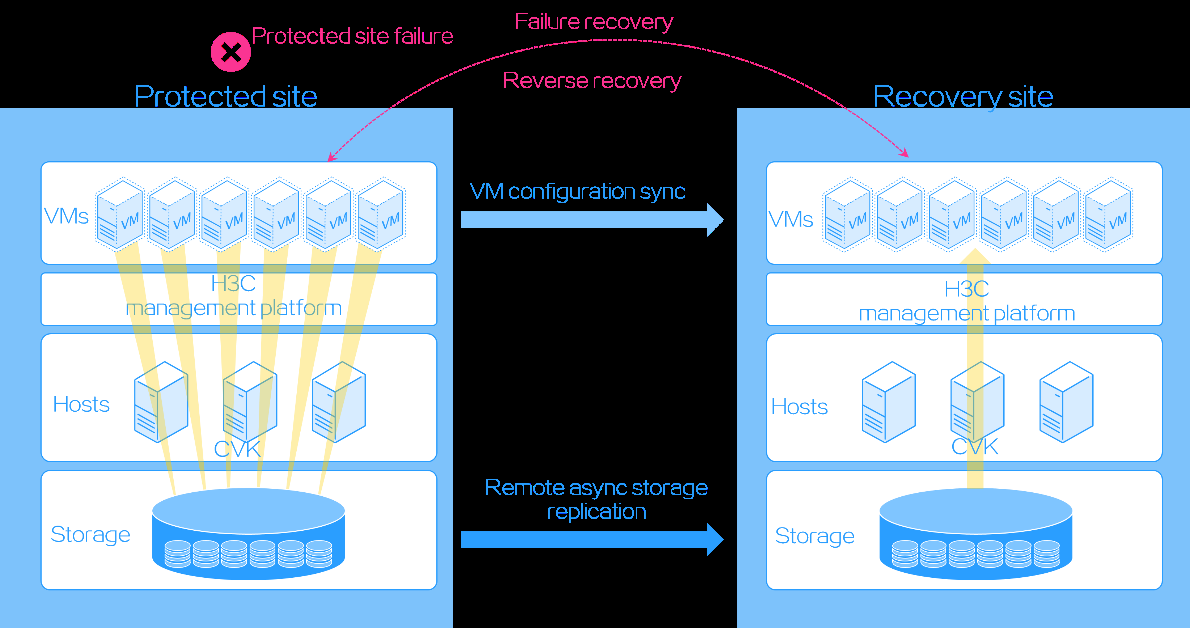
At the storage array layer, remote replication backs up service VM data. At the service layer, a protection group enables the system to sync protected VM settings from the protected site to the recovery site. When a disaster occurs, the backed-up storage data and synced settings are used to start the VMs at the recovery site and service are switched to the recovery site. Storage replication-based DR relies on the replication function of storage arrays. Therefore, the storage replication technology at the protected site and the recovery site must be consistent. Additionally, you must have a license for both the storage replication and snapshot functions on the storage arrays. Figure-1 DR via storage replication mechanism
Features
• Add a storage replication adapter
• Download storage replication adapter settings
• Upload storage replication adapter settings
• Copy storage replication adapter settings
• Reset storage replication adapter settings
• Reload the storage replication adapter settings
• Re-scan a storage replication adapter
• Delete a storage replication adapter
Add a storage replication adapter
Perform this task to register a new storage replication adapter and upload the SRA plugin file provided
by your storage vendor. This action integrates third-party storage system replication capabilities into the DR center, enabling remote replication and DR protection at the storage layer.
Prerequisites
Only FC/iSCSI adapters with a DeviceIdentification of World Wide Name (WWN) or initiator+number+target.
Procedure
-
On the top navigation bar, click HA service.
-
From the left navigation pane, select Disaster Recovery Center > Storage Replication Adapter.
-
Click Add. Upload the corresponding SRA storage file. The SRA file is typically provided by the storage vendor.
Download storage replication adapter settings
Upload storage replication adapter settings
• If the uploaded storage replication adapter settings do not take effect, click Reload. This forces the system to reload and apply the latest configuration. Then, verify that the settings have taken effect.
• For the upload to succeed, make sure the SRA configuration package to upload does not exceed 5 MB.
Import the saved storage replication adapter configuration file into the current system to resume historical settings.
Copy storage replication adapter settings
Reset storage replication adapter settings
If the reset storage replication adapter settings do not take effect, click Reload. This forces the system to reload and apply the latest configuration. Then, verify that the
Reload the storage replication adapter settings
The system rereads and applies the current storage replication adapter configuration. Perform this
task when configuration changes do not take effect or when communication is abnormal. It refreshes the connection state without requiring a service restart.
-
On the top navigation bar, click HA service.
-
From the left navigation pane, select Disaster Recovery Center > Storage Replication Adapter.
-
Click Reload in the target storage replication adapter configuration area to reload the storage replication adapter configuration.
Re-scan a storage replication adapter
Delete a storage replication adapter
Manage sites
If the storage arrays of the protection site and backup site support SRAs, you must configure storage
array managers for the sites. After you add the sites and storage array managers, synchronize the storage replication information. You can configure site recovery settings through the console of one site and synchronize them to the other site. If the storage arrays of the sites do not support SRAs, you must manually prepare the storage environment before switching over the services between sites. As a best practice, use storage arrays that support SRAs.
Restrictions and guidelines
To ensure data consistency, do not perform operations on the same site (including editing, synchronizing, and deleting) simultaneously at both the primary and backup sites.
Features
• Add or edit a site
• Add a storage array manager
• Edit a storage array manager
• Synchronize storage replication information
• Upgrade the storage array for a site
• Display storage replication information
• Delete a storage array manager
• Delete a site
Add or edit a site
Use this function to quickly add local and remote sites to the management platform when configuring a
DR system. You can then manage these sites effectively. Only system administrator group users with all resource permissions can add sites.
Restrictions and guidelines
• When the operator idle timeout is 0 and the password validity period is not 0, check and change your password in time to avoid disaster recovery failures. If your password has expired, set a new password on the management interface and change the site password accordingly.
• In storage replication disaster recovery, hosts that have storage pools mounted cannot be configured as failover nodes in cluster HA.
• Only users in the system administrator group can configure sites.
• DR does not support IPv6 hosts or vSwitches.
• VMs that use encrypted disks do not support storage replication disaster recovery.
• If you use storage arrays that do not support SRAs to perform storage replication disaster recovery and the protection and recovery storage pools use different names, the recovery storage pool might fail to process the image chain relationships. As a result, the system might fail to rebuild the external snapshot image chain for a VM in the recovery site.
Procedure
-
On the top navigation bar, click HA service.
-
From the left navigation pane, select Disaster Recovery Center > Sites.
-
To add a site, click Add. To edit a site, click Edit in the Actions column for a site.
-
Click Next to configure the array manager. No storage array manager is required if the storage array corresponding to the site does not support SRA.
-
Click OK to save the configuration.
-
(Optional) To return to the previous step, click Previous.
-
To cancel the operation, click Cancel.
Parameters Site Info
• Site Name: Name of the site, which uniquely identifies the site.
• Site Type: Type of the site, including Local and Remote.
○ Local: Current management platform. The first site you add is a local site.
○ Remote: Other management platforms. All future sites you add will be remote sites.
• If a management platform already has site data configured, you cannot add that management platform as a remote site to another management platform.
• You can add only x86 remote sites to an x86 management platform site, and can add only ARM remote sites to an ARM management platform site. Otherwise, you will see abnormal options when you add a storage array.
• IP: IP address for accessing the management platform.
• Login Mode: Protocol type for accessing the site. Options are HTTP and HTTPS.
• Port: Port Number for accessing the site.
○ When you use HTTP, the default port is 8080.
○ When you use HTTPS, the default port is 8443.
• Username: Username for logging in to the site.
• Password: Password for logging in to the site.
Storage array information
• The following parameters are required for the x86 architecture:
○ Name: Name of the storage array manager.
○ Storage adapters from different vendors vary, so their connection parameters are also different.
• The following parameters are required for the ARM architecture:
○ Manufacturer: Manufacturer of the storage array used by the site.
○ Name: Name of the storage array manager.
○ Local Storage Array IP: IP address of the storage array used by the local site.
○ Local Username: Username for accessing the storage array manager connected to the local site.
○ Local Password: Password used for accessing the storage array manager connected to the local site.
○ Remote Storage Array IP: Specify the IP address of the remote storage array, which has established a replication relationship with the storage array used by the local site. This parameter is available only for 3PAR/Primera.
Add a storage array manager
Perform this task to register a new storage array manager at a specified site and enable DR
management for the storage device. By associating the uploaded SRA, you can authenticate the storage controller and configure the connection. This provides the foundation for subsequent operations, such as establishing storage replication and creating a protection group.
Procedure
-
On the top navigation bar, click HA service.
-
From the left navigation pane, select Disaster Recovery Center > Sites.
-
Click the name of the site where you want to add a storage array manager, and then click Add Storage Array Manager.
-
Configure the storage array manager, click Connectivity Test to verify the array configuration. Click OK to save the configuration.
-
(Optional) To return to the previous step, click Previous.
-
To cancel the operation, click Cancel.
Parameters
• The following parameters are required for the x86 architecture:
○ Name: Name of the storage array manager.
○ Storage adapters from different vendors vary, so their connection parameters are also different.
• The following parameters are required for the ARM architecture:
○ Manufacturer: Manufacturer of the storage array used by the site.
○ Name: Name of the storage array manager.
○ Local Storage Array IP: IP address of the storage array used by the local site.
○ Local Username: Username for accessing the storage array manager connected to the local site.
○ Local Password: Password used for accessing the storage array manager connected to the local site.
○ Remote Storage Array IP: Specify the IP address of the remote storage array, which has established a replication relationship with the storage array used by the local site. This parameter is available only for 3PAR/Primera.
Edit a storage array manager
You can edit the configuration for a registered storage array manager. However, if the manager has
devices with configured mapping relationships, such as LUN mapping or protection group binding, its configuration is not editable. This prevents data link disruption. You can edit the configuration for a registered storage array manager. However, if the manager has devices with configured mapping relationships, such as LUN mapping or protection group binding, its configuration is not editable. This prevents data link disruption.
-
On the top navigation bar, click HA service.
-
From the left navigation pane, select Disaster Recovery Center > Sites.
-
Click the name of a site, and then click Edit in the Actions column for a storage array manager.
Synchronize storage replication information
Perform this task to forcibly pull the latest replication link state from the underlying storage array and
update the device replication topology at the local disaster recovery center. This task is applicable for scenarios where replication configuration has been completed on the storage side but has not been identified by the management platform, ensuring that the displayed status information is consistent with the actual information.
-
On the top navigation bar, click HA service.
-
From the left navigation pane, select Disaster Recovery Center > Sites.
-
Click the name of the target site, and then click Sync Storage Replication Info in the Actions column.
-
In the dialog box that opens, click OK.
-
(Optional.) To cancel the operation, click Cancel.
Upgrade the storage array for a site
ARM architecture does not support this function.
Perform this task to upgrade storage arrays in the system to the current version. It automatically adapts and converts existing connection parameters, identifies multipathing information, and generates standardized storage resources. The Upgrade button will be hidden once all storage arrays in the system are upgraded successfully.
Prerequisites
• Before you perform the upgrade, ensure you have uploaded the storage replication adapter package for your storage array's model and version.
• As a best practice, manually create a multipathing storage resource for the array before you perform the upgrade, and then associate it with the relevant host.
Restrictions and guidelines
• Before you perform the upgrade, manually create multipathing storage resources on the target host that correspond to the array to upgrade. Then, complete the association settings with the target host.
• If the local site array is upgraded successfully but the remote array is in not synchronized state due to a network disruption between the local and remote sites, log in to the remote site after the network resumes. Then initiate the upgrade action to complete the remote array upgrade and state synchronization.
Display storage replication information
Display the replication link details for all storage devices at the current site. This includes key
information such as the source LUN name, replication direction, remote LUN and storage name, as well as the associated protection group and storage pool.
-
On the top navigation bar, click HA service.
-
From the left navigation pane, select Disaster Recovery Center > Sites.
-
Click the name of a site, click More in the Actions column for a storage array manager and select View Storage Replication Info. Click Close to close the dialog box.
○ Local LUN: Name of the local storage LUN.
○ Replication Direction: Replication direction of the LUNs.
○ Remote LUN: Name of the remote storage LUN.
○ Remote Storage: Name of the storage array manager where the remote LUN resides.
○ Protection Group: Name of the protection group associated with the current LUN.
○ Storage Pool: Name of the storage pool to which the current LUN belongs.
Delete a storage array manager
Delete a site
Manage protection groups
A protection group protects a set of VMs or physical devices. You can add the protected and recovery
sites to a protection group. When the protected site stops providing services, the recovery site can take over to guarantee uninterrupted services based on the configured recovery plan and policy. You can create storage replication protection groups. You assign VMs attached to the same storage pool (a LUN in a storage array) to a protection group based on a protection policy. It replicates the VM data stored on a LUN in the local storage array to a LUN in a remote storage array through array-based replication when failure occurs. When you create a protection group, you must associate a protected site and recovery site with the protection group, specify the data center of the sites, and configure resource mapping relations. Resource mapping relations associate the resources used by the protected VMs in the protected site with the sources in the recovery site. When VMs are recovered in the recovery site, the resources they use are automatically replaced with the resources in the recovery site. You can create vSwitch mappings, port profile mappings, and storage mappings. For management platform to replicate data between two LUNs, specify them in a storage mapping.
Restrictions and guidelines
• VMs in a storage replication protection group do not support the Storage and Host and Storage migration types.
• After the disaster recovery client is installed on a VM, you must first delete the AentSystenmInfo.ini file from the client installation directory before you clone a VM or convert it into a template.
• To ensure data consistency, do not perform operations on the same protection group (including editing, synchronizing, and deleting) simultaneously at both the primary and backup sites.
Features
• Create a protection group
• Edit a protection group
• Delete a protection group
• Edit resource mapping relations for a protection group
• Add VMs to a protection group
• Remove a VM from a protection group
• Synchronize a protection group
• Synchronize VMs in a protection group
Create a protection group
Restrictions and guidelines
• VMs with CD-ROM or floppy drives cannot be added to a protection group. To add such a VM to a protection group, unmount the CD-ROM and floppy drives from the VM.
• To expand or add disks for a protected production node, you must first remove the production node from its protection group. After you finish disk expansion, reassign the production node to the protection group for the system to back up the expanded or added disks.
• You must configure a minimum of one storage mapping, one vSwitch mapping, and one port profile mapping for a storage replication protection group.
Procedure
-
On the top navigation bar, click HA Service.
-
From the left navigation pane, select Disaster Recovery Center > Protection Groups.
-
Click Add.
-
Configure the parameters as described in "Parameters" and then click Next.
-
To add a storage mapping: x86 architecture: a. Click Add Storage Mapping Relation. b. In the dialog box that opens, select a storage type and storage pool type, and then click Next. c. Select a storage replication adapter, and then click Next. d. Select the storage volumes where the protected site and recovery site reside, respectively. Alternatively, select storage volumes in storage arrays. Click OK. ARM architecture: e. Click Add Storage Mapping Relation. f. In the dialog box that opens, select a storage type, manufacturer, and storage pool type, and then click Next. g. Select the storage volumes where the protected site and recovery site reside, respectively. Alternatively, select storage volumes in storage arrays. Click OK.
-
To add a vSwitch mapping: a. Click Add vSwitch Mapping Relation. b. In the dialog box that opens, select a protected site vSwitch and a recovery site vSwitch, and then click OK.
-
To add a port profile mapping: a. Click Add Profile Mapping Relation. b. In the dialog box that opens, select a protected site port profile and a recovery site port profile, and then click OK.
-
Click Finish.
Parameters Storage replication protection groups
Basic Info
• Disaster Recovery Type: Select Storage Replication as the disaster recovery type.
• Name: Enter the name of the protection group. The name must be unique in management platform.
• Description: Enter the description for the protection group.
• Protected Site: Click to select a protected site to associate with the protection group.
• Recovery Site: Click to select a recovery site to associate with the protection group.
• Original Data Center: Click to select a data center for the protected site.
• Target Data Center: Click to select a data center for the recovery site.
• Service Type: Select a service type for the VMs or production nodes in the protection group.
○ NSphere SRM—Protects only VMs managed by the management platform.
○ SRM As a Service—Protects VMs incorporated by NCloud.
• Auto VM Protection: A VM is automatically added to a protection group if it meets the following requirements:
○ It is not created through DRX fast deployment, DRX fast clone, or a floating desktop pool, and it is not a protection-mode VM deployed through a fixed desktop pool.
○ The storage pool, vSwitch, and port profile used by the VM belong to the protection group.
○ No VM with the same name exists in the protection group.
Edit a protection group
Restrictions and guidelines
You can edit the description and resource mapping relations for a protection group.
Procedure
-
On the top navigation bar, click HA Service.
-
From the left navigation pane, select Disaster Recovery Center > Protection Groups.
-
Click Edit in the Actions column for a protection group.
-
Configure the parameters as described in "" and then click Next.
-
Click Finish.
Delete a protection group
Edit resource mapping relations for a protection group
Delete a protection group
Restrictions and guidelines
A protection group can be deleted only when its associated recovery plan is not running.
Procedure
-
On the top navigation bar, click HA Service.
-
From the left navigation pane, select Disaster Recovery Center > Protection Groups.
-
Click Delete in the Actions column for a protection group.
-
In the dialog box that opens, click OK.
Edit resource mapping relations for a protection group
-
On the top navigation bar, click HA Service.
-
From the left navigation pane, select Disaster Recovery Center > Protection Groups.
-
Click Resource Mapping Management in the Actions column for a protection group.
-
To add a resource mapping relation, click Add Storage Mapping Relation, Add vSwitch Mapping Relation, or Add Profile Mapping Relation.
-
To delete a resource mapping relation, click in the Actions column for a resource mapping relation.
Add VMs to a protection group
Remove VMs from a protection group
-
On the top navigation bar, click HA Service.
- From the left navigation pane, select Disaster Recovery Center > Protection Groups.
Synchronize a protection group
The system automatically synchronizes protection group changes, such as VM addition or removal
and group description modification to the recovery site. If the system fails to synchronize the group information because of network or other failures, you can perform this task to manually synchronize protection group changes to the recovery site.
Restrictions and guidelines
• A protection group can be synchronized only when the recovery site is in normal state and the recovery plan for the protection group is in ready or initialized state.
• When you synchronize a protection group, VMs in the protection group will also be synchronized.
Procedure
-
On the top navigation bar, click HA Service.
-
From the left navigation pane, select Disaster Recovery Center > Protection Groups.
-
Click Synchronize in the Actions column for a protection group.
-
In the dialog box that opens, click OK.
Synchronize VMs in a protection group
Manage recovery plans
A recovery plan contains a set of policies for recovering the VMs in a protection group.
Restrictions and guidelines
• NSphere can execute a maximum of five storage replication recovery plans simultaneously.
• VMs recovered from a storage replication recovery plan do not support deletion, cloning, backup, template conversion, OVF template export, or hardware adding or deletion.
• To ensure data consistency, do not perform operations on the same recovery plan (including editing, executing, and deleting) simultaneously at both the primary and backup sites.
Features
• Add a recovery plan
• Edit a recovery plan
• Delete a recovery plan
• Execute recovery plans
• Display recovery plan summary
• Display recovery task details
Add a recovery plan
Perform this task to add a recovery plan.
Restrictions and guidelines
A protection group can be bound to a recovery plan only when it contains VMs.
Procedure
-
On the top navigation bar, click HA Service.
-
From the left navigation pane, select Disaster Recovery Center > Recovery Plans.
-
Click Add Recovery Plan.
-
Enter the name and description, and then select a protection group and cluster.
-
Click OK.
Parameters
• Name: Enter the name of the recovery plan.
• Description: Enter the description for the recovery plan.
• Protection Group: Select the protection group to which the recovery plan is bound.
• Cluster: Select the cluster (in the recovery site) to which a VM in the protection group is added.
• Shared Storage: Information about the local shared storage configured in the storage mappings of the protection group.
Edit a recovery plan
Perform this task to Edit a recovery plan.
Restrictions and guidelines
A recovery plan in Start Testing, Stop Testing, Scheduled Recovery, Failure Recovery, or Reverse Recovery state cannot be modified.
Procedure
-
On the top navigation bar, click HA Service.
-
From the left navigation pane, select Disaster Recovery Center > Recovery Plans.
-
Click Edit in the Actions column for a recovery plan.
-
Edit the description, and then select a protection group, cluster, and production nodes as needed.
-
Click OK.
Parameters
• Protection Group: Select the protection group to which the recovery plan is bound.
• Cluster: Select the cluster (in the recovery site) to which a VM in the protection group is added.
Delete a recovery plan
Execute recovery plans
The management platform provides the following recovery plan execution options:
• Testing recovery plans—Simulate the process of recovering services on a recovery site upon protection site failure to verify the correctness of a recovery plan. The test does not affect the services provided by the protection site and is manually started and stopped.
• Executing scheduled recovery—Shut down the protected VMs in the protection site and replicate their data to the recovery site for maintenance purposes when both sites are operating correctly. The VMs are brought up after data replication is finished.
• Executing failure recovery—Recover the protected VMs in the recovery site when the protection site fails. This operation cannot restore the protected VMs to the exact same state they were in when the failure occurred because the data of the VMs is from the last data replication.
• Executing reverse recovery—Restore the protected VMs in the recovery site to its original protection site when the protection site recovers without data loss. The VMs in the recovery site are shut down, the storage devices are unmounted from the VMs, and the VMs are not available. This option applies to a storage replication protection group.
• Executing reverse replication—Perform reverse replication at the recovery site to swap the protected site role and recovery site role for a storage replication protection group after a scheduled recovery or failure recovery is executed successfully.
Restrictions and guidelines
• Make sure the recovery plan you use is in Ready or Initialize state.
• Scheduled recovery or reverse recovery fails if an active VM in a non protection group references a CD-ROM file in a protection group storage.
• To perform reverse replication, make sure the storage array managers in the protected site and recovery site can synchronize replication information. Reverse replication does not support parallel executions.
• When a VM uses resources from multiple storage pools whose underlying storage volumes have inconsistent replication periods, a recovery operation performed between synchronization periods might leave the VM configuration file out of sync with the storage data. For example, the configuration file might reflect either the pre-synchronization or post-synchronization state. This inconsistency might prevent the VM from being correctly registered and started at the recovery site.
• VMs are recovered concurrently, and they do not boot in a specific sequence. To prioritize certain VMs during VM boot, assign them to a protection group and execute the related recovery plan prior to other recovery plans.
• Only non SRA storage is supported in site-isolated disaster recovery tests.
• Perform a site-isolated disaster recovery test at the recovery site and make sure the recovery site can access the storage system.
• The recovery plan history is not updated at the protected site if a recovery plan is executed when the protected and recovery sites have network exceptions.
• The start time and end time for steps in the recovery plan depend on the system time of the site where the plan is executed. If the time of the protected and recovery sites is unsynchronized, time jump might occur, and the plan time is different from the actual execution time. Use NTP service to keep the system time of all sites strictly synchronized.
Test a recovery plan
-
On the top navigation bar, click HA Service.
-
From the left navigation pane, select Disaster Recovery Center > Recovery Plans.
-
Click the name of a recovery plan.
-
Click Start Testing in the Actions column for a recovery plan.
-
In the dialog box that opens, select an execution mode.
○ If the storage has been synchronized, select Skip storage synchronization.
○ To test the recovery plan when both the primary and backup sites are disconnected, select Site-isolated.
-
Click OK.
-
To view test details, click the Recovery Tasks tab and click the execution time link for the recover task.
-
To stop the test after it succeeds, click Stop Testing on the recovery plan summary page.
Execute scheduled recovery
Before executing scheduled recovery, make sure the storage resource used by the storage array has been mounted to the host where storage is to be mounted.
-
On the top navigation bar, click HA Service.
-
From the left navigation pane, select Disaster Recovery Center > Recovery Plans.
-
Click the name of a recovery plan.
-
Click Scheduled Recovery.
-
In the dialog box that opens, select an execution mode, and then click OK.
○ Execute Plan: Select this option to execute the recovery plan by following the recovery steps.
○ Restore VM: Select this option to directly restore VMs. This mode saves time, and is applicable to the situation where all steps in a recovery plan are ready before VM restoration.
Execute scheduled recovery in bulk
-
On the top navigation bar, click HA Service.
-
From the left navigation pane, select Disaster Recovery Center > Recovery Plans.
-
Select the target recovery plans, click Bulk Operation, and then select Scheduled Recovery.
-
In the dialog box that opens, select an execution mode, and then click OK.
○ Execute Plan: Select this option to execute the recovery plan by following the recovery steps.
○ Restore VM: Select this option to directly restore VMs. This mode saves time, and is applicable to the situation where all steps in a recovery plan are ready before VM restoration.
Execute failure recovery
-
On the top navigation bar, click HA Service.
-
From the left navigation pane, select Disaster Recovery Center > Recovery Plans.
-
Click the name of a recovery plan.
-
Click Failure Recovery.
-
In the dialog box that opens, select an execution mode, and then click OK.
○ Execute Plan: Select this option to execute the recovery plan by following the recovery steps.
○ Restore VM: Select this option to directly restore VMs. This mode saves time, and is applicable to the situation where all steps in a recovery plan are ready before VM restoration.
Execute failure recovery in bulk
-
On the top navigation bar, click HA Service.
-
From the left navigation pane, select Disaster Recovery Center > Recovery Plans.
-
Select the target recovery plans, click Bulk Operation, and then select Failure Recovery.
-
In the dialog box that opens, select an execution mode, and then click OK.
○ Execute Plan: Select this option to execute the recovery plan by following the recovery steps.
○ Restore VM: Select this option to directly restore VMs. This mode saves time, and is applicable to the situation where all steps in a recovery plan are ready before VM restoration.
Execute reverse recovery
-
On the top navigation bar, click HA Service.
-
From the left navigation pane, select Disaster Recovery Center > Recovery Plans.
-
Click the name of a recovery plan.
-
Click Reverse Recovery.
-
In the dialog box that opens, select an execution mode, and then click OK.
○ Execute Plan: Select this option to execute the recovery plan by following the recovery steps.
○ Restore VM: Select this option to directly restore VMs. This mode saves time, and is applicable to the situation where all steps in a recovery plan are ready before VM restoration.
Execute reverse replication
-
On the top navigation bar, click HA Service.
-
From the left navigation pane, select Disaster Recovery Center > Recovery Plans.
-
Click the name of a recovery plan.
-
Click Reverse Replication.
-
Select a cluster.
-
Click OK.
Display recovery plan summary
Perform this task to display the summary of a recovery plan.
Procedure
-
On the top navigation bar, click HA Service.
-
From the left navigation pane, select Disaster Recovery Center > Recovery Plans.
-
Click the name of a recovery plan.
Parameters
Basic Attributes
• Protection Group: Protection group to which the recovery plan is bound.
• Protection Site: Name of the protection site configured for the protection group.
• Recovery Site: Name of the recovery site configured for the protection group.
• Cluster: Cluster (in the recovery site) to which a VM in the protection group is added.
Display recovery task details
Perform this task to display the details of a recovery plan.
Restrictions and guidelines
• If you click a recovery plan state, you will enter the details page for the most recent recovery task.
• For a failed scheduled or failover recovery task, you can click Restore VM to the right of a VM name to directly restore the VM.