Advanced network
This module provides network support for the entire management platform and allows you to create
isolated Layer 2 networks. To use the advanced network features, you must first finish advanced network initialization.
Restrictions and guidelines
This module is not supported in scenarios deployed with S1020V switches. To use this module, make sure S1020V switches are not deployed.
Topics
• Manage cloud network nodes
• Manage cloud networks
• Manage routers
• Manage vNICs
• Manage elastic networks
• Manage elastic IPs
• Manage load balancers
• Manage QoS
Manage cloud network nodes
Once the advanced network is initialized, you can use multiple features including networks, routers,
elastic IPs, elastic networks, load balancers, and QoS. When adding a VM or vNIC, you can enable the advanced network feature and select a subnet and QoS policy. During the initialization or subsequent configuration of the advanced network, you can select multiple hosts. These hosts communicate through tunnels to set up a distributed advanced network, avoiding service unavailability caused by single points of failures.
Topics
• Initialize the advanced network
• Configure advanced network settings
• Clear advanced network settings
Initialize the advanced network
Initialize the advanced network when you use it for the first time.
Procedure
-
On the top navigation bar, click Network.
-
From the left navigation pane, select Advanced Network > Cloud Network Node Management.
-
Click Initialize Advanced Network.
-
Configure the parameters as follows: a. Configure template parameters. The template is used to start the hosts in the advanced network in bulk. Click Next: Configure Host. b. Configure host parameters. Select hosts to which the advanced network settings will be deployed. Configure the selected hosts as needed. Click Start Initialization. In the dialog box that opens, click OK. c. Finish initialization. After advanced network initialization is complete, you can use the features provided by the network module.
Parameters Template parameters
• Tunneling Protocol: Select the tunnel protocol used to connect the hosts in the advanced network. Options include VXLAN.
• Tunnel Start IP: Specify the start address of the IP address range used by the hosts to establish tunnels. The default start IP is 10.10.2.1. The system allocates the IP addresses in the range to the hosts in sequence.
• Subnet Mask: Specify the subnet mask.
• VLAN ID: Specify a VLAN by its ID.
• Cluster: Specify the cluster to which the hosts requiring the advanced network feature.
• Tunnel vSwitch: Select the vSwitch for establishing tunnels in the advanced network. You can click Add to add more vSwitches.
• Egress vSwitches: Select the vSwitches used as the advanced network egresses. You can click Add to add more vSwitches.
• Network Name: Configure this parameter when you select an egress vSwitch.
Host parameters
• Select Host: Select the target hosts to which the advanced network settings will be deployed.
• Configure Advanced Network: By default, a host uses the settings configured in the template. To customize advanced network settings such as start tunnel IP, subnet mask, and VLAN ID for a host, click Edit in the Actions column for that host.
○ Configuration Type: Select the advanced network configuration type. Options include template and custom configuration.
○ Tunnel Start IP: Specify the start host IP address used to establish a tunnel. Configure this parameter when you select custom configuration.
○ Subnet Mask: Specify the subnet mask of the tunnel start IP. Configure this parameter when you select custom configuration.
○ VLAN ID: Specify the VLAN of the tunnel start IP. Configure this parameter when you select custom configuration.
Configure advanced network settings
In an environment where advanced network initialization has been completed, you can manually add new
or existing hosts to the existing advanced network. This ensures that new devices can quickly access the network and obtain unified network policies, management permissions, and resource access capabilities.
Procedure
-
On the top navigation bar, click Network.
-
From the left navigation pane, select Advanced Network > Cloud Network Node Management.
-
To configure advanced network settings for multiple hosts in bulk, click Configure Advanced Networks, and then select the target hosts. To configure advanced network settings for a single host, click the Configure icon in the Actions column for that host.
-
Configure the parameters as needed. You can select to use template parameters or customize the tunnel start IP, subnet mask, and VLAN ID.
-
(Optional.) To configure the egress vSwitch settings, click Configure Advanced Networks, and then click the Edit icon next to the Egress vSwitches parameter.
-
Click OK.
Parameters
• Configuration Type: Select the advanced network configuration type. Options include template and custom configuration.
• Tunnel Start IP: Configure this parameter when you select custom configuration. Enter the start host IP address used to establish a tunnel. The system assigns one available IP address to each host starting from this IP.
Clear advanced network settings
Manage cloud networks
A cloud network is a private cloud network that provides a secure and isolated virtualization environment
for auto configuration and management of VMs in a private cloud. You can perform the following tasks in a cloud network:
• Create subnets and routers, and attach subnets to routers to enable subnets bound to the same router to reach each other.
• Attach elastic IPs to routers to enable Internet access for VMs in subnets bound to the routers.
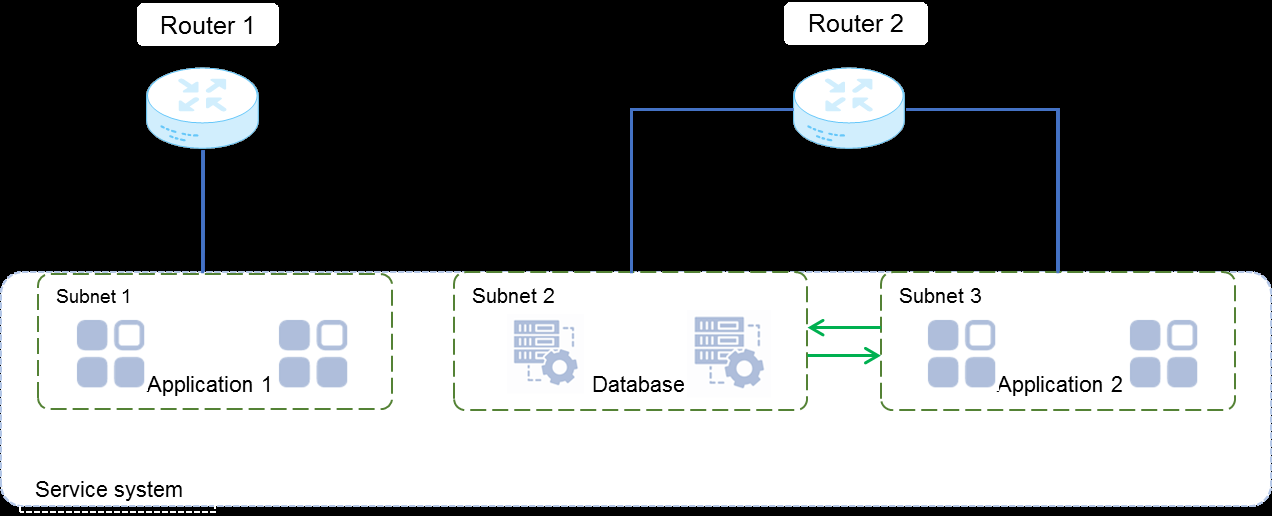
Service system isolation and interconnection
To isolate services, deploy the services in different subnets. For the isolated services to communicate with each other, attach their subnets to the same router. Figure-1 Service system isolation and interconnection
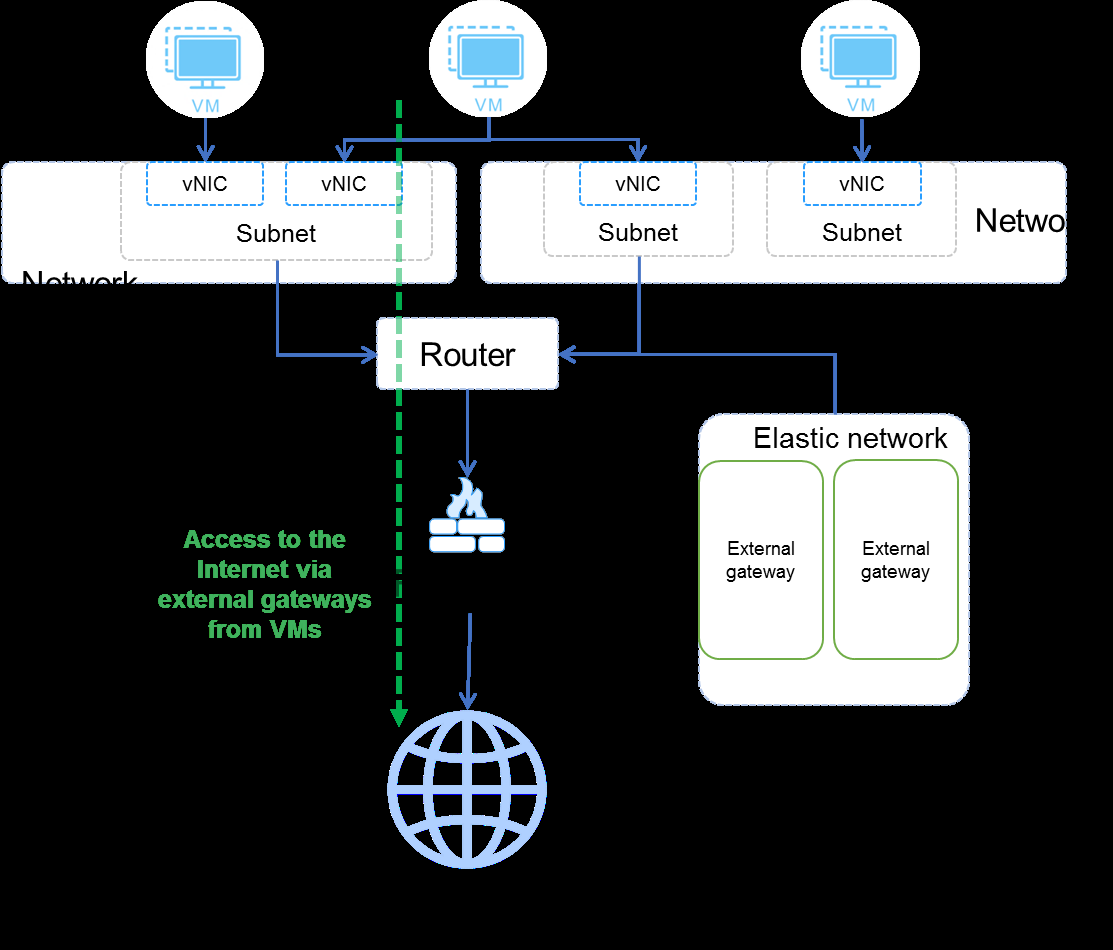
Public network access from VMs
For a VM to access the public network, configure an external gateway for the router of the VM's subnet. Then, all VMs in the subnet can access the Internet through the external gateway. Figure-2 Public network access from VMs
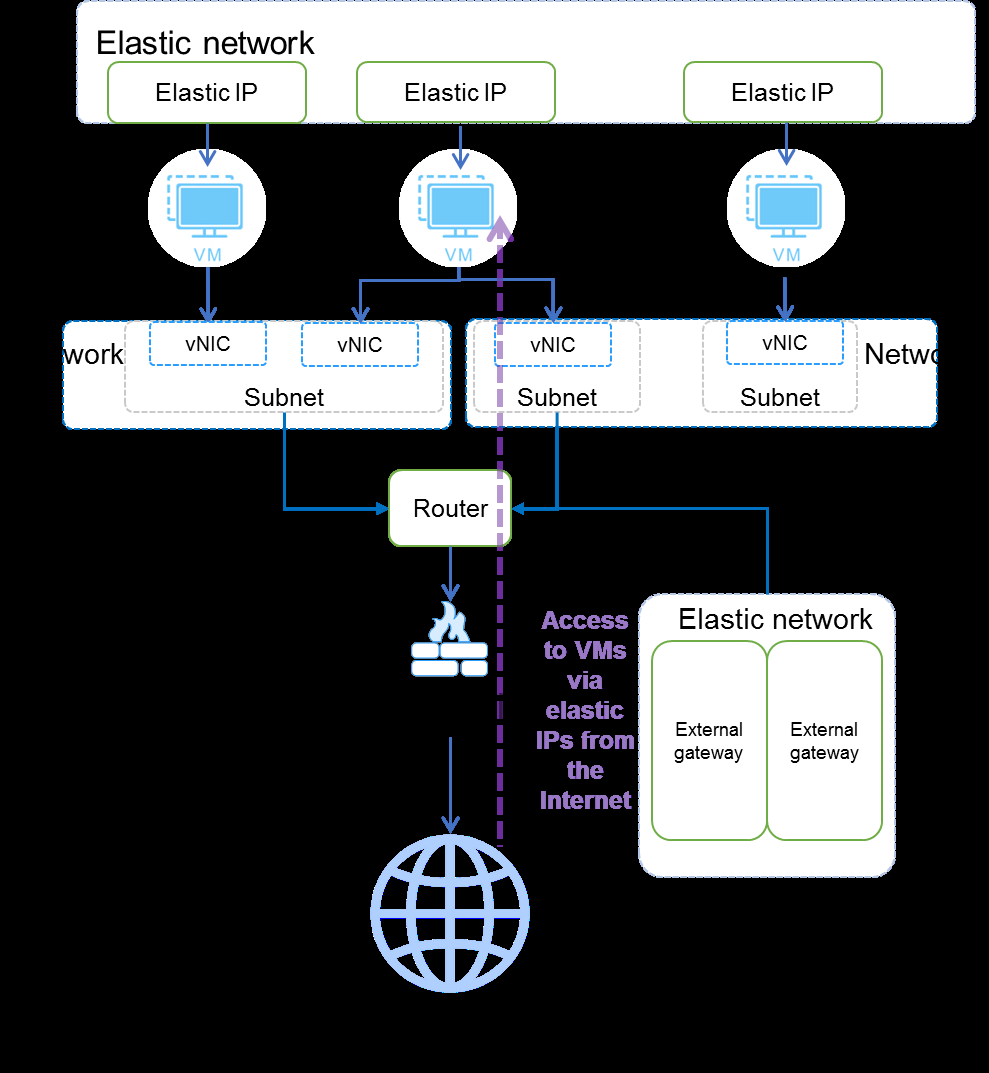
VM access from the public network
To access a VM from the public network, bind an elastic IP to the VM, and configure an external gateway for the router bound to the subnet of the VM. Then, the public network can access all VMs in that subnet through the elastic IP. Figure-3 VM access from the public network
Concepts
• Subnet: You can create multiple subnets in a network to provide private network IP addresses for VMs with different service requirements.
• Router: A router configured for a subnet provides Source Network Address Translation (SNAT) for the subnet. When a VM attempts to access the external network through a router, the router replaces the source IP address with an attached elastic IP address and generates an NAT forwarding entry. When a response comes from the external network, the router checks the NAT table and replaces the private IP address back. This enables VMs to communicate with the external network.
• QoS: Quality of service. Factors affecting service quality include transmission bandwidth, latency, and packet loss rate. On the management platform, you can configure QoS policies to control the network bandwidth of VMs. Each QoS policy can contain a bandwidth limit rule. Assign QoS policies to VMs to optimize network resource usage.
Topics
• Create a cloud network
• Create a subnet
• Edit a cloud network
• Delete a cloud network
• Edit a subnet
• Attach a subnet to a router
• Detach a subnet from a router
• Delete a subnet
Create a cloud network
Procedure
-
On the top navigation bar, click Network.
-
From the left navigation pane, select Advanced Network > Cloud Networks.
-
Click Add.
-
Configure the network parameters as needed.
-
Click OK.
Parameters
• Name: Specify a name for the network.
• MTU: Specify an MTU in bytes.
• L2VNI: Specify a VXLAN by its VNI. Configure L2VNIs to isolate different networks. In addition to the networks created by users, other system resources (such as routers and elastic networks) also occupy L2VNIs. Therefore, some L2VNIs might not appear as used in the network list, but are actually occupied by system resources. In the current software version, these L2VNI usage statuses cannot be directly viewed on the management interface. When you create a cloud network, the system might prompt that a network already exists with the specified L2VNI. In this case, select an unused L2VNI for network creation.
• Description: Specify a description for the network.
• VLAN Passthrough: Enable or disable VLAN passthrough. By default, VLAN passthrough is disabled. When VLAN passthrough is disabled, the network processes the VLAN tags of incoming and
Create a subnet
Procedure
You can specify different IP ranges for subnets in the same network, but their subnet addresses cannot overlap. Subnet addresses in different networks cannot overlap.
-
On the top navigation bar, click Network.
-
From the left navigation pane, select Advanced Network > Cloud Networks.
-
Select the target network.
-
In the Subnets area, click Add.
-
Configure the subnet parameters as needed.
-
Click OK.
Parameters
• Name: Specify a name for the subnet.
• Description: Specify a description for the subnet.
• IP Version: Select an IP version. In the current software version, only IPv4 is supported.
• Subnet Address: Specify a CIDR block, for example, 10.0.0.0/24.
Edit a cloud network
Perform this task to edit the settings of a cloud network, such as the MTU, description, and VLAN
passthrough status.
Procedure
-
On the top navigation bar, click Network.
-
From the left navigation pane, select Advanced Network > Cloud Networks.
-
Click Edit in the Actions column for the target network.
-
Edit the network settings as needed.
-
Click OK.
Parameters
• MTU: Specify an MTU in bytes.
• Description: Specify a description for the network.
• VLAN Passthrough: Enable or disable VLAN passthrough. By default, VLAN passthrough is disabled. When VLAN passthrough is disabled, the network processes the VLAN tags of incoming and outgoing packets based on the configured VLAN IDs. When VLAN passthrough is enabled, the network does not process the VLAN tags of incoming and outgoing packets.
Delete a cloud network
Edit a subnet
You can edit the name, gateway address, description, DNS server, and additional routes of a subnet, but
you cannot edit its IP version or subnet address.
Procedure
-
On the top navigation bar, click Network.
-
From the left navigation pane, select Advanced Network > Cloud Networks.
-
Select the target network.
-
Click Edit in the Actions column for the target subnet.
-
Edit the subnet settings as needed.
-
Click OK.
Attach a subnet to a router
To implement inter-subnet communication, you must associate the involved subnets to the same router.
A subnet can be attached to only one router.
-
On the top navigation bar, click Network.
-
From the left navigation pane, select Advanced Network > Cloud Networks.
-
Select the target network.
-
Click Attach to Router in the Actions column for the target subnet.
-
Select the target router, and then click OK.
Detach a subnet from a router
Delete a subnet
You cannot delete a subnet if the subnet has been attached to a vNIC, VM, or router.
-
On the top navigation bar, click Network.
-
From the left navigation pane, select Advanced Network > Cloud Networks.
Manage routers
A router connects a subnet to another subnet or connects a subnet to an external network for
communication. A router can forward traffic between VMs in different subnets after it is attached to the subnets, and can forward traffic between VMs and the external network after it is attached to an external gateway.
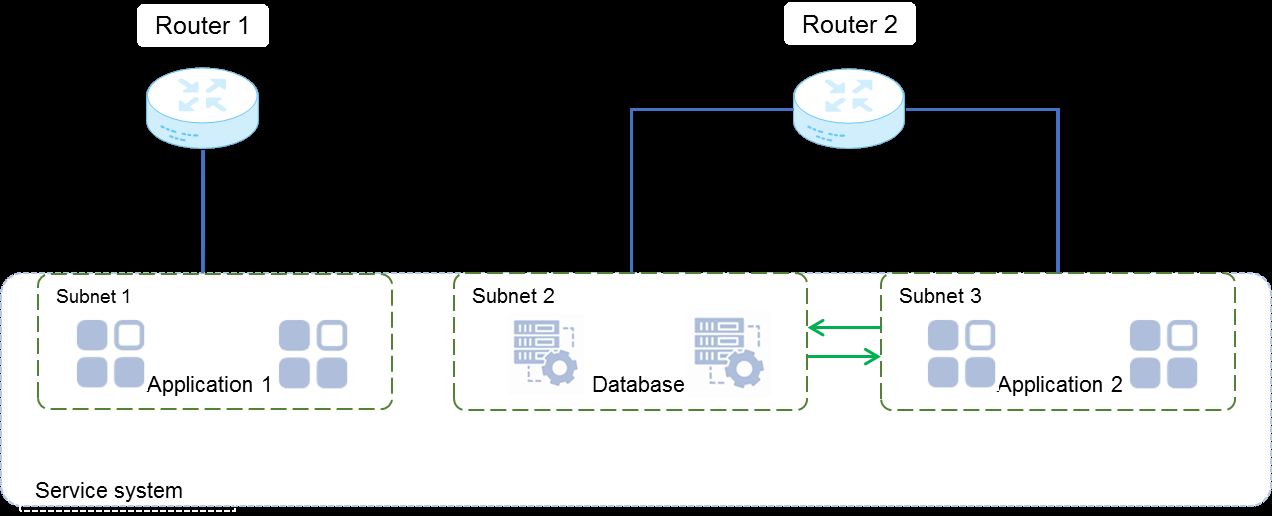
Service system isolation and interconnection
To isolate services, deploy the services in different subnets. For the isolated services to communicate with each other, attach their subnets to same router. Figure-1 Service system isolation and interconnection
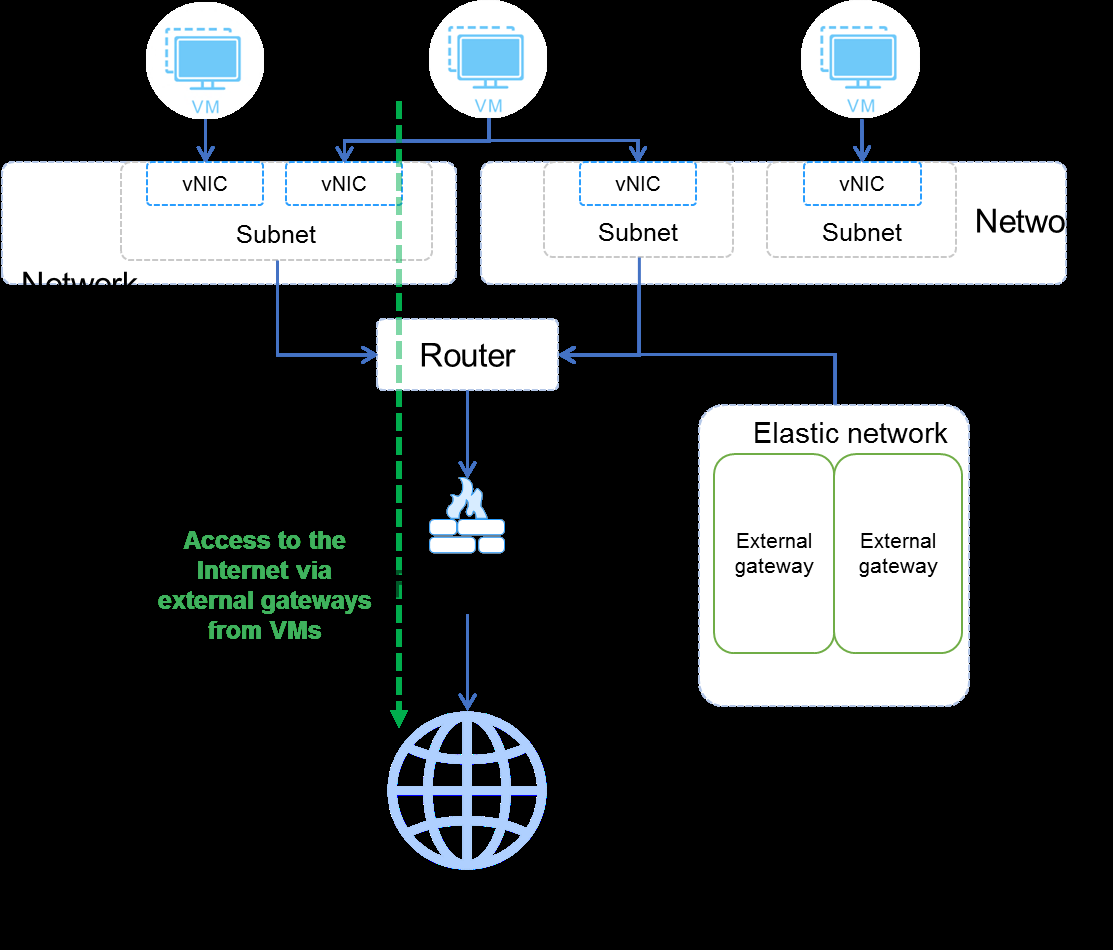
Public network access from VMs
For a VM to access the public network, configure an external gateway for the router of the VM's subnet. Then, all VMs in the subnet can access the Internet through the external gateway. Figure-2 Public network access from VMs
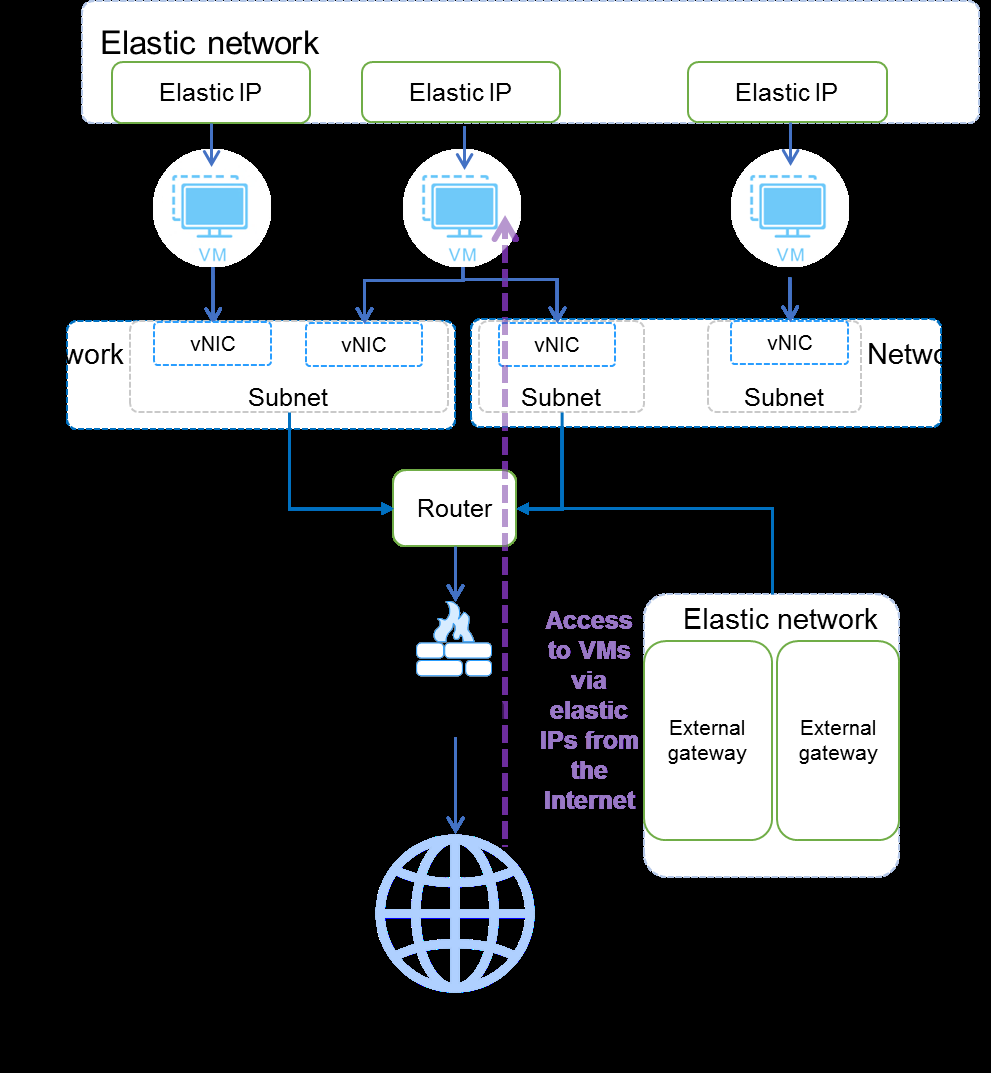
Access to VMs from the public network
To access a VM from the public network, bind an elastic IP to the VM, and configure an external gateway for the router bound to the subnet of the VM. Then, the public network can access all VMs in that subnet through the elastic IP. Figure-3 VM access from the public network
Concepts
• Subnet: A subnet is a segment of a network. You can create multiple subnets in a network to provide private network IP addresses for VMs with different service requirements.
• External Gateway: An external gateway is the IP address of an interface on the router that connects the router to the external network. It is assigned from the elastic network. This external gateway is used by VMs for SNAT when accessing the external network through this router.
Topics
• Add a router
• Attach subnets to a router
• Configure an external gateway for a router
• Edit a router
• Delete routers
• Detach subnets from a router
• Clear external gateway information of a router
• Manage static routes
• Enable or disable a router
• Policy-based routes
Add a router
-
On the top navigation bar, click Network.
-
From the left navigation pane, select Advanced Network > Routers.
-
Click Add.
-
Attach subnets to a router
Configure an external gateway for a router
-
On the top navigation bar, click Network.
-
From the left navigation pane, select Advanced Network > Routers.
-
Click More in the Actions column for the target router, and then select Set External Gateway.
-
Specify whether to enable SNAT. SNAT uses the external gateway IP address to replace the source addresses in packets to the external network. By default, the first IP address in a subnet is used as the gateway address for that subnet.
-
Select the target elastic network, and then click OK.
-
Edit a router
Delete routers
Detach subnets from a router
Restrictions and guidelines
Detaching a subnet from a router will interrupt communication of all resources in that subnet. Perform this operation with caution. Make sure the operation will not affect services.
Clear external gateway information of a router
Restrictions and guidelines
This operation will disable all resources in the network bound to the router from accessing the external network. Perform this operation with caution. Make sure the operation will not affect services.
Procedure
-
On the top navigation bar, click Network.
-
From the left navigation pane, select Advanced Network > Routers.
-
Click More in the Actions column for the target router, and then select Clear External Gateway.
-
Click OK.
Manage static routes
Enable or disable a router
Disable a router
-
On the top navigation bar, click Network.
-
From the left navigation pane, select Advanced Network > Routers.
-
Click More in the Actions column for the target router, and then select Disable.
Policy-based routes
Add a policy-based route
-
On the top navigation bar, click Network.
-
From the left navigation pane, select Advanced Network > Routers.
-
Click More in the Actions column for the target router, and then select Policy-Based Routes.
-
Click Add.
-
Configure the parameters as described "Parameters."
-
Click OK.
Delete a policy-based route
-
On the top navigation bar, click Network.
-
From the left navigation pane, select Advanced Network > Routers.
-
Click More in the Actions column for the target router, and then select Policy-Based Routes.
Manage vNICs
You can view information about vNICs configured with advanced network settings. When creating or
editing a VM, you can configure advanced network settings (for example, binding the VM’s vNIC to a subnet) for the VM. Then, you can view information about the vNIC, including name, MAC address, subnet, and IP address.
Topics
• View vNIC information
• Delete vNICs
View vNIC information
Delete vNICs
Manage elastic networks
An elastic network provides IP addresses used as elastic IPs or external gateway addresses of routers. In
an elastic network, configure subnets to provide elastic IP address ranges. You can configure reserved IP addresses in a subnet.
Topics
• Add an elastic network
• Add a subnet
• Edit an elastic network
• Delete elastic networks
• Edit a subnet
• Delete a subnet
Add an elastic network
Procedure
-
On the top navigation bar, click Network.
-
From the left navigation pane, select Advanced Network > Elastic Networks.
-
Click Add.
-
Configure the elastic network parameters as described in "Parameters."
-
Click OK.
Parameters
• Name: Specify a name for the elastic network.
• Network Egress: Select a network egress.
Add a subnet
Procedure
-
On the top navigation bar, click Network.
-
From the left navigation pane, select Advanced Network > Elastic Networks.
-
Select the target elastic network.
-
In the Subnets area, click Add.
-
Configure the subnet parameters as described in "Parameters."
-
Click OK.
Parameters
• Name: Specify a name for the subnet.
• Description: Specify a description for the subnet.
• IP Version: Select an IP version. In the current software version, only IPv4 is supported.
Edit an elastic network
Procedure
-
On the top navigation bar, click Network.
-
From the left navigation pane, select Advanced Network > Elastic Networks.
-
Click Edit in the Actions column for the target elastic network.
-
Edit the elastic network description as needed.
-
Click OK.
Parameters
• VLAN ID: Specify a VLAN ID for the elastic network.
• MTU: Specify an MTU in bytes.
• Description: Specify a description for the network.
• VLAN Passthrough: Enable or disable VLAN passthrough. By default, VLAN passthrough is disabled. When VLAN passthrough is disabled, the network processes the VLAN tags of incoming and outgoing packets based on the configured VLAN IDs. When VLAN passthrough is enabled, the network does not process the VLAN tags of incoming and outgoing packets.
Delete elastic networks
Edit a subnet
Procedure
-
On the top navigation bar, click Network.
-
From the left navigation pane, select Advanced Network > Elastic Networks.
-
Select the target elastic network.
-
In the Subnets area, click Edit in the Actions column for the target subnet.
-
Edit the IP address ranges and description of the subnet as needed. You can add or delete the IP address ranges.
-
Click OK.
Delete a subnet
Manage elastic IPs
Elastic IP addresses are leased static IP addresses offered by service providers for communication on the
Internet. You can allocate elastic IP addresses to VMs and load balancers and reclaim the elastic IP addresses as needed. To receive the access requests from the public network, server-side VMs and load balancers must be assigned with elastic IP addresses, and the private networks where they reside must use elastic IP addresses as external gateways. For client-side VMs and load balancers to access the public network, the private networks where they reside must use elastic IP addresses as external gateways.
Concepts
The system manages elastic IP addresses in a hierarchical structure. You must create elastic networks, create subnets on the elastic networks, and add IP address ranges to the elastic subnets. You can reserve specific IP addresses on an elastic subnet to exclude them from allocation.
Prerequisites
• Before creating an elastic IP, make sure that available elastic networks have been created on the Advanced Network > Elastic Networks page.
• To assign an elastic IP to a VM, make sure that the network to which the VM's vNIC belongs has been bound to a router, and the external gateway of the router belongs to the same elastic network as the elastic IP.
• To assign an elastic IP to a load balancer, make sure that the external gateway of the router bound to the network of the load balancer belongs to the same elastic network as the elastic IP.
Benefits
You can allocate and reclaim elastic IP addresses for VMs and load balancers as needed to cope with service changes.
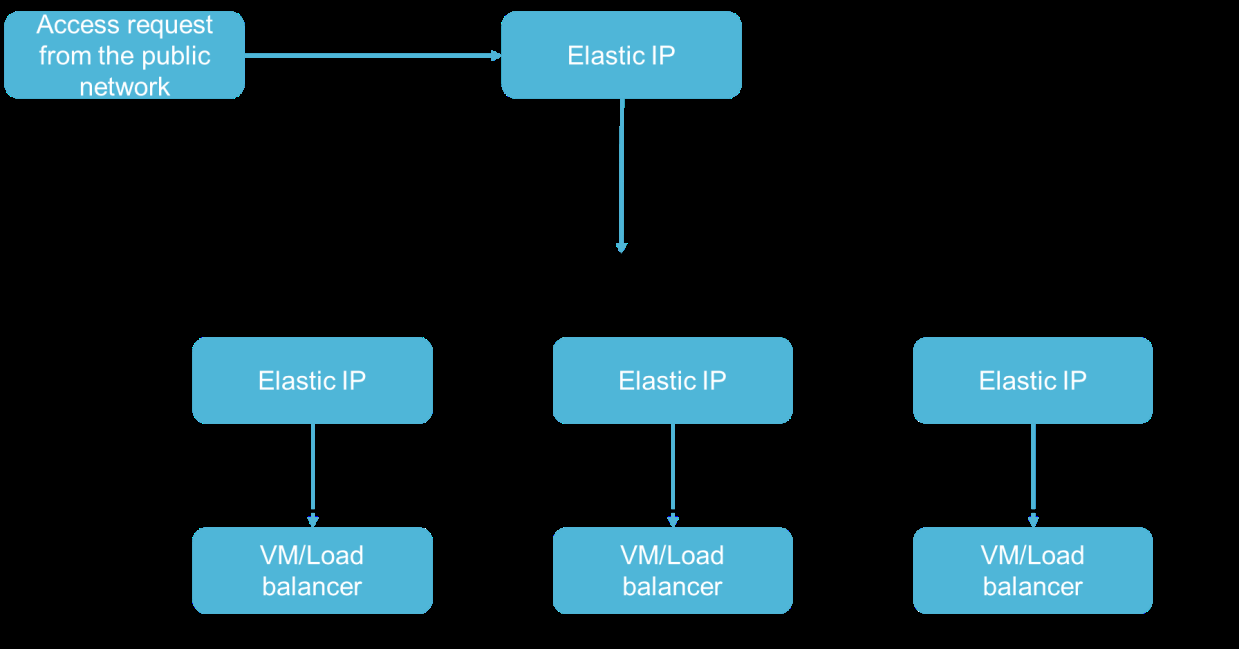
Application scenarios Providing services to the public network through VMs and load balancers
For VMs and load balancers in the system to provide services such as Web, email, or FTP for the public network, you must assign elastic IP addresses to them for them to receive the access requests from the public network. Figure-1 Providing services to the public network through VMs and load balancers
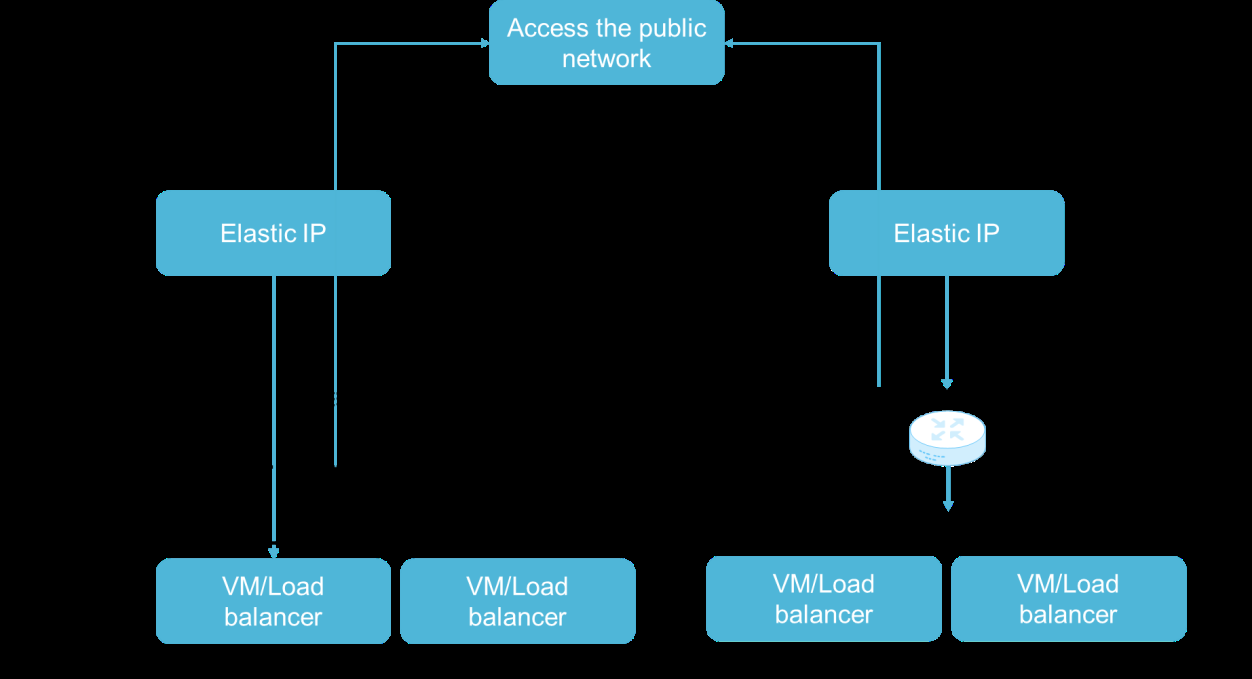
VMs and load balancers accessing the public network
For a VM or load balancer to access the public network as a client, you must specify an elastic IP address as an external gateway for the private network where the VM or load balancer resides. Figure-2 VMs and load balancers accessing the public network
Restrictions and guidelines
• An elastic IP can be assigned to only one VM or load balancer.
• To assign an elastic IP to a VM, make sure the network to which the VM’s vNIC belongs has been attached to a router, and the router's external gateway resides in the same subnet as the elastic IP.
• To assign an elastic IP to a load balancer, make sure the external gateway of the router to which the load balancer is bound resides in the same network as the elastic IP.
Topics
• Create an elastic IP
• Allocate an elastic IP
• Reclaim an elastic IP
• Release an elastic IP
Create an elastic IP
Procedure
-
On the top navigation bar, click Network.
-
From the left navigation pane, select Advanced Network > Elastic IPs.
-
Click Add.
-
Configure the elastic IP parameters as needed.
-
Click OK.
Parameters
• Name: Specify a name for the elastic IP.
• Elastic Subnet: Select an elastic subnet.
• Elastic IP: Specify an elastic IP address. If you do not configure this parameter, the system automatically allocates one.
• Type: Select the type of resource to which the elastic IP will be allocated. Options include vNIC and Load Balancer. A vNIC-type elastic IP cannot be allocated to a load balancer, and vice versa.
• Assign: Specify the vNIC or load balancer to which the elastic IP will be allocated. If you do not configure this parameter, the elastic IP is in unassigned state after being created. You can allocate the elastic IP later.
Allocate an elastic IP
Reclaim an elastic IP
Perform this task to reclaim an assigned elastic IP. Then, the elastic IP can be assigned to other resources.
After you reclaim the elastic IP address of a VM or load balancer, the VM or load balancer cannot access the external network.
-
On the top navigation bar, click Network.
-
From the left navigation pane, select Advanced Network > Elastic IPs.
-
Click Reclaim in the Actions column for the target elastic IP.
-
Click OK.
Release an elastic IP
Manage load balancers
Load balancing is cluster traffic distribution technology that distributes access traffic to multiple backend
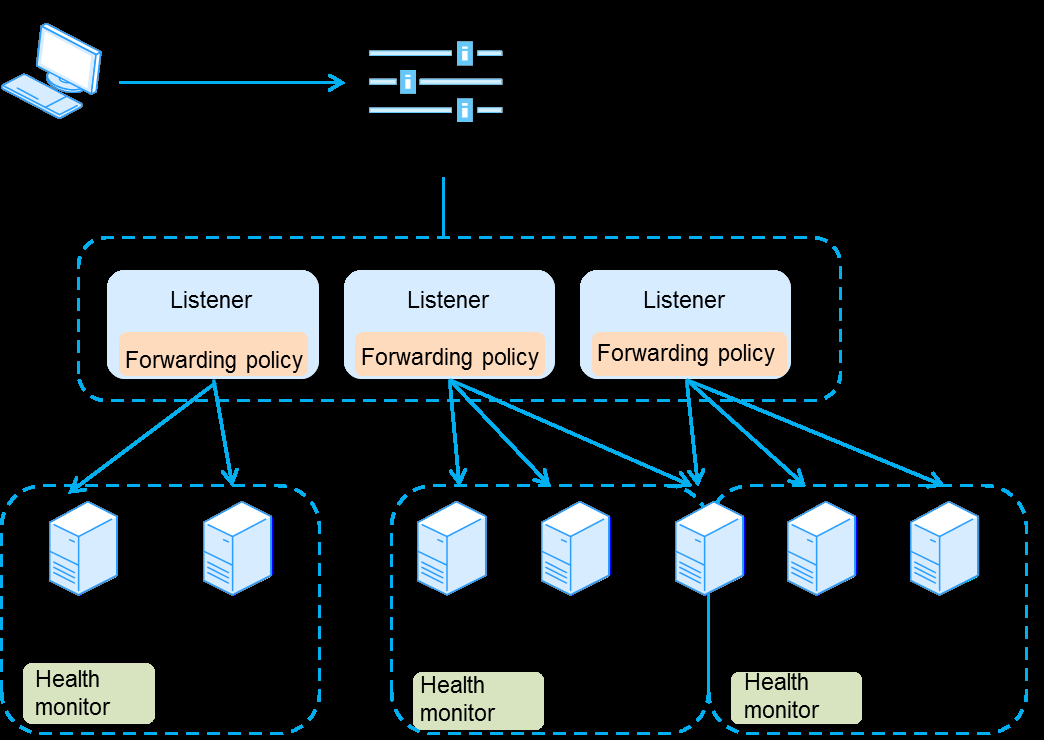
real servers according to forwarding policies. Load balancing enhances the service processing capability and improves service reliability. The system allows you to create load balancers that provide services at virtual service IP addresses. On a load balancer, you can configure one or multiple listeners to listen for the connection requests that clients send over a certain protocol on specific ports and to forward the requests to the real servers in a server farm based on a forwarding policy. You can enable health check for the system to monitor the running status of real servers. If a real server has health issues, the load balancer attached to the real server will distribute new requests to healthy real servers in the same server farm. Figure-1 Load balancer components
Concepts
• Listener: A listener listens for the connection requests sent by clients over a specific protocol on a certain port and distributes the requests to back-end servers based on load balancing settings such as the LB algorithm and session persistence. You must create a minimum of one listener for a load balancer.
• Server farm: A group of real servers that process the same type of services.
• Real server: A VM that processes services.
• Health check: With health check enabled, the system monitors the running status of real servers. If a real server fails health check, the system stops distributing requests to it. Only healthy real servers can receive traffic from load balancers.
Benefits
• Service continuity—The system provides ping, TCP, HTTP, and HTTPS listening mechanisms to prevent single point of failure from interrupting services.
• Smooth service processing and high fault tolerance—The system distributes traffic evenly to healthy VMs to reduce the response delays caused by unbalanced load distribution.
• High scalability—The system allows you to configure scaling on a per-application basis by customizing various monitoring metrics. The system supports automatic back-end server scale-up and scale-down, which enables you to focus on services without considering resource bottlenecks.
Application scenarios Service distribution
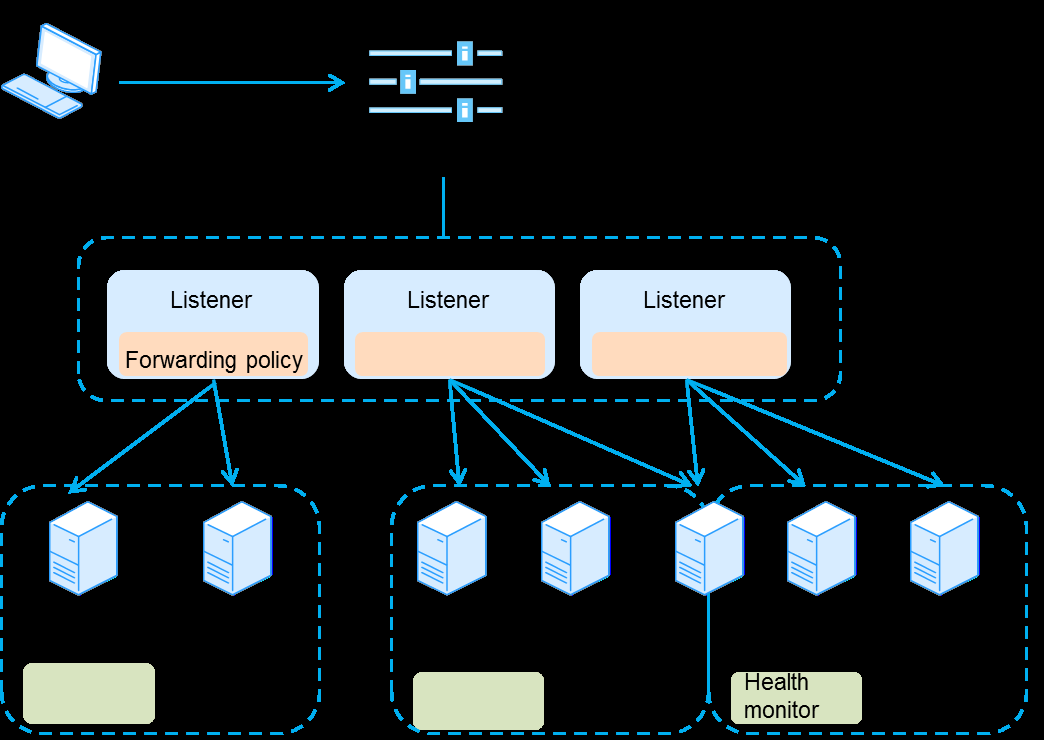
Load balancers can distribute traffic of intensively accessed services to multiple real servers based on an LB algorithm and distribute the traffic of a client to a fixed real server to improve access efficiency. For high availability, the system automatically bypasses failed real servers and distributes traffic only to the real servers that are running correctly.
Figure-2 Service distribution
DRX
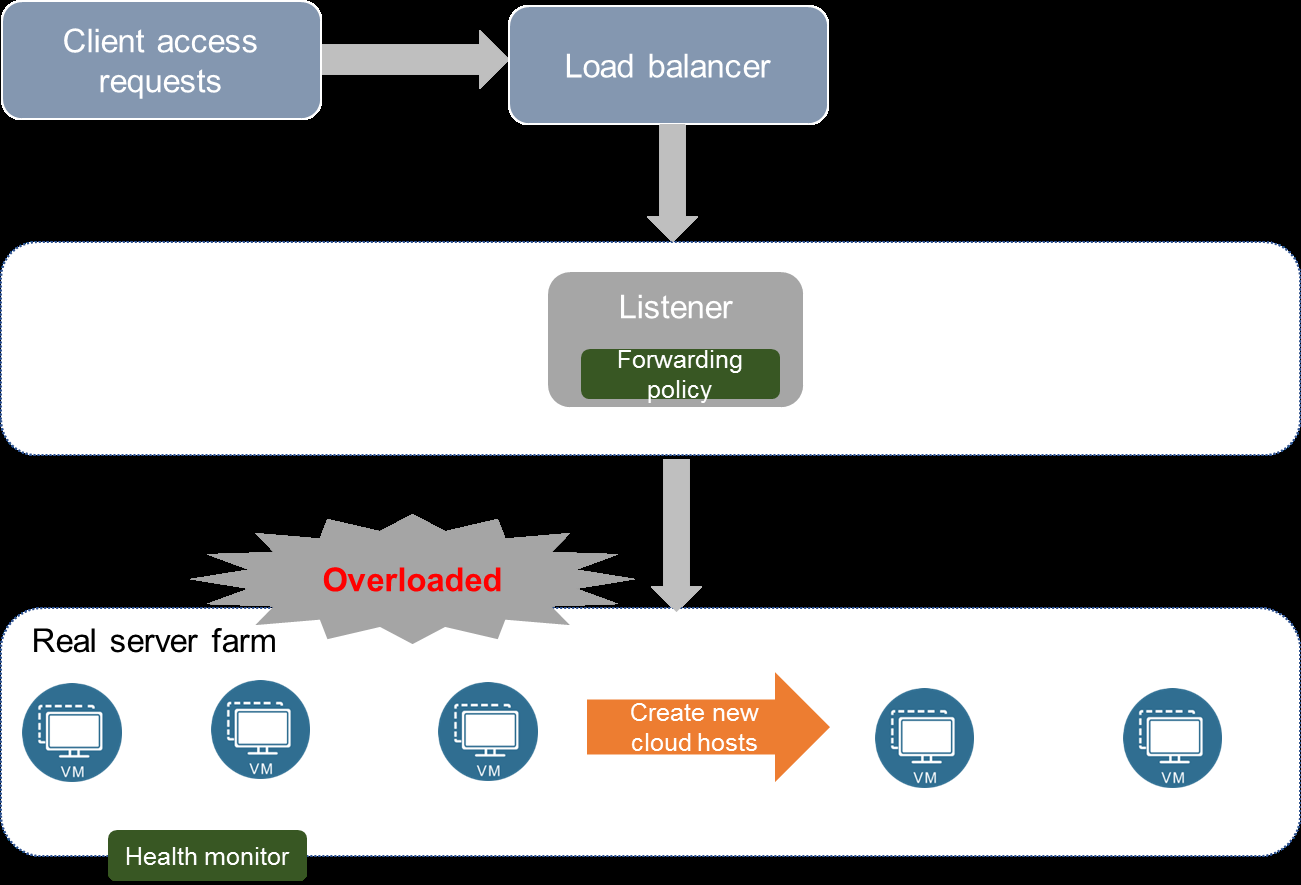
Some services have large fluctuations in the demand for IT resources, and their peak traffic might be several times the normal traffic. You can configure dynamic resource extension (DRX) for load balancing resources of those services. When the traffic of a service surges up, the system fast copies a specified number of VMs and adds them to the server farm for the service. When the traffic of the service drops to the normal level, the system automatically deletes or shuts down excess VMs.
Figure-3 DRX
Topics
• Create a load balancer
• Create a listener
• Create a server farm
• Bind real servers
• View/add a health check instance
• Edit a load balancer
• Delete load balancers
• Edit a listener
• Delete listeners
• Edit a server farm
• Delete server farms
• Edit a real server
• Delete real servers
Create a load balancer
When you create a load balancer, select a virtual service network from the existing networks. A load balancer uses a virtual service IP to receive external access requests. When a user accesses a virtual service, the listener converts the virtual service to a real server. If you do not specify a virtual service IP, the system automatically assigns one.
Procedure
-
On the top navigation bar, click Network.
-
From the left navigation pane, select Advanced Network > Load Balancing.
-
Click Add.
-
Configure the load balancer parameters as described in "Parameters."
-
Click Finish. To complete the load balancer creation. You can click Next to continue to create resources (such as listeners and server farms), and bind real servers.
Create a listener
When creating a listener, you must specify a name and port number for it. The listening protocol can be HTTP, HTTPS, or TCP. The port number that a listener listens to cannot be the same as the port numbers of the other listeners on the same load balancer. You can configure a connection limit to restrict the number of connections to the listener. By default, no connection limit is set. Inserting real IP indicates that the virtual server inserts the real source address of a request packet into the HTTP extension field after source address translation, so that the backend real server can obtain the real source address.
Procedure
-
On the top navigation bar, click Network.
-
From the left navigation pane, select Advanced Network > Load Balancing.
-
Select the target load balancer.
Create a server farm
Procedure
-
On the top navigation bar, click Network.
-
From the left navigation pane, select Advanced Network > Load Balancing.
-
Select the target load balancer.
-
Click the Server Farms tab.
-
Click Add.
-
Configure the server farm parameters as described in "Parameters."
-
Click OK.
Parameters
• Name: Specify a name for the server farm.
• Description: Specify a description for the server farm.
• Listener: Select a listener with which the server farm is associated.
• LB Algorithm: Select an LB algorithm. Options include the following:
○ Weighted Round Robin: Assign new connections to real servers based on load weight values. The system assigns more connections to a real server with a larger load weight.
○ Least Connections: Always assign new connections to the real server with the fewest number of weighted active connections. The least connection algorithm is a dynamic scheduling algorithm that records the number of established connections for each real server. When a request is distributed to a real server, the number of connections for the server increases by one. When a connection to a server ends or times out, the number of connections for the server decreases by one. The least connection algorithm calculates the load on a server through the number of active connections on the server.
○ Source IP: Hash the source IP addresses of user requests and distribute user requests to different real servers according to the hash values. This algorithm allows a fixed real server to process the requests of a specific client.
• Session Persistence: Select whether to enable session persistence. When session persistence is enabled, the listener determines whether a user initiating a session is an existing user. The listener will always distribute requests from the same user to the same backend real server for processing.
○ APP_COOKIE: Identifies clients by creating different cookies for app sessions. Requests from the clients with the same cookie are processed by the same real server.
○ HTTP_COOKIE: Adds a tag to the HTTP response for the first connection of a client. Requests with the same tag are processed by the same real server.
○ SOURCE_IP: Provides the same effect as the source address LB algorithm.
• Cookie Name: Enter an APP cookie name. You must configure this parameter when you enable session persistence.
• Health Check: Select whether to enable health check.
○ Health Check Protocol: Select a protocol for health check. For HTTP listeners, options include TCP and HTTP. For HTTPS listeners, options include TCP and HTTPS.
○ HTTP Method: Select an HTTP method. Options include GET and POST. Configure this parameter when the health check protocol is HTTP or HTTPS.
○ URL: Enter a URL for accessing real servers. Configure this parameter when the health check protocol is HTTP or HTTPS.
○ Expected Response Code: Enter the HTTP response code that real servers are expected to return. Configure this parameter when the health check protocol is HTTP or HTTPS. The response code contains the status of real servers. The first digit of the response code identifies the response code type. The functions of the second and third digits are not defined.
• Check Interval: Set the interval between two consecutive health checks.
• Timeout: Timeout for each health check.
• Maximum Retries: Set the maximum number of consecutive health check failures. If this limit is reached for a real server, the system stops distributing traffic to it.
Bind real servers
When creating a real server, you must specify the subnet, name, port number, weight, and service hosts of the real server. The weight indicates the capability of a real server to process requests. The higher the weight value of a real server, the more requests the listener will allocate to the real server.
Procedure
-
On the top navigation bar, click Network.
-
From the left navigation pane, select Advanced Network > Load Balancing.
-
Select the target load balancer.
-
Click the Server Farms tab, and then click Real Server Members in the Actions column for the target server farm.
-
Alternatively, you can click the Listeners tab, and then click Server Farm Info to bind real servers.
-
Configure the real server parameters and select real server VMs. For more parameter information, see "Parameters."
-
Click OK.
Parameters
• Name: Specify a name for the real server.
• Port: Specify the port number used by the real server to provide services.
View/add a health check instance
Restrictions and guidelines
Creating or editing a health check instance might cause service failure on the related load balancer. Perform this operation with caution. Verify that services provided by the load balancer can be interrupted before the operation.
Procedure
-
On the top navigation bar, click Network.
-
From the left navigation pane, select Advanced Network > Load Balancing.
-
Select the target load balancer.
-
Click the Server Farms tab.
-
Click View in the Health Check column.
-
View or configure health check parameters. For more parameter information, see "Parameters."
-
Click OK.
Edit a load balancer
You can edit only the name and description of a load balancer. To edit other settings, you must delete the load balancer, and then create it with the new configuration. When you create a load balancer, the configuration order should be load balancer > listener > server farm > real server > health check. When you delete a load balancer, use the converse configuration order: health check > real server > > server farm > listener > load balancer.
Delete load balancers
Edit a listener
Procedure
-
On the top navigation bar, click Network.
-
From the left navigation pane, select Advanced Network > Load Balancing.
-
Select the target load balancer.
-
Click the Listeners tab.
-
Click Edit in the Actions column for the target listener.
Delete listeners
You cannot delete a listener if it has been bound to a server farm.
-
On the top navigation bar, click Network.
-
From the left navigation pane, select Advanced Network > Load Balancing.
-
Select the target load balancer.
-
Click the Listeners tab.
-
Select the target listeners, and then click Delete.
-
Click OK.
Edit a server farm
You can edit the name, description, and LB algorithm of a server farm. To edit the other settings, you must delete the server farm, and then create it with the new configuration.
-
On the top navigation bar, click Network.
-
From the left navigation pane, select Advanced Network > Load Balancing.
-
Select the target load balancer.
-
Click the Server Farms tab.
-
Click Edit in the Actions column for the target server farm.
-
Edit the server farm parameters as described in "Parameters."
-
Click OK.
Parameters
• Name: Specify a name for the server farm.
• Description: Specify a description for the server farm.
• LB Algorithm: Select an LB algorithm. Options include the following:
○ Weighted Round Robin: Assign new connections to real servers based on load weight values. The system assigns more connections to a real server with a larger load weight.
○ Least Connections: Always assign new connections to the real server with the fewest number of weighted active connections. The least connection algorithm is a dynamic scheduling algorithm that records the number of established connections for each real server. When a request is distributed to a real server, the number of connections for the server
Delete server farms
Edit a real server
You can edit only the name, weight, and hosts of a real server. To edit other settings, you must delete the real server, and then create it with the new configuration.
- On the top navigation bar, click Network.
Delete real servers
• Deleting a real server also deletes its configuration information, but the backend hosts associated with the real server will not be affected.
• Deleting a real server might cause the related load balancer to be unable to provide services. Perform this operation with caution. Verify that the service provided by the load balancer can be interrupted before this operation.
-
On the top navigation bar, click Network.
-
From the left navigation pane, select Advanced Network > Load Balancing.
-
Select the target load balancer.
-
Click the Server Farms tab.
Manage QoS
Factors affecting service quality include transmission bandwidth, latency, and packet loss rate. In the
hyper-converged management platform, QoS policies can be used to control the network bandwidth of VMs. Each QoS policy can contain a bandwidth limit rule. You can assign QoS policies to VMs to ensure the optimal transmission performance for important services and optimize network resource usage.
Topics
• Create a QoS policy and configure bandwidth limit rules
• Edit a QoS policy
• Edit a bandwidth limit rule
• Delete QoS policies
• Delete QoS bandwidth limit rules
Create a QoS policy and configure bandwidth limit rules
-
On the top navigation bar, click Network.
-
From the left navigation pane, select Advanced Network > QoS.
Create a QoS policy and configure bandwidth limit rules
-
Click Real Server Members in the Actions column for the target server farm.
-
Click Delete in the Actions column for the target server.
-
Click OK.
-
Manage QoS
Factors affecting service quality include transmission bandwidth, latency, and packet loss rate. In the hyper-converged management platform, QoS policies can be used to control the network bandwidth of VMs. Each QoS policy can contain a bandwidth limit rule. You can assign QoS policies to VMs to ensure the optimal transmission performance for important services and optimize network resource usage.
Topics
• Create a QoS policy and configure bandwidth limit rules
• Edit a QoS policy
• Edit a bandwidth limit rule
• Delete QoS policies
• Delete QoS bandwidth limit rules
Create a QoS policy and configure bandwidth limit rules
-
On the top navigation bar, click Network.
-
From the left navigation pane, select Advanced Network > QoS.
Edit a QoS policy
Edit a bandwidth limit rule
-
On the top navigation bar, click Network.
- From the left navigation pane, select Advanced Network > QoS.
Delete QoS policies
Delete QoS bandwidth limit rules
Deleting a QoS policy will also delete its associated bandwidth limit rules. Deleting a bandwidth limit rule will not delete its associated QoS policy.
-
On the top navigation bar, click Network.
-
From the left navigation pane, select Advanced Network > QoS.
-
Select the target QoS policy.
-
In the Bandwidth Limit Rules area, select the target bandwidth limit rules, and then click Delete.
-
Click OK.