Manage distributed vSwitches
In this section, a distributed vSwitch refers to a vNetwork distributed switch (vDS).
Introduction
vNetwork Distributed Switch (vDS) is a core network component of the management platform, providing a unified, efficient, and intelligent virtual network environment for all VMs within a cluster. It overcomes the limitations of single-host vSwitches by extending network policy and data forwarding capabilities from a single host to a distributed architecture across multiple hosts. The vDS architecture operates as follows:
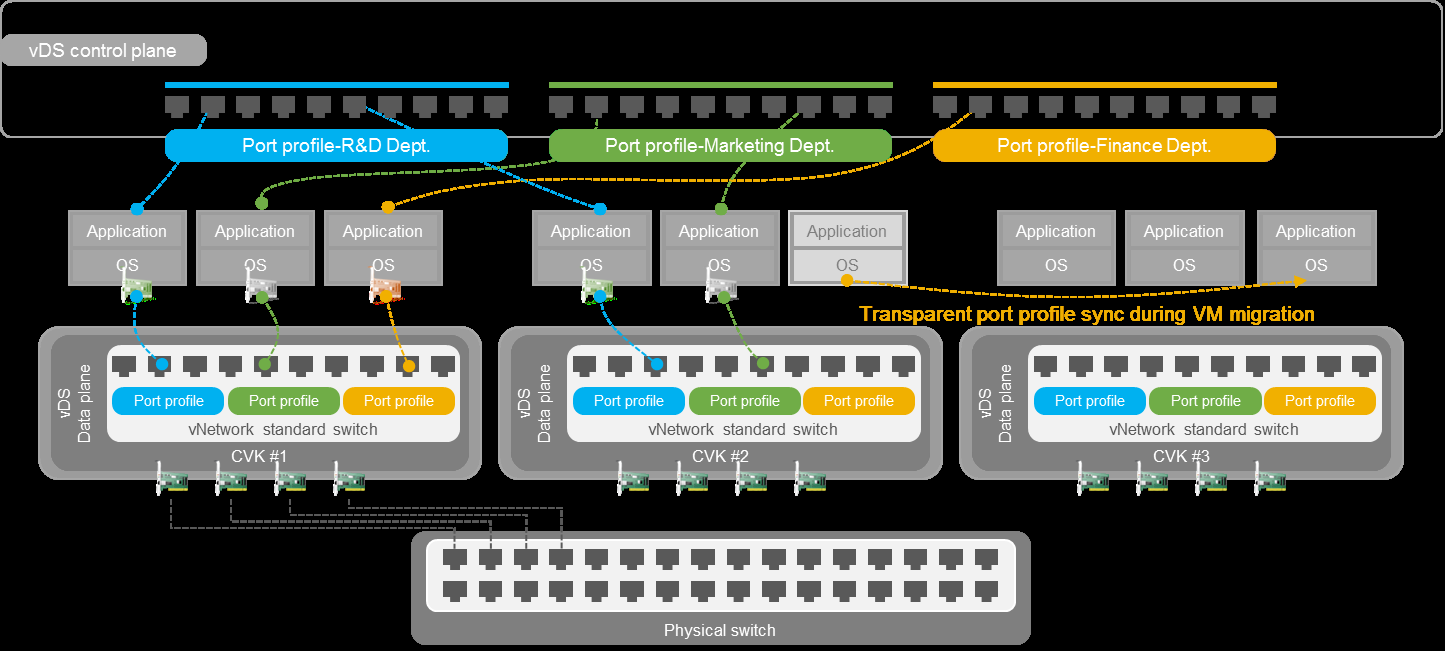
The management platform manages all port profiles and distributes network policies to all hosts within the cluster, ensuring global configuration consistency. The data plane is deployed on each host. It caches policies distributed by the management platform, and implements physical forwarding of VM traffic. During traffic forwarding, the data plane filters and tags traffic based on the related policies to achieve high-performance and low-latency network communication. When a VM migrates to another host, its associated network policies are synchronized in real time to the destination host. The data plane immediately loads and applies these policies, ensuring network connectivity is not disrupted and policies are not lost during the migration.
Benefits
• Centralized policy management: The management platform centrally defines and manages port profiles within the cluster, ensuring that all hosts use the same vSwitch configurations.
• Transparent port profile synchronization during VM migration: When a VM migrates within the cluster, the system automatically synchronizes the associated port profile to the destination host, ensuring that no network connections, security policies, and performance policies change during migration.
• High availability and load balancing: You can deploy the vDS data plane across multiple hosts within the cluster to achieve network service redundancy and load balancing. If a host fails, the system can promptly switch traffic to other hosts, ensuring service continuity.
• Simplified network operations: A single configuration on the management platform takes effect on all hosts in the cluster. This practice greatly facilitates network operations.
Add or edit a distributed vSwitch
About this task
You can create or edit different types of vSwitches as needed to achieve flexible vNetwork management. After you add a host, the system automatically creates a default virtual switch (vswitch0) on that host. The default vSwitch serves the management network. If no separate backup and migration networks are set up, VM backup data and migration data are both transmitted over the management network by default.
Procedure
-
On the top navigation bar, click Network.
-
From the left navigation pane, select Distributed vSwitches.
-
Click Add to add a distributed vSwitch. To edit a distributed vSwitch, click Edit on in the Actions column for that vSwitch.
-
Configure basic information.
○ Name: Name of the vSwitch.
○ Description: Description for the vSwitch.
○ Type: Type of the vSwitch, including:
▪ Standard—A standard vSwitch is a vSwitch that is configured and managed on a single host. It provides basic Layer 2 network functions. You must set up standard vSwitches manually on each host. Standard vSwitches are suitable for small and medium-sized virtualization deployments, supporting basic VLAN configuration and security policies.
▪ Distributed—A distributed vSwitch is a vSwitch that includes standard vSwitch features while offering a centralized administration interface. It provides advanced network features such as port mirroring and private VLAN policies and supports migration of VMs between different hosts without reconfiguring networks. Distributed vSwitches are suitable for large-scale and complex virtualization deployments.
○ Cluster/Cluster Name: Name of the cluster to which the vSwitch belongs.
○ Network Type: Network type of the vSwitch.
▪ Mgmt—Network for transmitting control layer data between the management platform and the hosts.
▪ Service—Network for transmitting service data of VMs.
▪ Storage—Network for transmitting data between hosts and IP SAN storage servers or distributed storage. This type of vSwitches cannot be used by VMs.
▪ Backup—Network for transmitting backup data between VMs and remote servers. A host can have only one vSwitch or subnet of this type and the vSwitch cannot be used by VMs.
▪ Migration—Network for transmitting memory and disk image data for VM migration. A host can have only one vSwitch or subnet of this type and the vSwitch cannot be used by VMs.
▪ Traffic Redirection—Network for clearing microsegmented VM data.
▪ Mirror—Network for receiving traffic of port mirroring. If you select a vSwitch as the destination for port mirroring, make sure the network type of that vSwitch is Mirror.
○ Forwarding Mode: Forwarding mode of the vSwitch. The VXLAN (SDN) forwarding mode is available only when the network type for the vSwitch is Service.
▪ VEB—In Virtual Ethernet Bridge (VEB) mode, the traffic between VMs is forwarded through the software.
▪ VXLAN(SDN)—The VXLAN (SDN) mode is designed for the VXLAN solution based on the SDN controller and the management platform. Hosts installed with NingOS 2.0 do not support this mode.
○ VLAN ID: VLAN ID of the interface connected to the protocol stack of the host. This parameter is not available when the network type for the vSwitch is Mirror.
○ MTU: Maximum packet length that the vSwitch allows. You cannot edit the MTU for vSwitch vswitch0. This parameter is not available when the network type for the vSwitch is Traffic Redirection or Mirror.
○ Multicast: Enabling multicast to enable the vSwitch to forward multicast traffic. You cannot enable multicast for vSwitch vswitch0. This parameter is available only if the network type for the vSwitch is Service.
○ Acceleration Mode: Select an acceleration mode for the vSwitch. This parameter is configurable only if you select the service network type. If a VM uses a vSwitch with an acceleration mode of DPDK or Smart NIC, the VM does not support vFirewall binding.
▪ Common: In this mode, advanced settings are not enabled.
▪ DPDK: This mode can improve the network performance of the vSwitch. You must first enable DPDK in the advanced settings for the host attached to the vSwitch.
▪ Smart NIC: This mode can improve the network acceleration performance of the vSwitch.
- In the Configure Host Network area, click Add, select a host, and then click OK.
If the network type of the vSwitch is Storage, Backup, or Migration, you must click Configure NIC to configure the related NIC settings for the selected host. Otherwise, unknown errors might occur during task execution.
○ Physical Interfaces/Physical NIC: Interfaces on physical NICs used by the vSwitch. A physical interface can be used by only one vSwitch. This parameter is unavailable if all physical interfaces on the hosts have been used. If the vSwitch is not assigned a physical interface, VMs attached to the vSwitch can communicate only with each other but cannot communicate with external networks. If you specify multiple physical interfaces for the vSwitch, you must configure the link aggregation mode and LB mode.
○ Use Existing Networks: If you select this option, a vSwitch can share a physical interface with other vSwitches for resource sharing. vSwitches with the same acceleration mode can share the same physical interface.
▪ A vSwitch can use the physical interface of other vSwitches only when its network type is Service, forwarding mode is VEB, and acceleration mode is Common or DPDK.
▪ The physical interface of a vSwitch can be used by other vSwitches only when its network type is Management, Migration, Backup, or Storage, forwarding mode is VEB, and acceleration mode is Common or DPDK.
▪ To configure IP information or subnets, set them on the vSwitch whose physical interface is used by other vSwitches.
▪ One physical interface can be shared by up to four vSwitches.
○ IPv4 Address: IPv4 address of the vSwitch.
○ Subnet Mask: Subnet mask of the IPv4 address.
○ IPv4 Gateway: Default IPv4 gateway address of the vSwitch. A host can have only one IPv4 gateway.
○ IPv6 Address: Enter an IPv6 address for the vSwitch.
○ Prefix Length: Enter the prefix length of the IPv6 address.
○ IPv6 Gateway: Enter an IPv6 gateway for the vSwitch. A host can have only one IPv6 gateway.
○ LAGG Mode: Link aggregation mode of the physical NICs. The dynamic link aggregation mode requires LACP on the physical switch. This parameter is available only when multiple physical interfaces are selected.
○ LB Mode: Load balancing mode of the physical NICs. This parameter is available only when multiple physical interfaces are selected.
▪ Advanced—Performs load balancing based on Ethernet type, IP protocol, source IP address, destination IP address, source port, and destination port of the packets.
▪ Basic—Performs load balancing based on the source MAC address and VLAN tag of the packets.
▪ Active/Standby—Performs load balancing based on the primary and backup physical NICs. When the primary NIC fails, the system automatically switches the traffic to the backup NIC.
○ Fallback: Enabling this feature to switch services from the backup NIC back to the primary NIC after the primary NIC recovers. This parameter is available only if the load balancing mode is set to Active/Standby for the physical interfaces of the vSwitch and the network type for the vSwitch is Service or Mirror.
○ Primary NIC Selection: Method used to select the primary NIC. This parameter is available only if the load balancing mode is set to Active/Standby for the physical interfaces of the vSwitch and the network type for the vSwitch is Service or Mirror. The system performs a fallback based on the rate of the primary and backup NICs when the primary NIC recovers if you configure static link aggregation for a vSwitch, select Rate-Based as the primary NIC selection method, and enable fallback. If the rate of the primary and backup NICs is the same, for example, both are Gigabit NICs, the system does not perform a fallback.
▪ Rate-Based—The system automatically selects the primary NIC based on the rates of the NICs. The NIC with the highest rate becomes the primary NIC. When multiple NICs have the same rate, the system randomly selects a NIC as the primary NIC.
▪ Manual—Specify the primary NIC by arranging the LB priorities of the NICs. The NIC with the highest priority is the primary NIC. You must configure the LB priorities for the NICs in this mode.
○ LB Priority: LB priorities of the NICs. The NIC on the top has the highest priority and is the primary NIC. This parameter is required when the primary NIC selection method is Manual. This parameter is available only when the following conditions are met:
▪ The load balancing mode is set to Active/Standby for the physical interfaces of the vSwitch.
▪ The primary NIC selection method is manual.
▪ The network type for the vSwitch is Service or Mirror.
Delete a distributed vSwitch
About this task
Perform this task to remove a distributed vSwitch from the management platform. When a distributed vSwitch is deleted, its port configuration and network connections are also cleared. All VMs connected to the vSwitch will be disconnected. A vSwitch cannot be deleted if it is in use by VMs.
Procedure
-
On the top navigation bar, click Network.
-
From the left navigation pane, select Distributed vSwitches.
-
Select the desired vSwitch, and then click Delete in the Actions column for that vSwitch.
-
Click OK.
Convert a standard vSwitch into a distributed vSwitch
About this task
Perform this task to integrate standard vSwitches from hosts into the distributed vSwitches of the cluster for unified management. When a distributed vSwitch already exists with the same name as a converted vSwitch, make sure the two vSwitches use the same configuration, such as network type, forwarding mode, VLAN ID, multicast status, and acceleration mod. Otherwise, vSwitch conversion will fail.
Procedure
-
On the top navigation bar, click Network.
-
From the left navigation pane, select Distributed vSwitches.
-
Click Convert from Standard Switch.
-
Select a cluster, and then click the Next button.
○ Select Cluster: Select the cluster to which the desired vSwitch belongs.
-
Select the desired standard vSwitch, and then click the Next button. If none of the available vSwitch has a network type of Service, add a vSwitch with a network type of Service on the vSwitches tab of the related host, and then proceed with the vSwitch conversion.
○ Select vSwitch: Select a vSwitch.
-
Select a host from the host list, and then click OK to complete the operation.
○ Name: Name of the host.
○ State: Current status of the host.
○ Management IP: IP address of the host.
○ vSwitch: Name of the selected vSwitch on the host.
Manage the hosts, VMs, and port groups attached to a distributed vSwitch
-
On the top navigation bar, click Network. From the left navigation pane, select Distributed vSwitches.
-
Select the desired vSwitch, and then click the Hosts tab.
○ To attach the vSwitch to hosts, click Assign to Host, select the desired hosts, and then click OK.
○ To edit the network configuration of a host, click Configure NIC for that host.
○ To remove a host, click Delete in the Actions column for that host, and then click OK.
-
Select the desired vSwitch, and then click the VMs tab. This tab displays basic information about the VMs attached to the vSwitch.
-
Select the desired vSwitch, and then click the Port Groups tab. This tab displays information about the port groups attached to the vSwitch. To remove a port group, click Delete in the Actions column for that port group, and then click OK.
Change the network type for a vSwitch
Perform this task to change the vSwitch network type to meet different service requirements or performance optimization goals. You can change the network type only for vSwitches that contain host networks (where the network type includes any of the following: Management, Migration, Backup, or Storage).
-
On the top navigation bar, click Network. From the left navigation pane, select Distributed vSwitches.
-
Click Edit Network Type in the Actions column for a vSwitch.
-
Select and update the network types as needed, and then click OK.