Troubleshooting
• Access
• VM
• Cluster/host
• Storage
Access
What should I do if the webpage cannot be displayed correctly when I log in to the management platform?
Symptom
A garbled management platform webpage issue or data display error occurs when you access the management platform.
Condition
This issue might occur when the following conditions exist:
• You are accessing one system from multiple browser windows on one computer, which might cause data exceptions depending on the browsers you are using.
• The browser windows are resized several times in a short interval. The browsers interpret some webpage elements differently, so resizing browser windows frequently might cause garbled management platform webpage issues.
• The browser contains buffered webpage contents.
Solution
To resolve this issue:
• Open only one tab in only one browser window on a computer to access the management platform.
• Clear the buffer of the browser, and then log in to the management platform again.
Why cannot I log in as an LDAP user?
Symptom
The system displays that the user does not exist or the password is incorrect when I attempt to log in as an LDAP user with a correct user account.
Condition
This issue might occur when the following conditions exist:
• You are using a Microsoft active directory user account, and you have selected the User must change password at next logon option in the account option settings.NSphere does not support this option.
• The password has expired.
• The user account has been administratively disabled on the server.
VM
How do I resolve the failure to start a VM (vm01 for example) in an HA cluster?
Condition
This issue might occur when the following conditions exist:
• The VM disk image file does not exist.
• The VM is not mounted with a CD-ROM drive.
• The vSwitches connected to the NICs of the VM do not exist.
• The VM disk file type is incorrect.
• The host does not have sufficient memory.
Solution
To resolve this issue:
- Verify that the VM disk file exists with a non-zero file size: a. Select VM vm01 from cloud resources. b. On the Summary tab, identify the path of the VM disk file. In this example, the file path is /vms/target3/vm01.
c. In the navigation tree, navigate to the host that contains vm01. Then, select the target at
/vms/target3 on the Storage tab to verify that a VM disk file exists for vm01 and the file size is not zero.
-
If a CD/DVD drive has been mounted on the VM, make sure the drive exists, whether it is a physical CD/DVD drive (/dev/cdrom) or an .iso virtual drive file (,/vms/isos/winxpsp3.iso for example), as follows:
-
From the navigation tree, select the VM under Cloud Resources. a. Click Edit VM. b. In the navigation pane on the VM modification page, select CD-ROM, and verify the CD/DVD drive setting:
▪ If the right pane displays a Connect button, no CD/DVD drive has been mounted. You can rule out CD/DVD drive issues.
▪ If the right pane displays a Disconnect button, a physical or .iso virtual CD/DVD drive has been mounted. You must verify whether the drive exists. If the physical drive or the .iso file does not exist, disconnect the CD/DVD drive. To verify the existence of the .iso file, see the VM disk file verification procedure described previously.
-
Verify that the vSwitches connected to the NICs of the VM exist and the profiles applied to the NICs exist and are correct.
-
Verify that the VM disk file type is correct: a. Identify the disk file type (qcow2 for example) as described in step 1. b. Open the VM modification page, select the Disk option in the navigation pane, and check the Storage Format field in the right pane. Typically, the storage format is intelligent for a qcow2 file and high-speed for a raw disk file.
-
Verify that the host has sufficient memory for the VM. If memory runs low, add physical memory or free up memory by temporarily shutting down the idle VMs that are running.
What should I do if a Windows VM enabled with memory limit cannot be started?
Symptom
A Windows VM enabled with memory limit cannot be started.
Condition
This symptom might occur if the memory size configured for a Windows VM is larger than the memory size specified in the memory limit feature. After you enable memory limit for a VM, the limited memory will be switched to the Swap partition. If the Swap partition does not have sufficient space, the VM cannot be started.
Solution
Before enabling memory limit, make sure the Swap partition has sufficient space.
What should I do if I cannot reinstall a Windows guest OS for a VM after an unexpected host shutdown event caused an installation failure?
Symptom
I cannot reinstall a Windows guest OS for a VM after an unexpected host shutdown event caused an installation failure.
Solution
To resolve this issue, use either of the following methods:
• Restart the VM and press any key without delay to continue with the OS installation.
• Re-create the VM and install its guest OS.
What should I do if the VM console does not respond to the keyboard input?
Symptom
The VM console does not respond to the keyboard input after a failed attempt at pressing Ctl+Alt+Del to restart a Windows VM that has failed to start up.
Condition
This issue typically occurs if the VM disk is corrupt or no guest OS is installed.
Solution
To resolve this issue:
• If the Widows disk is corrupt, mount the .iso repair image file onto the VM, and configure the VM to start from the CD/DVD drive. Then, restart the VM, and at the same time, open its console. In the console, press any key at prompt to choose starting the VM from CD/DVD for a reparation or reinstallation.
• If the VM does not have a guest OS, mount the .iso guest OS file onto the VM or configure the VM to obtain a guest OS from a remote server over the network. Configure the VM to start from the CD/DVD drive or the network. Then, restart the VM, and at the same time, open its console to install the guest OS.
Why does the system display a failure message for a successful VM operation (start or shutdown for example) on a cluster?
Symptom
The system displays a failure message if you perform a VM operation (start, restart, shutdown, or hibernate for example) on an HA cluster or on a cluster on which HA is being enabled or disabled.
Condition
This issue is most likely to occur in the following situations:
• The host or the network is so busy that the VM operation result fails to reach the management platform before the waiting timer (1 minute) expires.
• The HA mechanism automatically brings up a VM that has failed to start up because of a storage or network misconfiguration after the misconfiguration is corrected.
Solution
To resolve this issue:
-
Avoid performing VM operations on an HA cluster member host while the host or the network is busy.
-
Make sure the VM has a correct storage and network configuration before you start it.
Failed to shut down or restart VMs on the management platform Symptom
I receive the " Disabling IRQ #10 BUG:Soft lockup -CPU#0 stuck for 67s! [migration/0:5]" error message when I attempt to shut down or restart some VMs that use a Linux guest OS.
Condition
This issue typically occurs if a VM uses a virtio NIC, which has poor compatibility with some versions of Linux.
Solution
When this error message occurs, the VM shutdown procedure is almost finished. You can power off the VM on the management platform to force the VM down without incurring problems.
What should I do if I receive a cluster process not started error message when I attempt to start, shut down, or move a VM in an HA cluster?
Symptom
A cluster process not started error message is displayed when a VM is started, shut down, or moved in an HA cluster.
Condition
This issue occurs if HA service is not started on the host that contains that VM.
Solution
To resolve this issue, start HA service on the host by using one of the following methods:
• In the system, disable and then re-enable HA on the cluster that contains the VM.
• Log in to the host as a root user, and then execute the service corosync start command.
• Restart the host.
What should I do if an error occurs when I add storage volumes or clone a VM?
Symptom
The "internal error pool iSCSITarget8-lun1 has asynchronous jobs running" error message is displayed when storage volumes are added or a VM is cloned.
Condition
This issue occurs if you perform an operation that requires concurrent accesses to multiple volumes in a storage pool, including:
• Bulk-create volumes in a storage pool.
• Bulk-clone VMs whose image files are stored in the same storage pool.
• Bulk-clone multiple VMs and store their image files in the same storage pool.
Solution
To avoid this issue, create volumes or clone VMs one by one if they are in the same storage pool.
What should I do if the system displays that the destination storage volume file already exists during a VM operation?
Symptom
The system displays that the destination storage volume file already exists during a VM operation (migration, clone, deployment, or template creation through clone or conversion).
Condition
This issue occurs when the system detects that the target storage pool contains a volume file that has the same name as the source file.
Solution
To resolve this issue, delete the volume file contained in the target storage pool if that file will not be used any longer, and then perform the VM operation again. If that file will still be used, perform the VM operation again and does the following during the procedure:
• If you are moving the VM, change the target storage pool.
• If you are performing other VM operations than VM migration, change the VM name, the VM template name, or the target storage pool.
How do I resolve the failure of a VM to find its disk at startup after a VM operation is performed between management platforms?
Symptom
A VM failed to find its disk at startup after a template-based VM deployment, VM backup, VM import, or import of P2V or V2V files is performed between management platforms.
Condition
This issue typically occurs if a VM (an openSUSE-based VM for example) depends on the CID file of the management platform to identify disk partitions. Different management platforms have different CID files. The VM will fail to find its disk when it is managed between different management platforms.
Solution
To resolve this issue, change the disk partition identification method from by-id to by-uuid or by-path in the /etc/fstab file.
What should I do if the system displays that the storage file already exists when I attempt to import a VM that has failed to be imported from a local directory because of an unknown error?
Symptom
The system displays that the storage file already exists when I attempt to import a VM that has failed to be imported from a local directory because of an unknown error.
Condition
This issue typically occurs if the network connection to a host is lost while the management platform is importing VMs from a local directory to that host but the script is still being executed in the back end. After the VMs are imported successfully in the back end, the front end does not receive a message and reports an unknown exception. The front end calls the script but does not obtain the success result, so it will not save the VM data to the database or refresh the storage pool.
Solution
To resolve this issue:
-
Connect to the host.
-
Delete the VMs that failed to be imported to the host.
-
Refresh the storage pool that contains the image files of those VMs, and then delete the VM image files.
-
Import the VMs again after the network gets stable.
VM operation failure, unexpected VM suspension, or unexpected VM status change to unknown occurred Symptom
VM operation failure, unexpected VM suspension, or unexpected VM status change to unknown occurred.
Condition
This issue typically occurs if the root directory of the file system on the host runs out of disk space.
Solution
To resolve these VM issues, delete or move unused files from the root directory on the host until sufficient free space is available. As a best practice, make sure the root directory has a minimum of 2G space.
How do I deal with the failure to connect to the host during a VM operation?
This issue occurs if the number of Libvirt connections to the host exceeds the limit. To resolve this issue, wait a while and then try again.
Online VM migration failed after HugePages memory is enabled for the VM Symptom
Online VM migration failed and an error message is displayed after the HugePages memory is enabled for the VM.
Solution
To resolve this issue, shut down the VM and set its memory size to an integer multiple of the memory page size of the destination host. To add memory resources to the VM online after the VM is enabled with HugePages memory, make sure the size of the added memory resources is also an integer multiple of the memory page size of the destination host.
How do I resolve the network communication error or the jumping to the management platform login page issue that occurs when I bulk operate VMs on a host?
Symptom
A network communication error occurs or the system jumps to the management platform login page when VMs are bulk-operated on a host.
Condition
This issue might result from frequent console refresh operations.
Solution
To avoid automatic jumping to the management platform login page, reduce the number of VMs in each bulk operation after you re-log in to the management platform. To avoid communication errors, refresh the page, re-log in to the management platform, and reduce the number of VMs in each bulk operation.
Why does a VM enter unknown state after a DRX task is executed in a stateful failover system, and what should I do?
Symptom
A VM enters unknown state after a DRX task is executed in a stateful failover system.
Condition
The VM enters unknown state because the following conditions exist:
• The reclaim mode of the DRX service is Delete VM.
• The DRX service reclaims the VM.
• The back-end data is not synchronized to the front-end.
• A primary/backup switchover occurs in the stateful failover system.
Solution
To resolve this issue:
-
On the top navigation bar, click Compute.
-
From the left navigation pane, select Resource Navigation > All > Resources > Data Center Name > Cluster Name > Host Name to enter the host summary page.
-
Click More, and then select Connect Host.
-
Click OK.
-
The VM will be deleted from both the host and the DRX service after the host is reconnected to the management platform.
How do I resolve the failure to set up the network by using VMPtools?
Symptom
I cannot set up the network by using VMPtools after a VM is deployed based on a Red Hat Enterprise Linux 7 template.
Condition
This issue occurs because the VM cannot establish a session with the NetworkManager daemon, which is by default used in Red Hat Enterprise Linux 7 to monitor and manage the network setup. When you use VMPtools to change the IP address of the VM, the VMPtools cannot establish a session between the VM and NetworkManager. Network setup will fail after the VM restarts.
Solution
To resolve this issue, install the most recent version of VMPtools on the VM, use the chkconfig NetworkManager off command to disable NetworkManager, and then reconfigure the template.
Why doesn't a serial port shared by multiple VMs respond to the instructions from any of the VMs?
Condition
This issue occurs because the serial port cannot identify which VM is communicating.
Solution
To resolve this issue, make sure only one of the VMs is running.
What should I do if I cannot configure the computer name, login username, or login password for a Kylin VM deployed through a template Condition
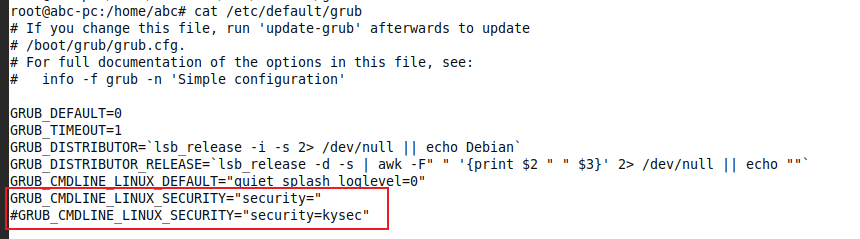
This issue occurs because the KySec module (security policy management module) in the VM affects the normal use of VMPtools.
Solution
To resolve this issue:
-
Use the remote console feature to access the CLI of the VM. Execute the vim /etc/default/grub command to modify the configuration in the /etc/default/grub file. Add GRUB_CMDLINE_LINUX_SECURITY="security=" to the file to disable the security policy.
-
After modification, save the file and execute the update-grub command.
-
Restart the VM on the management platform or by executing the reboot command. Execute the getstatus command at the CLI of the VM. The output shows that the KySec module is disabled.
Cluster/host
What should I do if a host is removed from or fails to be added to a cluster or data center because that host is power cycled while HA is being enabled on that cluster or while that host is being added to the data center or cluster?
Symptom
A host is removed from or fails to be added to a cluster or data center because that the host is power cycled while HA is being enabled on that cluster or while that host is being added to the data center or cluster.
Solution
• If the host is removed from a cluster while HA is being enabled on the cluster, disable and then re-enable HA. The host will show up again in the cluster.
• If the host fails to be added, check the cluster or data center for information about the host. If the host information shows up, delete the host and then re-add it. If the host information does not show up, re-add the host.
How do I recover the HA clusters on a CVM server that is solely used to provide management services after the CVM application fails?
To recover an HA cluster the CVM server:
-
Reinstall CVM and CVK, and then log in to CVM.
-
Make sure all hosts in the original cluster are operating correctly.
-
Create an empty cluster and enable HA.
-
Add any of the hosts in the original cluster to the new empty cluster. In the dialog box that opens, choose to restore the HA configuration of the original cluster or to restore the shared file system of the host.
-
In the dialog box for adding hosts, add all hosts in the host list to CVM by entering the username and password of their root user accounts in order.
How do I recover a failed host in an HA cluster if it acts as both a CVM server and an application server (installed with only CVK)?
To recover the host:
-
Reinstall CVM and CVK on the host, and then assign it the same IP address and host name as the original CVM server.
-
Make sure the remaining hosts in the cluster are operating correctly.
-
Log in to CVM, and then create an empty cluster with HA enabled.
-
Add any of the hosts other than the CVM server to the empty cluster. In the dialog box that opens, choose to restore the HA configuration of the original cluster or to restore the shared file system of the host.
-
In the dialog box for adding hosts, add all hosts in the host list to CVM by entering the username and password of their root user accounts in order.
-
Check the cluster for the CVM server. If the server is in the cluster, delete it from and then re-add it to the cluster. If the server is not in the cluster, add the server to the cluster.
What should I do if the cluster HA configuration differs between CVM and a host after a failed attempt to enable or disable HA on the cluster containing that host?
Condition
This issue might occur if the host restarts, shuts down, or loses its connectivity while HA is being enabled or disabled on the cluster.
Solution
• If the host can be recovered in a short interval, enable or disable HA again on the cluster after the host is recovered.
• If the host cannot be recovered in a short interval, remove the host from the cluster, enable or disable HA again on the cluster.
What should I do if the host displays "/dev/sda1: UNEXPECTED INCONSISTENCY; RUN fsck MANUALLY. Press F to attempt to fix the errors, I to ignore, S to skip mounting, or M for manual recovery " at startup?
Condition
This prompt is displayed if the system cannot start up because of a corrupt file system. File system corruption typically occurs if unexpected power-off, hardware damage, or forced shutdown has occurred.
Solution
To resolve this issue with a minimal data loss:
-
Press F for an automatic recovery.
-
Restart the host.
-
If the issue persists, press M for a manual recovery.
-
Enter the password of the root user, and then execute the fsck -y disk-or-partition command (fsck -y /dev/sda1 for example) to check for file system errors.
-
Restart the host.
What should I do when the host displays "The disk drive for /opt/mds/disk/1 is not present. Continue to wait, or Press S to skip mounting, or M for manual recovery" at startup?
Condition
This prompt is displayed if the system cannot start up because of a disk or disk partition recognition failure. This issue typically occurs when the disk is damaged or is absent.
Solution
To resolve this issue:
-
Press S to skip mounting.
-
Check for disk errors after the host starts up.
-
Delete information about the unrecognized disk or partitions (if any) from the /etc/fstab directory. Alternatively, add the nobootwait string in the mounting option, "UUID=2f943256-c904-45f7-9ad1-f3a79e7d70f3 /opt/mds/disk/1 ext4 nobootwait,defaults 0 2" for example.
-
Restart the host by executing the reboot command from the CLI of the host.
When I edit the IQN of a host, the system displays an error message Symptom
When I edit the IQN of a host, the system displays "You cannot Edit the configuration file of iSCSI because iSCSI is being used (Error code: 5029).".
Condition
This issue typically occurs if the host and the shared storage fail to communicate because of link failure. When an administrator deletes a shared storage pool from CVM, the host cannot delete the shared storage pool. As a result, the shared storage pool is deleted on CVM, but the session between the host and the storage pool still exists.
Solution
To resolve this issue:
-
Log in to the host through SSH.
-
Execute the iscsiadm -m session command to verify that the session between the host and the storage pool exists. If the session does not exist, contact the technical support.
-
Delete the folder named the IQN of the host from directory /etc/iscsi/nodes.
-
Delete the folder named the IP address of the corresponding storage server from directory /etc/iscsi/send_targets.
What should I do if the system stops executing scheduled tasks after I edit the system time of the management host?
Symptom
The system stops executing scheduled tasks (including scheduled snapshot tasks, backup tasks, and DRX tasks) after I edit the system time of the management host.
Condition
This issue occurs because the new system time of the management host is different from the time of the tomcat or performance-monitor daemon.
Solution
To resolve this issue:
-
Log in to the management host through SSH.
-
Execute the service tomcat restart command to restart the tomcat daemon.
-
The management platform becomes unavailable after you execute this command. Before executing this command, stop all tasks in the system. Do not perform any operation in the system after you execute this command.
-
Execute the service performance-monitor-service restart command to restart the performance-monitor daemon.
What should I do if I receive an error message when I edit a port profile?
Symptom
The "Domain not found: no domain with matching uuid 06753ef3-7ead-42b1-9b7b-f7b09f53c8ec" error message is displayed when a port profile is edited.
Condition
This issue occurs if a port profile has been applied to a VM that is in the database of NSphere, but that VM does not exist on the host.
Solution
To resolve this issue, delete the VM (most likely in unknown state) from NSphere, and then edit the port profile.
Storage
What should I do if an error occurs when I create a storage pool that uses an iSCSI shared file system?
Symptom
The "internal error Child process (/bin/mount -t ocfs2 /dev/disk/by-path/ip-192.168.10.1:3260-iscsi-iqn.2007-04.com.xxx:storware.target4-lun-0 /vms/target4) status unexpected: exit status 1" error message is displayed when a storage pool that uses an iSCSI shared file system is being created.
Condition
When creating a storage pool that uses an iSCSI shared file system for a host, the system automatically requests non-exclusive read-write access to the storage target. This issue occurs if the host already has a session to the storage target with read-only access.
Solution
To resolve this issue:
-
Log in to the host by using SSH.
-
Execute the iscsiadm -m session command to view storage target sessions. root@vmc-10:/vms/isos# iscsiadm -m session tcp: [2] 192.168.10.1:3260,1 iqn.2007-04.com.xxx:storware.target4 tcp: [4] 192.168.10.1:3260,1 iqn.2007-04.com.xxx:storware.640f02.target3
-
Disconnect the session to the target. For example, to disconnect the session to Target iqn.2007-04.com.xxx:storware.target4, execute the following command: root@vmc-10:/vms/isos# iscsiadm -m node -T iqn.2007-04.com.xxx:storware.target4 -u -p 192.168.10.1 Logging out of session [sid: 2, target: iqn.2007-04.com.xxx:storware.target4, portal: 192.168.10.1
-
On the iSCSI storage controller, detach the host from iqn.2007-04.com.xxx:storware.target4.
How do I avoid unexpected host reboots when I use the iSCSI storage controller to delete the logical resources in the storage target for a shared file system?
Symptom
Unexpected host reboots occur when logical resources are deleted from the storage target for a shared file system from the iSCSI storage controller.
Condition
If you delete logical resources from the target while the host is writing data to the target, the host will be unable to complete its write operation. To protect storage integrity and prevent storage corruption, the host will be automatically rebooted. For example, host A uses shared file system target3, which is based on target3 on iSCSI storage, and target3 uses SAN-03 as the logical resource. When host A is using shared file system target3, the administrator deletes SAN-03 from the logical resources of target3 on the iSCSI storage manager. Then, VM vmc-6 on host A will fail to write data and host A will restart.
Restrictions and guidelines
Deleting logical resources from a storage target might cause serious service interruption. Before you delete logical resources from a target, you must make sure no hosts in the management platform are using that target as a shared file system. If a host uses that target as a shared file system, you must take preventive action to minimize the impact of the deletion on services.
How to format the disk of a shared file system?
Symptom
The system displays that the storage pool has not been attached to any hosts or displays that the system is busy when the disk of a shared file system is re-formatted.
Condition
Disk formatting is available only for the shared file system that has been specified as the storage pool for a minimum of one host. In addition, the operation can be performed only when the storage pool is not active.
Solution
To resolve the disk reformatting failure that occurs because the storage pool is not attached to any hosts:
-
In the navigation tree, select a host from the data center.
-
On the Storage tab of the host, add a host pool that uses the shared file system to the host, and suspend the storage pool.
-
Navigate to the data center, click the tab for shared file system management, and then reformat the disk of the shared file system.
To resolve the disk reformatting failure that occurs because of a busy system:
-
Suspend the storage pool on each host that uses this storage pool.
-
Navigate to the data center, click the tab for shared file system management, and then reformat the disk of the shared file system.
What should I do if CVM does not display the increase in storage capacity for a shared file system after its hardware storage is expanded?
Symptom
CVM does not display the increase in storage capacity for a shared file system after its hardware storage is expanded.
Solution
To resolve this issue, back up the files stored in the file system, and then use CVM to reformat the disk of the file system as follows:
-
Back up the files in the shared file system.
-
In the storage list of each host that has a storage pool using this file system, select the storage pool, delete all VM files, and then suspend the storage pool.
-
In the shared file system list of the data center that contains the hosts, format the disk of the shared file system.
-
Copy the backup files back to the shared file system.
-
In the storage list of each host, start the storage pool.
What should I do if a storage pool that uses a shared file system becomes unavailable after an unexpected interruption of disk formatting for that shared file system?
Symptom
A storage pool that uses a shared file system becomes unavailable after an unexpected interruption of disk formatting for that shared file system.
Condition
To resolve this issue, reformat the disk for the shared file system.
Why does it take a long time for CVM to refresh status and volume information for a storage pool that provides Windows shared directory service for a host?
Symptom
It takes a long time for CVM to refresh status and volume information for a storage pool that provides Windows shared directory service for a host after a server shutdown, NIC down, or shared directory service disabled event.
Condition
This issue typically occurs the first time you view storage pool information after a server shutdown, NIC down, or shared directory service disabled event. Because of the underlying file sharing protocol limitation, it might take about 3 minutes to open the storage tab of the host and about 1 minute to display status and volume information for the storage pool.
The system display a file copying error when I download a storage volume Symptom
The system display a file copying error when I download a large storage volume again before the previous download is complete.
Condition
This issue occurs when the system attempts to copy the source volume file to overwrite the existing destination file, which is still incomplete. The system displays the error message only for the second download operation even though both download operations are failed.
Solution
To resolve this issue, wait for a while before you download the storage volume again.
Why can't I start the storage pool for a host after I edit the LUN-host mapping on the storage device, and what should I do?
Condition
If you do not suspend or delete the storage pool from the host before you edit the LUN-host mapping, the storage device state in the host kernel changes when you edit the LUN-host mapping. The system cannot automatically process this state change, so the storage pool cannot be started for the host. If you forcibly start the storage pool for the host, data corruption might occur.
Solution
To resolve this issue:
-
Delete the storage pool from the host.
-
Add the storage pool to the host again.
Failed to add an FC network storage resource for a host Symptom
I receive the "An error occurred, but the cause is unknown" error message when I add an FC network storage resource for a host.
Condition
This issue occurs on hosts that cannot automatically update FC LUN information.
Solution
To resolve this issue, select the HBA from the storage adapter list of the host, and then perform a normal or forced HBA scanning. Alternatively, restart and reinitialize the host, obtain FC LUN information, and then re-add FC LUNs for the host.
What should I do if the progress bar gets stuck when I attempt to mount an iSCSI shared file system to a host?
Symptom
The progress bar gets stuck during storage pool assignment for a host if PVs, VGs, or LVs have been created on an iSCSI LUN formatted with OCFS2 before you assign it to the host as a shared file system.
Condition
This issue might occur if PVs, VGs, or LVs have been created on an iSCSI LUN formatted with OCFS2 before you assign it to a host as a shared file system.
Solution
To resolve this issue:
-
Access the storage device to delete the LVs, VGs, and PVs in order.
-
On the management platform, navigate to the data center, click the tab for shared file system management, and then reformat the disk of the shared file system.
-
Navigate to the host, click the tab for storage management, and then add the shared file system as a storage pool to the host.
Failed to enable a shared file system on a managed host Symptom
I cannot enable a shared file system on a managed host that uses the virtual disk on an FC SAN or iSCSCI SAN storage server.
Condition
The host has read-only access to the FC SAN or iSCSCI SAN storage server.
Solution
To resolve this issue:
-
On the management platform, migrate the VMs on the host to any other host or place them in maintenance mode.
-
Suspend all shared file systems on the host.
-
On the FC SAN or iSCSI SAN storage server, assign the read-write access permission to the host.
-
Restart the host.
-
Enable the shared file systems on the host.
-
Move the VMs back to the host or exit maintenance mode.
What should I do if I receive an error message when I add a storage pool that is Windows shared directory type in CVM?
Symptom
I receive the "Requested operation is not valid: CIFS server maybe not available, please check the configuration" error message when I add a storage pool that is Windows shared directory type in CVM.
Condition
This issue typically occurs if the general and advanced IP settings for the network connection on the Windows server are inconsistent.
Solution
To resolve this issue:
-
In Network and Sharing Center on the Windows server, click the connection in use, and then click Properties to manage the network properties.
-
Select Internet Protocol Version 4 (TCP/IPv4) Properties, and then click Properties to identify the basic IP settings for the connection.
-
Perform the following tasks depending on the IP assignment method configured in the General tab:
○ If the option to obtain an IP address automatically is selected, click Advanced, and then select the Enable NetBIOS over TCP/IP option in the Wins tab of the Advanced TCP/IP Settings window.
○ If an IP address is configured, edit the IP address list in the IP Settings tab of the Advanced TCP/IP Settings window. Make sure the IP address list contains only the IP address configured in the General tab.
What should I do if an error occurs when I suspend or delete a storage pool?
Symptom
The "internal error Child process (/bin/umount /vms/target3) status unexpected: exit status 1" error message is displayed when a storage pool is suspended or deleted.
Condition
This issue might occur if some processes on the host are using the directory in which the storage pool is mounted.
Solution
To resolve this issue:
-
Log in to the host by using SSH.
-
Execute the lsof +d /vms/target command to identify the processes that are using the directory. The target argument represents the directory name, target 3 for example. root@vmc-216:~# lsof +d /vms/target3 COMMAND PID USER FD TYPE DEVICE SIZE/OFF NODE NAME bash 11349 root cwd DIR 8,16 3896 513 /vms/target3 vim 12138 root cwd DIR 8,16 3896 513 /vms/target3 vim 12138 root 3u REG 8,16 12288 1412504 /vms/target3/.test.txt.swp
-
Execute the kill -9 process-id command to kill one of the processes. Then, repeat the lsof +d /vms/target command and the kill -9 process-id command to kill the remaining process one by one until all processes are killed. root@vmc-216:
# kill -9 11349 root@vmc-216:# lsof +d /vms/target3 -
In CVM, suspend or delete the storage pool. The storage pool of the shared file system type cannot be used as an NFS or file system. It can only be used as the image storage of local CVK hosts. Violation of this restriction might also cause unmount failures (the lsof command cannot find the processes that are using the storage pool) or other