Troubleshooting
This feature is only supported after the platform is licensed by an enterprise edition software license.
This feature intelligently identifies potential root causes of faults by comprehensively analyzing multi-dimensional correlation information of faulty cloud resource objects (including data centers, clusters, hosts, and VMs). The information includes alarm data, configuration change records, performance metrics, and resource topologies. This feature provides precise fault location and troubleshooting guidance.
Features
• Obtain potential evidence of an object
• Obtain alarms of an object
• Obtain metrics (performance data) of an object
Obtain potential evidence of an object
This feature helps users analyze key information such as the health status, alarm events, and
configuration changes of various resources (such as VMs, hosts, data centers, and clusters) during fault diagnosis. By flexibly customizing resource topologies, users can intuitively obtain potential anomaly evidence for target objects within a specified time span.
-
On the top navigation bar, click Ops.
-
From the left navigation pane, select Troubleshooting.
-
Quickly search for the object by resource name or select the target object in the Recent Searches area. Resources include VMs, hosts, data centers, and clusters.
-
Select a scope for the Selected Scope field. To view the healthiness and alarm quantity of an object, hover over that object.
-
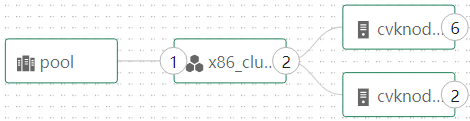
Click Custom to access the resource topology page. To view the healthiness and alarm quantity of an object, hover over that object. Click OK. You can select and display a specific resource level to view relationships between resources. As shown in the figure below, after you select a cluster as the target object and customize the scope, the system will automatically display the data centers and hosts associated with the cluster. The digits (such as 1, 2, 6, and 2) indicate the number of associated data centers, hosts, and VMs on a host in sequence. You can click a digit to expand or collapse a child node. The page displays the potential evidence for objects in the custom scope based on the node topology. For the system to display the cloud resources directly associated with a resource, double-click that resource.
○ To save the customized scope and have the configuration take effect immediately, click OK.
○ To cancel the operation, click Cancel.
○ To refresh the current resource topology, click Refresh.
-
Select a time range. You can obtain the alarms, configuration changes, and performance data of the object within the specified time range.
-
To remove the displayed information, click the icon.
-
Anomaly metrics are generated based on the critical and major alarms. By default, only two performance data items are displayed. To view more performance data items, click Load More.
Parameters
• Object: Object to be diagnosed, which can be a data center, cluster, host, or VM.
• Selected Scope: Object scope. Options include:
○ Object Only.
○ Object Related: Upper-level and lower-level cloud resource objects associated with the object.
○ All Resources: All cloud resource objects associated with the object.
○ Custom: Customize an object scope.
• Healthiness: The health score is rounded up to the nearest integer. The health score is calculated as follows: Type Deducted points for each alarm Critical 9 Major 1.8 Minor 0.6 Info 0.3 Deduction rule Remarks Upper deduction limit for info alarms 1.5 Upper deduction limit for minor and 4.5 info alarms Upper deduction limit for alarms of 13.5 Deduction rule Remarks the major level and below Upper deduction limit for all alarms 40 Special scenario Health score Host failure 0 Exception of the host attached to a VM VM exception 0 Maintenance mode 60 Quarantine mode 60
• Alarms: Total number of alarms for the current object and all its associated child objects. For example, when you hover over a host, if the displayed number of alarms is 2, the total number of alarms for that host and its associated VMs is 2. The Alarms tab only displays the alarm information about the current object.
• Time Range: Select a time range in which statistics about alarms, configuration changes, and performance data are collected for the object or objects associated with it. Options include Last 12 Hours, Last Day, Last Three Days, Last Week, and Custom. Configure the following parameters if you select Custom:
○ Start Time: Start time for collecting statistics, which cannot be later than the end time. The default start time is the current day.
○ End Time: End time for collecting statistics, which cannot be earlier than the start time. The default end time is the current day.
○ You can specify a time range of up to seven days.
• Alarms:
○ If you select Object Only for the Selected Scope field, this area displays only alarms of the object. For example, if the object is a VM, only alarms of the VM are displayed.
○ If you select Object Related for the Selected Scope field, this area displays alarms of objects associated with the object. For example, if the object is a host, alarms of the VMs, host, and cluster are displayed.
○ If you select All Resources for the Selected Scope field, this area displays alarms of the object and all objects related to it. For example, if the object is a VM, alarms of the VM, host, cluster, and data center are displayed.
• Property Changes: Operation logs for basic configuration modification of the object or objects associated with the object.
○ If you select Object Only for the Selected Scope field, this area displays only operation logs for basic configuration modification of the object. For example, if the object is a VM, only operation logs for basic configuration modification of the VM are displayed.
○ If you select Object Related for the Selected Scope field, this area displays operation logs for basic configuration modification of objects associated with the object. For example, if the object is a host, operation logs for basic property modification of the VMs, host, and cluster are displayed.
○ If you select All Resources for the Selected Scope field, this area displays operation logs for basic configuration modification of the object and all objects related to it. For example, if the object is a VM, operation logs for basic configuration modification of the VM, host, cluster, and data center are displayed.
• Anomaly Metrics: Abnormal performance data information of the object or objects associated with the object.
Obtain alarms of an object
Obtain metrics (performance data) of an object
-
On the top navigation bar, click Ops.
-
From the left navigation pane, select Troubleshooting.
-
Quickly search for the object by resource name or select the target object in the Recent Searches area. Resources include VMs, hosts, data centers, and clusters.
-