Configure SSH brute-force protection
About this feature
SSH brute-force protection is an active defense mechanism designed to prevent brute-force attacks on SSH services using automated scripts or tools. The core idea is to monitor and limit SSH login failures, temporarily block suspicious attack source IP addresses, and protect the management platform hosts from password leaks or weak passwords.
Operating mechanism
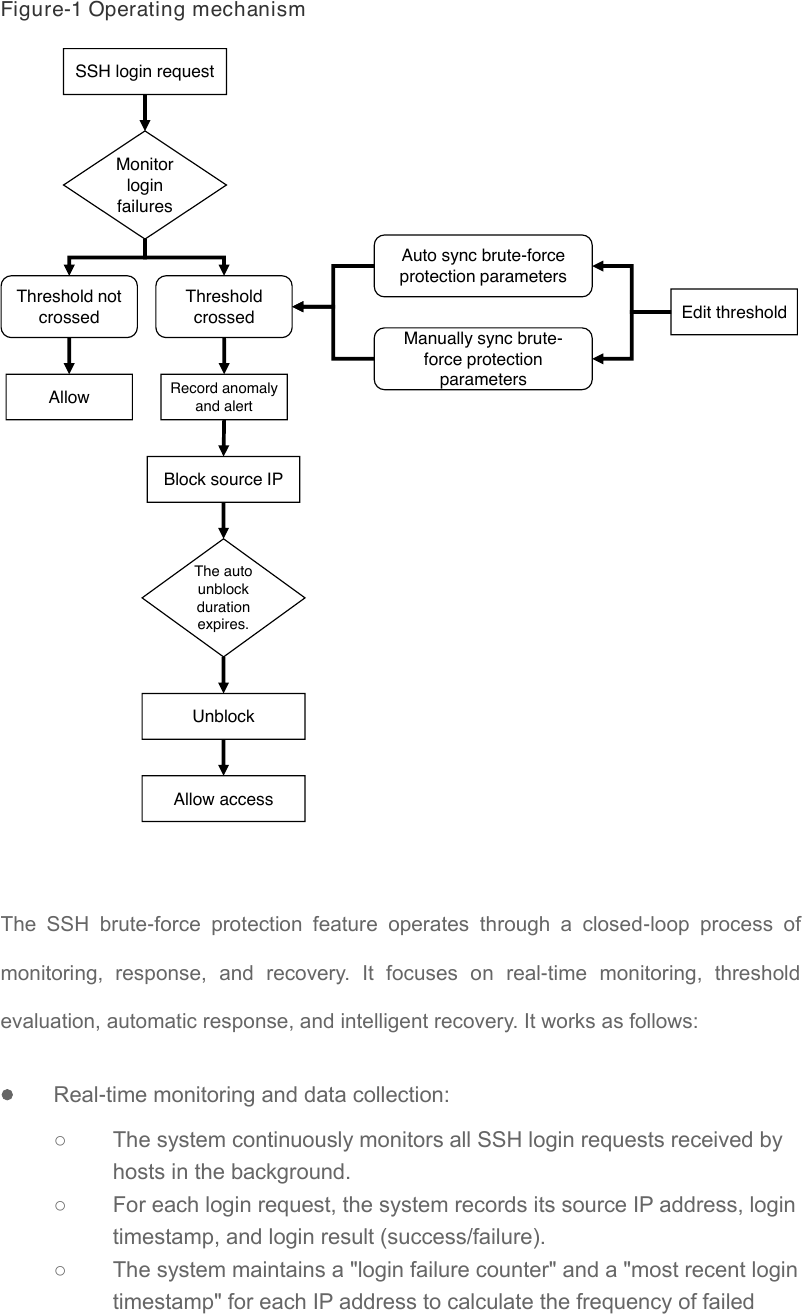
Figure-1 Operating mechanism
SSH login request
Monitor login failures
Auto sync brute-force protection parameters Threshold not Threshold crossed crossed Edit threshold Manually sync brute- force protection Record anomaly parameters Allow and alert
Block source IP
The auto unblock duration expires.
Unblock
Allow access
The SSH brute-force protection feature operates through a closed-loop process of monitoring, response, and recovery. It focuses on real-time monitoring, threshold evaluation, automatic response, and intelligent recovery. It works as follows:
• Real-time monitoring and data collection:
○ The system continuously monitors all SSH login requests received by hosts in the background. ○ For each login request, the system records its source IP address, login timestamp, and login result (success/failure). ○ The system maintains a "login failure counter" and a "most recent login timestamp" for each IP address to calculate the frequency of failed
attempts.
• Threshold evaluation and anomaly recognition:
○ The system determines whether the threshold set by the administrator is exceeded (for example, 8 times/60 seconds). ○ If the login failure count for an IP address reaches or exceeds the preset threshold within the set time window (for example, 60 seconds), the system determines that the IP address might be launching a brute-force attack and triggers the brute-force protection policy.
• Automated response and blocking:
○ Record anomalies and trigger alarms: The system logs the anomaly and notifies the administrator in real time through the alarm system. ○ Auto block: The system immediately executes the blocking operation and adds the IP address to the denylist. ○ Firewall coordination: The system uses underlying firewall policies to enforce network layer access control on the target IP address, blocking subsequent SSH login requests.
• Automatic unblocking and recovery:
○ Unblock duration management: Administrators configure the Time Used for Auto Allow, for example, 10 or 30 minutes. ○ Automatic unblock upon expiration: When the block duration ends, the system automatically removes the IP from the denylist and restores its access permissions. ○ Alarm acknowledgment mechanism: To prevent alarm flooding, the system applies intelligent processing logic to alarms. ▪ If the block duration is less than 10 minutes, the system will automatically acknowledge the alarm. Administrators do not need to take action. ▪ If the block duration is 10 minutes or longer, the system will not automatically acknowledge the alarm. The administrator must manually acknowledge the alarm to prevent errors or missing critical security incidents.
• Configuration synchronization and dynamic updates:
○ Parameter Configuration: Administrators can set the trigger threshold (for example, 8 times/60 seconds) and the automatic release duration on the SSH Brute-Force Protection Parameters page. ○ Synchronization mechanism: ▪ Manual synchronization: Administrators can click the Sync button to immediately push new configurations to all management platform hosts, ensuring policy consistency. ▪ Auto synchronization: The system updates the configuration to all hosts automatically in the next inspection cycle (fixed at 10 minutes). ○ Configuration scope: After you edit the threshold, the new setting applies to newly blocked IP addresses but not to already blocked ones, ensuring a smooth policy transition.
Applicable scenarios
The SSH brute-force feature applies to all scenarios requiring remote management via SSH.
• Cloud platform and data center management: Administrators manage hundreds or thousands of servers remotely in cloud platforms or large data-center environments. A brute-force attack can quickly compromise a large number of hosts. This feature effectively blocks attacks and safeguards critical assets.
• Enterprise IT operations: IT operations staff often use SSH to log in to servers for maintenance, deployment, and troubleshooting. This feature prevents external attackers from exploiting operations staff's account passwords, ensuring operational security.
• Security hardening in high-risk environments: This feature is a fundamental security measure for protecting hosts storing sensitive data or critical application systems. It effectively reduces the risk of system intrusion caused by password leaks.
• Countering automated attacks: In response to increasingly rampant automated brute-force crackers, this feature uses the rate limiting and blocking mechanisms to effectively thwart attacks and keep attempts within safe limits.
Configure SSH brute-force protection parameters
You can set the maximum number of allowed SSH login failures within a specific period. For example, set the maximum number of allowed consecutive SSH login failures within 60 seconds to 4. If another login failure occurs after the maximum number is reached, the system automatically prevents the user from logging in to the host via SSH. You can also set the time required for the system to automatically allow an IP address after that IP address is blocked.
- On the top navigation bar, click Security. 2. From the left navigation pane, select SSH Brute-Force Protection. 3. Click Parameters. Configure the following parameters: ○ Frequency: Set the frequency that triggers SSH brute-force attack protection. Assume that you set the frequency to 8 times per 60 seconds. If the consecutive SSH login failures of an IP address reaches 8 times within 60 seconds, SSH brute-force attack protection is triggered. When the frequency is reached, the platform immediately generates alarms. If an illegal IP address remains on the denylist for less than 10 minutes, the generated alarms will be automatically acknowledged. If the duration crosses 10 minutes, you must manually acknowledge these alarms. ○ Time Used for Auto Allow: Set the time required for the system to automatically allow an IP address after its SSH login failure frequency reaches the upper limit. This configuration will not take effect on IP addresses that have been blocked. 4. Click OK.
Synchronize SSH brute-force protection settings
Perform this task to manually synchronize the updated SSH brute-force protection settings to all hosts on the platform for configuration consistency. If you do not perform a manual synchronization, the system will automatically update SSH brute-force protection settings on all hosts on the platform in the next system update interval (10 minutes).
- On the top navigation bar, click Security. 2. From the left navigation pane, select SSH Brute-Force Protection. 3. Click Sync.
View SSH brute force protection status
This feature provides an intuitive interface that displays the SSH brute-force protection status and network information for multiple hosts.
- On the top navigation bar, click Security. 2. From the left navigation pane, select SSH Brute-Force Protection. 3. Click Status. You can view the SSH brute force protection status for the hosts on the platform. 4. To close the dialog box, click Close or the icon.
Refresh the blocked IP list
If the SSH login failure frequency of an IP address reaches the specified upper limit and the IP address is not in the blocked IP list, you can use this feature to refresh the list. To unblock an IP address in the list, click the Allow button in the Actions column for that IP address or wait for the specified time required for the system to automatically allow an IP address to expire.
- On the top navigation bar, click Security. 2. From the left navigation pane, select SSH Brute-Force Protection. 3. Click the refresh icon. 4. To manually unblock a blocked IP address, click the Allow button in the Actions column for that IP address.