View REST API documentation
The management platform provides comprehensive API documentation to help you quickly understand
and call platform features. By using the API documentation, you can view detailed API descriptions, debug APIs online, view API authentication methods, search for API documents, and download the API documentation. The API documentation page is not restricted by login permissions, and all users can view all API descriptions and details. However, when an API is actually called, the management platform controls feature access and data that can be viewed based on the operator’s API permissions (which are consistent with the corresponding feature permissions on the Web interface) and data permissions, ensuring security control during API calls.
Restrictions and guidelines
REST APIs are not applicable to the scenario where a high-version CVM manages low-version CVK hosts.
Procedure
Click in the upper right corner of the page, and then select REST API Documentation.
Webpage layout
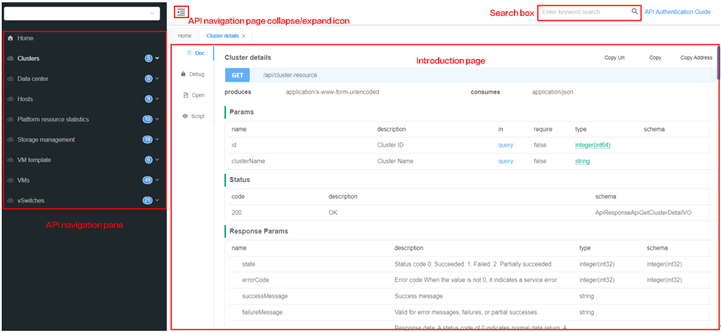
The layout of the REST API documentation page is as follows:
Features
• View API documentation summary
• View API descriptions
• Debug an API online
• View API authentication methods
• Search for an API document
• Download the API documentation
View API documentation summary
Perform this task to view overall information about the REST API documentation in the management
platform, including the author, version number, server address (Host), base path (BasePath), terms of service, group information, and interface statistics.
Procedure
-
Click in the upper right corner of the page, and then select REST API Documentation.
-
From the left navigation page, select Home.
Parameters
• Version: API version of the API documentation.
• Host: IP address and port of the host where the API service resides.
• BasePath: Base path for all API requests, used to construct complete request addresses.
• TermsOfService: Agreements and restrictions for API use.
• Group Name: Name of the API group used for API classification.
• Group URL: Access path of the API group, used to obtain the OpenAPI documentation for the group.
• Group Location: Actual address of the API documentation.
• Interface Statistics: Number of APIs for each request method.
View API descriptions
You can obtain detailed document information for a specific API in the management platform, including
the API descriptions, request parameter descriptions, response parameter descriptions, example, and status code descriptions. You can also view the debugging page, OpenAPI content, and script calling templates of the API for development and debugging.
Procedure
-
Click in the upper right corner of the page, and then select REST API Documentation.
-
From the left navigation page, select API Category > API.
-
Click the Doc tab to view detailed information about the API, including the API path, request method, request and response data types, parameter descriptions and example values, status code descriptions, and response structure. You can perform the following operations:
○ Click Copy Url in the upper right corner to copy the API's request path (for example, /api/operation-log/list) to the clipboard for subsequent use in scripts or tools.
○ Click Copy in the upper right corner to copy all the content on the current API document page to the clipboard.
○ Click Copy Address in the upper right corner to copy the link address of the current API document page to the clipboard for sharing or opening it elsewhere.
-
Click the Debug tab. For related operations, see "Debug an API online."
-
Click the Open tab. You can view the API's OpenAPI specification content (in JSON format). On this page, you can perform the following operations:
○ Click Copy to copy the API's OpenAPI JSON content to the clipboard for saving or importing it to other tools for debugging and viewing.
Debug an API online
Perform this task to directly call and test various REST APIs without additional development or
third-party tools. You can select a request method, enter request parameters, send requests, and view the response content, raw data, response header information, and corresponding curl commands in real time in the lower part of the page. This enables you to quickly verify API functionality, parameter formats, and data return results, helping debug and troubleshoot issues.
Procedure
-
Click in the upper right corner of the page, and then select REST API Documentation.
-
From the left navigation page, select API Category > API.
-
Click the Debug tab.
-
Select a request method as required (such as GET or POST) from the dropdown list in the upper left corner.
-
In the API address bar, confirm the path of the API to be called.
-
Click the Params tab and enter the required request parameter content. If you select x-www-form-urlencoded, you must select a parameter to enable it after modifying the parameter. For more information, see "Parameters."
-
(Optional.) Click the AfterScript tab. Write a JavaScript script before you call the API. After the API is called successfully, the system automatically runs the script.
-
Click Send to send a request to the server.
-
After the first request is sent, the lower part of the page displays the response results, including the Response, Raw, Headers, and Curl tabs and the Show Description, Code, Duration, and Size parameters. You can view the returned information for different formats. For more information, see "Parameters."
Parameters
Request parameters support the following input formats:
• x-www-form-urlencoded: Encode request parameters into the HTTP request body in key-value pair format. After you select this format, the page displays the parameter name and value columns. You can edit or delete a parameter row.
○ The checkbox on the left side of each row controls whether the parameter takes effect. Only selected parameters take effect in the request. Unselected parameters use the default values. After you enter or edit a parameter name or parameter value, the system automatically selects that parameter. For example, the default value for the pageSize parameter is 20. If you enter 5 in the value column and select the parameter, the API returns 5 data entries. If you do not select the parameter, the API returns 20 data entries.
○ You can change parameter names to any request parameters defined on the Doc tab of the API, allowing users to debug different parameter combinations. For example, the system has the userName and pageSize parameter rows by default. Change userName to pageSize, and then enter 5 and 10 in the two pageSize rows, respectively. You can quickly test different returned results by switching the selection.
• form-data: Transfer request parameters in multipart form data format.
• raw: Directly enter raw request body data. After selecting this format, you can select a request body format on the right side. Options include:
○ Auto
○ Text(text/plain)
○ JSON(application/json)
○ Javascript(application/Javascript)
○ XML(application/xml)
○ XML(text/xml)
○ HTML(text/html)
Response results
• Response: Display returned data in JSON format.
• Raw: Display unformatted raw response data. You can click Copy to copy the content.
• Headers: Display the HTTP response header information returned by the server.
• Curl: Display the curl command used to call the request (including the method, URL, and request header). You can click Copy to copy the content.
• Show Description: If you select this parameter, corresponding description information is appended to the returned data on the Response tab, making it easier to understand the meaning of each field.
• Code: Display the HTTP status code. For example, 200 indicates that the request is successful.
• Duration: Display the time taken to complete the request (in milliseconds), which can be used for API performance analysis.
• Size: Display the size of the response content (in bytes) for evaluating the data volume.
View API authentication methods
Search for an API document
Perform this task to quickly locate the required API document in the management platform by using
keywords. The search scope includes API names and API descriptions.
Procedure
-
Click in the upper right corner of the page, and then select REST API Documentation.
-
In the search box in the upper right corner of the page, enter a keyword.