Configure cloud resources
Features
• Configure compute resources
• Configure vSwitches
• Configure storage pools
Configure compute resources
Configure the NTP server
Configure NTP to ensure that the management nodes and all CVK hosts in the system use the same system time. The NTP service is enabled by default after the system is installed. As a best practice, configure the management node as the NTP server so the CVK hosts (as NTP clients) can synchronize their system time settings with the management node. In a stateful failover environment, use the virtual IP address of the management node as the IP address of the NTP server. To configure the NTP server:
-
On the top navigation bar, click System.
-
From the left navigation pane, and then select NTP Settings.
-
In the dialog box that opens, specify the IP address of the server as the primary NTP server address. In a stateful failover environment, use the virtual IP address of the management host as the IP address of the NTP server.
-
Click OK.
Configure data centers
The system uses data centers to manage individual hosts (hosts that are not in clusters) and clusters. By default, the system does not contain any data centers. To manage hosts in the data center, you must add data centers. The following information describes the procedure to create a data center named HostPool:
-
On the top navigation bar, click Compute.
-
From the left navigation pane, select Resource Navigation.
-
Click Add Data Center.
-
In the dialog box that opens, specify HostPool as the data center name and click OK.
Configure clusters
A cluster is a collection of physical hosts and VMs. To manage multiple hosts and VMs as a whole, you can add them to a cluster. You can also enable HA on a cluster to have the system move the VMs on a host to the remaining hosts in the cluster when that host fails. By default, the system does not contain any clusters. You must manually add clusters to the system. The following information describes the procedure to add a cluster named Cluster to data center HostPool:
-
From the left navigation pane, select Resource Navigation >All > Resources > Data Center Name, where Data Center Name is the name of the data center to which you want to add a cluster. This example uses data center HostPool.
-
Click Add Cluster.
-
Configure basic settings, network settings, add hosts, configure hosts, and configure storage parameters. For more information, see "Add a cluster."
-
Click OK.
Add hosts to a cluster
A host is a physical server that runs the virtualization software and provides hardware resources for VMs running on it. After you add a data center or a cluster to the system, you must add hosts to the data center or cluster. To ensure the operating performance and reliability of VMs, the hosts in the system must meet the following requirements:
• The managed x86 hosts must use CPUs that support Intel VT-x or AMD-V for virtualization. This requirement does not apply to servers that operate solely as management servers.
• The managed ARM hosts must use ARMv8.1 or higher CPUs and support Virtualization Host Extensions (VHE).
• Minimum hardware requirements:
○ 32 GB memory.
○ 500 GB local storage.
○ Four physical Gigabit Ethernet NICs.
○ One DVD drive.
The following information describes the procedure to add a host to the cluster named Cluster in data center HostPool:
Configure vSwitches
A vSwitch provides software-based switching between VMs. A vSwitch operates in the similar way as a
physical switch. A vSwitch forwards traffic among VMs connected to its virtual ports. After you bind a vSwitch to a physical NIC on a host, the host and VMs on the host can communicate with external networks. You must configure a vSwitch for a host after adding the host to a data center or cluster. You can select the types of networks for which you want to create a vSwitch. Supported network types include management network, storage network, and service network. After you add a host to the system, the system automatically creates a default vSwitch named vswitch0 for the management network on the host. You must manually create vSwitches for the storage network and service network. To configure a vSwitch:
-
On the cluster configuration page, click the vSwitches tab. Click Add vSwitch.
-
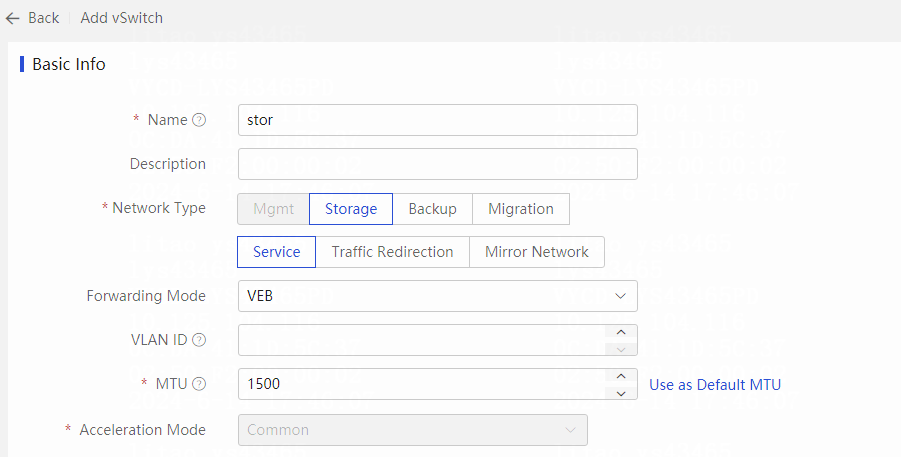
Configure basic information for the vSwitch. This example creates a vSwitch for the storage network.. Enter stor in the Name field, select VEB from the Forwarding Mode list, and enter a VLAN ID in the VLAN ID field.
-
Configure the host network settings. Click Add, and then select the hosts that will use the vSwitch.

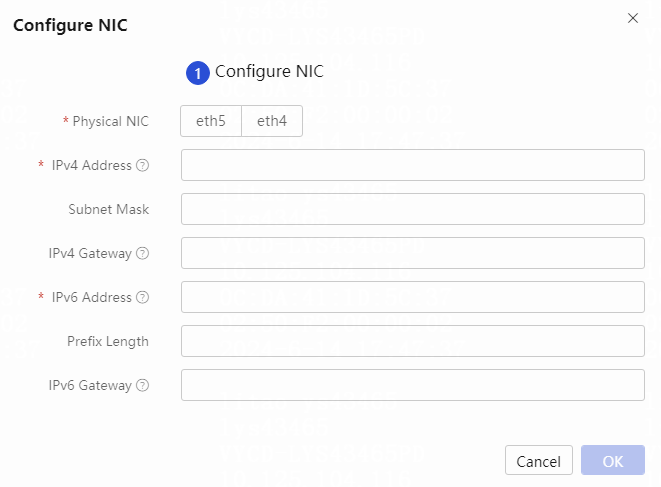
- Configure physical interfaces for the selected hosts: a. Click Configure NIC in the Actions column for a host. b. In the dialog box that opens, select the NICs to be used by the vSwitch. c. Configure the IP address and subnet network settings for the vSwitch. d. Repeat this step for all the hosts selected to use the vSwitch. Only one gateway can be configured for a host. If multiple gateways are configured, unpredictable problems might error. e. If only one NIC is selected for the vSwitch, click OK to finish the vSwitch creation.
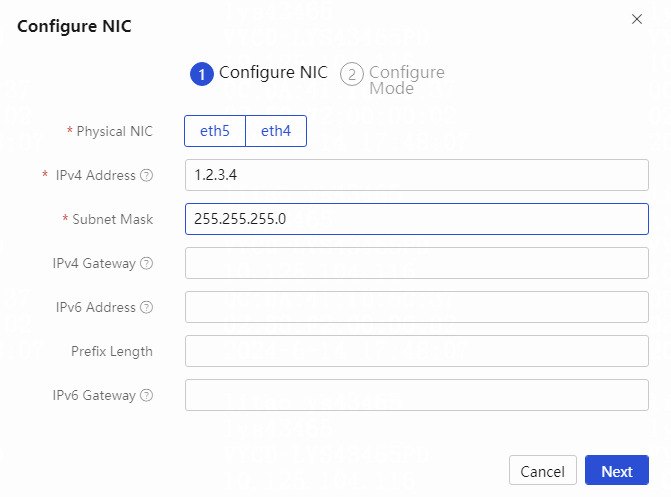
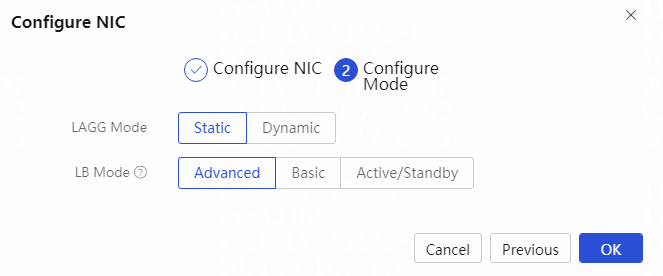
f. If multiple NICs are selected for the vSwitch, you need to configure the link aggregation
mode and load balancing mode for the selected NICs.
▪ After selecting the NICs and configuring the IP address and other settings for the vSwitch, click Next.
▪ Select the link aggregation mode and load balancing mode, and then click OK.
• To avoid CVK unavailability, make sure the physical switch connected to the vSwitch has the corresponding link aggregation settings.
• If the vSwitch uses the dynamic link aggregation mode, the connected physical switch must also use the dynamic link aggregation mode.
• If the vSwitch uses the static link aggregation mode and the basic or advanced load balancing mode, the connected physical switch must use the static link aggregation mode. If the vSwitch uses the
Configure storage pools
The system provides the following local file directory storage pools by default:
• defaultpool—Stores disk image files of VMs.
• isopool—Stores the ISO installation files for OSs.
You can create the following types of storage pools: LVM logical storage volume, iSCSI network storage, FC network storage, local file directory, network file system, shared file system, and Windows system shared directory. Shared file system storage pools are recommended. The HA function of the system relies on the shared storage because the disk files of VMs are stored in shared file system storage pools. The system supports IP SAN, FC SAN, and NVMe-oF and therefore the shared file systems can be classified into the iSCSI shared file systems, FC shared file systems, and NVMe-oF shared file systems.
A VM with high disk I/O requirements can use iSCSI network storage pools or FC network storage pools. The VM uses storage resources of such storage pools as block devices. Block devices are used in scenarios where large disk space is needed, for example, in a hospital information system.
The following information describes the procedures to configure storage pools of the iSCSI shared file system, FC shared file system, iSCSI network storage, and FC network storage types, respectively.
Configure storage volumes on the storage device
Before adding a storage pool to the system, you must create storage volumes on the storage device and assign the storage volumes to CVK hosts. The following information describes the procedure for configuring the iSCSI shared file system on P5000.
• As a best practice, use the thick provisioning mode (also known as full provisioning mode) when creating a storage volume.
• Do not create a Network RAID-5 volume on the P5000 shared storage device because Network RAID-5 volumes use the thin provisioning mode. Data are written to a Network RAID-5 volume in the Network RAID-10 method and then converted to the Network RAID-5 volume data, which affects the performance of the shared storage.
-
According to the storage plan, create a storage volume of 500 GB named sharefile on the P5000 shared storage device.
-
Assign the storage volume to a CVK host.
Configure an iSCSI shared file system
A CVK host connects to an IP SAN storage device through the iSCSI protocol. Operators must configure iSCSI initiator and storage target settings on the CVK host and the IP SAN storage device, respectively. As a best practice to improve data read-write efficiency, use a dedicated physical server to connect the CVK host and the IP SAN storage device.
-
Navigate to the page for configuring the target host, click the Hardware tab, and then click the Storage Adapters menu. Click Set IQN in the Actions column for iSCSI software adapter Open-iSCSI.
• After the management platform software is installed on a host, an initiator is created on the host by default. However, the Initiator is relatively complicated and you can edit its settings as needed.

-
In the dialog box that opens, edit the iSCSI initiator settings as needed, and then click OK.
-
Configure the shared file system heartbeat network for data center pool: a. Select Resources > pool from the left navigation pane. b. Click the Shared File Systems tab, and then click Set Heartbeat Network. c. In the dialog box that opens, enter 192.168.12.0 as the IP address of the shared file system heartbeat network, and then click OK.
• A shared file system can be shared by all hosts inside a data center. You can configure shared file systems for a data center on the data center configuration page.
• By default, the management network is used as the shared file system heartbeat network. You can set a different network as the shared file system heartbeat network as needed.
• You can configure multipathing for an iSCSI shared file system if the IP SAN supports multipathing. To do so, enter multiple service IP addresses for the IP SAN in the IP Address field when you add the shared file system. After the management platform software is installed on a host, an initiator is created on the host by default. However, the Initiator is complicated and you can edit its settings as needed.
-
Enter the planned IP address and mask/prefix, and then click OK.
-
Add an iSCSI shared file system to the data center: a. Click the Shared File Systems tab on the data center configuration page. Click Add. b. In the dialog box that opens, configure the basic information and LUN information for the iSCSI shared file system, and then click Finish.
-
Add shared file system storage to cluster cluster: a. Select Resources > pool > cluster from the left navigation pane. b. Click the Storage tab, and then click Add. c. In the dialog box that opens, select the previously added iSCSI shared file system for Shared File System. d. Click Select Host and select the hosts that can use the shared storage, and then click OK. e. Click OK to add the shared file system storage.
-
When prompted to format the shared file system, click OK. The system prompts a user to format a storage volume after the storage volume is added to the system for the first time.
-
In the dialog box that opens, click OK. Supported locking types include Distributed Locking and Hardware Assisted Locking. To use the hardware assisted locking, the storage server must support the CAW feature.
-
Configure an FC shared file system
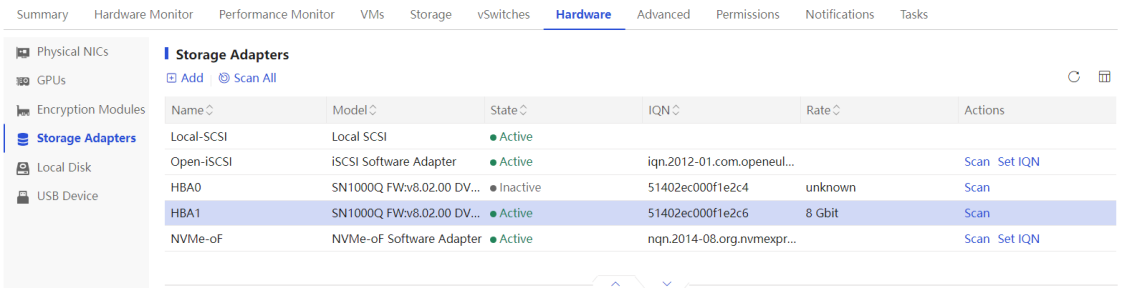
- On the host configuration page, click the Storage Adapters tab to view information about the FC HBAs of the host.
-
On the top navigation bar, click Compute.
-
From the left navigation pane, select Resource Navigation >All > Resources > Data Center Name.
-
Click the Shared File Systems tab, and then click Add.
-
In the dialog box that opens, configure the basic information and LUN information for the FC shared file system, and then click OK.
-
On the Storage tab, and then click Add. In the dialog box that opens, select Shared File System for Type, select the previously added FC shared file system for Shared File System, and then click OK.
-
Click Select Host and select the hosts that can use the shared storage. Click OK.
-
Select Multipath from the HBA list for each host that can use the shared storage.
-
Click OK to add the FC shared file system storage.
Configure an iSCSI network storage pool for a host
-
Navigate to the host configuration page. Click the Storage tab, and then click Add.
-
Select iSCSI Network Storage from the Type list, specify a name and alias for the storage pool, and then click Next.
-
Select a storage resource, and then click Next.
-
Select NAAs, and then click OK to add the storage pool.