Configure VMs
Features
• VM creation methods
• Create a VM
• Install VMPtools on the VM
• Upgrade VMPtools for a VM
• Remove VMPtools from a VM
• Deploy VMs by using a VM template
• Clone a VM
VM creation methods
The following table describes the methods available for deploying VMs in the system. Choose the
appropriate method according to the infrastructure planning and usage scenario.
Method Description Application scenario
Create a VM from scratch with the specified hardware (including vCPU, memory, • This method is typically used when you vDisk, and vNIC) settings. deploy VMs for the first time at initial system deployment. Add a VM from After creating a VM, you scratch must install an operating • You can also use this method if the system and VMPtools on system does not have a template or a the VM. OS installation on a VM that can be used to create the VM is the same as OS desired VM. installation on a physical host. You create VMs from a • Use this method if the system has a template that includes a set VM template that can be used to of VM system configuration, deploy the desired VMs in bulk. OS, and applications. VMs deployed using a VM • You can also create VMs from an OVF Create VMs from a template have the same OS template imported from a third-party template and applications as the platform. template. • With a VM template, you can create You can create a VM multiple VMs with the same hardware template by converting a and software specifications in bulk for VM to a template or cloning large-scale VM deployment or VM
Create a VM
Upload an OS image file for guest OS installation
You can mount an OS image file to a VM by using the Virtual Drive function of the VM console. Before mounting an OS image file to a VM, you must first upload the OS image file to the system, either through the local method or through a third-party software product. To upload an OS image file to the system:
-
Navigate to the host configuration page. Click the Storage tab, and then select the storage pool with alias isopool. Click Upload Files.
-
In the dialog box that opens, click the Select file/Drag the file here area to open the dialog box for selecting a file.
-
Select the .iso file to upload. The .iso file name cannot contain Chinese characters, spaces, or special characters such as brackets. Use a simple name for the file as a best practice.
-
Click Start to start uploading the selected file. The progress bar display the file uploading progress.
-
After the file uploading is complete, verify that the uploaded file is displayed on the file list of storage pool isopool.
Add a VM
-
Navigate to the host configuration page.
-
Click Add VM. In the dialog box that opens, select Create VM.
-
On the Basic Info tab, set the alias and description for the VM, select the OS and OS version installed on the VM, and then click Next.
-
On the Hardware tab, configure hardware resources for the VM. You can use the default settings or customize the settings according to the service requirements.
-
Click the Search icon next to the CD-ROM field. In the Select Storage dialog box that opens, select storage pool isopool, select the desired OS image file (.iso file), and then click OK.
-
Click OK to add the VM.
-
Click the VM tab on the host configuration page and verify that the newly added VM is displayed on the VM list in Shutdown state.
Install a guest OS on the VM
This example describes the procedure for installing Windows Server 2008 on the VM.
ARM hosts do not support Windows operating systems.
Mount the guest OS image file to the VM and start guest OS installation on the VM
-
Navigate to the VM configuration page. Click the Configure tab, select CD-ROM, click Edit in the lower right corner, and then click Connect. Select the drive and the OS image file on the drive, and then click OK to mount the OS image file to the VM.
-
On the VM configuration page, click Start to start the VM.
-
After the VM is started, click Console to launch the remote console window and verify that the VM has started to install the OS.
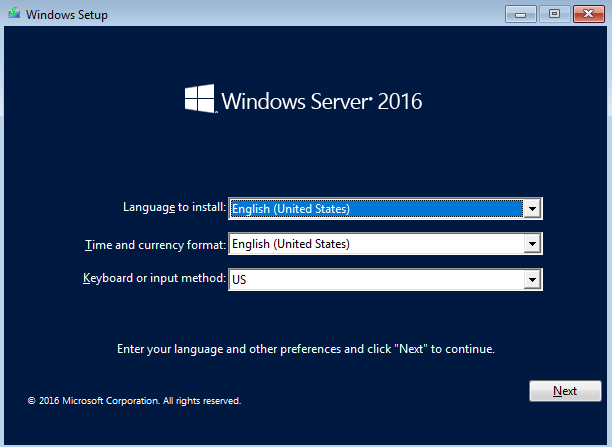
Load a hard disk driver
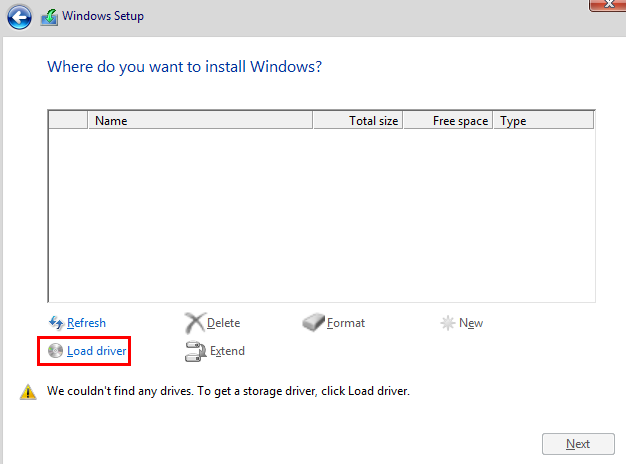
- Because a high-speed disk is used for OS installation and Windows does not have the required driver to identify the disk, you will be prompted to load the required driver in the OS installation process. Click Load Driver. The dialog box for loading a driver opens. Make sure the automatic Virtio driver loading function is enabled in the system.
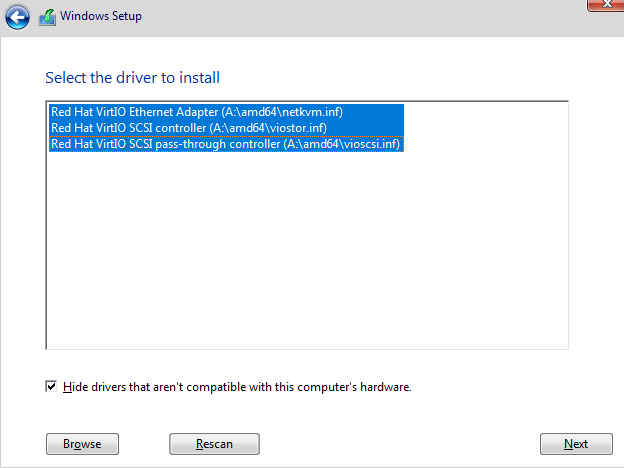
- Select all drivers to install.
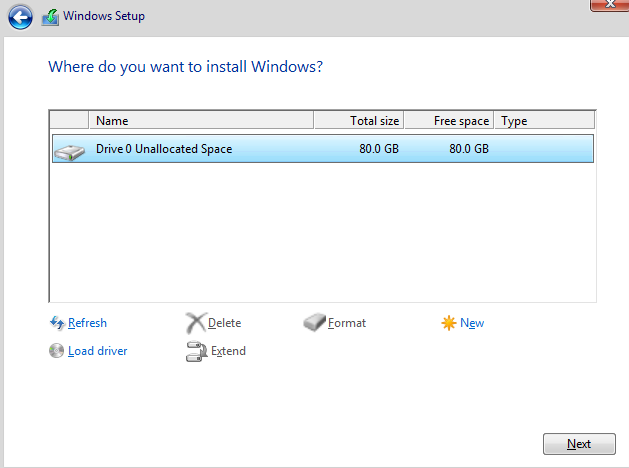
- Check the high-speed disk information displayed on the OS installation screen after the driver installation is complete.
Install VMPtools on the VM
For Jumborca NSphere to manage and monitor a VM such as obtaining CPU and memory usage
information of a VM, you must install the VM proxy tool VMPtools on the VM.
The VM proxy tool supports both Windows and Linux operating systems. For more information, see Jumborca NSphere Software and Hardware CompatibilityJumborca NCI Software and Hardware Compatibility.
Install the VM proxy tool on a Windows VM
ARM hosts do not support Windows operating systems.
-
Mount the .iso installation file of the tool to the Windows VM: a. Click the Configure tab, select CD-ROM, click Edit, and then click Connect. b. In the Select File dialog box that opens, select Install VMPtools and click OK. The Source Path field displays the path of the mounted .iso installation file.
-
To use the mounted installation file to install the tool, log in to the VM through the VM console, double-click the virtual drive to which the tool is mounted, and then follow the installation wizard to install the tool. After installing the VM proxy tool on a Windows Server 2008 Datacenter Edition SP2 (64-bit), Windows Server 2008 Enterprise Edition (64-bit) or Windows Server 2008 Standard Edition (64-bit), you must reboot the OS before you can use the Virtio driver.
-
On the VM configuration page, click the Summary tab to check the state and version of the installed VM proxy tool. On the Performance Monitor tab, verify that the system can monitor the resource usage such as the memory usage and partition usage of the VM correctly.
-
To disconnect the driver mounted to the VM for VM proxy tool installation, click Edit in the Actions column for the VM on the VM configuration page, select CD-ROM, and then click Disconnect.
Install VMPtools on a Linux VM
-
Mount the .iso installation file of the tool to the VM: a. Click the Configure tab, select CD-ROM, click Edit, and then click Connect. b. In the Select File dialog box that opens, select Install VMPtools and click OK.
-
Execute the mount command to mount the driver to the Linux VM and access the Linux directory of the proxy tool. sudo mount /dev/cdrom /mnt cd /mnt/linux
-
Execute the ./VMP_tools_install.sh command to install the tool.
-
On the VM configuration page, click the Summary tab and verity that the tool is operating correctly.
Install VMPtools on a VM that runs the FreeBSD operating system
-
Log in to the system as a root user. The password for the root user is the password set when you install a guest OS.
-
Use the FreeBSD ISO file to install the package management tool and python by executing the following commands: root@:~ # mkdir /dist root@:~ # mount -t cd9660 /dev/cd0 /dist root@:~ # setenv REPOS_DIR /dist/packages/repos root@:~ # pkg bootstrap The package management tool is not yet installed on your system.
Do you want to fetch and install it now? [y/n]:y Bootstrapping pkg from file:///dist/packages/FreeBSD:11:amd64, please wait… Installing pkg-1.8.7_1… Extracting pkg-1.8.7_1:100% root@:~ # pkg install python Updating FreeBSD_install_cdrom repository catalogue… Fetching meta.txz:100% 260 B 0.3KB/s 00:01 Fetching packagesite.txz:100% 244 KiB 249.9KB/s 00:01 Processing entries:100% FreeBSD_install_cdrom repository update completed.1075 packages processed.
Updating database digests format:100% Checking integrity…done(0 conflicting) The following 7 package(s) will be affected (of 0 checked):
New packages to be INSTALLED:
python:2.7_2,2 python27:2.7.12 libffi:3.2.1 indexinfo:0.2.4 readline:6.3.8 gettext-runtime:0.19.8.1 python2:2_3
Number of packages to be installed:7 The process will require 69 MiB more space.
Upgrade VMPtools for a VM
If VMPtools upgrade is required in a system upgrade, the VMPtools version on VMs must be
consistent to ensure system compatibility and stability. In this case, you can upgrade VMPtools on VMs by using one-click upgrade.
Restrictions and guidelines
• Identify whether a VM requires VMPtools upgrade on the VM basic information page.
• With automatic VMPtools upgrade enabled for a VM, if the version of the VM proxy tool installed on the VM's operating system is lower than the version provided by the current management platform, the proxy tool will be upgraded automatically. By default, the system upgrades the proxy tool on VMs with automatic VMPtools upgrade enabled at 1 am of the
Remove VMPtools from a VM
Remove VMPtools from a VM that runs the Windows operating system
-
On the top navigation bar, click Compute.
-
From the left navigation pane, select Resource Navigation > All > Resources > Data Center Name > Cluster Name > Host Name > VM Name.
-
Click Console in the upper right corner the page.
-
Select a method for logging in to the remote console. The following uses webpage console as an example.
-
Log in to the VM. Enter control in the Windows search box, and in the search results, select Control Panel.
-
In the control panel, click Uninstall a program.
-
Right-click the VMPtools program, and then select Uninstall.
-
In the dialog box that opens, click Uninstall.
-
After the uninstallation finishes, click Close.
-
Access the VM summary page on the management platform. If the VMPtools status is Not Running, VMPtools is removed successfully.
Remove VMPtools from a VM that runs the Linux operating system
-
On the top navigation bar, click Compute.
-
From the left navigation pane, select Resource Navigation > All > Resources > Data Center Name > Cluster Name > Host Name > VM Name.
-
Click Console in the upper right corner the page.
-
Select a method for logging in to the remote console. The following uses webpage console as an example.
-
Log in to the VM as a root user and then execute the rpm -qa | grep qemu-ga or dpkg -l | grep qemu-ga (Ubuntu edition) command to identify whether VMPtools has been installed on the VM. [root@centOS7
]# rpm -qa | grep qemu-ga qemu-ga-7.8.1.2-1.el7.centos.x86_64 Ubuntu edition: root@user-Standard:# dpkg -l | grep qemu-ga ii qemu-ga 7.8.1.2 amd64 QEMU Guest Agent -
Execute the rpm -e qemu-ga-7.8.1.2-1.el7.centos.x86_64 or dpkg -P qemu-ga (Ubuntu edition) command to remove VMPtools. [root@centOS7
]# rpm -e qemu-ga-7.8.1.2-1.el7.centos.x86_64 Ubuntu edition: root@user-Standard:# dpkg -P qemu-ga -
Access the VM summary page on the management platform. If the VMPtools status is Not Running, VMPtools is removed from the VM successfully.
Deploy VMs by using a VM template
You can create a VM template by converting a VM to a template or cloning a VM to a template for fast
creation and configuration of VMs in bulk. VMs deployed using a VM template have the same OS and applications as the template.
Manage VM template pools
VM templates are stored on management hosts. As a best practice, set aside a dedicated shared storage as a template pool for storing VM templates. Before adding a shared directory as a template pool, make sure storage volumes and other required settings are configured on the shared storage. To create a template pool:
-
On the top navigation bar, click Compute.
-
From the left navigation pane, select VM Templates.
-
Click Template Pool.
-
Click Add Template Pool.
-
Enter /templet in the Target Path field, select iSCSI Shared Directory from the Type list, and enter 192.168.12.100 in the IP Address field.
-
Click the search icon in the LUN field to search for the desired LUN by IP address.
-
Click OK.
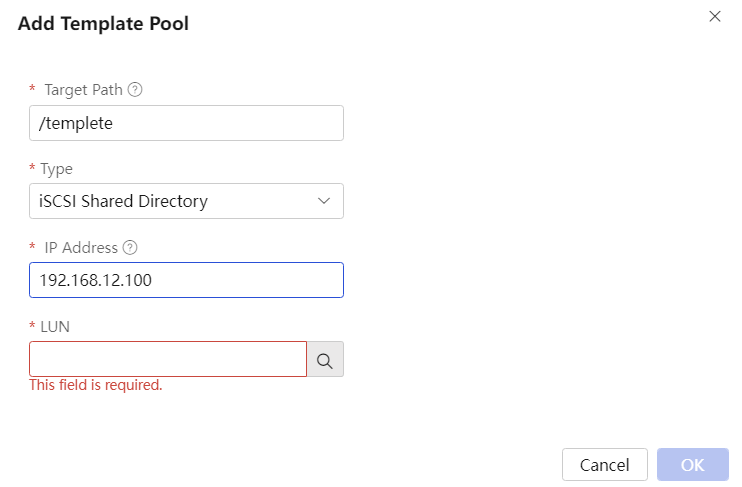
- Verify that the newly added template pool is displayed on the template pool list.
Create a VM template
You can create a VM template by using the following methods:
• Clone to template—Creates a template copy of a VM, while leaving the original VM in place.
• Convert to template—Converts a VM in shutdown state to a template. The converted VM can be used only as a template and the original VM template is removed from the system.
• Export as template—Exports a VM in shutdown state to an OVF template.
Before creating a VM template by using a VM, perform the following steps:
• Disconnect the CD-ROM driver or floppy driver, if any, from the VM.
• Make sure the VM is configured to obtain IP address settings automatically through DHCP (to avoid network address conflicts).
Clone a VM as a template
-
Shut down the VM, and then disconnect the mounted virtual driver and driver files, if any, from the VM.
-
Navigation to the VM configuration page. Click More, and then select Clone as Template.
-
In the dialog box that opens, enter a template name, select a template pool for storing the template, and then click OK. The template name must be different from the VM name.
-
Navigate to the Resources > VM Templates page and verify that the newly created VM template is displayed on the VM template list.
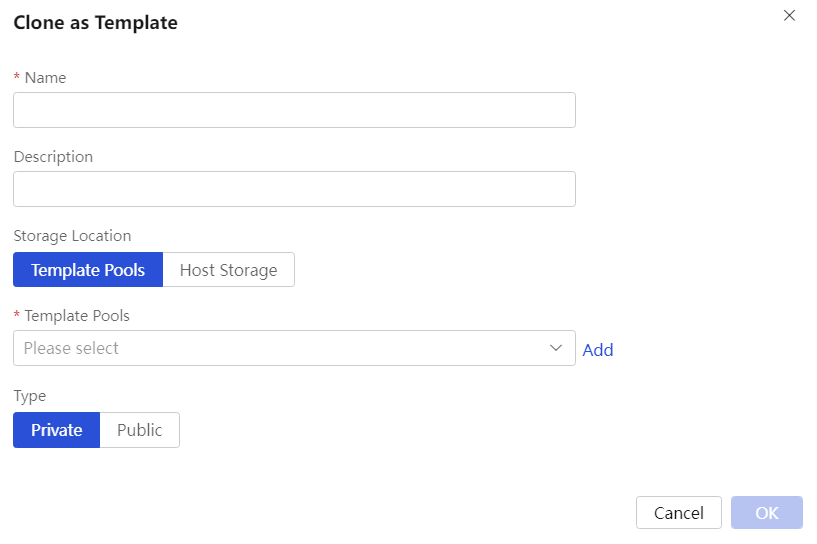
Convert a VM to a template
-
Shut down the VM, and then disconnect the mounted virtual driver and driver files, if any, from the VM.
-
Navigation to the VM configuration page. Click More, and then select Convert to Template.
-
In the dialog box that opens, enter a template name and template description, select a template pool for storing the template, and then click OK.
-
Navigate to the VM templates page and verify that the newly created VM template is displayed on the VM template list.
-
Verify that the VM is removed from the host.
Export as an OVF template
You can export a VM template from the management platform and then import it to another management platform. Use this method to deploy VMs across management platforms.
-
On the top navigation bar, click Compute.
-
From the left navigation pane, select VM Templates.
-
Click More and select Download in the Actions column for a VM template to download the template as a compressed file.
-
Navigate to the VM templates page in the system where you want to import the template and import the template as an OVF template.
Deploy VMs from a template
You can deploy 1 to 100 VMs by using a VM template at a time.
-
On the top navigation bar, click Compute.
-
From the left navigation pane, select VM Templates.
-
Click Deploy in the Actions column for a VM template.
-
Configure basic information, cluster information, storage information, network information, and system information for VM deployment and start the deployment.
-
After the VM deployment is complete, check the deployed VMs on the target host.
-
Start a deployed VM. Open the VM console and verify that an OS is installed on the VM as configured in the VM template. Enter the login username and password configured in the system settings of the template to log in to the VM or configure other settings as needed.