QoS-based resource allocation to VMs
QoS-based resource allocation allows the system to dynamically schedule resources for VMs in
response to workload changes to ensure stable service operation and optimize resource distribution. By limiting the resources assigned to VMs, you can prioritize the VMs that offer key services in compute, network, and storage resource preemption. This enables the VMs to have high performance without being interrupted by other VMs.
You can configure resource QoS parameters when creating a VM or editing a VM.
Configure CPU QoS
About CPU QoS
CPU QoS controls the ratio of CPU resources allocated to VMs to ensure VM performance and avoid unbalanced computing capability distribution.
CPU scheduling priority
A CPU scheduling priority determines the sequence in which VMs are assigned physical CPU resources. When physical CPU resources are insufficient, the VMs with high CPU scheduling priority take precedence. CPU scheduling priorities can be high, medium, or low. The system allocates CPU resources to VMs with high, medium, and low CPU scheduling priorities in a ratio of 4:2:1. For example, three VMs run on a host that has a single-core 2.8GHz CPU, and the CPU scheduling priorities for the VMs are high, medium, and low, respectively. When the VMs run at full load, the CPU frequency allocated to them is 1600 MHz, 800 MHz, and 400 MHz, respectively. A CPU scheduling priority takes effect only when VMs are competing for CPU resources. If CPU resources are sufficient, a VM can use all physical CPU resources of a host. For example, if only one of the VMs on a host is in running state, the VM can obtain all computing capability of the host's CPU.
CPU frequency reservation
The reserved CPU frequency is the lowest computing capability that a VM can obtain. Reserve CPU frequency to ensure correct operation of a VM when CPU resources are insufficient.
CPU frequency limit
A CPU frequency limit is the maximum computing capability that a VM can obtain. Limit the CPU frequency allocated to a VM to leave enough CPU resources for other VMs.
If you set the reserved CPU frequency, the minimum value of the CPU frequency limit is the reserved CPU frequency. If you enable overall CPU limit, the system does not limit CPU frequency on a per-core basis.
Procedure
-
On the top navigation bar, click Resources.
-
From the left navigation pane, select Data Center Name > Cluster Name > Host Name > VM Name.
-
Click the Configure tab.
-
Click the CPU tab on the left, and then click Edit in the bottom right corner of the page.
-
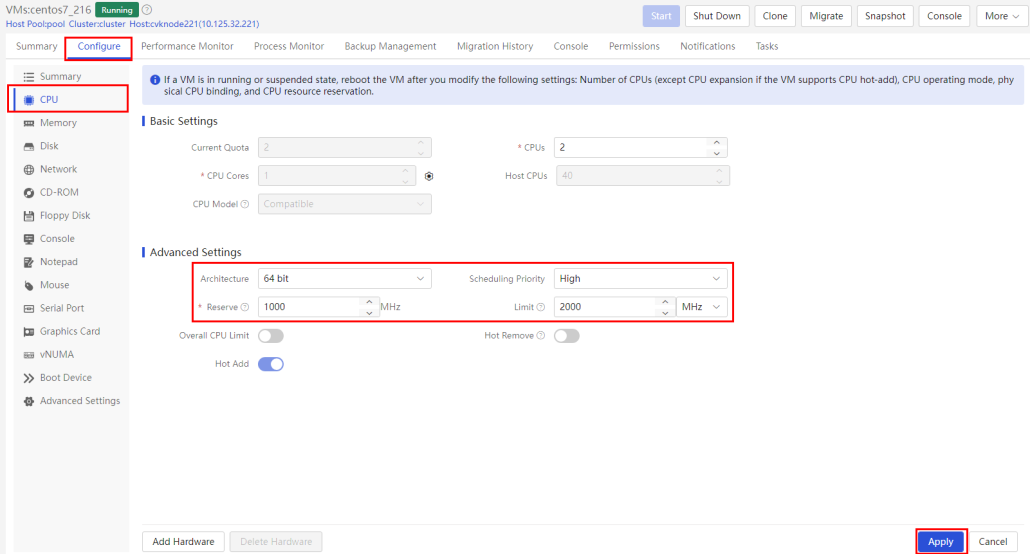
Configure the following settings:
○ Schedule Priority: Select CPU scheduling priority.
○ Reserve: Configure the CPU frequency reserved for the VM.
○ Limit: Configure the maximum CPU frequency that the VM can use.
Figure-1 Editing advanced CPU settings
Configure memory QoS
About memory QoS
Memory QoS increases VM density to reduce costs by allowing for memory allocation ratio. The system by default assigns 4 GB of memory to each VM upon VM creation. A host dynamically adjusts the memory of each VM on the host based on workloads of VMs.
Memory quota
The memory quota is the size of memory assigned to a VM. You can adjust the memory quota as needed. The maximum memory quota is 16 times the memory size assigned to a VM in VM creation or the memory size of the host where the VM resides, whichever is larger.
The maximum memory quota displayed for a shutdown VM is the memory size of the host where the VM resides.
Memory reservation
The reserved memory is the minimum amount of memory that a VM can obtain. Reserve memory to ensure correct operation of a VM when memory resources are insufficient. The VM is assigned the reserved memory exclusively. Other VMs on the same host cannot preempt that part of memory even if the VM uses less memory than reserved. If you set the reserved memory percentage to 0%, no memory is reserved for a VM. If you set that parameter to 100%, a VM obtains all memory of the host where it resides.
Memory resource priority
A memory resource priority determines the sequence in which VMs are assigned memory resources when the VMs are competing for memory resources. When memory resources are insufficient, the VMs with high memory resource priority take precedence. If you do not reserve memory resources for a VM, the system assigns memory resources to the VM based on its memory resource priority. Memory resource priorities can be high, medium, or low. The system allocates memory resources to VMs with high, medium, and low memory resource priorities in a ratio of 4:2:1.
A memory resource priority takes effect only when VMs are competing for memory resources. If memory resources are sufficient, a VM can obtain as much memory as requested.
Procedure
-
On the top navigation bar, click Resources.
-
From the left navigation pane, select Data Center Name > Cluster Name > Host Name > VM Name.
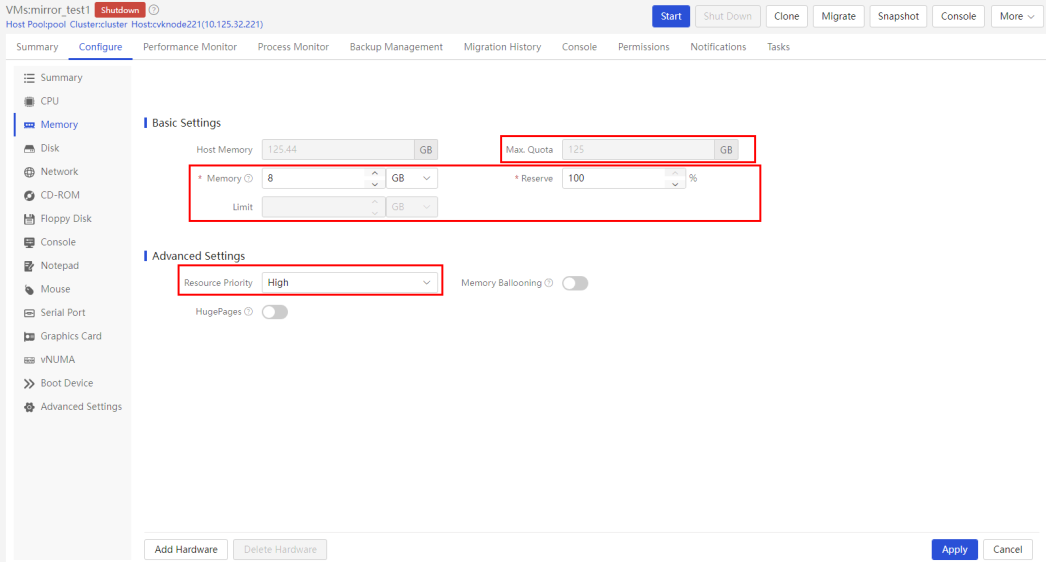
Figure-1 Editing memory settings
Storage QoS
Storage QoS allows you to limit the I/O throughput and IOPS for VMs that do not run key services to
ensure high performance of VMs that offer key services.
Limit the I/O throughput and IOPS
About the I/O throughput and IOPS
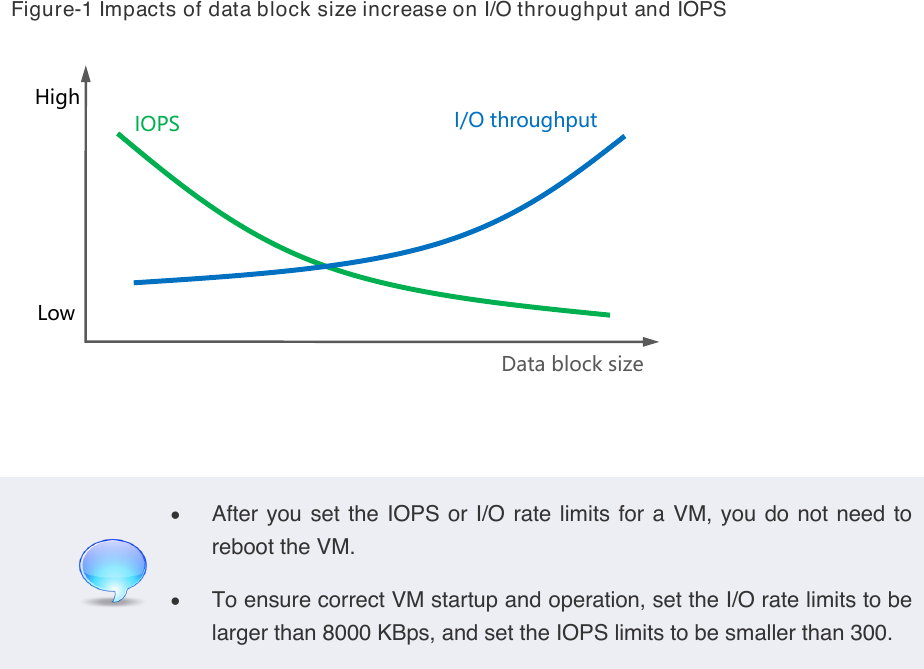
The relationship between the I/O rate and IOPS is as follows: I/O rate in MiBps = IOPS × data block size / 1024 As shown in Figure-1, the I/O throughput rises and the IOPS drops as the data block size increases. When a disk transmits large data blocks, it takes the disk more time to perform an I/O operation, and the IOPS drops accordingly. Because a large data block contains more data than a smaller one, the I/O throughput increases with the data block size. If you limit both the I/O throughput and IOPS, the first reached limit takes effect. Figure-1 Impacts of data block size increase on I/O throughput and IOPS
High IOPS I/O throughput
Low
Data block size
• After you set the IOPS or I/O rate limits for a VM, you do not need to reboot the VM.
• To ensure correct VM startup and operation, set the I/O rate limits to be larger than 8000 KBps, and set the IOPS limits to be smaller than 300.
Procedure
-
On the top navigation bar, click Resources.
-
From the left navigation pane, select Data Center Name > Cluster Name > Host Name > VM Name.
-
Click the Configure tab.
-
Click the Disk tab on the left, and then click Edit in the bottom right corner of the page.
-
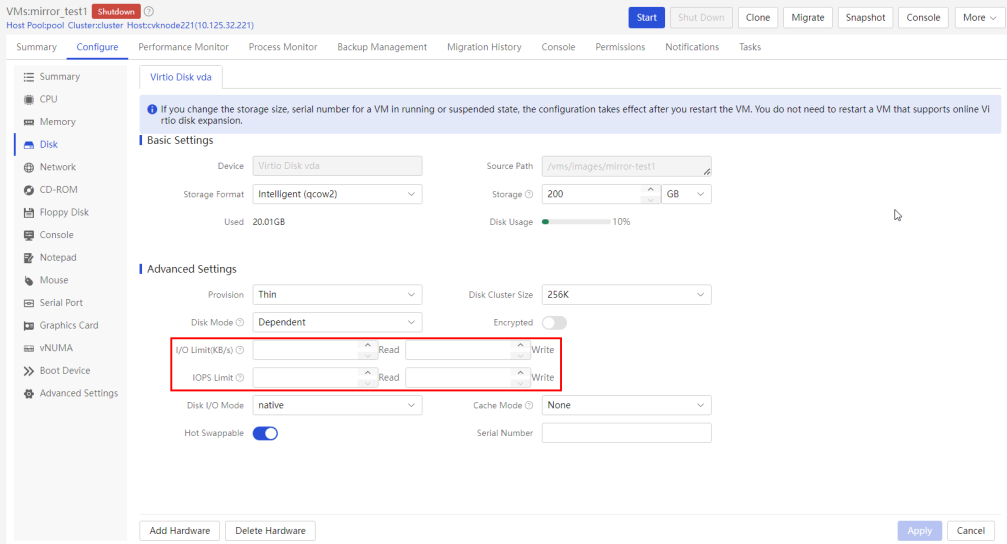
Configure the following parameters:
○ I/O Limit: Enter the I/O read and write rate limits in KBps.
○ IOPS Limit: Enter the IOPS read and write limits.
Figure-2 Editing advanced disk settings
Set the I/O priority
About I/O priorities
An I/O priority determines the sequence in which VMs access the physical disks of a host when the VMs are competing for storage resources. When storage resources are insufficient, the VMs with high I/O priority take precedence. I/O priorities can be high, medium, or low. The system allocates disk resources to VMs with high, medium, and low I/O priorities in a ratio of 5:3:2.
Procedure
-
On the top navigation bar, click Resources.
-
From the left navigation pane, select Data Center Name > Cluster Name > Host Name > VM Name.
-
Click the Configure tab. You are placed on the Summary tab.
-
Click Edit in the bottom right corner of the page.
-
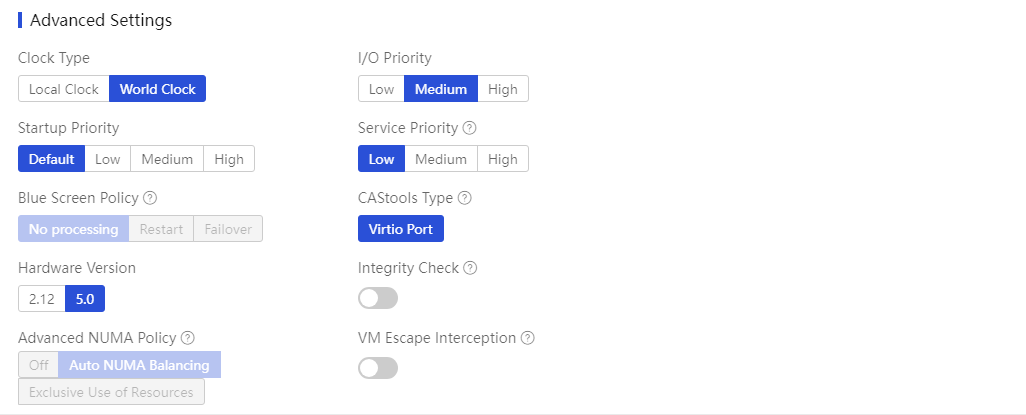
Set the I/O priority.
Figure-3 Setting the I/O priority
Network QoS
About network QoS
Network QoS uses port profiles for bandwidth management, traffic isolation, and traffic shaping of VMs. A port profile contains a set of rules such as ACLs, VLAN settings, and QoS policies. It defines the priority for VMs to access networks. You can use a port profile to control the bandwidth between a VM and a site or limit the traffic rate on a per-subnet basis. You can apply a port profile to the NICs of multiple VMs.
Apply a port profile to a VM
-
On the top navigation bar, click Resources.
-
From the left navigation pane, select Data Center Name > Cluster Name > Host Name > VM Name.
-
Click the Configure tab.
-
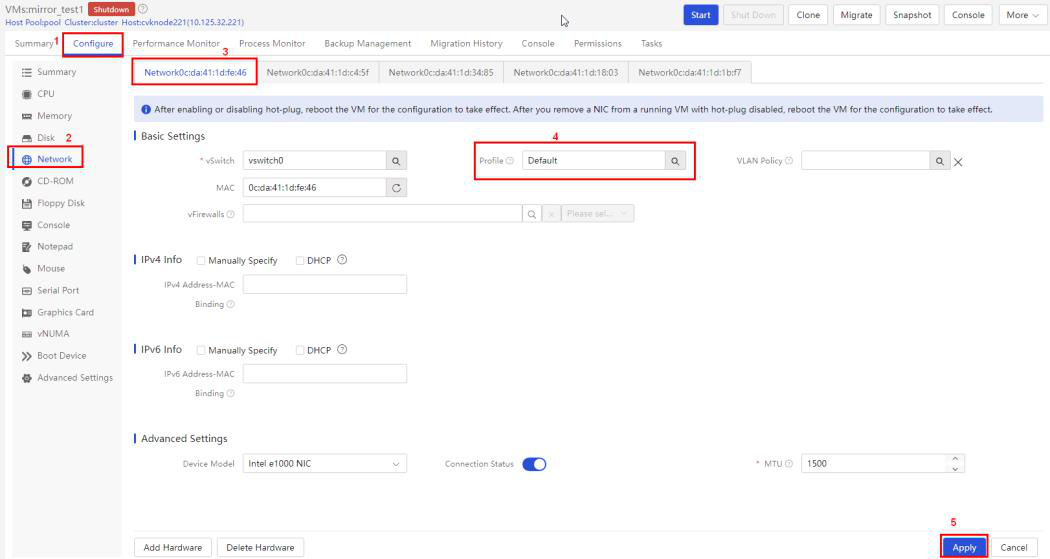
Click the Network tab on the left, and then click Edit in the bottom right corner of the page.
-
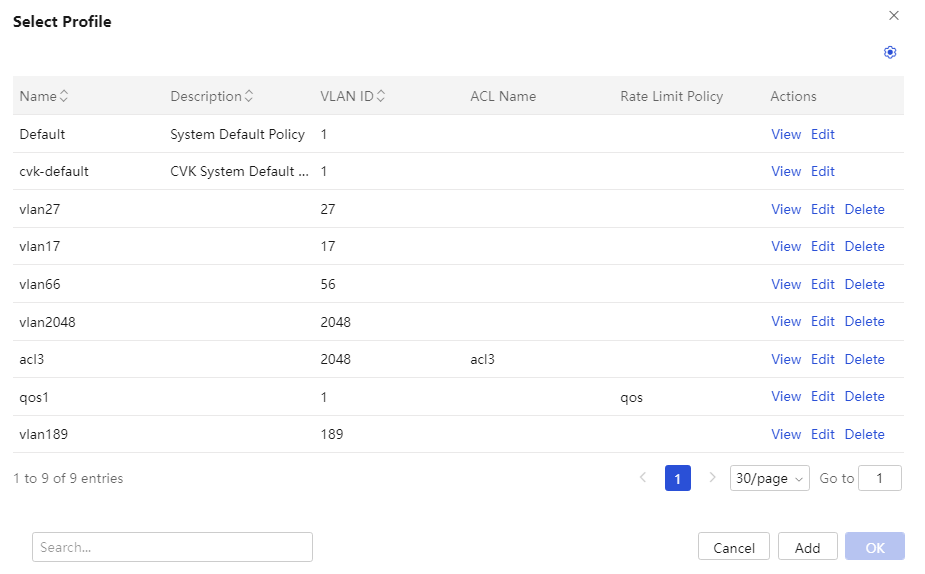
Click the icon for the Port Profile parameter. You can apply a port profile to a VM during VM creation. If no appropriate port profile is available, click Add to add a port profile. Figure-1 Selecting a port profile
- Click Add to create a new port profile and then select it for the VM. Alternatively, you can select an existing port profile. Figure-2 Adding a port profile
Configure inbound and outbound traffic limits
-
On the top navigation bar, click Resources.
-
From the left navigation pane, select Data Center Name > Cluster Name > Host Name > VM Name.
-
Click Edit.
-
Click the Network tab.
-
Click the Select icon for the Port Profile parameter.
-
Click Add.
-
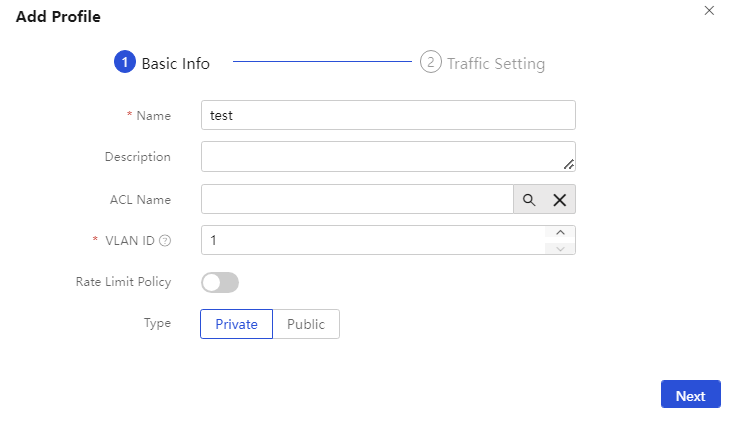
Configure the port profile name and VLAN ID, and then click Next. Figure-3 Specifying a port profile name
-
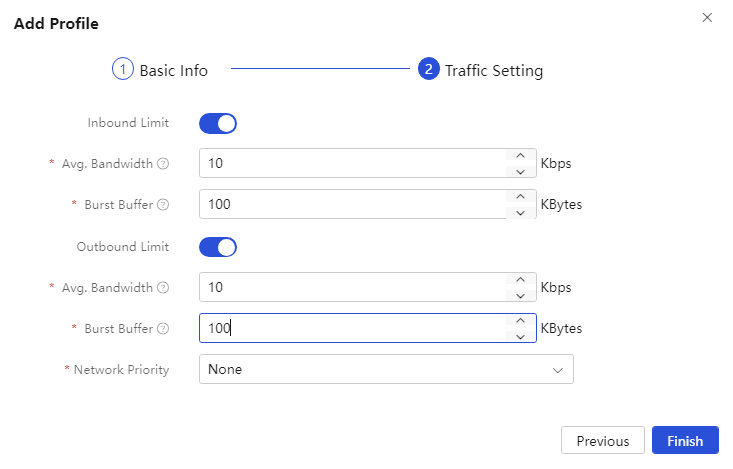
Configure the following parameters:
○ Inbound Limit: Limit the traffic from a virtual switch to a VM.
▪ Avg. Bandwidth: Enter the average inbound bandwidth in Kbps.
▪ Burst Buffer: Enter the inbound burst buffer in KBytes.
○ Outbound Limit: Limit the traffic from a VM to a virtual switch.
▪ Avg. Bandwidth: Enter the average outbound bandwidth in Kbps.
▪ Burst Buffer: Enter the outbound burst buffer in KBytes.
Figure-4 Configuring inbound and outbound traffic limits
Configure the network priority
About network priorities
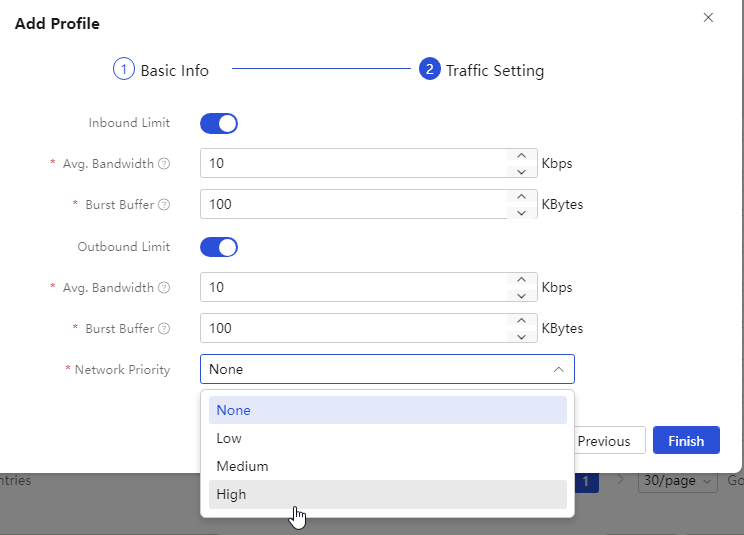
A network priority determines the sequence in which VMs are assigned bandwidth when the VMs are competing for network resources. Network priorities can be high, medium, or low. The system allocates bandwidth to VMs with high, medium, and low network priorities in a ratio of 6:3:1.
Procedure
-
On the top navigation bar, click Resources.
-
From the left navigation pane, select Data Center Name > Cluster Name > Host Name > VM Name.
-
Click Edit.
-
Click the Network tab.
-
Click the Select icon for the Port Profile parameter.
-
Click Add.
-
Configure the port profile name and VLAN ID, and then click Next.
-
Set the network priority. Figure-5 Setting the network priority
Configure a rate limit policy
About rate limit policies
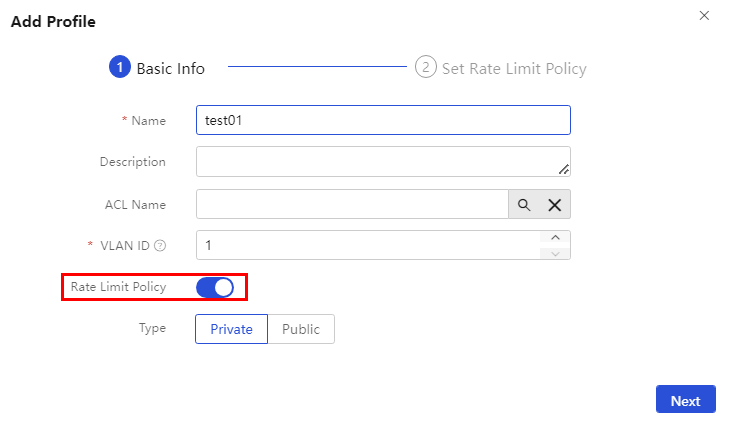
A rate limit policy is a set of rules that define average bandwidth and burst buffer for specific traffic flows. A rate limit policy provides accurate bandwidth control for the traffic between a VM and a network site.
To apply a rate limit policy to VMs, you must specify it in a port profile. Compared with the inbound and outbound traffic limits of a port profile, a rate limit policy provides more granular traffic control.
A rate limit policy is mutually exclusive with the inbound and outbound limits and network priority.
Procedure
-
On the top navigation bar, click Resources.
-
From the left navigation pane, select Data Center Name > Cluster Name > Host Name > VM Name.
-
Click Edit.
-
Click the Network tab.
-
Click the Select icon for the Port Profile parameter.
-
Click Add.
-
Configure the port profile name and VLAN ID, enable the rate limit policy, and then click Next. Figure-6 Enabling the rate limit policy
- Select a rate limit policy, and then click OK. Alternatively, you can create a rate limit policy. Figure-7 Selecting a rate limit policy

Create a rate limit policy
-
On the rate limit policy selection page, click Add.
-
Enter a name for the policy, and then click Add Rude. Figure-8 Adding a rate limit rule
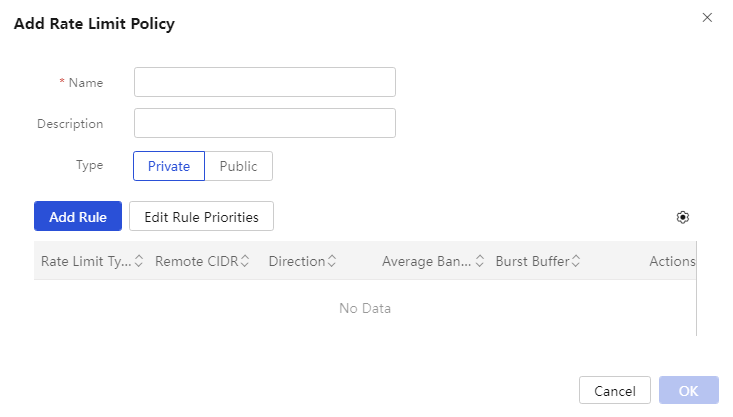
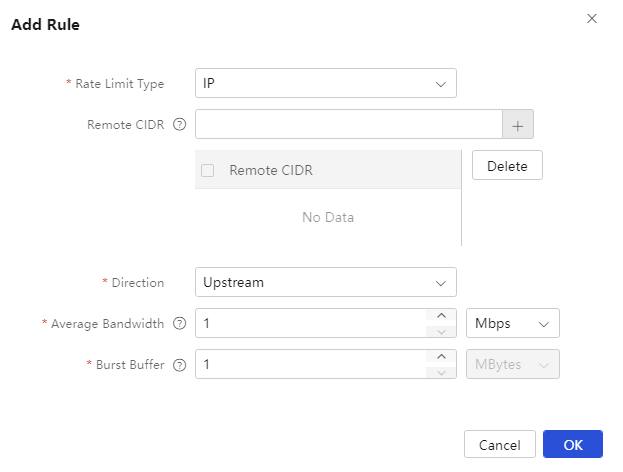
- Configure the subnets, traffic direction for rate limiting, average bandwidth and burst buffer, and then click OK.
Figure-9 Configuring the rate limit parameters